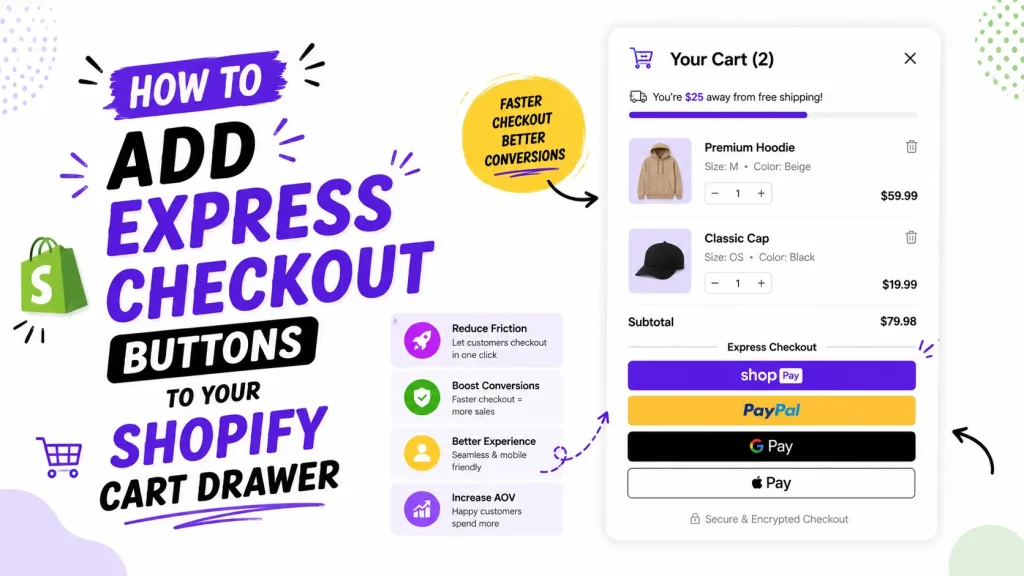
Express checkout buttons let shoppers pay with Shop Pay, PayPal, Google Pay, or Apple Pay in one tap, right inside the cart drawer. They skip the long form, load saved details, and finish the order in seconds. That usually means fewer drop-offs and more sales, especially on phones. But there is a catch: these buttons often refuse to show up because of theme and payment settings. This guide covers both sides. You get the working code, the no-code way, and the real fix for when the buttons go missing.
Let’s get into it.
What are express checkout buttons?
They are the fast pay buttons you see at the top of a checkout. Instead of typing an address and card number, the shopper taps one button and pays with info they already saved.
Shopify calls them “accelerated checkout buttons.” Right now Shopify supports these:
- Shop Pay (Shopify’s own fast checkout)
- PayPal
- Google Pay
- Apple Pay (shows on Apple devices and Safari)
- Amazon Pay
- Venmo
Which ones appear depends on the shopper’s device, browser, and what they have saved. An Android user will not see Apple Pay, and Apple Pay only shows in Safari with a linked wallet. Shopify orders the buttons automatically and puts the fastest option first. You can read the full list in Shopify’s accelerated checkouts guide.
Why put them in the cart drawer (the conversion case)
Picture a shopper ready to buy. They tap checkout and a form asks for their email, name, full address, and card. On a small phone screen that is a lot of typing, and that is the exact moment many people quit.
Express checkout buttons remove that wall. One tap, saved info loads, order placed.
Why they work so well:
- They cut friction. Fewer steps means fewer chances to change their mind.
- They are fast on mobile. One thumb tap beats typing 40 characters.
- They build trust. A familiar Shop Pay or PayPal logo tells new shoppers your store is safe.
Shopify reports that Shop Pay checks out about 4 times faster than a normal checkout, and shoppers who use it convert at roughly 1.72 times the rate of regular checkout. Speed plus trust moves more carts to “paid.”
The cart drawer is the best home for these buttons because shoppers land there the second they add a product. You catch them at peak interest, give a fast exit to people who just want to buy, and keep the slow lane open for everyone else.
Top or bottom of the drawer? A quick call
Placement matters more than people think.
- Put the express buttons near the bottom, below your upsells and free shipping bar.
- This lets shoppers see your “frequently bought together” or free gift offer first.
- Then they hit the fast pay button once they are ready.
If you put Shop Pay at the very top, some shoppers tap out before they ever see your upsell. Bottom placement protects your average order value while still giving the express experience. Oxify Cart Drawer lets you do both in one drawer, upsells up top, express checkout below.
The fastest way: add them with Oxify Cart Drawer
If you use Oxify Cart Drawer, most of this is point and click.
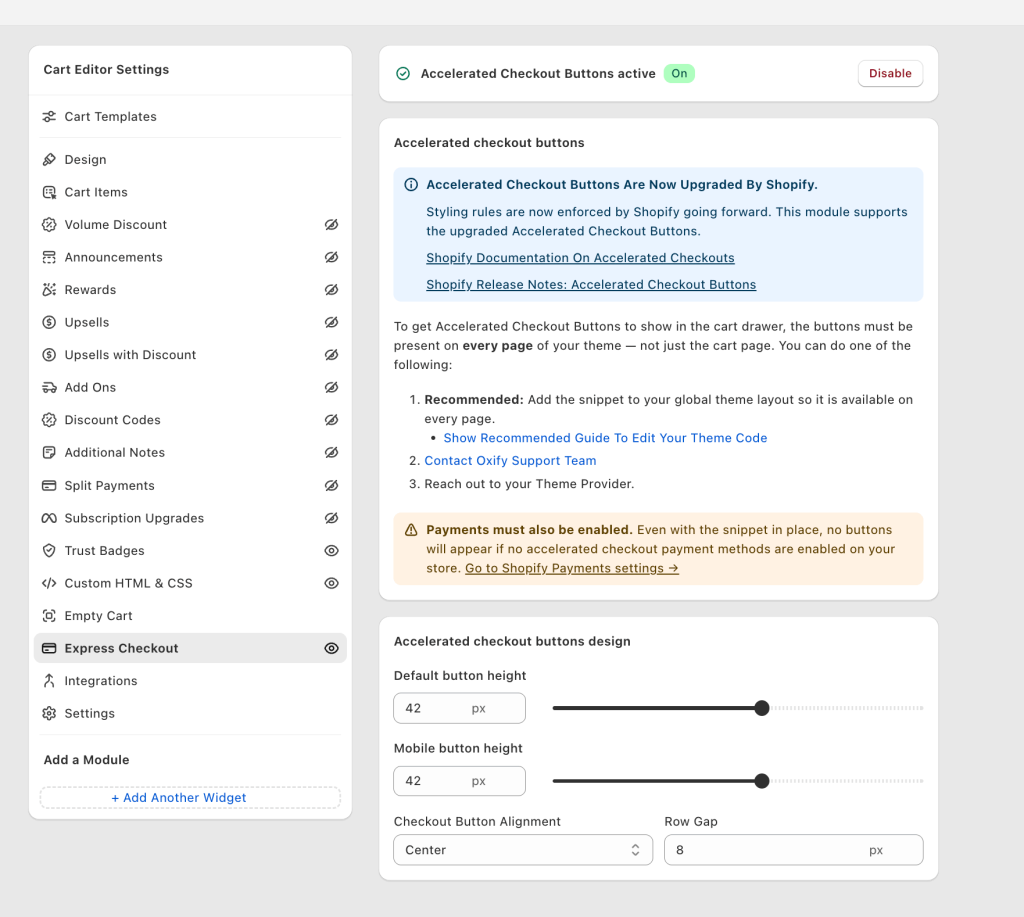
- Open Oxify Cart Drawer in your Shopify admin.
- Find the Accelerated Checkout Buttons module and switch it from Off to Enable.
- Open the design settings: set button height for desktop, button height for mobile, alignment, and the gap between rows.
- Add the one-time snippet below so the buttons exist for the drawer to use (more on why in a second).
- Turn on your payment methods, then test on a phone and a desktop.
The app handles the hard parts: cloning the buttons into the drawer, re-drawing them when the drawer reloads, and keeping them inside Shopify’s styling rules. You just flip the toggle and add one snippet.
The working snippet (and why it is needed)
Here is the key thing most guides get wrong. For express buttons to appear in a cart drawer, the button code must be present on every page of your theme, not just the cart page. The drawer can open anywhere, so the buttons have to be available everywhere.
The fix is to add a hidden reference copy to your global layout. The drawer then clones from it.
Step 1: Go to Online Store → Themes → Edit code → layout/theme.liquid
Step 2: Paste this just before the closing </body> tag. The display:none wrapper hides it from the page itself. It only acts as a source the drawer copies from.
{% comment %} Oxify Cart: Accelerated Checkout Buttons {% endcomment %}
{% if additional_checkout_buttons %}
  <div style="display:none" aria-hidden="true">
    {{ content_for_additional_checkout_buttons }}
  </div>
{% endif %}
Important: this goes in layout/theme.liquid, not your cart template. If you only add it to the cart page, the buttons show only when the drawer is opened while the shopper is already on /cart. That is the number one reason people think it is broken.
If you also want the buttons on your normal /cart page (outside the drawer), add this simpler snippet to sections/main-cart-footer.liquid:
{% if additional_checkout_buttons %}
  {{ content_for_additional_checkout_buttons }}
{% endif %}
Save, reload any page, and the drawer should now show the express buttons.
No-code app vs manual code: which should you pick?
Both routes use the same Shopify buttons. The difference is who handles the messy parts.
| What matters | Manual code only | Oxify Cart Drawer |
|---|---|---|
| Edit theme files | Yes, and you maintain it | One guided snippet |
| Re-draws buttons when drawer reloads | You build it | Handled for you |
| Design controls (height, align, gap) | Custom CSS | Built-in settings |
| Breaks on theme update | Often | Rare |
| Upsells and free gifts in the same drawer | No | Yes |
If you are comfortable in theme code and only want the buttons, the manual route works. If you want it to keep working after theme updates and pair with upsells, the app saves you the headache.
Why your express checkout buttons are not showing (the part other guides skip)
This is the most searched problem on this topic. It is almost always one of these. Work down the list.
1. Payment methods are not turned on. No buttons show if you have not enabled accelerated payment methods. Go to Shopify Payments settings and switch on Shop Pay plus any others like PayPal, Google Pay, or Venmo. No active method means no button.
2. The snippet is only on the cart page, not the global layout. This is the most common one. The reference snippet must live in layout/theme.liquid so the drawer can clone it from any page. Cart-page-only placement makes the buttons appear only on /cart.
3. Your theme only allows them in one place. Some themes (Impulse is a known example) let you show the buttons in the cart or the checkout, but not both. If you tick “show dynamic checkout buttons” under cart settings, they can vanish from checkout. Check your theme’s cart settings first.
4. The drawer re-rendered and dropped them. Cart drawers are rebuilt by JavaScript after the page loads, so manually placed buttons can disappear. This hits themes like Pipeline, Prestige, and Dawn. You need something that re-draws the buttons after each reload, which is what the app does.
5. Too many buttons, so they wrap and look broken. When buttons run out of room, Shopify stacks them vertically at full width. With five or six wallets that looks messy on mobile. Trim the list (next section).
Themes where this commonly breaks
If you use one of these, expect to use the global snippet or an app rather than the theme’s built-in cart setting:
- Dawn and other free themes (drawer rebuilt by JavaScript)
- Impulse (buttons show in cart or checkout, not both)
- Pipeline (blank buttons in the drawer is a known report)
- Prestige (drawer buttons need the global reference)
- Craft (button visibility tied to popup vs drawer setting)
Do not overload the drawer
More buttons is not better. Five colored buttons crammed into a small drawer overwhelm shoppers and slow them down. That is choice paralysis.
A clean setup:
- Show only the 2 or 3 wallets your audience actually uses.
- Put Shop Pay first if you use Shopify Payments, since the top button gets most taps.
- Test one change at a time so you know what moved your numbers.
Measure it, do not set and forget
After it is live, watch your numbers for a week or two:
- Checkout completion rate. Is more of your cart traffic finishing?
- Average order value. If it drops, your buttons may be too high and shoppers are skipping upsells.
- Mobile vs desktop. Most of the lift usually shows on mobile.
Change one thing at a time so you always know what caused the move.
The 2026 change you should know about
In early 2026, Shopify upgraded how accelerated checkout buttons work and started enforcing its own styling rules. Some cart apps could not keep up and removed the feature to stay compliant. If your old cart app dropped express buttons, that is why.
Oxify Cart Drawer supports the upgraded buttons, so you stay current with Shopify’s rules and keep the conversion boost. For the technical detail, Shopify documents it in their accelerated checkout developer docs.
Quick setup checklist
- [ ] Accelerated payment methods turned on in Shopify Payments
- [ ] Express checkout module enabled in Oxify Cart Drawer
- [ ] Reference snippet added to
layout/theme.liquid(not the cart template) - [ ] Only 2 or 3 wallets shown, Shop Pay first
- [ ] Express buttons placed below your upsells
- [ ] Tested on a real phone and a desktop
- [ ] Watched conversions for a week to confirm the lift
Frequently asked questions
What is an express checkout button?
It is a fast pay button like Shop Pay, PayPal, Google Pay, Apple Pay, Amazon Pay, or Venmo. Shoppers tap it once and pay with saved details instead of filling out a form.
Do express checkout buttons really improve conversions?
They reduce checkout friction, which usually means fewer abandoned carts and more orders, especially on mobile. Shopify reports Shop Pay converts at about 1.72 times the rate of standard checkout.
Why are my express checkout buttons not showing in the cart drawer?
The usual causes are payment methods not enabled, the reference snippet only on the cart page instead of the global layout, a theme that allows the buttons in one place only, or the drawer re-rendering and dropping them. Fixing these brings the buttons back.
Where exactly do I paste the code?
Put the hidden reference snippet in layout/theme.liquid, just before the closing </body> tag. That makes the buttons available on every page so the drawer can use them.
My express buttons disappeared after I changed themes. Why?
New themes handle cart drawers differently. Some need the dynamic checkout setting turned on again, and some only show the buttons in the cart or the checkout, not both. Check the new theme’s cart settings, or use a cart drawer app so it carries over.
How many express checkout buttons should I show?
Keep it to 2 or 3 to avoid clutter. Show the wallets your customers use most, and place Shop Pay first if you run Shopify Payments.
Will express checkout hurt my upsells or average order value?
Only if you place the buttons too high. Put them below your upsells and free gift offers so shoppers see those first, then check out fast.
Can I add express checkout buttons without touching code?
Mostly. With Oxify Cart Drawer you enable the module and adjust the design with no code. You add one guided snippet to your layout once, and the app handles the rest.
Ready to add express checkout to your cart drawer?
Express checkout buttons are one of the fastest ways to turn ready shoppers into paying customers. They cut friction, build trust, and meet people at the exact moment they want to buy. The trick is getting them to actually show up and placing them so they help instead of hurt.
Install Oxify Cart Drawer and turn on express checkout in a few clicks. Start your 14 day free trial and see the lift for yourself.