You just added a hoodie to your cart.
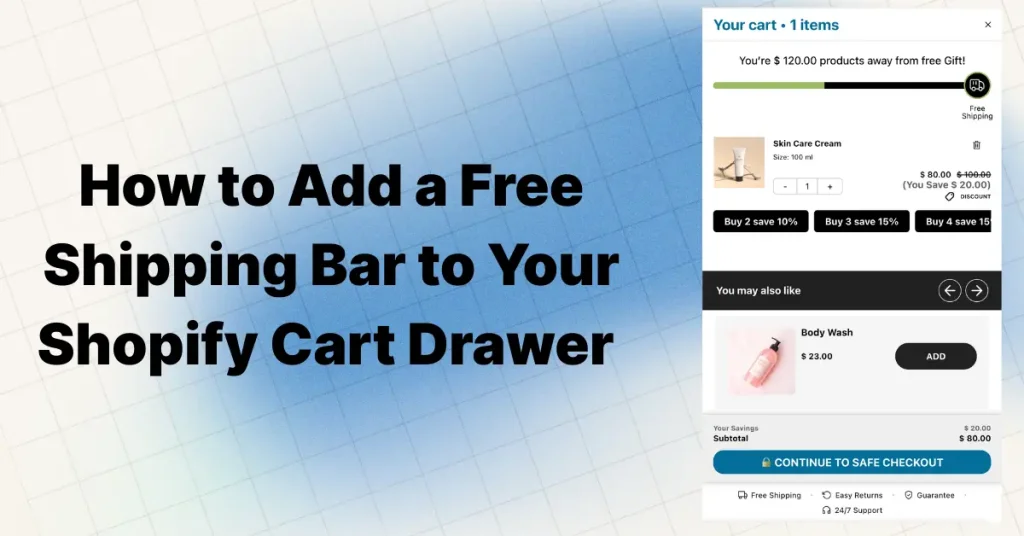
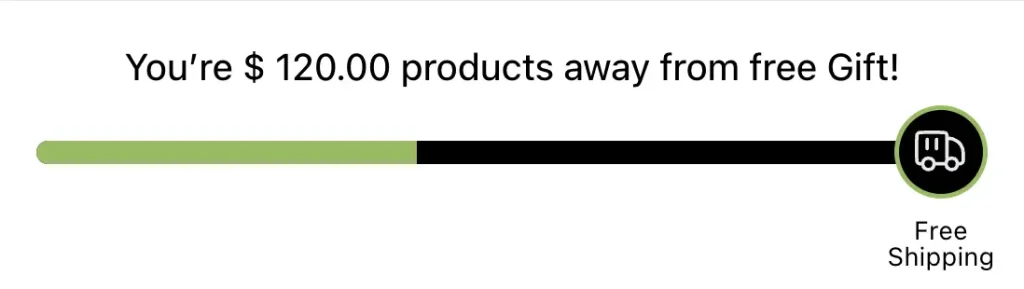
A sliding panel opens from the right. At the top, a bright bar — half full — says:
“You’re $18 away from FREE shipping!”
You look at the bar. It’s almost there. So you toss in a pair of socks for $12. The bar jumps to 90%. One more lip balm. Done.
“🎉 You’ve unlocked FREE shipping!”
That dopamine hit? That’s a Shopify cart drawer free shipping bar doing exactly what it’s built for — turning a $52 order into a $71 order without a single ad dollar spent.
This isn’t theory. According to Baymard Institute research, roughly 48% of shoppers abandon carts because of unexpected costs like shipping. Yet separate data shows about 58% will voluntarily add extra items just to hit a free shipping threshold. That gap between “I’ll leave” and “I’ll spend more” is exactly where the free shipping progress bar lives — and it’s one of the highest-ROI tweaks you can make to a Shopify store in 2026.
Quick answer: A Shopify cart drawer free shipping bar is a dynamic progress indicator inside your slide-out cart that shows customers how much more they need to spend for free delivery. Set the threshold at 1.3× your current AOV, pair it with 2-3 impulse-priced upsell products below the bar, and expect a 15-30% AOV increase within 30 days. Three setup methods exist: Shopify’s free announcement bar (static), a no-code app like Oxify Cart Drawer (recommended), or custom Liquid code (developer-only).
What Is a Cart Drawer Free Shipping Bar, Exactly?
Two features working together. Understanding both matters.
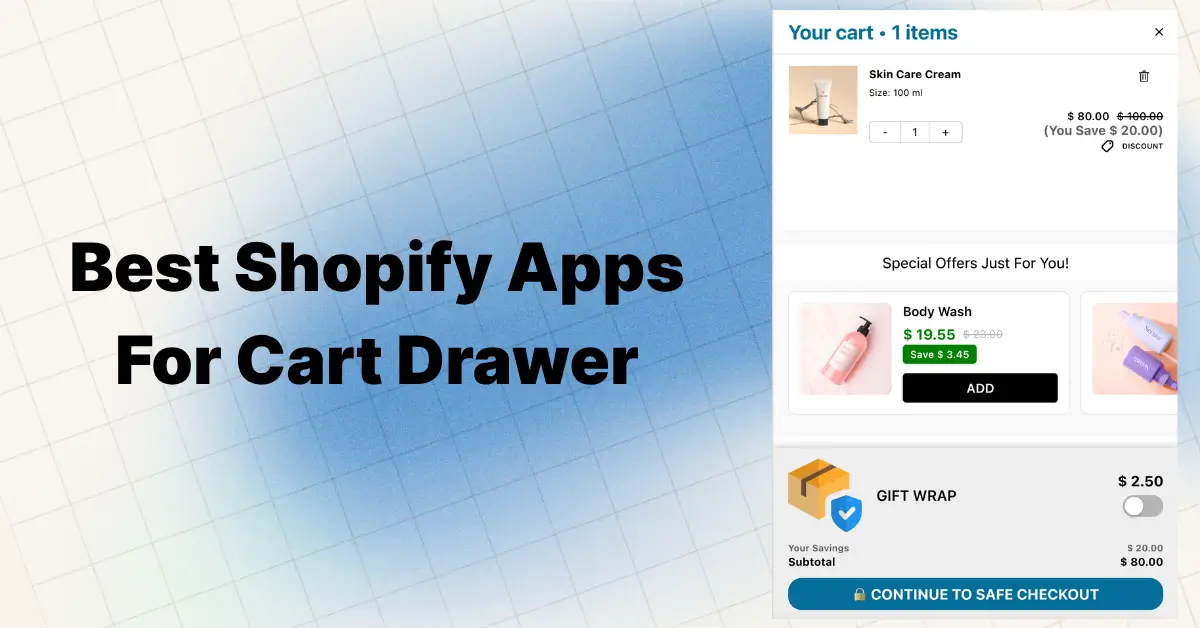
The cart drawer (also called a slide cart, side cart, AJAX cart, or mini cart) is the panel that slides in from the side when someone clicks “Add to Cart.” Instead of redirecting to a full /cart page, the customer sees their items in an overlay — staying on the same product or collection page. No page reload. No lost browsing context. Shopify themes like Dawn and Refresh include a basic cart drawer, but it lacks built-in progress bars or upselling features.
The free shipping progress bar (also called a shipping threshold bar, spending goal bar, delivery threshold bar, or cart goal tracker) is a visual progress indicator inside that drawer. It shows exactly how much more the customer needs to spend to unlock free delivery — and updates in real time as items are added or removed.
When you put the progress bar inside the cart drawer, you catch shoppers at their single highest-intent moment. They just clicked “Add to Cart.” Their wallet is psychologically open. And instead of a boring cart total, they see a partially filled bar whispering: you’re this close to a reward you already want.
That combination — high intent + visual progress + clear reward — is what drives the AOV jump.
Why This Actually Works (The Psychology Nobody Explains Properly)
Most articles say “free shipping increases conversions” and move on. That’s surface-level. Here’s what’s really happening in the customer’s brain — five cognitive biases working at once.
1. The Goal Gradient Effect
Research from Columbia University found people accelerate effort as they get closer to a goal. A coffee loyalty card that starts 2/10 stamps filled gets completed faster than one starting 0/8 — even though both need 8 more stamps.
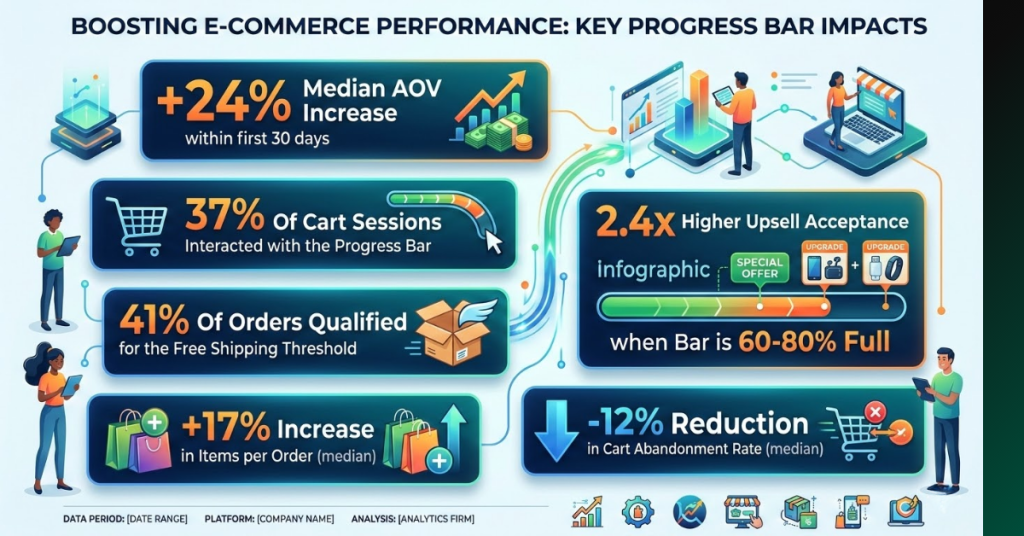
Your progress bar does the same thing. When it’s 70% full, the customer’s brain screams just finish it. This is why upsell acceptance peaks when the bar is 60-80% full — the goal feels close enough to chase.
2. Loss Aversion (Kahneman & Tversky)
People feel losses roughly twice as intensely as equivalent gains. When a customer is $12 from free shipping, NOT reaching it feels like losing a $9 benefit they already partially earned.
The progress bar makes that potential loss visible. That’s not a discount offer. That’s a loss avoidance trigger.
3. The Anchoring Reframe
Watch the mental math:
- Option A: Pay $9 shipping. Get nothing extra. Total: $64.
- Option B: Add a $12 product. Get the product AND free shipping. Total: $67.
Option B costs $3 more but includes a real product. Shipping gets reframed from “a cost” to “wasted money I could spend on something useful.” That reframe — from paying for air to getting a product — makes extra spending feel like winning.
4. The Zeigarnik Effect
Psychologist Bluma Zeigarnik showed that people remember and feel compelled to finish incomplete tasks. A progress bar at 70% triggers the same tension as an unfinished puzzle.
Your brain doesn’t want to leave it hanging. It wants completion.
5. Peak-Intent Timing
The cart drawer opens at the exact moment purchase commitment peaks — right after clicking “Add to Cart.” Showing a shipping nudge here is like offering dessert right after someone finishes their main course. Resistance is lowest. Conversion incentive is highest.
The Numbers: Does It Actually Move the Needle?
Let’s look at real data instead of vague promises.
According to Shopify’s own free shipping research, as many as 80% of online shoppers are willing to meet a minimum purchase threshold to avoid shipping costs. Many prefer adding a $10 item instead of paying $7.99 for shipping.
Separate data from eCommerce research firms shows that setting thresholds 10-30% above current AOV can drive incremental purchases, with approximately 58% of customers actively adding items to qualify for free shipping.
From real merchant communities and case studies:
- Fashion stores have reported AOV jumps from $42 to $61 — a 45% increase — after adding a spending goal bar with upsell products below it
- Beauty brands have seen roughly two-thirds of users accepting upsell products when paired with a free shipping motivator
- Multiple Shopify merchants confirm customers routinely toss in extra items just to cross the shipping threshold
- Product bundling paired with shipping bars has driven 20-30% AOV lifts according to industry benchmark data
Honest Reality Check
This won’t fix bad products, terrible pricing, or zero traffic. A shipping threshold bar amplifies existing demand. If your store already converts, this makes it convert harder. If nobody wants what you sell, a progress bar won’t save you.
It boosts AOV — not traffic.
Where Should You Place It? (This Matters More Than Design)
Cart Drawer — The Clear Winner
- Immediate visibility at the buying moment
- Updates in real time with zero page reload
- Feels native, not spammy
- Catches the customer at peak purchase intent
The cart drawer is hands-down the highest-performing location for a free shipping progress bar.
Product Page — Solid Secondary
Showing the threshold on product pages pre-conditions customers. They start thinking about free shipping before they even open the cart. It sets the cart value goal early.
Announcement Bar — Weakest Option
Static. Generic. Easy to scroll past. Better than nothing, but don’t rely on it alone.
The Pattern From Top-Performing Stores
Every high-converting Shopify store we studied follows the same layout:
- Free shipping bar at the very top of the cart drawer
- Specific dollar amount remaining (never vague “almost there!” messaging)
- Upsell products placed directly below the bar
That’s not coincidence. It’s conversion architecture.
How to Calculate Your Free Shipping Threshold (Don’t Guess)
Most store owners pick a round number ($50, $75, $100) and hope. That’s gambling.
The Formula
Free Shipping Threshold = Your Current AOV × 1.3
Set the threshold about 30% above your current average order value. This is called the 30% rule, and CRO data consistently backs it up.
Research shows thresholds set 10-30% above current AOV are most effective at driving incremental purchases without being so high customers ignore them.
Quick Reference Table
| Your Current AOV | Too Low (≤ AOV) | Optimal (× 1.3) | Too High (× 2+) |
|---|---|---|---|
| $35 | $35 — gives away shipping on existing orders | $46 | $70 — most carts start below 50% |
| $50 | $50 — no incremental revenue | $65 | $100 — feels unattainable |
| $75 | $75 — everyone already qualifies | $98 | $150 — bar barely moves |
| ₹1,000 | ₹1,000 — wasted opportunity | ₹1,300 | ₹2,000 — nobody doubles their order |
Profitability Sanity Check
- Current AOV: $60
- New threshold: $78 (× 1.3)
- Average shipping cost absorbed: $8
- Your gross margin: 50%
Customer spends $78 instead of $60. Extra $18 × 50% margin = $9 gross profit. Minus $8 shipping cost = $1 net gain per qualifying order.
Sounds small? At 5,000 orders/month with 40% qualifying, that’s 2,000 orders × $1+ = $2,000+/month extra profit from a 5-minute setup. Plus you move more inventory and boost customer satisfaction.
Where to find your AOV: Shopify Admin → Analytics → Reports → Sales over time. Use the last 90 days. Revisit monthly — if AOV climbs past your threshold, you’re giving away free shipping to everyone and the bar stops motivating. Adjust.
👉 Related: How to set up shipping rates on Shopify — complete guide
Method 1: Shopify’s Built-In Announcement Bar (Free, Takes 2 Minutes)
Every Shopify 2.0 theme includes an announcement bar. You can use it for a basic free shipping message with zero code.
How to set it up:
- Go to Shopify Admin → Online Store → Themes → Customize
- In the left sidebar under Header, click “Announcement bar”
- Type a specific message: “Free shipping on all orders over $65 🚚”
- Pick contrasting colors. Save and publish.
Why this has limits:
- Static text only — no dynamic progress indicator
- Can’t show how much more the customer needs to spend
- Doesn’t live inside the cart drawer
- Can’t auto-apply a discount code
- No upsell product recommendations
- No multi-currency or geo-targeting
Think of it as a billboard. It informs. It doesn’t motivate.
If you want the gamified, real-time experience that actually moves AOV, you need Method 2 or Method 3.
Method 2: Use a Cart Drawer App (No Code, Recommended)
This is what most Shopify merchants use. A dedicated cart drawer app replaces your default cart with a slide-out panel that includes a free shipping progress bar, upsell recommendations, tiered rewards, and real-time updates — all without touching theme code.
Oxify Cart Drawer is a strong all-in-one option here. It bundles the free shipping progress bar with AI-powered upsells, tiered reward ladders, countdown timers, trust badges, auto-discount code toggle, and free gift automation — in one app instead of stacking three separate tools.
Step-by-Step Setup (Under 10 Minutes)
1. Install the app Visit the Oxify Cart Drawer listing on the Shopify App Store. Add app → approve permissions → start free trial.
2. Enable the slide cart Open Shopify Admin → Apps → Oxify Cart Drawer. Toggle the slide cart ON. Choose slide direction (left or right), animation speed, and match colors/fonts to your theme. The drawer replaces your default cart behavior site-wide.
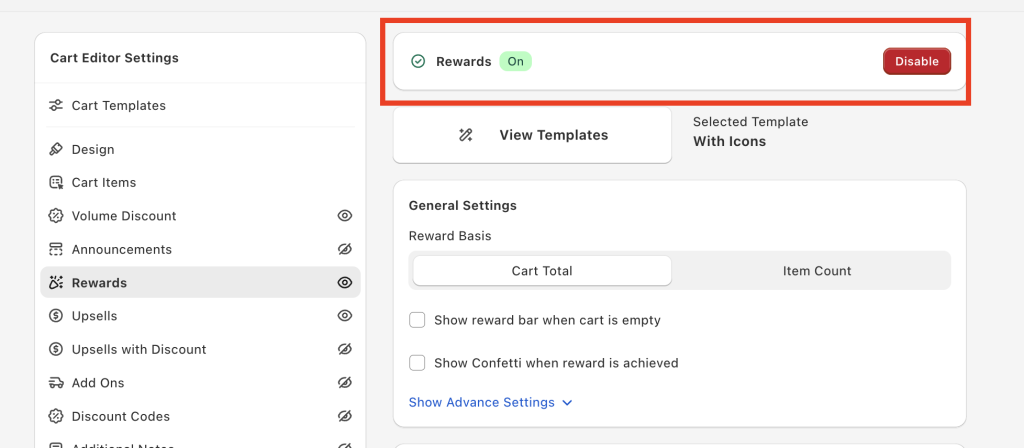
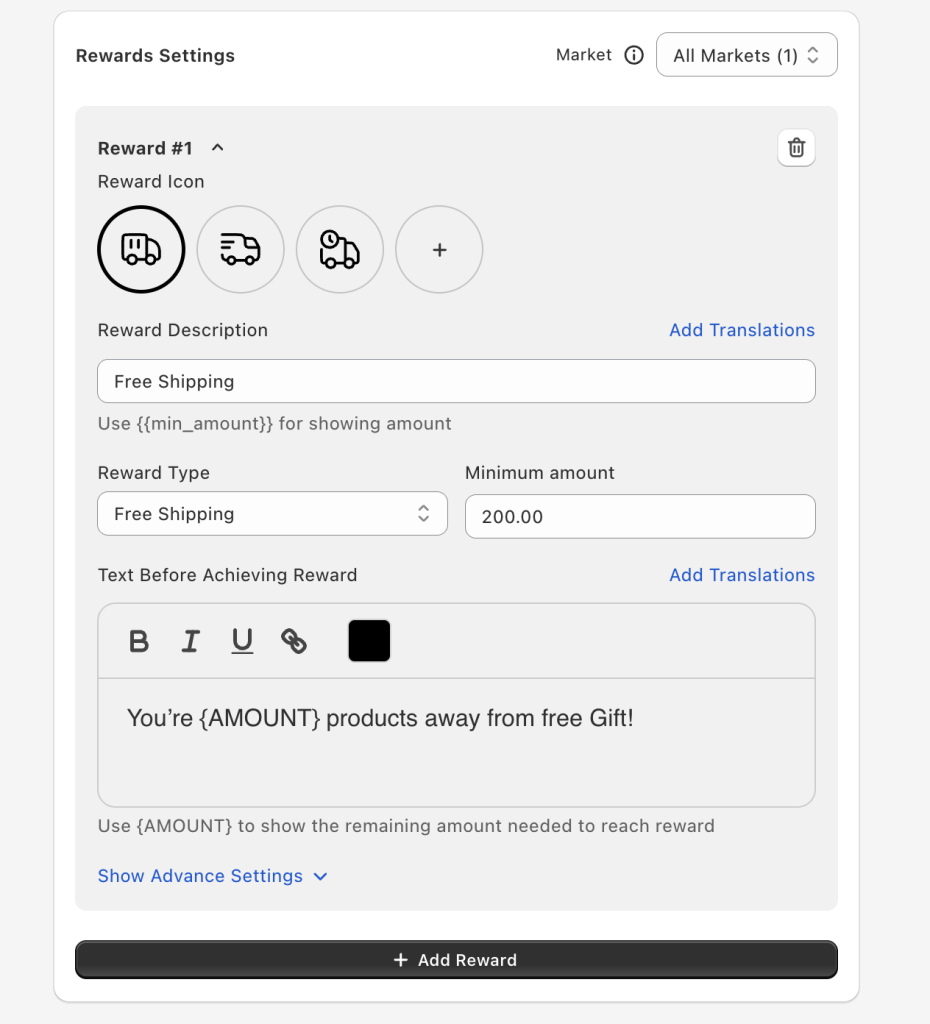
3. Configure the free shipping bar Navigate to “Rewards / Progress Bar” in settings. Enter your calculated threshold (using the × 1.3 formula). Customize three message states:
- Below threshold: “You’re {remaining_amount} away from FREE shipping!”
- Goal reached: “🎉 You’ve unlocked FREE shipping!”
- Empty cart: “Add {threshold_amount} to get FREE shipping.”
Use high-contrast color fills against light backgrounds for maximum visibility.
4. Set up the auto-discount toggle This is the feature that makes Oxify unique — covered in detail in the next section.
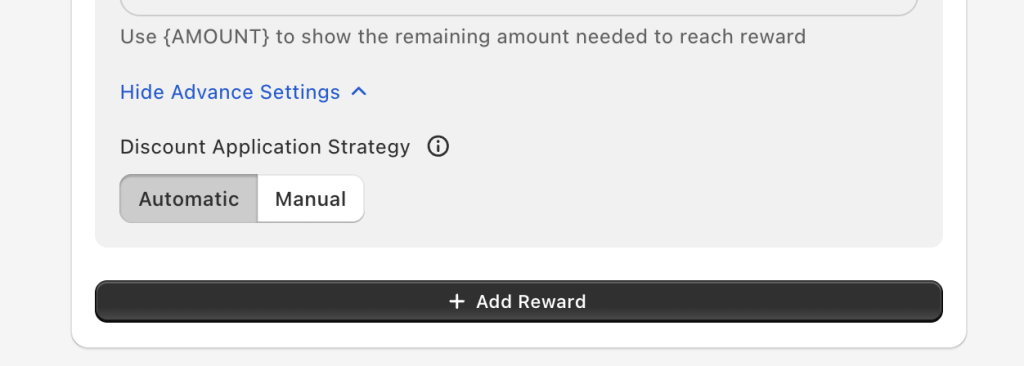
5. Add upsell products Add 2-3 products that bridge the typical AOV-to-threshold gap ($12-$20 range). Oxify supports manual selection for small catalogs and AI recommendations for larger ones.
6. Set up tiered rewards (optional but powerful)
- Spend $65 → Free shipping
- Spend $85 → Free shipping + customer picks a free gift
- Spend $120 → Free shipping + free gift + 10% off next order
Multiple tiers create multiple reasons to keep adding items.
7. Test on a real phone, then publish Don’t just resize your browser. Open the store on an actual phone. Verify:
- Progress bar updates in real time (add/remove/quantity change)
- Celebration message fires when threshold is hit
- Upsell “Add” buttons work with one thumb tap
- Discount code appears at checkout (if auto-discount is ON)
- Bar colors are legible on light AND dark backgrounds
Method 3: Custom Liquid Code (Free, For Developers)
If you want full control and you’re comfortable editing Shopify theme files, here’s a basic free shipping progress bar using Liquid.
Step 1: Create the Snippet
Go to Shopify Admin → Online Store → Themes → ••• → Edit Code → Snippets → “Add a new snippet” → name it free-shipping-bar.
liquid
{%- assign threshold = 6500 -%}
{%- comment -%} threshold in cents. $65 = 6500 {%- endcomment -%}
{%- assign cart_total = cart.total_price -%}
{%- assign remaining = threshold | minus: cart_total -%}

<div style="max-width:480px;margin:16px auto;text-align:center;">
  {%- if cart.item_count == 0 -%}
    <p>Add {{ threshold | money }} to get <strong>FREE shipping</strong>!</p>
  {%- elsif cart_total >= threshold -%}
    <p style="color:#059669;font-weight:700;">🎉 You've earned FREE shipping!</p>
  {%- else -%}
    <p>You're <strong>{{ remaining | money }}</strong> away from FREE shipping!</p>
  {%- endif -%}

  {%- assign pct = cart_total | times: 100 | divided_by: threshold -%}
  {%- if pct > 100 -%}{%- assign pct = 100 -%}{%- endif -%}

  <div style="background:#e5e7eb;border-radius:999px;height:10px;overflow:hidden;margin-top:8px;">
    <div style="background:#2563eb;height:100%;width:{{ pct }}%;border-radius:999px;
         transition:width .3s ease;"></div>
  </div>
</div>
Step 2: Render It
Open sections/main-cart.liquid and add at the top:
liquid
{% render 'free-shipping-bar' %}Step 3: Create the Actual Free Shipping Rate
The code only displays the bar. You still need the shipping rate:
- Shopify Admin → Settings → Shipping and Delivery → Manage
- Click “Add rate” in your shipping zone
- Name: “Free Shipping” → Price: $0
- Condition: “Based on order price” → minimum = your threshold
What This Method Can’t Do
- No real-time updates — bar only recalculates on page reload. AJAX “Add to Cart” buttons won’t trigger changes without custom JavaScript using Shopify’s Cart AJAX API.
- Cart page only — renders on /cart, not inside a slide-out drawer (unless your theme’s drawer supports custom sections).
- No auto-discount — you rely on native Shopify shipping rules.
- Single currency — threshold is hardcoded. Multi-currency stores need Shopify Markets API work.
- No upsells — you’d need a separate app or code for product recommendations.
- Maintenance risk — theme updates can overwrite your changes. Multiple Shopify community threads report broken carts after adding custom bar code.
This method works for developers building a proof-of-concept or stores with dead-simple needs. For most merchants, an app saves headaches and ships faster.
The Auto-Discount Toggle: A Feature Nobody Else Covers
Here’s something no other guide on this topic explains properly. Most free shipping bar apps work one of two ways: either they apply a discount code automatically, or they’re display-only and you handle the shipping logic in Shopify settings. Oxify Cart Drawer lets you toggle between both modes without switching apps.
Auto-Discount Code: ON
When the customer’s cart total crosses your threshold, Oxify generates a unique shipping discount code and auto-applies it at checkout. The customer sees “Free Shipping” as a discount line item — no code entry required.
Best for: Stores that don’t have free shipping set up in Shopify’s native shipping settings. Also useful if your shipping rules are complex (multiple zones, weight-based rates).
Why it converts better: Customers don’t wonder “will it actually be free at checkout?” — they see the code appear immediately. That removes the last bit of uncertainty.
Auto-Discount Code: OFF
The bar still fills, messages still update, the celebration still triggers — but no discount code is created. Free shipping is handled by your Shopify shipping profile (Settings → Shipping and Delivery → $0 rate above threshold).
Best for: Stores already offering conditional free shipping natively. Also necessary if you run other discount codes — Shopify allows only one discount code per order unless you use Shopify Functions.
Discount Stacking Tip
If you use Shopify’s newer “Combine with other discounts” option, you can run Oxify’s auto-discount alongside product discounts. On older plans without this feature, use display-only mode and rely on native shipping rules to avoid code conflicts.
Free Shipping Bar Copywriting Templates (Steal These)
The words on your progress bar matter almost as much as the bar itself. Here are ready-to-paste templates for three message states — in four different brand tones.
Playful / Fun Brand
- Empty cart: “Your cart is lonely! Add {threshold} for FREE shipping 🚚”
- Progress: “So close! Just {remaining} more for FREE shipping!”
- Success: “Woohoo! You unlocked FREE shipping! 🎉”
Premium / Luxury Brand
- Empty cart: “Complimentary shipping on orders over {threshold}”
- Progress: “You’re {remaining} from complimentary delivery”
- Success: “Complimentary shipping applied to your order”
Urgent / High-Energy Brand
- Empty cart: “Don’t pay for shipping! Add {threshold} to your cart”
- Progress: “Only {remaining} left — grab FREE shipping now!”
- Success: “BOOM! Free shipping is yours! 🔥”
Straightforward / No-Nonsense
- Empty cart: “Free shipping on orders over {threshold}”
- Progress: “Add {remaining} more for free shipping”
- Success: “Free shipping unlocked — nice work”
Copywriting Rules That Always Apply
- Always show the exact dollar amount. “$14 away” beats “almost there” every time.
- Use the word “FREE” in caps. It draws the eye even when scanning.
- Keep messages under 12 words. Cart drawers have limited horizontal space — especially on mobile.
- Match your store’s voice. A skateboard brand shouldn’t sound like a jewelry store.
What to Upsell Inside the Cart Drawer (By Niche)
The progress bar tells customers how much more to spend. Upsell products tell them what to buy. Get this pairing right and the shipping threshold bar runs like an automatic revenue engine.
The Rule: Price Upsells to Bridge the Gap
If the typical gap between AOV and threshold is $15-$20, show products priced at $12, $16, and $20. These need to be impulse buys — zero research, no size decisions, no comparison shopping.
| Store Niche | Good Upsells ($8-$25) | Bad Upsells (too complex) |
|---|---|---|
| Fashion | Socks, scrunchies, tote bags, sunglasses | Jackets, dresses, boots |
| Beauty | Lip balm, travel minis, sheet masks, samples | Full skincare sets, LED devices |
| Food & Beverage | Snack packs, hot sauce, energy bars | Subscription boxes, gift baskets |
| Electronics | Phone cables, screen protectors, cleaning kits | Monitors, keyboards, headphones |
| Home & Garden | Candles, coasters, fridge magnets, small succulents | Furniture, rugs, light fixtures |
| Pet Supplies | Treat bags, collar charms, catnip toys | Dog beds, crates, feeders |
| Health & Fitness | Resistance bands, shaker balls, electrolyte packs | Dumbbells, yoga mats, foam rollers |
Manual Picks vs. AI Recommendations
Hand-picking upsell products works for stores with small catalogs (under 50 SKUs). For larger catalogs, AI-powered recommendation engines analyze what’s already in the cart and surface the most relevant add-ons in real time. Oxify Cart Drawer offers both modes — manual for control, AI for scale.
Don’t Forget Non-Product Add-Ons
One-click checkboxes for gift wrapping ($3-$5) or shipping protection ($2-$3) are nearly pure margin. No inventory. No fulfillment complexity. Feels like a tiny decision. Oxify supports add-on toggle widgets inside the drawer for exactly this.
👉 Related: Cart drawer upsell strategies that actually increase AOV
Real Shopify Stores Using Free Shipping Bars
Seeing real implementations is more useful than reading about them. Here is how some of the most recognizable Shopify-powered brands use free shipping progress bars in their carts.
Gymshark — Clean and Minimal
The fitness brand ($1.4B valuation) places a simple progress bar right at the top of their cart. No clutter. One clear message. When you add a hoodie, you immediately see the remaining amount for free delivery. Gymshark’s approach works because their average product price is $40-80, meaning most customers land within striking distance of the threshold on the first add.
ColourPop Cosmetics — Low-Price Impulse Products
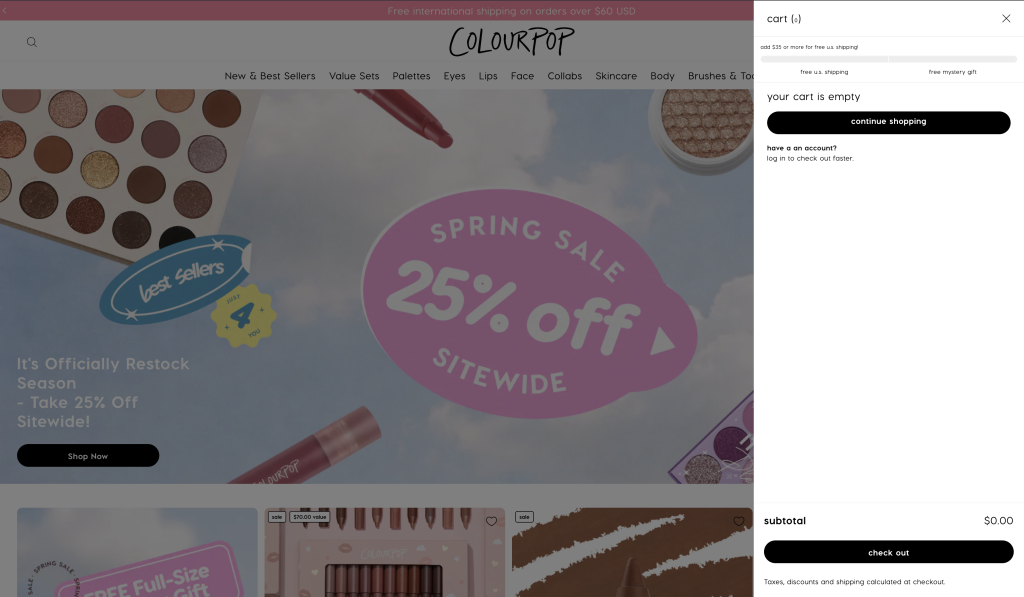
ColourPop uses a progress bar inside their slide-out cart drawer. Their sweet spot is the product catalog itself — most items are $8-$15 (lip gloss, single eyeshadows, setting spray). When the bar says “Add $11 more,” there are dozens of no-brainer add-ons. Beauty and cosmetics is arguably the best niche for shipping bars because add-on products are cheap, need no research, and feel like treats rather than expenses.
Fashion Nova — Bar + Upsell Pairing
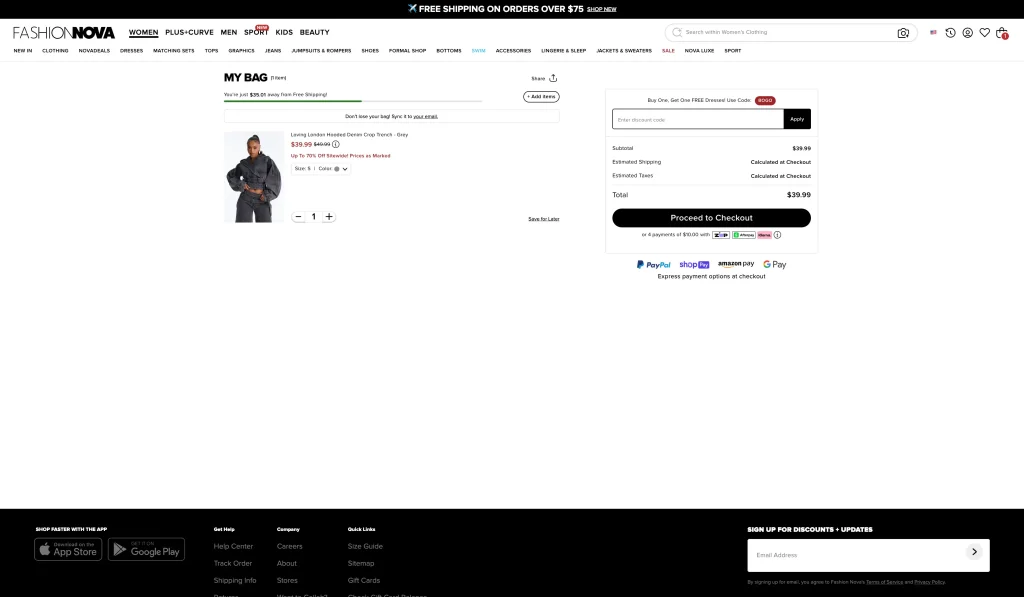
Fashion Nova pairs their shipping bar with product recommendations inside the cart. The bar creates the motivation (“You’re $16 away”), and the upsell products provide the solution (“Add these $18 earrings”). This two-part approach — motivation + action — is the pattern we see driving the highest conversion in our data. It’s what cart drawer upsell strategies are built around.
Huel — Tiered Reward Ladder
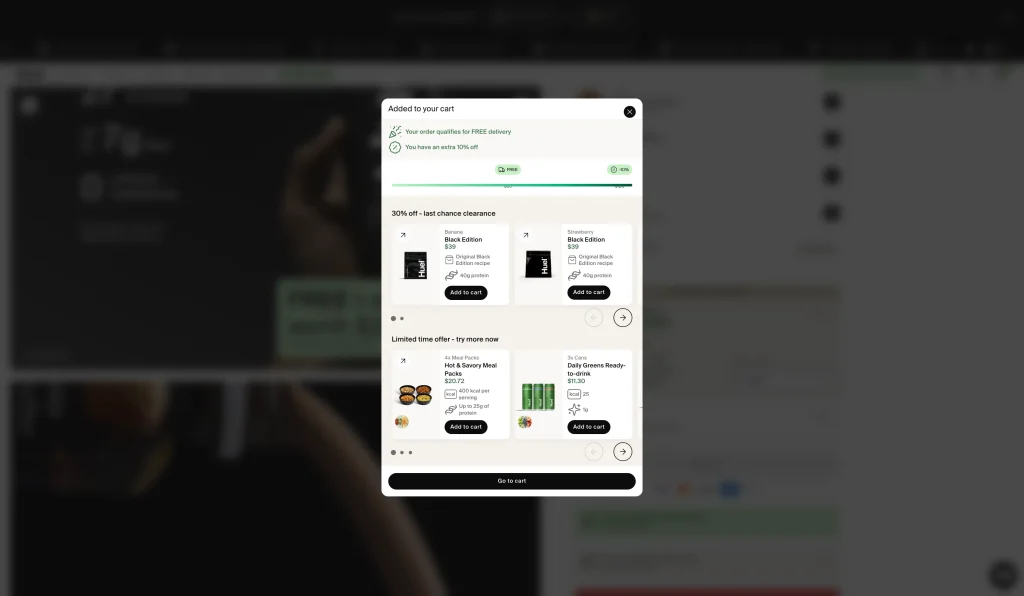
Huel doesn’t stop at free shipping. They use a multi-tier progress bar: reach level one for free shipping, level two for a free shaker bottle, level three for a bonus discount. Each tier creates a new goal just as the customer was about to stop adding. This is the “value ladder” approach — and it’s one of the most effective cart abandonment reduction strategies we’ve seen. Oxify supports unlimited reward tiers.
MrBeast.Store — High-Visibility Branding
MrBeast’s merch store uses a prominently branded shipping bar that matches their energetic visual identity. The bar uses bold colors, large text, and emoji. It’s proof that the bar doesn’t need to be subtle — for younger demographics or high-energy brands, in-your-face works. Know your audience.
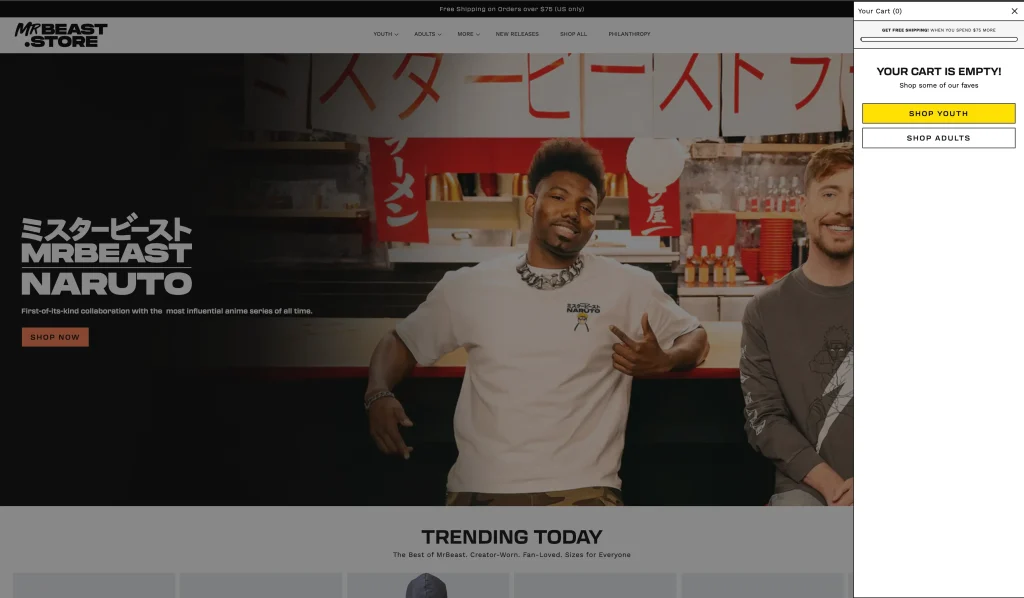
Pattern across all five stores: Bar at the very top of the cart. Specific dollar amount remaining (not vague messaging like “almost there”). Upsell products placed directly below. This layout isn’t coincidence — it’s the highest-converting configuration.
Mobile Cart Drawer Best Practices
This gets its own section because 68-79% of Shopify traffic comes from phones. If your shipping bar looks great on desktop but fails on mobile, it’s failing for the majority of your customers.
Minimum bar height: 40px. Anything smaller is unreadable while scrolling with a thumb. Your progress indicator needs to be instantly visible without squinting.
Tap target size: 44×44px minimum for all buttons. Apple’s Human Interface Guidelines recommend this for a reason. “Add to Cart” buttons inside the drawer that are too small get missed — and that’s a missed sale.
Test on real phones, not browser resize. Browser DevTools doesn’t capture actual touch behavior, font rendering differences, or how the drawer feels while scrolling with momentum. Test on at least one iPhone and one Android device.
Watch for text truncation. “You’re $14.99 away from FREE shipping!” might fit on desktop but get cut to “You’re $14.99 aw…” on a 375px-wide phone. Keep progress messages short — under 10 words on mobile.
Sticky cart button matters. On mobile, a floating “View Cart” button that’s always visible (rather than requiring scroll-to-top) increases cart drawer open rates significantly. Oxify includes a configurable sticky cart button.
Don’t stack too much in the drawer. Desktop can handle a bar + items + 3 upsells + trust badges + a timer. Mobile can’t. Prioritize: bar at top, items, 1-2 upsell products, checkout button. Cut the rest on mobile viewports.
7 Advanced Strategies for Bigger Results
1. Build a Tiered Reward Ladder
Don’t stop at free shipping. Stack goals:
- $50 → Free shipping
- $75 → Free shipping + customer picks a free gift
- $100 → Free shipping + free gift + 10% off next order
Letting customers choose their gift outperforms auto-added gifts. The act of choosing creates ownership. Oxify supports unlimited reward tiers with manual gift selection.
2. Add a Countdown Timer
“Your cart is reserved for 10 minutes.” Combining a spending goal bar with a timer hits two psychological levers: progress motivation AND time pressure. Oxify includes built-in countdown timers you can place anywhere inside the drawer.
3. Segment Thresholds by Customer Type
- First-time visitors: Lower threshold ($50) to reduce friction on initial purchase
- Returning customers: Higher threshold ($85) with better rewards — they already trust you
- By geography: $65 US, €55 EU, ₹2,000 India, £50 UK, A$90 Australia
Apps including Oxify, Essential, and Progressify support geo-targeting and Shopify Markets multi-currency.
4. Show the Actual Shipping Cost
One powerful tactic: display the real shipping cost alongside the free shipping gap.
“Shipping: $9 — OR spend $14 more for FREE shipping”
When customers see a real cost next to a small spending gap, the choice becomes obvious. The reframe from “pay for nothing” to “get a product instead” is pure loss aversion at work.
5. Pair Progress Bar With Product Bundles
Show a “Frequently Bought Together” bundle priced to hit the threshold in one click. Instead of hunting for individual add-ons, customers tap one button and qualify. Oxify’s bundle integration handles this natively.
6. Add Trust Badges Below Checkout
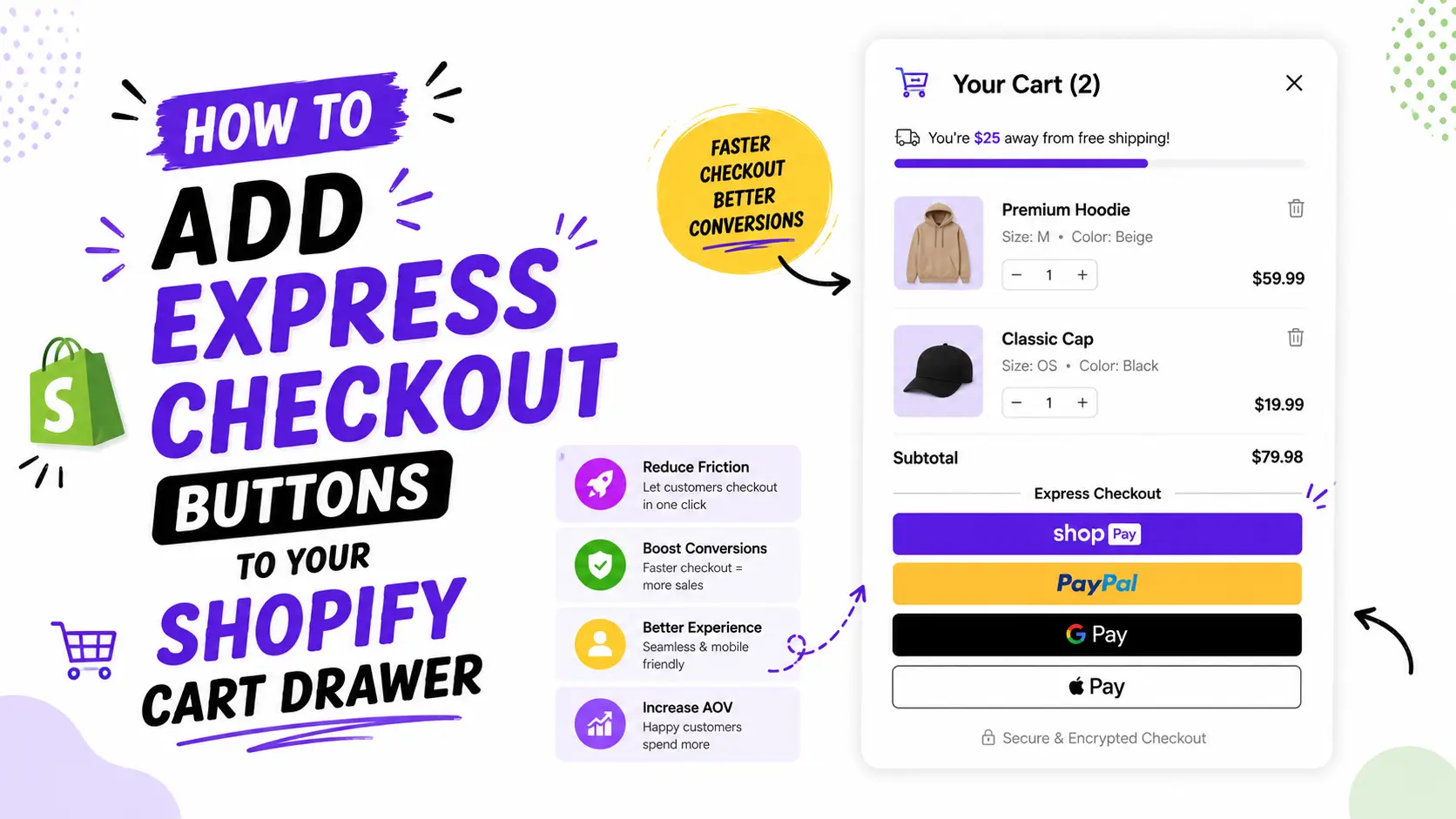
Right before customers tap “Checkout,” anxiety spikes. Secure payment icons (Shop Pay, Apple Pay, Visa), a one-line return policy, and a money-back badge reduce this friction inside the drawer.
7. A/B Test Your Threshold
Run two weeks at × 1.3 and two weeks at × 1.2. Compare AOV, free shipping qualification rate, and conversion rate. Some niches (beauty, low-ticket items) perform better with a smaller gap. Some (electronics, premium goods) need a wider one. Let your own data decide.
👉 Related: Free gifts with purchase — how to set up tiered rewards in your cart
9 Mistakes That Kill Your Free Shipping Conversions
1. Threshold is too high. If most carts are $40 and the bar shows $100, it starts at 40% full. That’s demotivating. The goal gradient works in reverse — too far away and nobody tries.
2. Too many upsell products. Three is the sweet spot. Ten creates choice paralysis. Customers freeze and ignore everything.
3. Ignoring mobile. 68-79% of Shopify traffic comes from phones. If the bar is tiny or “Add” buttons need a microscope, it’s useless. Test on a real phone — not just a browser resize.
4. Hidden shipping exclusions. If free shipping is domestic-only, say so in the bar messaging. Filling a bar to 100% then seeing $15 international shipping at checkout destroys trust instantly.
5. Stacking three separate apps. A shipping bar app + a cart upsell app + a drawer replacement = three JavaScript bundles competing for load time. Page speed drops. Conflicts appear. Use one all-in-one solution.
6. Never rechecking your numbers. If your threshold’s been $65 for six months but AOV grew to $70, the bar is useless. Almost everyone qualifies — you’re giving away free shipping with zero incremental revenue. Check monthly.
7. Upselling expensive products. A $90 product needs research and comparison. That’s a product page job, not a cart drawer job. Cart upsells should be $8-$25 impulse buys.
8. No real-time AJAX updates. If the bar only refreshes on page reload, customers using quick-add buttons won’t see progress change. All modern apps handle this. Custom Liquid code doesn’t (without extra JavaScript).
9. Generic messaging. “Almost there!” tells the customer nothing. “You’re $14 away from FREE shipping!” tells them exactly what to do. Specificity converts. Always show the exact remaining amount.
Troubleshooting: When Your Free Shipping Bar Breaks
Real issues from Shopify community threads and merchant reports — and how to fix them.
Bar Shows Wrong Amount After Discounts
Problem: Customer applies a coupon, cart total drops to $80, but the bar still reads the pre-discount value of $100 and says “Free shipping unlocked!” when it shouldn’t be.
Fix: Make sure your bar (or app) calculates from the final cart value after discounts — not the original subtotal. In Oxify, this is handled automatically. In custom code, use cart.total_price (which includes discounts) instead of cart.items_subtotal_price.
Cart Stops Updating or Deleting Items
Problem: After adding custom shipping bar code, the cart drawer won’t update quantities or let customers remove items.
Fix: This happens when custom JavaScript overrides Shopify’s native cart event listeners. The most common culprit is binding to the same DOM elements the theme’s cart JS already controls. If you’re using custom code, ensure your scripts listen for Shopify’s cart AJAX events (cart:updated) rather than intercepting click handlers. If it persists — this is exactly why apps are recommended. They hook into cart events properly.
Bar Shows Different Amounts on Cart Page vs. Drawer
Problem: The cart page says “$21 remaining” but the drawer says “Free shipping unlocked!” — or vice versa.
Fix: This usually means two separate bars are running with different threshold configurations (common when you have an app AND leftover custom code). Audit your theme for duplicate snippets. Remove any manual shipping bar code if you’re using an app.
International Customers See Wrong Threshold
Problem: A US customer sees “$65 to free shipping” correctly, but a UK customer also sees “$65” instead of “£50.”
Fix: You need multi-currency support. Shopify’s native Liquid | money filter uses the store’s default currency unless you integrate with Shopify Markets. Apps like Oxify, Essential, and Progressify handle multi-currency natively — set per-market thresholds and the bar automatically converts.
Bar Doesn’t Appear in Cart Drawer at All
Problem: You installed an app, configured the bar, but it only shows on the /cart page — not inside the slide-out drawer.
Fix: Not all themes expose their cart drawer to app blocks. Check if your theme uses an AJAX cart drawer (test by adding a product — if a side panel slides in, you’re good). Some older themes redirect to /cart instead. In that case, you either need to switch themes or use an app that provides its own cart drawer (like Oxify, which replaces the default drawer entirely).
Best Free Shipping Bar Apps for Shopify (2026 Comparison)
There’s no single “best” app. The right choice depends on budget, whether you need a full cart drawer, and how many features you want bundled.
| App | Cart Drawer? | Shipping Bar | Upsells | Free Plan? | Starting Price |
|---|---|---|---|---|---|
| Oxify Cart Drawer | ✅ | ✅ + auto-discount toggle | ✅ AI recs | 14-day trial | $19.99/mo |
| Snap Cart Drawer | ✅ | ✅ tiered + confetti | ✅ Manual | ✅ Free | $0 |
| AMP Slide Cart | ✅ | ✅ | ✅ BOGO + FBT | ✅ Free plan | $0 |
| Essential Free Shipping | ❌ bar only | ✅ geo-targeting | ✅ basic | ✅ Free plan | $0 |
| Hextom Free Shipping Bar | ❌ bar only | ✅ progressive messages | ❌ | ✅ Free plan | $0 |
| Progressify | ❌ bar only | ✅ stacked bars | ✅ | ✅ Free plan | $0 |
| GP Free Shipping Bar | ❌ bar only | ✅ dynamic + geo | ❌ | ✅ Free plan | $0 |
| Kaching Cart Drawer | ✅ | ✅ | ✅ toggles | Free for dev stores | $3.99/mo |
| CornerCart | ✅ | ✅ | ✅ + free gifts | ✅ Free plan | $0 |
Quick Decision Guide
- All-in-one cart drawer with shipping bar + AI upsells + auto-discount: Oxify Cart Drawer
- Free forever, solid feature set: Snap Cart Drawer or AMP Slide Cart
- Just the shipping bar, no drawer replacement: Essential Free Shipping (geo-targeting) or Hextom (12,000+ reviews, proven at scale)
- Multi-tier stacked bars with market localization: Progressify
- Budget cart drawer with urgency timers: Kaching
- Free gift-focused campaigns: CornerCart
How to Track and Measure Results
Don’t guess. Measure these weekly for the first month, then biweekly.
| Metric | Where to Find It | What “Good” Looks Like |
|---|---|---|
| AOV | Shopify Analytics → Reports → Sales over time | 15-30% increase vs. baseline |
| Items per order | Shopify Analytics → Reports | 10-20% increase (means upsells are working) |
| Free shipping qualification rate | Shopify → Discounts (or app dashboard) | 30-50% of orders. Below 30% = threshold too high. Above 60% = too low. |
| Cart abandonment rate | Shopify Analytics → Behavior | Any decrease. Even 3-5% is significant at scale. |
| Upsell attach rate | App dashboard analytics | Track which products get added most. Double down on winners. |
| Cart drawer interaction rate | App analytics (Oxify dashboard) | 30%+ of sessions engaging with bar or upsells |
30-day audit: Segment orders. Compare free-shipping orders vs. paid-shipping orders on AOV, items per order, and return rate. This tells you whether the bar drives profitable new behavior or just subsidizes shipping on orders that would’ve happened anyway.
Monthly threshold check: If your AOV has risen past your threshold, the bar is no longer motivating — it’s just giving away free shipping. Bump the threshold up by the same × 1.3 formula using your new AOV.
The Pre-Launch Checklist
Run through this before you publish:
- Threshold is 20-30% above current AOV (× 1.3 formula)
- Bar calculates from final price (after discounts, not before)
- Messages update in real time (add, remove, quantity change)
- Copy is specific (“$14 away”) not generic (“free shipping available”)
- Messages are under 10 words on mobile widths
- Progress indicator is visible and readable on mobile (40px+ height)
- All “Add” buttons are 44×44px minimum tap targets
- 2-3 upsell products appear below the bar, priced to bridge the gap
- Multi-state messaging works (empty cart → progress → unlocked 🎉)
- Tested on 3+ real devices (not just browser resize)
- No duplicate bars from leftover custom code
- Shipping rate configured in Shopify settings OR auto-discount is ON
- International thresholds set for each market (if multi-currency)
FAQ
How do I add a free shipping bar to my Shopify cart drawer?
Three methods: Shopify’s built-in announcement bar (free, static text), a cart drawer app like Oxify Cart Drawer (recommended — dynamic bar with upsells, takes 5 minutes, no coding), or custom Liquid code (developer skills required). Most merchants use the app method.
What should my free shipping threshold be?
Your current AOV × 1.3. If AOV is $50, set it at $65. If ₹1,000, set it at ₹1,300. The gap should feel closable with one impulse add-on ($12-$20 price range).
Does a free shipping progress bar actually increase AOV?
Yes. Shopify’s research confirms 80% of online shoppers are willing to meet a minimum purchase threshold to avoid paying for shipping. Separately, around 58% of shoppers actively add extra items to qualify. Merchant data consistently shows 15-30% AOV lifts when properly implemented.
Can I add a free shipping bar without an app?
Yes — custom Liquid code works (Method 3 in this guide). But you lose real-time AJAX updates, auto-discount, upsell recommendations, multi-currency, and analytics. For most stores, an app saves significant developer time.
Will a cart drawer app slow my store?
Modern apps load asynchronously — typically under 50ms added to page load. The real speed risk is stacking three separate apps (drawer + bar + upsells). One all-in-one solution is almost always faster than three individual installs.
Can I show different thresholds for different countries?
Yes. Apps including Oxify, Essential, and Progressify support multi-currency geo-targeting. Set $65 for US, €55 for EU, ₹2,000 for India, £50 for UK. Shopify Markets also lets you create separate shipping profiles per region.
What’s the difference between a free shipping bar and a cart drawer?
A free shipping bar is a visual conversion incentive showing progress toward free delivery. A cart drawer is the slide-out panel that replaces the /cart page redirect. They’re separate features that work powerfully together — the drawer keeps customers on the page while the bar motivates them to add more.
How does a free shipping bar reduce cart abandonment?
Two ways. First, it removes the surprise of shipping costs — customers see upfront what they need for free delivery instead of discovering fees at checkout. Second, the visual gamification (progress filling toward a goal) creates psychological motivation to complete the purchase rather than abandon.
What if my products are too expensive for impulse upsells?
Focus on accessories and consumables related to your main products. Electronics stores can upsell cables and screen protectors. Furniture stores can upsell candles and coasters. Health brands can upsell sample packs and shaker balls. Every niche has low-cost add-ons if you look for them.
Can I use a free shipping bar with Shopify’s one-discount-code limit?
If you use Oxify’s auto-discount toggle, be aware that Shopify traditionally allows only one discount code per order. Turn auto-discount OFF if you already run product discount codes, and use native shipping rules instead. If you’re on a Shopify plan that supports “Combine with other discounts” (via Shopify Functions), you can stack both.
How do I configure free shipping in Shopify’s native shipping settings?
Go to Settings → Shipping and Delivery → Manage. In your shipping zone, click “Add rate.” Name it “Free Shipping,” set price to $0, then add a condition: “Based on order price” with a minimum matching your threshold. This works independently or alongside an app’s auto-discount feature.
Bottom Line
Your cart drawer is the highest-intent moment in the entire shopping journey. Every person who opens it already decided to buy something. The only question left is how much.
A Shopify cart drawer free shipping bar answers that question in your favor.
It removes shipping cost surprises. It shows a clear visual path to a reward customers already want. It pairs with impulse-priced upsells to bridge the gap. And it does all of this in the 3-5 seconds between “Add to Cart” and “Checkout.”
Calculate your threshold with the × 1.3 formula. Pick your method — an app like Oxify Cart Drawer is fastest for most stores. Test on a real phone. Check your AOV after 30 days.
Then let your data tell you whether to keep it. (Spoiler: you’ll keep it.)
👉 Related reading on the Oxify blog: