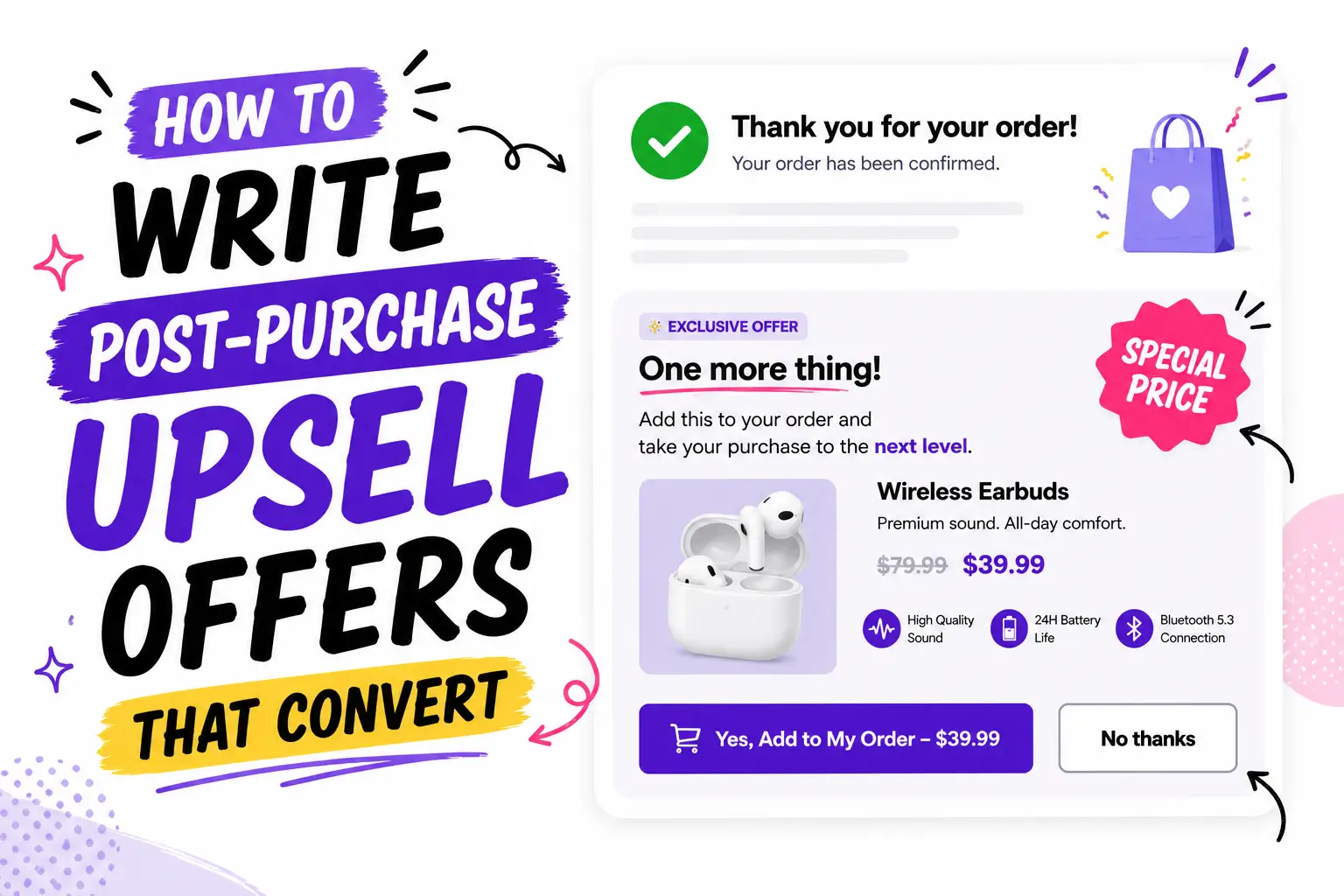
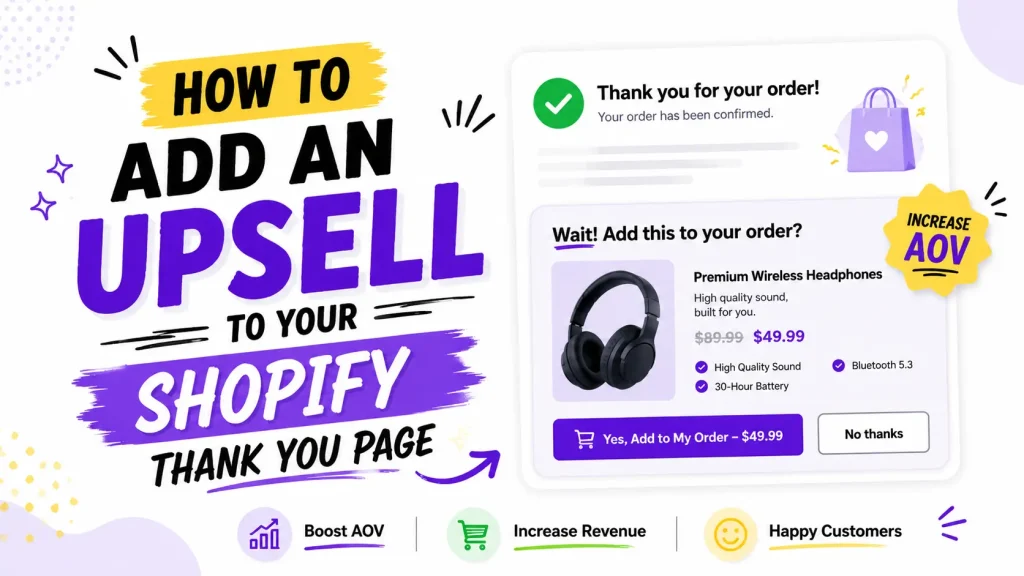
You just made a sale. Great. Now here is the part most stores skip: the page a shopper sees right after they pay is one of your best spots to sell one more thing.
Quick answer: In 2026, you add a thank you page upsell with an app, not code. The setup has two parts. First, you build the offer inside the app. Second, you place that app’s block on your Thank you page inside Shopify’s editor. Skip the second part and your offer will not show.
Key takeaways:
- The old code method (Additional Scripts) is switched off. You use an app now.
- There are two kinds of post-purchase offer. Pick the right one (explained below).
- The step people forget: place the app’s block in Shopify’s editor, then turn the funnel on.
- The best offer is a cheap, related add-on. Keep it to about three products.
This guide walks you through it with real screenshots, so you can have an upsell live today.
(An upsell just means offering an extra item or an upgrade. On the thank you page, it is usually a cheap add-on that goes with what the shopper just bought.)
The 2026 rule you cannot skip
Older guides tell you to paste code into Settings, then Checkout, then Additional Scripts. Do not. That box no longer works for this.
Here is what changed:
- Since August 28, 2025, the Additional Scripts box is view-only. You cannot edit it by hand.
- Shopify also retired the old checkout.liquid code for these pages.
- In January 2026, Shopify started auto-upgrading stores. Old code customizations get removed.
- If you are not on Shopify Plus, your deadline to upgrade is August 26, 2026.
The new way: you build upsells with an app, then place the app’s block in Shopify’s Checkout and accounts editor. You can read the official steps in the Shopify Help Center.
Short version: use an app. It is no code, and it stays safe through Shopify’s updates.
Two kinds of thank you page upsell (pick the right one)
People mix these up. Here is the difference in plain terms.
1. One-click post-purchase upsell. This shows on a special page the second after a shopper taps Pay, before the order confirmation page. They add it with one tap. They do not type their card again. It joins the order they just placed.
2. Thank you page upsell. This is a product offer placed on the order confirmation page itself, the page with the order number and tracking. The shopper adds it right from that page. It can also show on the Shopify order status page, which buyers reopen from the order email. This is the kind the screenshots below show.
Good news: you can run both. Most stores start with one and add the other later.
Why it is worth doing
Three quick reasons:
- It is close to free money. You already paid in ads to get this customer. One more item on the same visit costs you nothing extra to win, and it lifts your average order value.
- The buyer is in a “yes” mood. They just chose to trust you and spend. Saying yes to one small add-on feels easy right now, which is why post-purchase offers tend to convert well.
- You cannot lose the first sale. If they skip the offer, you still keep the original order. A pushy popup before checkout has the opposite risk, since pressure before payment can send a shopper away with an empty cart.
Here is a simple, made-up example to show how the math can work:
- You sell a shirt for $50. It costs $20 to make and $20 in ads to get the sale. Your profit is $10.
- A shopper adds $10 socks from your thank you page. The socks cost you $2. That is $8 in extra profit.
- Your order value went up by a fifth, but your profit almost doubled, with no extra ad spend.
That is the power of this page. Small adds, big jump in profit. (Numbers above are an example only.)
How to add an upsell to your thank you page (step by step)
Below is the real setup using Oxify Cart Drawer, a Built for Shopify app that handles thank you page upsells, one-click post-purchase upsells, and cart upsells from one dashboard. It runs on Shopify’s new system, so it is safe through the 2026 changes.
The setup has two phases. Do both.
Phase 1: Build your offer in the app
Step 1: Create a funnel and name it. Open the app and create a new funnel. Give it a clear name like “Headphones add-on” so you can find it later.
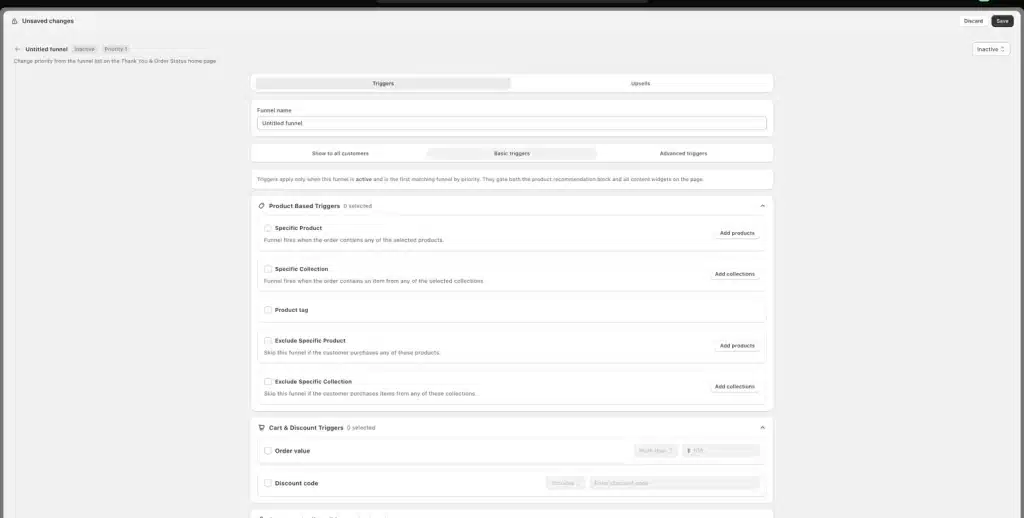
Step 2: Set your triggers (who sees the offer). Triggers decide when this funnel fires. You have a few choices:
- Show to all customers. Everyone who checks out sees it.
- Product based triggers. Fire only for certain items. Options include Specific Product, Specific Collection, and Product tag. You can also Exclude a product or collection so the funnel skips those orders.
- Cart and discount triggers. Fire by Order value (like “more than $100”) or by a Discount code.
Tip: a matching offer beats a generic one. Example: if the order has headphones, offer a carrying case.
Note: triggers only work when the funnel is active and it is the first matching funnel by priority.
Examples of smart triggers
- Order has running shoes, show performance socks.
- Order value is over $100, show a small “thank you” add-on at a deal.
- Customer bought a phone case, show a screen protector.
Step 3: Open the Upsells tab and add your products.
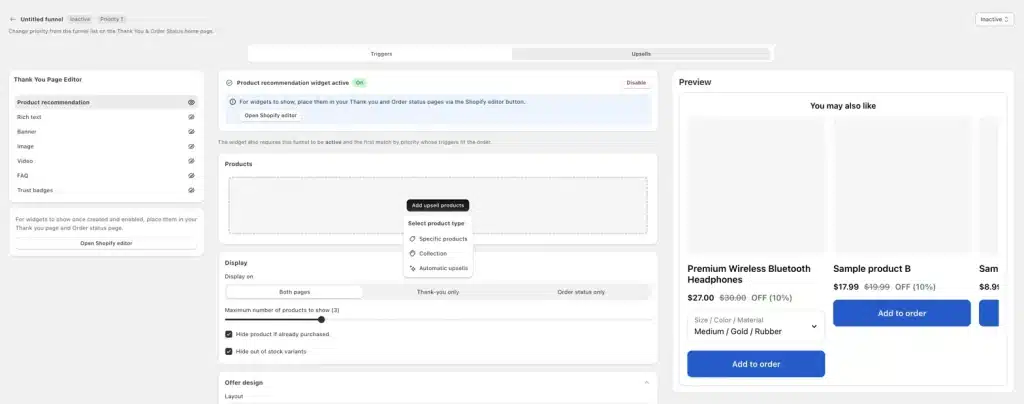
Switch to the Upsells tab. Turn the Product recommendation widget On. Then click Add upsell products and pick a type:
- Specific products. You choose the exact items to offer.
- Collection. Pull offers from a collection.
- Automatic upsells. Let the app pick smart matches for you.
You will see a live preview on the right. It shows a “You may also like” block with an Add to order button and the discount.
Step 4: Choose where it shows and set the rules. Under Display, pick where the offer appears:
- Both pages (thank you and order status)
- Thank-you only
- Order status only
Then set a few smart options:
- Maximum number of products to show. Three is plenty. More can clutter the page.
- Hide product if already purchased. Turn this on. Do not offer the same item they just bought.
- Hide out of stock variants. Turn this on so you never show a sold-out option.
Add a small discount in the offer so saying yes feels like a deal.
Phase 2: Place the block on your thank you page (the step people forget)
Here is the part that trips up most merchants. Setting up the offer in the app is not enough. You must place the app’s block on the actual page. If you skip this, your offer will not appear.
Step 5: Open the Shopify editor. In the app, click Open Shopify editor. This opens Shopify’s Checkout and accounts editor on your Thank you page.
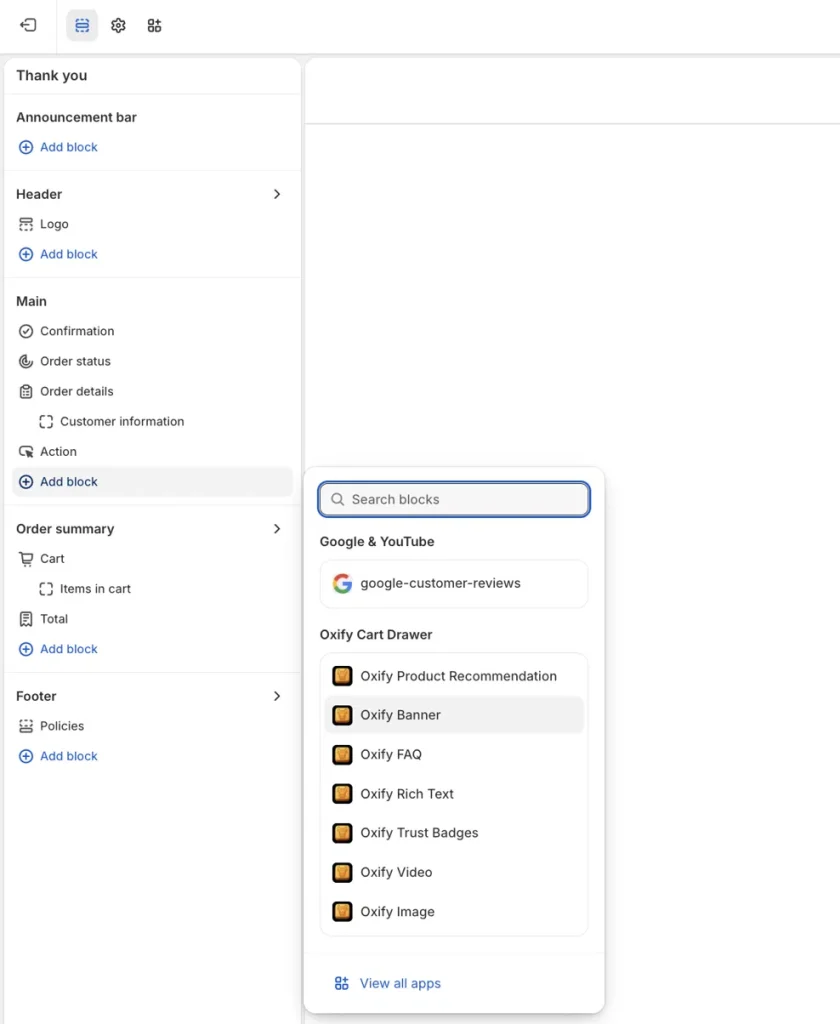
Step 6: Add the Oxify block. In the editor, find the Main section and click Add block. A search box opens. Under Oxify Cart Drawer, choose Oxify Product Recommendation. (You can also add Oxify Banner, FAQ, Video, Image, Rich Text, or Trust Badges here.)
Step 7: Do the same on the Order status page. Switch to the Order status page in the editor and add the block there too, so returning shoppers see it as well. Then Save.
Step 8: Turn the funnel on. Go back to the app and set the funnel to Active. An inactive funnel will not show, even when the block is placed.
Step 9: Test it with a real order. Place a test order and go through checkout yourself. Check that the offer shows on the thank you page and that Add to order works. Fix anything that looks off.
That is the whole setup. Once it is live, you earn on orders you were already getting, with no extra ad spend.
Can you add a thank you page upsell without an app?
Not really, not for a true upsell. Shopify’s editor lets you add some content to the page, like text, a banner, or your logo. But to show product offers with an Add to order button, a discount, and rules for who sees what, you need an app. The old code trick that used to do this is switched off. So an app is the way to go.
What makes a thank you page upsell convert
The offer matters more than the design. Pick the right thing and people add it without thinking.
Good offers:
- A cheap add-on that pairs with the main item (a case, a refill, a sample, or shipping protection).
- An upgrade to a bigger size or a bundle.
- A small “add one more and save” deal.
Skip these:
- Pricey items that need a long think.
- Random products with no link to the order.
- A wall of five offers. One clear offer wins.
A simple test: the upsell should feel obvious. If the shopper thinks “oh yeah, I need that too,” you got it right.
Common mistakes to avoid
- Setting up the offer but never placing the block. This is the top reason an upsell does not show. Finish Phase 2.
- Leaving the funnel inactive. Switch it to Active.
- Using old code. It is switched off. Use an app.
- One offer for everyone. Use triggers so the offer fits the order.
- No discount. A small deal gives shoppers a reason to act now.
- Never testing. Place a test order, then watch your numbers and adjust.
Best thank you page upsell apps compared
Most “how to” guides push only one app. Here is a quick, fair look at the main options so you can choose.
| App | One-click post-purchase | Thank you page upsell | Covers cart and product page too | Free trial |
|---|---|---|---|---|
| Oxify Cart Drawer | Yes | Yes | Yes | 14-day, Built for Shopify |
| ReConvert (Upsell.com) | Yes | Yes | Post-purchase focus | Yes |
| AfterSell | Yes | Yes | Post-purchase, plus checkout on Plus | Yes |
| Selleasy | Yes | Yes | Pre and post purchase | Yes |
| BOGOS | Yes | Yes | Free gift and BOGO focus | Yes |
Oxify Cart Drawer is the only one here that covers your cart, product page, post-purchase page, and thank you page from a single app, with no code. Apps change often, so check each listing for current features and pricing. For deeper lists, see our best Shopify thank you page apps and best Shopify upsell apps roundups.
One app for the whole “after they paid” zone
If you do not want to juggle tools, Oxify Cart Drawer covers it all. You get thank you page upsells, one-click post-purchase upsells, and upsells in the cart and on the product page, from one dashboard with no code. It is Built for Shopify certified and comes with a 14-day free trial.
Want bigger orders from bundles and volume deals too? Oxify Quantity Breaks pairs with it.
FAQ
How do I add an upsell to the Shopify thank you page?
Use an app. Build your offer (pick the product, add a discount, set who sees it), then place the app’s block on your Thank you and Order status pages in Shopify’s editor. Turn the funnel on and test it. No code needed.
Can I edit the Shopify thank you page without code?
Yes. You use Shopify’s Checkout and accounts editor plus app blocks. No code at all.
Why is my thank you page upsell not showing?
The most common reason is that the offer was built in the app but the block was never placed on the page. Open the Shopify editor, add the app block to the Thank you and Order status pages, and make sure the funnel is active.
Is the Additional Scripts box gone?
You can still see it, but you cannot edit it. It went view-only on August 28, 2025, and old code customizations are being removed as Shopify auto-upgrades stores.
What is the difference between a post-purchase upsell and a thank you page upsell?
A one-click post-purchase upsell shows on a special page right after Pay and adds to the same order with no new card entry. A thank you page upsell sits on the confirmation page, where the shopper adds it from that page.
What is the difference between the thank you page and the order status page?
The thank you page shows right after a shopper pays. The order status page is the one they come back to later (often from the order email) to check shipping. You can place your offer on both.
Do customers have to re-enter their card?
For a one-click post-purchase offer (the page right after Pay), no. For an offer added from the thank you page, it depends on the app and your payment setup. Some add the item to the existing order, while others send the shopper through a quick checkout.
Will a thank you page upsell hurt my checkout?
No. It shows after payment, so it cannot slow down or block the original sale. That is what makes it safe to test.
Does adding a thank you page upsell cost money?
You pay for the app, and for any discount you choose to give. Most apps have a free trial, and some have a free tier for small stores. Oxify Cart Drawer comes with a 14-day free trial.
What is the best Shopify thank you page upsell app?
It depends on your needs. If you want one app for your cart, product page, post-purchase page, and thank you page, Oxify Cart Drawer is a strong all-in-one pick. ReConvert, AfterSell, Selleasy, and BOGOS are also common choices.
How many products should I show?
Keep it to about three. One strong, related offer almost always beats a long list.
Does this work if I am not on Shopify Plus?
Yes. App-based thank you page upsells work on standard plans. Just upgrade your store to the new pages before the August 26, 2026 deadline.
Ready to turn your thank you page into a second sale? Build one offer, place the block, and test it today. Try Oxify Cart Drawer free and start earning on every order.