
How to Sell Shipping Protection as a Product Add-on on Shopify
Lost, stolen, and damaged packages cost you money. They also make shoppers upset. A shipping protection add-on turns that problem into income.
Here is the short version. A shipping protection add-on is a small, optional charge a shopper can add to their order — typically offered through a product options app as a checkbox at checkout. If the package goes missing or arrives broken, you make it right. If nothing goes wrong, you keep the fee.
This guide shows you how to sell it on Shopify the smart way and the safe way. You will set it up in four simple steps, learn the two best places to show it (the product page and the cart drawer), and learn the one rule that keeps you out of legal trouble. Let's dig in.
First, Do Not Mix Up These 3 Things
Most guides blur these together. They are not the same.
- Shipping protection (this guide). You sell it to shoppers as an add-on. You keep the fee. You cover lost, stolen, or damaged orders yourself. It is a way to earn money and build trust.
- Shipping insurance. You buy this on your own labels to cover your cost. With Shopify Shipping, stores on the Grow, Advanced, or Plus plan with Shopify Payments get up to $200 of insurance included on each eligible label. You can buy more, up to $5,000 per package. You file claims in your Shopify admin, and you have up to 120 days. (Shopify explains it here.)
- Shopify Protect. This is free chargeback and fraud cover for eligible Shopify Payments orders. It has nothing to do with the add-on you sell.
Quick way to remember it: protection is money you make, insurance is money you spend, and Protect is fraud cover.
What Is a Shipping Protection Add-on?
It is an extra item a shopper chooses to buy. It promises help if their delivery has a problem.
Most setups work the same way:
- The shopper sees a small toggle or checkbox.
- They turn it on to add protection.
- A "protection" product drops into their cart.
- They check out and pay the small fee.
It is sold as a product, which is why we call it an add-on. It works just like the other product add-ons you can offer, such as gift wrap or a warranty.
Why Sell Shipping Protection?
It does three good things at once.
- It makes extra money. Most orders arrive fine. When they do, the fee is profit.
- It builds trust. Shoppers feel safer buying when they know they are covered. It works alongside other trust signals in your cart.
- It saves you stress. Lost package emails are no fun. Protection gives you a clear, fair way to handle them.
You were probably reshipping broken orders anyway. Now your customers help cover that cost.
The Honest Truth: It Is Usually Not Real Insurance
Read this part closely.
Most shipping protection add-ons are not true insurance. They are a promise that you fund yourself. You collect the fees, then you pay to fix problems from that pot.
That is fine and very common. Just be honest with shoppers:
- Say what is covered (lost, stolen, or damaged orders).
- Say how to ask for help.
- Keep your promise fast when they do.
Some apps partner with a real insurance company. If that matters to you, pick one that says so. Either way, never call it "insurance" unless a real insurer backs it.
The One Rule That Keeps You Safe: Make It Opt-In
This is the most important part of the whole guide.
Let the shopper choose to add protection. Never pre-check the box. Never sneak it in.
Here is why this matters so much right now:
- Several large retailers have faced class action lawsuits over how this fee was added.
- Regulators have started looking into stores that auto-add the fee and make people opt out.
- The complaint is almost always the same. The fee was on by default, it was hard to spot, and shoppers did not know it was optional.
In the EU, pre-checked consent boxes are already a no-go. Shopify's own rules also ban sneaky practices that cause chargebacks and complaints.
So play it straight:
- Make protection opt-in, not opt-out.
- Show the price clearly.
- Tell shoppers what it covers in plain words.
This is not legal advice, and rules change by country. If you are unsure, ask a lawyer. But honest and clear is always the safe path. It also builds the trust that makes shoppers come back.
Step 1: Create Your Shipping Protection Product
Both methods below start here. You need a product to add to the cart.
In your Shopify admin, create a new product and set it up like this:
- Name it "Shipping Protection."
- Set a small price. A flat $2.50 works well for many stores (more on pricing later).
- Turn off shipping. Untick "This is a physical product" so it does not ask for a shipping address or mess up rates.
- Set the tax option to match your store rules.
- Hide it from your storefront. Remove it from collections and from search so it does not show up like a normal product. Shoppers should only ever see it as an add-on.
- Add a simple icon if you like, such as a small box with a shield.
That is your building block. You set it up the same way you would add gift wrap to the cart. Now let's show it to shoppers.
Step 2: Show It as an Add-on (2 Easy Ways)
You can show the add-on in more than one spot. Two work best on Shopify. You can use one or both.
Way 1: On the Product Page
This puts protection right where the shopper is deciding to buy. It is the same spot you would use for a product page upsell, and it works great for fragile or high value items, like art, glass, or electronics.
Here is what it looks like to the shopper. A clean "Protect Your Parcel" box sits under the product, with a checkbox and the price. The box starts unchecked, so it stays opt-in.
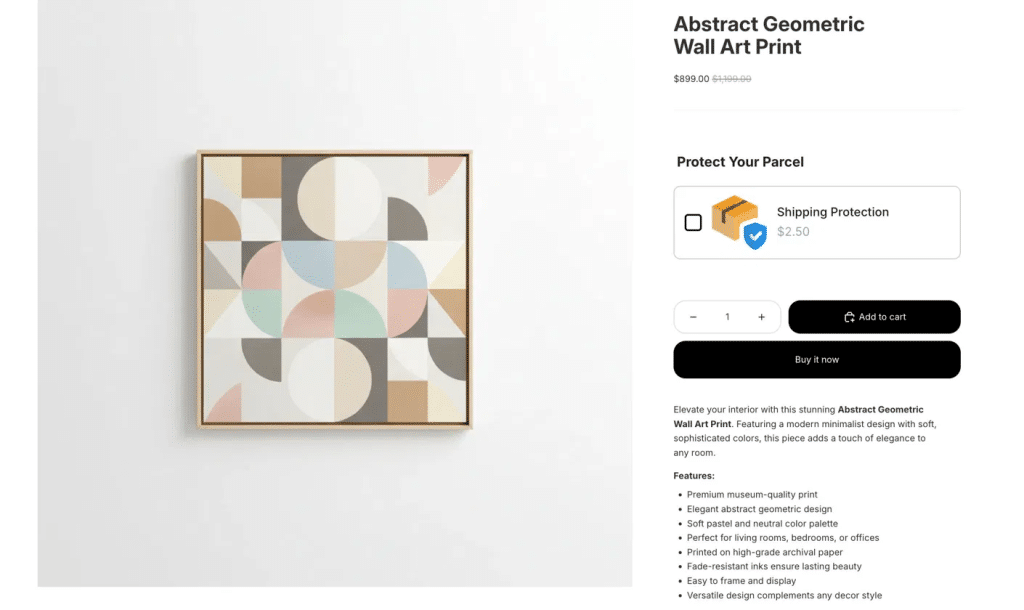
The shopper can tick the box to add protection before they even reach the cart.
You can set this up with Oxify Cart Drawer & Upsells. It lets you build a product page offer in a few clicks, with no code:
- Pick where it shows. Choose all products, specific products, or products in certain collections.
- Add your offer. Select the Shipping Protection product you made in Step 1.
- Name the block. Something clear like "Protect Your Parcel."
- Check the preview. You see exactly what shoppers will see before you turn it on.
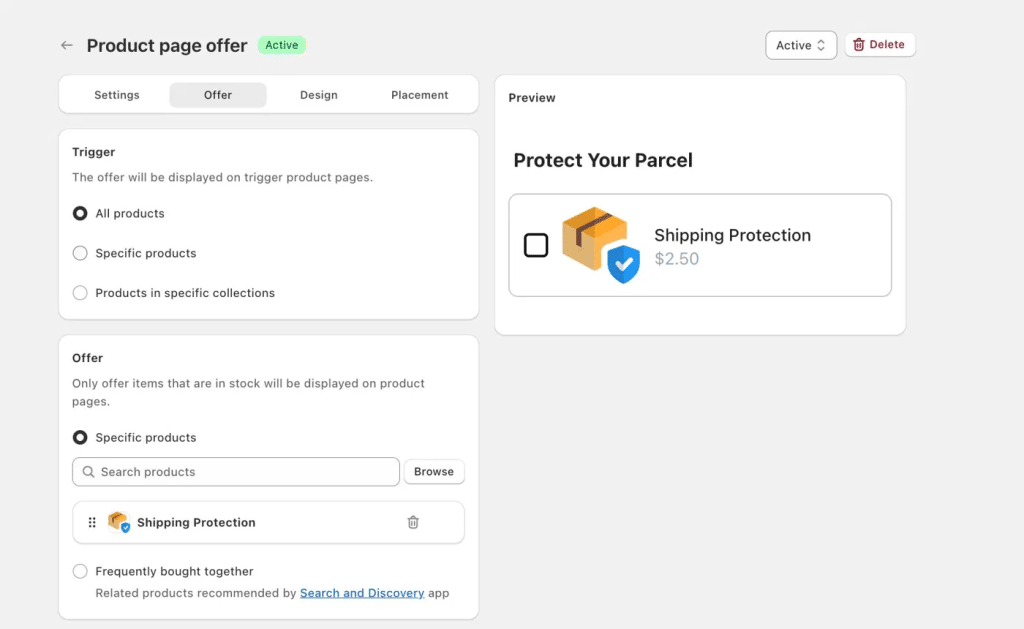
Choose which products show the offer, then add your Shipping Protection product. The preview shows the box shoppers will see.
Way 2: In the Cart Drawer
This is the spot most stores should use first.
The cart drawer (also called a slide cart) opens when a shopper adds an item. It is the last thing they see before checkout. That makes it a perfect place to offer protection.
- Show protection as a one-click add-on inside the drawer.
- Use a clean toggle so it feels easy, not pushy.
- Keep it opt-in.
Here is the key reason the cart drawer wins for many stores. A protection widget inside the checkout page itself only works on Shopify Plus. That is a Shopify rule about checkout, not an app limit (see the docs). The cart drawer works on every plan except Starter. So it is often the highest traffic spot you fully control.
Oxify Cart Drawer & Upsells handles this too. You can show shipping protection as a clean add-on right in the slide cart, next to your cart upsells and free gifts. It also lets you follow up with a post-purchase offer, so you earn more from every order. One app covers both the product page and the cart drawer.
Step 3: Auto-Fulfill the Protection Product
Do not skip this one.
A protection product has nothing to ship. If you forget about it, the order can sit "unfulfilled" forever and clog your workflow.
The fix is simple. Set the protection product to fulfill automatically. Most setups do this for you, since the item is digital and needs no shipping. Check your settings once so every order closes cleanly.
Step 4: Handle Claims Simply
You do not need a fancy system to start. Keep it clear and fast.
Here is a simple flow:
- The shopper reports a lost, stolen, or damaged order.
- You check the order and the tracking.
- You reship the item or refund them, paid from the fees you collected.
- You reply fast and kindly.
Write your rules down in plain words on a short policy page. Speed is what keeps shoppers happy and turns a bad moment into a loyal customer.
How Much Should You Charge?
Keep it small. The goal is a price that feels like an easy yes.
You have two main options.
- Flat fee. One set price for every order, like the $2.50 shown above. Simple and clear. Great when your orders are similar in size.
- Percent of cart. A small percent of the order total, sometimes with a minimum. Bigger orders pay a bit more, which fits their higher replacement cost.
A few quick tips:
- Start low. You can adjust later.
- Round to a clean number so it reads as cheap.
- Keep the fee smaller than the pain of losing the order.
Common Mistakes to Avoid
A few small slips can cost you sales, trust, or worse. Watch out for these.
- Pre-checking the box. This is the big one. It upsets shoppers, drives chargebacks, and can lead to complaints or lawsuits. Always make it opt-in.
- Hiding what it is. Do not bury it as a vague "fee." Call it protection and say what it covers.
- Forgetting to auto-fulfill. Leave it off and your orders pile up as unfulfilled. Turn it on once.
- Skipping the "no shipping" setting. If your protection product asks for shipping, it can mess up rates at checkout. Mark it as a digital item.
- Slow claims. A slow refund kills the trust you just built. Handle claims fast.
- Ignoring your opt-in rate. Platform updates can quietly break or hide add-on widgets. Check your opt-in rate often. If it suddenly drops to near zero, something broke.
Do You Even Need a Dedicated App?
No, not to start.
You can sell shipping protection with no dedicated shipping protection app at all. Just create the product (Step 1) and show it as an add-on with Oxify Cart Drawer & Upsells, which you may already use for upsells and free gifts. You keep 100% of the fee and pay no extra cut per order.
Dedicated shipping protection apps do exist, and they add claim portals and automation. Some are even backed by real insurers. Those can save time once your order volume is high and claims grow. For most small and growing stores, the simple add-on path keeps the most money in your pocket.
Frequently Asked Questions
Is shipping protection the same as insurance?
Is selling shipping protection legal?
Do I need an app to sell it?
Where should I show the add-on?
Do I need Shopify Plus?
Is the protection fee taxable?
Will it slow down checkout or hurt sales?
Do I keep the money if nothing goes wrong?
Start Selling Shipping Protection Today
Shipping protection is one of the easiest add-ons you can offer. It earns money on good days and saves stress on bad ones. The trick is to keep it honest, opt-in, and easy to see.
The fastest way to launch is with Oxify Cart Drawer & Upsells. You can show the add-on on your product page as a clean "Protect Your Parcel" box, in your cart drawer before checkout, or both, all with no code.
Add shipping protection with Oxify Cart Drawer & Upsells
Set it up once, keep it simple, and watch a former cost turn into steady profit.