
How to Add a Free Shipping Progress Bar to the Shopify Cart Drawer (Code + Apps)
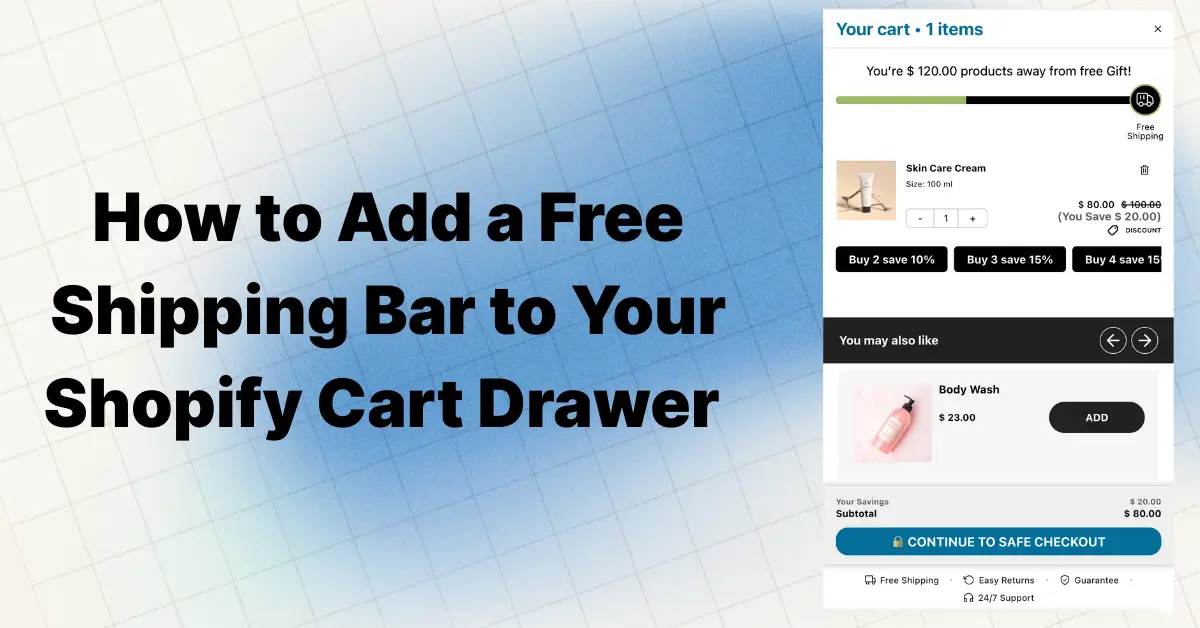
Short answer: To add a free shipping bar to the Shopify cart drawer, render a Liquid snippet inside snippets/cart-drawer.liquid that subtracts cart.total_price from your threshold, or switch on the rewards bar in a cart drawer app. Neither Dawn nor Horizon includes one. The bar only displays progress, so also create a free shipping discount with the same minimum.
Key facts (checked September and October 2026)
- Neither Dawn 16.0.0 nor Horizon 4.2.0 ships a free shipping progress bar (both repositories re-checked October 11, 2026). In both themes the drawer markup lives in
snippets/cart-drawer.liquid. - Both themes send
sectionsandsections_urlwith their cart requests, so Shopify returns the re-rendered drawer HTML in the same response (bundled section rendering). A Liquid-only bar placed inside that section refreshes with no JavaScript of your own. - Shopify's checkout, in its own words, "determines shipping rates based on the total value of the cart after applying discounts, but before applying taxes" (shipping rates troubleshooting). The bar should therefore count
cart.total_price, which is after discounts, notcart.items_subtotal_price. cart.total_priceis in the shopper's presentment currency (cart.currency), so one hard-coded threshold in cents is wrong for every Shopify Markets currency except your own. The snippet below sets a threshold per currency.- For the native free shipping discount, Shopify states that "products are counted towards a minimum purchase amount at their discounted price", which is the same after-discount logic.
- Six cart drawer apps with a free shipping bar were checked on the App Store on September 19, 2026: Oxify Cart Drawer 4.9 (40 reviews), Kaching 5.0 (1,374), Essent 5.0 (1,010), UpCart 4.7 (943), Rebuy 4.7 (848) and iCart 4.7 (452). Oxify is our app.
- In our October 2026 check of 475 live Shopify stores (hand-picked, well-known brands; homepages read on October 11), 191 (40.2%) tied free shipping to a money threshold. Among the 165 that showed a US dollar amount, the median was $75 (quartiles $50 and $124.50).
What a cart drawer free shipping bar is, and why the header bar is not enough
A free shipping bar has three parts: a threshold, a message that states the remaining amount ("Add $18.50 more for free shipping"), and a progress track that fills as the cart total grows. Placed in the cart drawer, it is recalculated every time a line is added, removed or changed, because the drawer itself is re-rendered from the live cart.
The announcement bar in your header is a different thing. In Dawn and Horizon it is a text block with a link: it can say "Free shipping over $50" but cannot know what is in the cart. When to run both is covered in announcement bar vs. cart drawer bar.
The drawer matters because of timing. Extra costs (shipping, tax, fees) are the most cited abandonment reason in the Baymard Institute's 2026 statistics (40%, once shoppers who were just browsing are set aside), and the drawer is the last screen before checkout where the shopper can still change the order. A bar that states exactly how far they are from free shipping turns that objection into a reason to add one more item. The other drawer-level fixes are in cart abandonment: drawer-level CRO fixes.
What free shipping threshold should I set? Use your own numbers, not a benchmark
A common rule of thumb is a multiple of AOV ("AOV × 1.3"). That ignores what shipping costs you and what margin you keep, so it can lose money. Use three inputs you already have.
- AOV over the last 90 days: Shopify admin → Analytics → Reports → search "Average order value".
- Shipping cost per order (S): what you pay the carrier on a typical order, from Shopify Shipping labels or carrier invoices, not what you charge.
- Gross margin (m): revenue minus product cost, payment fees and packaging, as a share of revenue.
Minimum viable threshold = AOV + (S ÷ m). An order lifted from AOV to the threshold earns you m × (threshold − AOV) in extra margin, and that extra margin has to cover the shipping you now give away. Anything below this line is a subsidy, not an upsell.
| Input | Example store | Where it comes from |
|---|---|---|
| AOV (90 days) | $52.00 | Analytics → Reports |
| Shipping cost per order (S) | $7.50 | Carrier invoices ÷ orders shipped |
| Gross margin (m) | 55% | Cost of goods report |
| S ÷ m | $13.64 | $7.50 ÷ 0.55 |
| Minimum threshold | $65.64 | $52.00 + $13.64 |
| Threshold to publish | $69 | Rounded up, never down |
Worked through: a $52 cart adds a $19 item to reach $71. Extra margin is 0.55 × $19 = $10.45. Shipping you now absorb is $7.50. Net gain per lifted order: $2.95. Round down to $65 because it looks nicer and a $52 cart only needs a $13 add-on: 0.55 × $13 = $7.15 of extra margin against $7.50 of shipping, a loss of $0.35 on every lifted order. Round up.
Two checks before you publish. Export the last 90 days of orders and count how many already sit at or above the threshold; each costs you S with no lift, so multiply that count by S to see the monthly bill, and if it is larger than the margin you expect from lifted orders, raise the threshold or accept the cost as shipping policy rather than upsell. And the gap between AOV and threshold ($17 here) must be closable with one product you actually sell, or shoppers will not try. A second goal above free shipping (a discount or gift) follows the same arithmetic per tier; see the tiered cart rewards guide.
What free shipping thresholds do Shopify stores actually show?
For orientation, not as a target. On October 11, 2026 we read the homepage HTML of every store in our check, looking at the part before the main content (announcement bar, header, menus) for free shipping or free delivery text with a money amount attached. 251 of the 475 stores (52.8%) mentioned free shipping or delivery and 191 (40.2%) tied it to a threshold. The 165 stores that showed a US dollar amount gave a median of $75, quartiles of $50 and $124.50, and a range of $25 to $300. Thresholds in pounds (16 stores), Australian dollars (5), Canadian dollars (3) and rupees (2) are left out of the dollar figures.
| Threshold shown | Stores | Share of the 165 dollar-threshold stores |
|---|---|---|
| $50 | 28 | 17.0% |
| $75 | 21 | 12.7% |
| $150 | 17 | 10.3% |
| $100 | 14 | 8.5% |
| $60 | 9 | 5.5% |
| $200 | 8 | 4.8% |
These are amounts printed on homepages, not shipping policies, and the sample is hand-picked well-known brands that skew to larger, app-heavy stores. The table says what shoppers are used to seeing, not what your margin can afford; the AOV + S ÷ m line above still sets your floor.
Does Shopify have a built-in free shipping bar? What Dawn and Horizon give you
Both theme repositories were checked on September 19, 2026 and re-checked on October 11, 2026. Each has a cart drawer and a static announcement bar; neither has a free shipping progress bar.
These are the themes the snippet route below is written for, and they are common. In our October 2026 check, 446 of the 475 stores exposed a theme name: Dawn (47 stores) was the most common, Horizon (18) tied with Prestige for second, and 78 of the 446 (17.5%) ran a free Shopify theme such as Dawn or Horizon. Native cart-drawer markup or a drawer setting appeared on 243 of the 475 stores (51.2%). If your theme is one of the others (Prestige and Broadcast were the next most common names), the file names below may not match, so check its own Cart settings first or use the app route.
Dawn 16.0.0
- Turn on the drawer: Online Store → Themes → Customize → Theme settings → Cart → Type → Drawer (the other options are Page and Popup notification). With Drawer selected,
layout/theme.liquidrenderssnippets/cart-drawer.liquidon every page. - Cart settings that exist: Vendor, Cart note, a Collection for the empty drawer, and a colour scheme. No threshold field, no progress bar; Dawn's only
progress-bar.liquidis a loading indicator for bulk quick-add. - Announcement bar:
sections/announcement-bar.liquidtakes Announcement blocks with a text field and a link. It cannot read the cart.
Horizon 4.2.0
Horizon moved from 4.1.5 to 4.2.0 after our first check. On October 11 we re-read the cart drawer snippet and section, the Cart settings group, the product-details block and the two cart scripts, and searched the 4.2.0 changes for shipping or progress-bar code: none was added, and the files and settings named below are still there.
- Turn on the drawer: Theme settings → Cart → Type → Drawer (or Page), plus a checkbox labelled "Add to cart" auto-opens drawer. Cart note settings sit in the same group.
- Where the drawer lives:
snippets/cart-drawer.liquid, wrapped bysections/cart-drawer-section.liquid, the theme's Section Rendering API target for cart endpoints. No free-shipping logic exists in the snippet, cart summary or cart items component. - The one "free shipping" string: the product-details block preset ships a default text block reading "Free shipping over $50" (
blocks/_product-details.liquid, keyhtml_defaults.free_shipping_over). It is a static line on the product page you edit in the theme editor. - Announcements:
sections/header-announcements.liquidwith rich-text announcement blocks and a link. Static, like Dawn's.
Natively, then, you can state a threshold but not show progress against it. For a bar that recalculates after every add-to-cart, install an app or add the Liquid snippet, both covered next. Other no-app drawer edits are in how to customize the Shopify cart drawer.
How do I add a free shipping bar to the cart drawer with an app?
An app is the right route when your theme is not built on Dawn or Horizon, want more than one goal (free shipping, then a discount, then a gift), sell in several currencies, or would rather nobody edited theme files. The steps below are for Oxify Cart Drawer (our app, so weigh that accordingly), from its reward tiers documentation; the other apps in the table below follow the same shape.
- Install the app, open it and go to Cart Editor → Sales Boosters (AOV Features) → Rewards / Progress Bar / Free Gifts. Make sure rewards are enabled so the preview updates as you work.
- Choose the reward basis: Cart total (spend goals, the normal choice for free shipping) or Item count (goals like "add 1 more item").
- Click Add tier, pick the reward type Free shipping, and enter the goal amount you calculated above.
- Write the locked message ("Add $10 more to unlock free shipping") and the unlocked message ("Free shipping unlocked!"), pick the truck icon and a bar template, then Save.
- Optional: add a second and third tier (Discount, Free gift). Goals must go from low to high, or shoppers see confusing progress.
- If you sell in more than one Shopify Market, use the Market selector at the top of the rewards screen and set the goal per market in that market's currency, for example $60 in the US and €65 in the EU. Goals are checked in the shopper's active market, so one USD number does not translate automatically.
The tier's reward setting decides delivery: with auto-discount on, the app applies the free-shipping discount at checkout when the goal is reached; with it off, the bar is display-only and your native discount or shipping rate (next section) does the work. Keep the native rule in place either way so checkout matches the drawer. Per-country rewards are covered in free gift by country, currency handling in multi-currency cart drawers.
How do I add a free shipping progress bar without an app? (Dawn and Horizon Liquid)
This works on Dawn 16, Dawn-based themes and Horizon 4 with Cart type set to Drawer. Duplicate the theme first (Online Store → Themes → three-dot menu → Duplicate) and edit the copy. Four short edits, no JavaScript of your own. File names below were checked against the Dawn and Horizon repositories.
Step 1: add a threshold setting for your home currency
Open config/settings_schema.json. In Dawn, find the group whose "name" is "t:settings_schema.cart.name" and add this object to its settings array after the show_cart_note entry (in Horizon, add it to the group named "t:names.cart"):
{
  "type": "number",
  "id": "free_shipping_threshold",
  "label": "Free shipping threshold",
  "info": "Whole units of your store currency. 0 hides the bar.",
  "default": 69
}
The setting appears under Theme settings → Cart, so whoever runs promotions can change the home-market number without touching code again.
Step 2: create the snippet
Add a new snippet named free-shipping-bar (file snippets/free-shipping-bar.liquid). Liquid prices are in the currency's subunit, so every threshold is in cents: 6500 means €65.00. Delete the when lines for currencies you do not sell in, and add your own.
{%- liquid
  assign threshold = 0
  if cart.currency.iso_code == shop.currency
    assign threshold = settings.free_shipping_threshold | times: 100
  endif
  case cart.currency.iso_code
    when 'EUR'
      assign threshold = 6500
    when 'GBP'
      assign threshold = 5500
    when 'CAD'
      assign threshold = 9500
  endcase
-%}
{%- if threshold > 0 and cart.item_count > 0 and cart.requires_shipping -%}
  {%- liquid
    assign remaining = threshold | minus: cart.total_price
    assign pct = cart.total_price | times: 100 | divided_by: threshold | at_most: 100
  -%}
  <div class="free-shipping-bar" role="status" aria-live="polite">
    {%- if remaining > 0 -%}
      <p>Add <strong>{{ remaining | money }}</strong> more for free shipping</p>
    {%- else -%}
      <p>You've unlocked free shipping</p>
    {%- endif -%}
    <div class="free-shipping-bar__track">
      <div class="free-shipping-bar__fill" style="width: {{ pct }}%"></div>
    </div>
  </div>
{%- endif -%}
What each guard does: a currency with no threshold leaves threshold at 0, so the bar hides instead of comparing dollars with yen; cart.item_count > 0 keeps the bar out of Dawn's empty-drawer layout, which hides the header and centres its content; cart.requires_shipping hides it for carts that hold only digital products or gift cards; at_most: 100 clamps the fill. If you sell in a zero-decimal currency such as JPY, print {{ cart.total_price }} once in a test cart and size the threshold to the number you see.
Step 3: render it inside the drawer
Dawn: open snippets/cart-drawer.liquid. Find the <div class="drawer__header"> block (it holds the cart heading and the close button) and add the line below after its closing </div>, just before <cart-drawer-items. That position is inside both #CartDrawer and .drawer__inner, which matters in the next section.
Horizon: open snippets/cart-drawer.liquid and add the same line directly after the {% render 'theme-drawer-header', … %} call and its closing {%- endif -%}, before {% capture cart_items_children %}.
{% render 'free-shipping-bar' %}Step 4: style it
Append to assets/component-cart-drawer.css. Dawn exposes its colours as RGB triplets, which is why the variables are wrapped in rgb().
.free-shipping-bar { padding: 0 0 1.2rem; font-size: 1.3rem; }
.free-shipping-bar p { margin: 0 0 0.6rem; }
.free-shipping-bar__track { height: 0.6rem; border-radius: 0.3rem; overflow: hidden; background: rgba(var(--color-foreground), 0.1); }
.free-shipping-bar__fill { height: 100%; background: rgb(var(--color-button)); transition: width 0.3s ease; }
In Horizon, put the same rules in assets/base.css or a {% stylesheet %} tag and swap the two colour values for plain CSS colours or your theme's variables.
Why does the bar update live when the cart changes via AJAX?
The bar has no JavaScript, so it can only change when the server renders it again. Both themes already ask Shopify to do that on every cart request, using bundled section rendering: the request carries a sections parameter, and the JSON response carries fresh HTML for those sections, built from the updated cart. The bar refreshes because it sits inside the HTML that gets swapped.
| Cart action | Dawn 16 | Horizon 4 |
|---|---|---|
| Add to cart | assets/product-form.js appends sections (cart-drawer, cart-icon-bubble) and sections_url to the /cart/add request; CartDrawer.renderContents() in assets/cart-drawer.js replaces the inner HTML of #CartDrawer | assets/product-form.js sends the section ID of every cart-items-component as sections; assets/component-cart-items.js calls morphSection() on cart-drawer-section |
| Quantity change or remove | updateQuantity() in assets/cart.js posts to /cart/change with sections; CartDrawerItems replaces .drawer__inner | component-cart-items.js posts with sections and sections_url, then morphs the whole section |
| Section that must contain the bar | sections/cart-drawer.liquid → snippets/cart-drawer.liquid | sections/cart-drawer-section.liquid → snippets/cart-drawer.liquid |
The rule that follows: a Liquid bar is live only inside the re-rendered container. Render it in layout/theme.liquid, the header or an app block outside the drawer, and it shows the amount from the last full page load. The Section Rendering API returns at most five sections per request (Shopify docs), so adding the bar to the existing drawer section is also cheaper than creating a section of its own.
What to do when it does not update
If quantity changes refresh the bar but adding a product does not, the add-to-cart request is not coming from the theme's own product form. Page-builder buttons, quick-add widgets and custom scripts often post to /cart/add.js without sections. Either add sections=cart-drawer to that request and pass the response to the theme's renderer, or refresh the drawer yourself after the add (Dawn):
fetch(`${window.Shopify.routes.root}?sections=cart-drawer`)
  .then((r) => r.json())
  .then((s) => {
    const doc = new DOMParser().parseFromString(s['cart-drawer'], 'text/html');
    const drawer = document.querySelector('cart-drawer');
    drawer.querySelector('#CartDrawer').innerHTML = doc.querySelector('#CartDrawer').innerHTML;
    drawer.classList.remove('is-empty');
    drawer.open();
  });
The is-empty line matters: Dawn puts that class on the <cart-drawer> element, outside the HTML being swapped, and it hides the header and items when the first product arrives through a non-theme request.
How do I make the bar work with multiple currencies and Shopify Markets?
Most copy-paste snippets start with assign threshold = 7500. Under Shopify Markets that is wrong for every visitor outside your home currency, because cart.total_price is reported in cart.currency, which Shopify documents as "the customer's local (presentment) currency". A German shopper with €60 in the cart has a total_price of 6000; compared with 7500 the bar says "Add €15.00 more", while your actual EU rule might be €65, or there may be no free shipping to the EU at all.
The fix is in the snippet above: no threshold unless the currency is listed, one when line per currency, each number matching the free shipping rule for that market. Do not convert the home threshold with an exchange rate in Liquid; Shopify's rates move and your published rule does not. If two markets share a currency but not a threshold (US and a USD-priced international market, for instance), switch on the market instead:
{%- liquid
  case localization.market.handle
    when 'us'
      assign threshold = 6900
    when 'international'
      assign threshold = 15000
  endcase
-%}
Market handles are listed in Settings → Markets. On the checkout side, a price-based shipping rate is entered in your store currency and, per Shopify, "automatically displayed in the customer's local currency", so a $69 rate becomes a floating euro amount; if you publish a fixed €65, create a free shipping discount assigned to the EU market with its own minimum. The wider currency picture (rounding, price lists, selectors) is in multi-currency cart drawers.
Should the bar count the cart before or after discounts?
After. Shopify's shipping troubleshooting page says the checkout "determines shipping rates based on the total value of the cart after applying discounts, but before applying taxes", and the free shipping discount page says products count towards a minimum purchase amount "at their discounted price". A bar that counts the pre-discount subtotal will announce free shipping that checkout then refuses.
| Liquid property | Shopify's definition | $80 cart, 20% order discount | Use for the bar? |
|---|---|---|---|
cart.original_total_price | "before discounts have been applied" | 8000 | No |
cart.items_subtotal_price | "after any line item discounts" | 8000 (an order-level discount is not a line discount) | No |
cart.total_price | "after discounts have been applied" | 6400 | Yes |
With a $69 threshold, that shopper sees "unlocked" from the first two properties and pays shipping at checkout; cart.total_price correctly says "Add $5.00 more". Two caveats. Automatic discounts are reflected in the cart object as soon as they apply; a discount code the shopper types only at checkout is not, so the bar can be right in the drawer and wrong a minute later. If codes are common in your store, let shoppers enter them in the drawer (see discount codes in the cart drawer) or state "after discounts" in the bar copy. And test one order per discount type you run, since combination settings decide which discounts apply together.
How do I make checkout actually give the free shipping?
A bar that says "unlocked" while checkout still charges $7.50 is worse than no bar. Shopify grants the shipping in one of two places; the bar never does. Steps are from Shopify's free shipping discounts help page.
- Shopify admin → Discounts → Create discount.
- In the Select discount type menu, click Free shipping.
- Method: choose Automatic discount so nobody has to type a code. Choose Discount code only if the offer is for a campaign or a segment.
- Countries: leave All countries, or pick Selected countries if free shipping is domestic only. The optional Exclude shipping rates over a certain amount field keeps express rates paid.
- Minimum requirements: select Minimum purchase amount and enter exactly the number the bar uses. (Minimum quantity of items is the equivalent for item-count goals.)
- Eligibility: All customers, specific segments, or Markets. Since May 2026, discounts can be assigned to specific markets natively, which is how you run a $69 goal in the US and a €65 goal in the EU: one discount per market, each with its own minimum.
- Combinations: tick the discount classes this may combine with. Shopify allows product, order and shipping discounts to stack when combinations are enabled, and caps active automatic discounts at 25 per store.
- Set the active dates and Save.
The alternative is a conditional shipping rate: Settings → Shipping and delivery → your shipping profile → the zone → Add shipping option → Rate type Order amount, then, in Shopify's words, "select Offer free shipping, and then enter the minimum amount for an order to qualify for free shipping" (setting up shipping rates). A rate appears at checkout as a $0.00 option; a discount appears as a reduction on the chosen rate. Use the rate for flat domestic shipping, the discount when you need a code, market targeting or combination rules. Either way the number must match the bar, and if shoppers also enter codes in the drawer, test the combination once; see discount codes in the cart drawer.
Copy templates for each bar state
Every line carries the exact remaining amount with the currency symbol. Vague copy ("almost there!") gives the shopper nothing to act on.
- Empty cart: "Free shipping on orders over $69"
- In progress: "Add $18.50 more for free shipping"
- Unlocked: "You've unlocked free shipping"
- Unlocked, next tier: "Free shipping unlocked. Add $31 more for a free gift"
- Dropped below after a removal: "Free shipping removed. Add $6 to get it back"
Where should the bar go on mobile?
- On phones the drawer is full width and the checkout button is what matters. Put the bar directly under the drawer header, above the line items, so it is visible without scrolling and never pushes the checkout button off a 375px-wide screen.
- Keep the message to one line at 13–14px, roughly 45 characters. "Add $18.50 more for free shipping" fits; a sentence about terms does not.
- Do not animate the bar's height. Confetti overlays and expanding banners shift the drawer's layout, which counts against Cumulative Layout Shift. Animate the fill width only, as the CSS above does.
- Use
role="status"witharia-live="polite"(already in the snippet) so screen readers hear the new amount once per change, not once per keystroke in the quantity field. - Test on a real phone, not a resized browser window: add, remove, change quantity, apply a discount code, and check that the amount and checkout total agree at every step.
What breaks: a troubleshooting checklist
Each symptom below has one usual cause.
- The amount is stale until a page reload. The snippet is outside the section the theme re-renders. In Dawn it must sit inside
#CartDrawer(within.drawer__inner); in Horizon insidesnippets/cart-drawer.liquid. A bar rendered in the header orlayout/theme.liquidis never refreshed. - Quantity changes refresh the bar but adding a product does not. The add request is not the theme's own product form and is missing the
sectionsparameter. Use the refresh script in "What to do when it does not update" above. - Two bars with two numbers. An app's bar and leftover custom code are both running. Remove one; if the app replaces the whole drawer, delete the render line from the theme.
- The bar says unlocked but checkout charges shipping. The discount's minimum purchase amount differs from the bar's threshold, the discount is limited to Selected countries or a Market that excludes this shopper, or the "Exclude shipping rates over a certain amount" limit is removing the only rate. Open the discount and compare each field to the bar.
- The amount jumps after a discount code. The bar reads
cart.total_price, which is net of discounts, so the remaining amount rises when a discount applies. That is correct, because checkout evaluates shipping rates on the after-discount total too. - International shoppers see the wrong amount. A single hard-coded threshold is being compared with a converted cart total. Use the per-currency
caseblock from the snippet, or set per-market goals in an app. - An app's bar does not appear at all. The app embed is switched off (theme editor → App embeds) or the theme's Cart type is set to Page, so no drawer exists to inject into.
Which Shopify apps add a free shipping bar to the cart drawer? (verified September 19, 2026)
Each listing was fetched from the Shopify App Store on the date above. All six put the bar inside their own slide cart, not only in the header. Prices are the lowest paid plan on the listing; the badge column reflects whether "Built for Shopify" appears on the listing itself.
| App | Rating (reviews) | From | Free shipping bar | Built for Shopify |
|---|---|---|---|---|
| Oxify Cart Drawer & Upsell | 4.9 (40) | $9.99/mo (0–100 orders), 14-day trial | Free shipping tier plus multi-tier rewards bar, per-market goals, auto-discount toggle | Yes |
| Kaching CartDrawer Cart Upsell | 5.0 (1,374) | $9.99/mo (99 orders); free on dev stores | Free shipping / free gift bar | Yes |
| Essent Cart Drawer Cart Upsell | 5.0 (1,010) | Free up to 30 orders/mo, then $8.99/mo (99 orders) | Reward bar with free shipping goals | Yes |
| Upcart Cart Drawer Cart Upsell | 4.7 (943) | $29.99/mo (0–200 orders); free on dev stores only | Rewards module (free shipping bar) | Yes |
| iCart Cart Drawer Cart Upsell | 4.7 (452) | First 100 orders free, then $9/mo | Multi-tier progress bar (free shipping) | No |
| Rebuy Personalization Engine | 4.7 (848) | "Starts as low as $25/mo", scales with orders | Smart Cart progress bar | No |
On October 11, 2026 the UpCart listing showed "not currently available" on the App Store; check the listing before installing. The rating and price in its row are from September 19.
How common are these drawers on real storefronts? In our October 2026 check of 475 live Shopify stores, UpCart's drawer was detected on 11 stores, Essent's on 2, and the Rebuy Personalization Engine on 123 (31 of them with Rebuy Smart Cart code in the theme). The Kaching CartDrawer listing (a separate app from Kaching Bundles) and iCart were not among the 30 apps we tracked, and Oxify's apps were detected on none of the 475. That zero says nothing about how well any of these apps work: the sample is hand-picked well-known brands, an app counts only if it leaves a trace in the storefront HTML, and a detection is not evidence of results.
How to choose: for the bar alone, the custom snippet costs nothing at any volume, and Essent's free plan covers stores under 30 orders a month (it is no longer unlimited). Oxify is our app, so treat our view of it as interested. For the bar plus upsells, gifts and per-market goals in one install, Oxify and Kaching, and UpCart when its listing is live, are the all-in-one drawers with the badge, and their pricing gap is about order volume, not features. Rebuy suits larger catalogues that want AI recommendations across cart, product page and post-purchase. The full comparison is in best Shopify cart drawer apps; Shopify requires that a Built for Shopify app "must not reduce the storefront Lighthouse performance score by more than ten points" (requirements); the speed question is answered in does a cart drawer app slow down your store.
How do I know the bar paid for itself?
Compare four weeks before with four weeks after, same promotions running, and track one number: the share of orders at or above the threshold (Orders → Export, count rows at or above it, divide by all orders). For the example store at 1,000 orders a month, a move from 22% to 30% means about 80 lifted orders, worth 80 × $2.95 ≈ $236 in net margin. Separately, the free shipping policy ships 220 orders free that used to pay, 220 × $7.50 = $1,650, a cost that exists with or without a bar; if it bothers you, raise the threshold rather than remove the bar. Conversion rate should not fall. The full method is in measuring cart upsell performance.
8 mistakes that make the bar lose money or trust
- Threshold below AOV + S ÷ m. You give away shipping on orders you already had and earn nothing on the ones you lift.
- Bar only in the header. It cannot show the remaining amount, so it never converts an objection into an action.
- Bar that stops updating after AJAX add-to-cart. Almost always a placement error; put the snippet inside the section the theme re-renders.
- No native discount or rate behind the bar. "Unlocked" in the drawer and $7.50 at checkout is the fastest way to lose a sale you had.
- One threshold for every currency. A 6900 goal compared against a euro or yen total is either too easy or impossible. Set a threshold per currency or market.
- Counting the pre-discount subtotal. Checkout evaluates shipping on the after-discount total, so the bar must read
cart.total_price. - Copy without the number. "Almost there" is decoration; "$4.20 to go" is an instruction.
- Setting it once. AOV drifts, prices change, carriers raise rates. Recalculate quarterly and after every price change, and rerun the AOV + S ÷ m formula each time.
Related: Setting a goal for heavy products? See the best Shopify apps for coffee and tea brands and best Shopify apps for pet stores (postage math and weight limits).
Frequently Asked Questions
Does Shopify have a built-in free shipping bar?
How do I add a free shipping bar to the cart drawer in Dawn?
How do I add a free shipping bar in the Horizon theme?
Why is my free shipping bar not updating after add-to-cart?
Should the bar use cart.total_price or cart.items_subtotal_price?
How do I handle multiple currencies with Shopify Markets?
What free shipping threshold should I set?
What is a typical free shipping threshold on Shopify?
Does the bar apply the free shipping discount automatically?
Can I show the bar only in some countries or markets?
Does a free shipping bar slow the store down?
What is the difference between a free shipping bar and a rewards bar?
Want the bar without the theme edits? Oxify Cart Drawer & Upsell (our app; 4.9 stars, 40 reviews, Built for Shopify as of September 19, 2026) adds a free shipping tier and a multi-tier rewards bar to a slide cart with cross-sells and free gifts, with per-market goals and plans from $9.99/mo. See the cart drawer upsell feature page or start the 14-day free trial.