 Oxify
OxifyHow to Automatically Add a Free Gift to Your Shopify Cart Drawer (Step by Step)

Quick answer: Shopify cannot add a free gift to the cart automatically: its help page says the free item is "never automatically added to the cart". You need a cart drawer app with rewards, such as Oxify Cart Drawer & Upsells (our app), or custom code. The app adds the gift at your threshold and removes it when the cart falls below.
Key takeaways
- Native Buy X Get Y makes the gift free but never puts it in the cart, so a cart drawer gift needs an app or code (Shopify Help).
- Pick one of two modes per reward tier: Auto Gift (added for the shopper) or Pick Gift (shopper chooses).
- Set tier 1 about 20 to 30% above your current AOV, and set it separately for each market you sell in.
- Always test the down path: cross the threshold, remove an item, and confirm the gift leaves the drawer.
This is the hands-on tutorial for the cart drawer specifically. If you are still choosing between a native discount, Shopify Flow, code and an app, or deciding which kind of gift offer to run, start with Shopify free gift with purchase: all 4 setup methods and come back here to build it.
Why the cart drawer? Because that is where the shopper looks at their total. Baymard Institute puts the average documented cart abandonment rate at 70.22% (Baymard), and the drawer is the last screen most shoppers see before deciding. A line like "Spend $7 more and get a FREE hair mask!" gives them a reason to add something instead of leaving.
This guide shows exactly how to set that up, with a progress bar, auto-add and auto-remove logic, multi-tier rewards and the gift picker, using Oxify Cart Drawer & Upsells (our app), which has the free gift system built in. It also covers:
- Why Shopify's native Buy X Get Y discount can't do this on its own
- The exact step-by-step setup, with screenshots from the admin
- How to set thresholds that actually move your AOV
- What to check when the free gift is not showing in the cart drawer
- The custom code option, for stores that prefer DIY over apps
Quick Comparison: 4 Ways to Add a Free Gift to the Shopify Cart Drawer
| Method | Auto-Adds Gift | Shows in Cart Drawer | Progress Bar | Multi-Tier | Setup Time (our estimate) |
|---|---|---|---|---|---|
| Shopify Buy X Get Y (native) | No | No | No | No | 5 min |
| Custom Liquid + JS code | Not in the basic snippet | Yes (manual button) | No | No | 4-6 hours |
| Oxify Cart Drawer & Upsells | Yes | Yes | Yes | Yes | 15 min |
| Standalone gift app + cart app | Yes | Maybe (conflicts) | Yes | Yes | 30-60 min |
The cleanest path for most stores is a single cart drawer app with gifts built in. That's what most of this guide covers.
Why Free Gifts in the Cart Drawer Beat Discounts
Most Shopify store owners default to a discount when they want to push sales: "Take 15% off!" or "Use code SAVE20!".
A percentage-off code lowers the price of everything the shopper already chose. A free gift leaves every price intact and adds one more thing to the order, so what you give up is the cost of the gift, not a cut across the whole cart. Discounts can also teach shoppers to wait for the next sale. We have not measured that, so treat it as a risk to watch rather than a result.
What the evidence does and does not say
You will see precise figures all over the web ("free gifts lift AOV 15 to 30%", "90% of gift recipients buy again"). We could not trace any of them to a published study with a sample and a method, so we do not repeat them. What is well supported is the mechanism: the gift is a reason to add one more item at the moment the shopper is looking at the total, and it does not lower the price of what they already chose. Measure it on your own store with the before-and-after checks at the end of this guide.
The psychology is often described as reciprocity: someone gives you something unexpected, and you feel inclined to give back. A gift with purchase keeps your full prices intact, which is the main practical difference from a percentage-off code.
Why Shopify's Native Buy X Get Y Can't Do This Alone
Before you spend time on apps, you might wonder: can't I just use Shopify's built-in Buy X Get Y discount?
Short answer: not on its own. Buy X Get Y can now trigger on a minimum purchase amount, but it stops at making the gift free. Shopify's help page (checked October 11, 2026) adds details that matter for a spend-threshold gift: the minimum counts product prices only, with no shipping or tax, at full price before other discounts, and an item that already has another product discount does not count toward it at all. Here is what is missing for a cart drawer gift.
The gift doesn't auto-add to the cart
Shopify's Buy X Get Y discount only makes the "Y" product free once it is in the cart. It never adds the product to the cart. The customer has to manually search for the gift product, navigate to its page, and add it themselves.
Most customers won't do that. They don't know which product is the gift. They don't want to leave the checkout flow to go hunting. The result: your free gift promotion exists, but almost nobody redeems it.
Shopify's Buy X Get Y documentation says it directly (checked October 11, 2026): customers must add all items to their cart manually. The same answer comes up in the Shopify Community forums: automatic adding needs an app or custom code.
Many cart drawers do not show the discount clearly
Shopify's Cart API does return automatic discounts: /cart.js includes cart_level_discount_applications, and each line carries line_level_discount_allocations and a discounted_price. Whether the shopper sees "FREE" depends on whether your drawer reads those fields. Plenty of theme drawers and older cart apps only print the original line price, so the gift reads "$12.99, Hair Mask" in the drawer and only turns into $0 at checkout. That looks like a glitch and costs trust.
No progress bar, no tiered rewards, no "choose your gift"
Shopify's native discount has no visual component:
- No "You're $12 away from a free gift!" message
- No progress bar widget
- No way to let customers pick between gift options
- No analytics on campaign performance
- No way to run multiple Buy X Get Y discounts on overlapping products reliably
If you want a free gift to appear automatically inside a Shopify cart drawer with a progress bar, FREE badge, auto-add and auto-remove logic, and multi-tier reward support, Shopify's native tools simply aren't built for it.
Why the Cart Drawer Is the Best Place for Free Gifts
You could display free gift promotions on product pages, your homepage, or in a popup. But the cart drawer is where the offer does the most work, for these reasons.
Highest purchase intent. When someone opens the cart drawer, they're already thinking about buying. They've added products. They're reviewing their order. A "spend $8 more for a free gift" message has the most psychological impact at this exact moment.
Zero page navigation. The gift offer, the progress bar, and the cart items all live in the same visible area. No clicking away to a different page.
Built for phones. On a phone the cart drawer is the default flow: tap the cart icon, the drawer slides out, review and check out. A gift message inside that flow is seen by everyone who opens the cart, with no popup to dismiss.
Real-time feedback. With a progress bar inside the drawer, the customer sees exactly how much more they need to spend. Every add or remove updates the bar instantly. This creates a game-like "almost there" feeling that pushes them to add one more product.
One place for the code and the gift. Oxify's drawer has its own discount code field next to the reward bar, so the shopper sees the effect of a code on their gift progress before checkout. Whether a code and the gift apply together is set by your Shopify discount combination settings, so decide that before launch (more in the cart drawer discount code guide).
How Oxify's Built-In Free Gift System Works
Oxify Cart Drawer & Upsells isn't just a cart drawer — it's a cart drawer with a complete rewards engine baked in. This matters because there's no second app to install, no compatibility conflicts, no two apps fighting for control of the cart.
It is rated 4.9 stars from 40 reviews on the Shopify App Store and carries the Built for Shopify badge (checked October 11, 2026). Pricing on the listing runs from $9.99/month with a 14-day free trial, and free gift with purchase is listed in every tier.
Who should skip it: stores that want to keep their current cart drawer, or that need only one gift rule. Oxify's gift rewards live in its own drawer, so a standalone gift app with a free tier (see the comparison below) is the simpler fit there.
Here's what's included.
Two trigger types
Rewards unlock based on either:
- Cart Total — the gift unlocks when the cart value reaches a specific dollar amount (e.g., $50, $100, $150)
- Item Count — the gift unlocks when the customer has a certain number of items in the cart (e.g., 3 items, 5 items)
Cart Total is most common because it directly ties to AOV. Item Count works better for stores selling low-price, high-quantity products where you want to incentivize volume.
Two gift delivery modes
Mode 1: Auto Gift (Free Gift Automatic)
When the customer's cart crosses your threshold, the gift product appears automatically with a "FREE" badge. No button to click. No popup. If they remove items and drop below the threshold, the gift auto-removes.
This is the lowest-friction mode: nothing to tap, and the customer sees the reward they "earned" appear in the cart right away.
Mode 2: Pick Gift (Free Gift Manual)
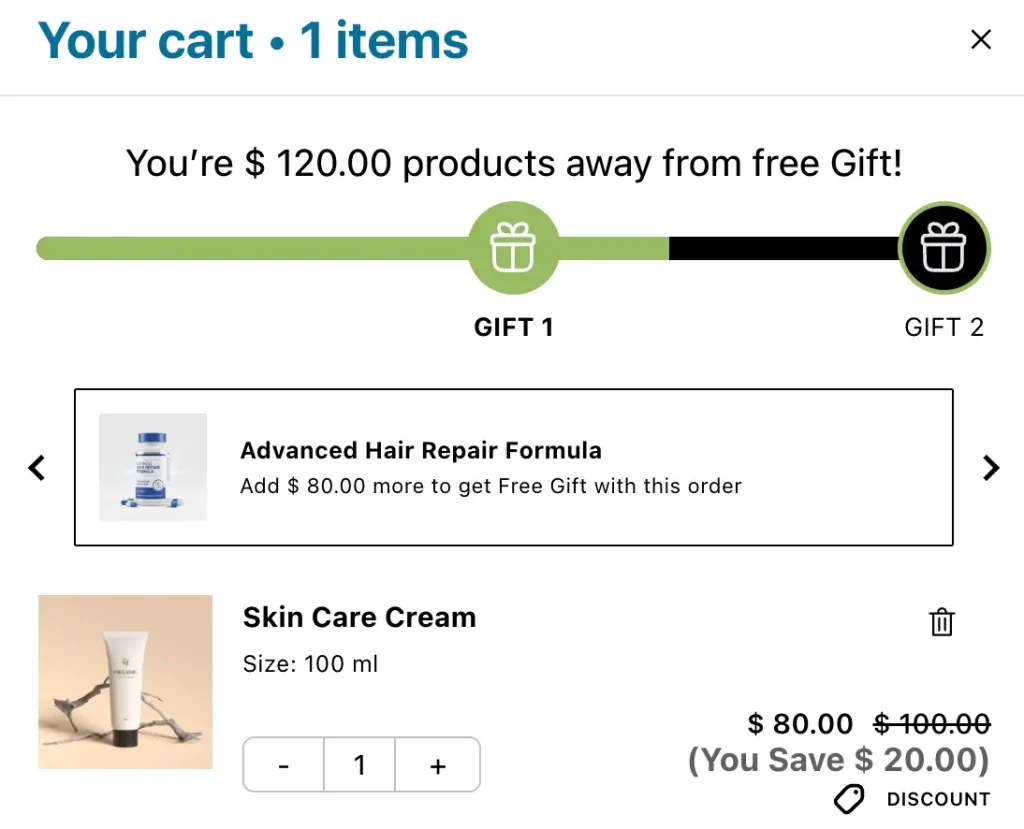
Instead of auto-adding one product, this mode shows a gift selection interface inside the cart drawer. The customer sees icons labeled "GIFT 1" and "GIFT 2" (or however many you set up). They tap the one they want, and a product card appears.
This works best when:
- You offer gifts in multiple variants (colors, scents, sizes)
- You want customers to feel in control of their reward
- You have multiple gift-worthy products and want data on preferences
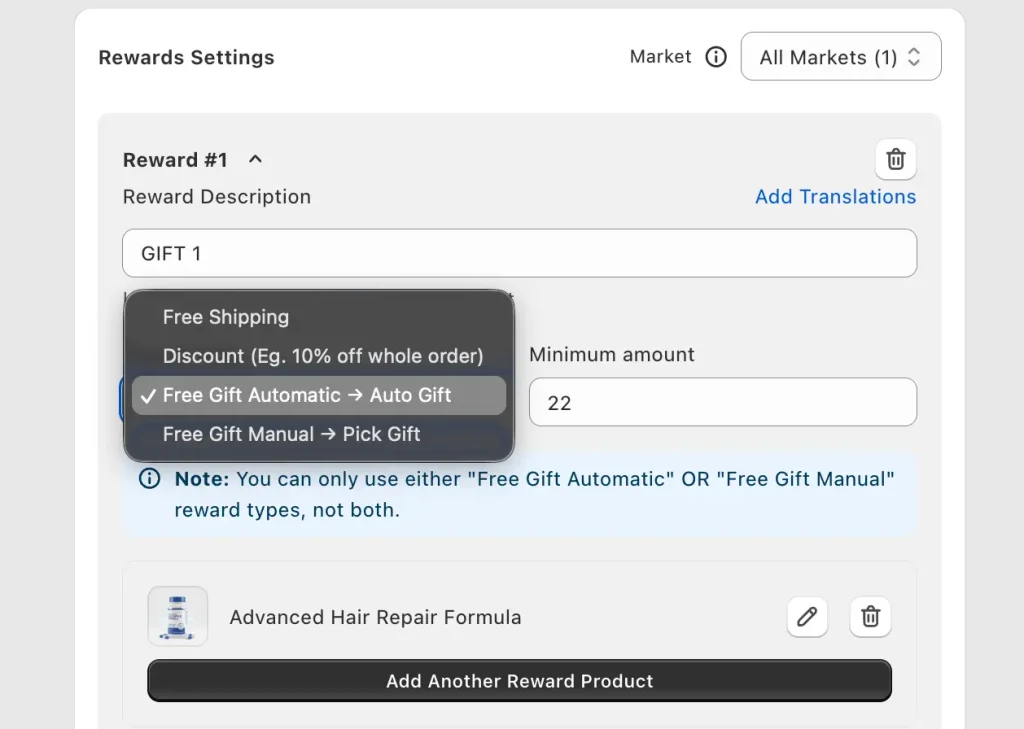
Note: within a single reward tier, you can only use Auto OR Manual — not both. But you can stack tiers and use a different mode in each.
Multi-tier rewards with a progress bar
This is where Oxify gets really powerful for AOV. You aren't limited to a single threshold. You can stack tiers:
- Tier 1 ($50): Free sample sachet (auto-added)
- Tier 2 ($100): Free full-size product (pick your gift)
- Tier 3 ($150): Free premium bundle (auto-added)
Each tier appears as an icon in the progress bar inside the cart drawer. As the customer adds items, the bar fills up and icons light up as each reward unlocks. Classic gamification — customers actively try to reach the next tier.
The progress bar sits at the top of the cart drawer, above all cart items. Text dynamically updates: "You're $120.00 away from a free Gift!" becomes "You're $20.00 away from a free Gift!" as they add items. Under "Show Advanced Settings" there is also a "Show Reward Bar When Cart is Empty" toggle, which shows the tiers before anything is added; test it both ways, since some stores will find that too pushy.
Per-market thresholds and gifts (Shopify Markets)
The Rewards Settings screen has a Market dropdown, so each Shopify Market can get its own reward tiers: a £50 threshold with one gift for the UK, $60 with another for the US. Set each threshold in that market's currency rather than relying on a converted number, because a converted $50 lands on awkward amounts like £39.42. The reward description also has Add translations, so the bar can read in the shopper's language. For choosing gifts and thresholds by country, see Shopify free gift by country; for currency display problems in the drawer, see Shopify cart drawer multi-currency fixes.
Discount codes alongside the gift
The discount code field and the gift system live in the same drawer, so a shopper can type "SUMMER15" and watch what it does to their gift progress. Two things to decide before launch: whether codes should be allowed to combine with the gift at all (Shopify admin → Discounts → Combinations), and whether a code that pushes the subtotal below the threshold should take the gift back out. Test that exact sequence on your store.
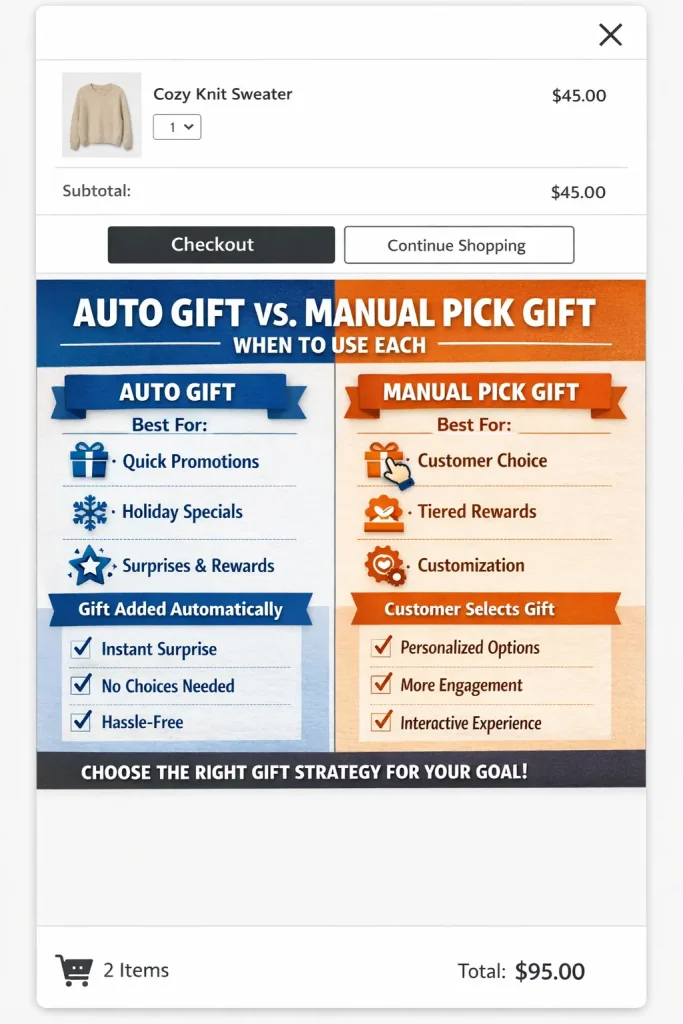
Auto Gift vs Pick Gift — When to Use Each
Use Auto Gift when:
- You have one clear gift product (a bestselling sample, a branded accessory)
- Your goal is maximum simplicity and minimum friction
- Your customer base is mobile-heavy (less tapping = better)
- You're running a time-limited promotion where speed matters
- The gift product has no variants
Use Pick Gift when:
- You offer multiple gift options (different scents, colors, products)
- You want engagement data on which gifts customers prefer
- Your store sells premium products where choice feels luxurious
- You want to showcase new products as gift options to build awareness
- The gift selection itself is part of the brand experience
For most stores starting with free gifts, start with Auto Gift. Simpler to set up, fewer moving parts, cleaner baseline to measure AOV impact. Once you have data, test Pick Gift to see if engagement improves.
Step by Step: Automatically Add a Free Gift With Oxify Cart Drawer & Upsells
No coding required. Live on your store in under 15 minutes.
Step 1: Install Oxify
Go to the Shopify App Store and install Oxify Cart Drawer & Upsells. 14-day free trial, so you can test everything before committing.
Step 2: Create your gift product
Before configuring anything in Oxify, the gift product needs to exist in your Shopify catalog.
Go to Shopify Admin → Products → Add product.
Set the price to a real value (like $9.99 or $14.99) — NOT $0. This is important. When the gift shows up in the cart drawer as "FREE" but has a visible retail value, the customer perceives more value. "$14.99 → FREE" feels much better than "$0.00 → FREE."
Set inventory to either keep plenty of stock OR "Continue selling when out of stock" so the gift is always available. You can hide this product from your online store search and collections — it only needs to be selectable inside Oxify.
Step 3: Open the Rewards section
Open the Oxify app from your Shopify admin sidebar. Navigate to the Rewards section. You'll see a toggle at the top — flip it ON.
Step 4: Choose your reward basis
Under General Settings, pick:
- Cart Total — gift triggers based on dollar value of the cart
- Item Count — gift triggers based on number of items in the cart
For most stores, select Cart Total. This directly drives AOV growth.
Step 5: Pick your template style
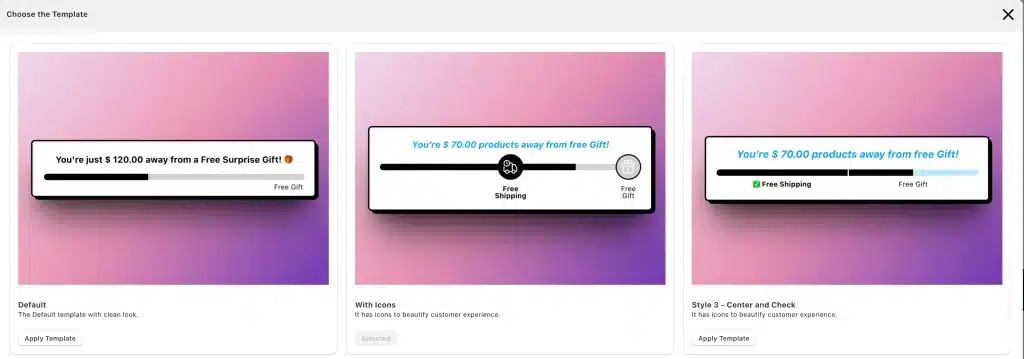
Oxify offers multiple visual templates for the rewards bar. Style 4 (Bubble) displays reward tiers as circular bubble icons that fill in as the customer progresses. Click "View Templates" to browse other styles.
Step 6: Configure Reward #1
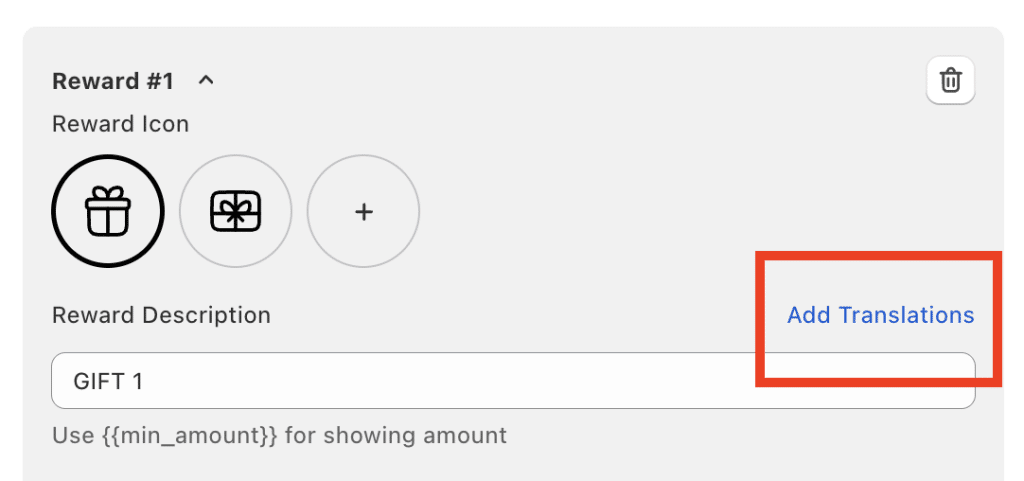
Under Rewards Settings, you'll see "Reward #1" with these fields:
- Reward Description — type a label like "GIFT 1" — appears as the icon label in the progress bar
- Reward Type — pick "Free Gift Automatic → Auto Gift" or "Free Gift Manual → Pick Gift"
- Minimum Amount — enter the cart value threshold (e.g., 50 for $50)
- Gift Product — click "Add Another Reward Product" and pick the gift you created in Step 2
For Manual Pick Gift mode, you can add multiple products here.
Step 7: Customize the progress text
In the "Text Before Achieving Reward" section, write the message. Use the {AMOUNT} variable to dynamically insert the remaining dollar amount.
Example: "You're {AMOUNT} away from a free Gift!"
This auto-updates. So if they need $18 more, they see "You're $18.00 away from a free Gift!"
Step 8: Add more reward tiers (optional)
Want tiered rewards? Add Reward #2, Reward #3. Each tier gets its own threshold, reward type, and gift product. The progress bar shows multiple icons unlocking sequentially.
Step 9: Customize the design
Under Design, control:
- Background color of the rewards bar
- Title font size
- Reward icon color (achieved vs unachieved)
- Reward bubble background color
- Description font and color
Match these to your brand. A gold/yellow progress bar with black icons is popular — creates a "premium reward" feel.
Step 10: Preview and test
Open your storefront in incognito. Add products until you're below the threshold — verify the progress bar shows the correct remaining amount. Add more to cross the threshold — verify the gift auto-adds (or selection appears). Remove items to drop below — verify the gift auto-removes.
Test on mobile specifically. Many of your shoppers will see this on a phone screen. Make sure the progress bar text is readable, gift image renders properly, drawer doesn't feel cramped.
Step 11: Go live
Once testing confirms everything works, your rewards are already active (toggle was flipped ON in Step 3). No separate publish step. Customers see the gift offers immediately.
How to Set Thresholds That Actually Move Your AOV
Setting up the feature is half the job. Here's the strategy.
The threshold gap rule
Look at your current AOV in Shopify Analytics → Overview. Let's say it's $45. Set your first gift tier at $60. That's a $15 gap.
Now look at your catalog. Do you have products in the $12-20 range? If yes, customers will add one of those to close the gap. Each shopper who closes the gap moves from $45 to $60 or more, an order about a third bigger. Your store-wide AOV rises by less than that, in proportion to the share of shoppers who close it.
If your average product price is too high to "bridge the gap" easily, lower the threshold closer to your AOV. A $50 threshold on a $45 AOV works because a small add-on (socks, accessories, refills) gets them there.
Tier structure that works
- Tier 1 (low threshold, ~110-130% of AOV): Something small but desirable. Sample sachet, branded sticker pack, mini product. Should cost you under $3 to fulfill. Goal: get them past the threshold.
- Tier 2 (medium, ~150-200% of AOV): A real product with real perceived value. Retails for $10-20, costs you $3-5 wholesale.
- Tier 3 (high, ~250-300% of AOV): Premium. Full-size product, a bundle, or pair it with free shipping. Catches your whales and makes them feel like VIPs.
The anchor product strategy
Use a gift that retails for $15-25 so the FREE badge feels genuinely valuable. "Advanced Hair Repair Formula — $19.99 → FREE" mentally adds $19.99 to the perceived value of the order. This is the anchoring effect — the gift's retail price becomes a reference point.
Stack with other Oxify features
Combine free gifts with:
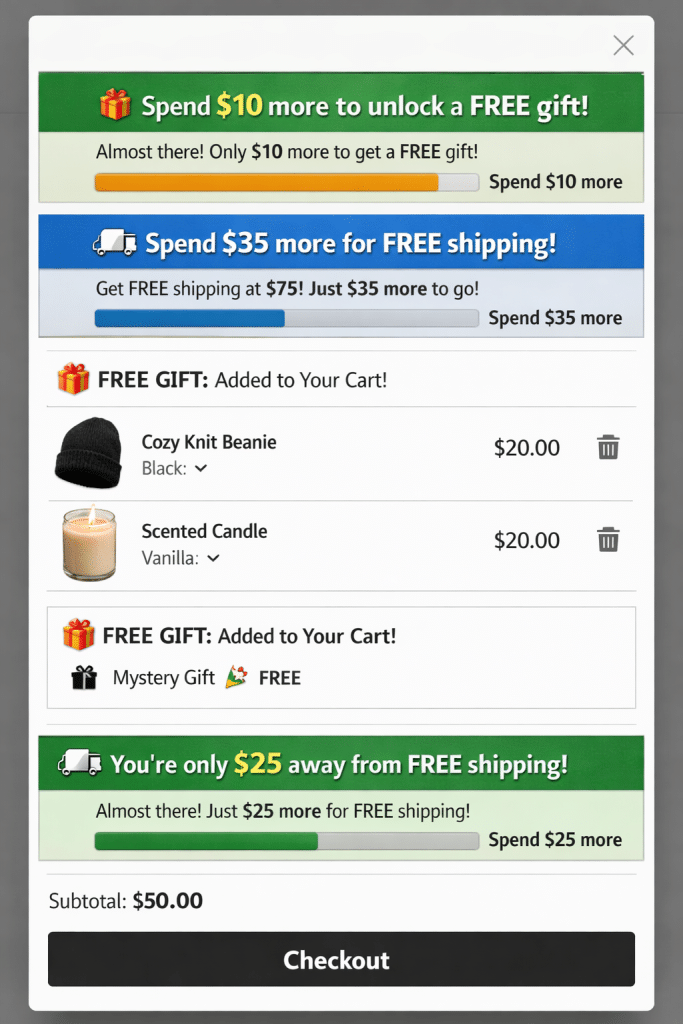
- Free shipping progress bar — "Spend $25 more for FREE shipping"
- In-cart upsells — one-click add-ons like gift wrapping, shipping protection
- Discount code field — "WELCOME10" for 10% off plus the free gift
- Countdown timer — urgency on a limited-time gift
A free-shipping bar next to the gift bar gives the shopper two spend goals in one drawer. Decide deliberately whether your gift threshold sits at the same number as your shipping threshold, above it or below it.
Rotate the gift seasonally
Don't set and forget. Change the gift at least quarterly and tie it to a season or a launch: a travel-size product in summer, or a premium full-size gift with a higher threshold for Black Friday. Repeat customers stop noticing a gift that never changes.
Real Merchant Snapshot: 35 Free Gifts Claimed in 7 Days
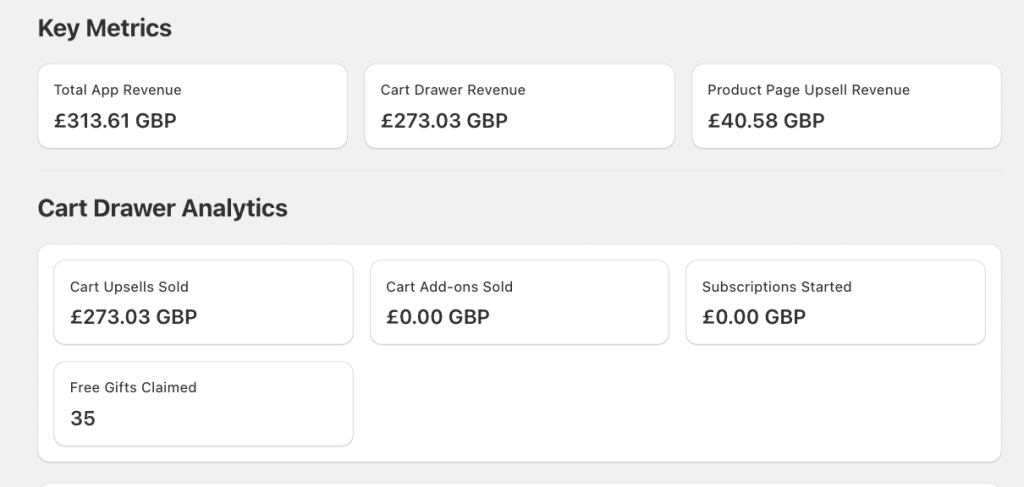
Theory is nice. Here's a real Oxify merchant snapshot — a UK skincare store — from the Oxify analytics dashboard after one week with the free gift rewards system enabled.
7-day numbers:
- Total app revenue: £313.61 GBP
- Cart drawer revenue: £273.03
- Product page upsell revenue: £40.58
- Free gifts claimed: 35
- Cart upsells sold: £273.03
What this means:
87% of total app revenue (£273.03 out of £313.61) was generated inside the cart drawer itself. The slide cart is where the money is made — product pages contribute, but the cart drawer is the primary conversion engine.
35 orders crossed the reward threshold and claimed a free gift in those 7 days.
What this snapshot does not show: the store's AOV before the gift, or how many of those 35 carts would have crossed the threshold anyway. It is a week of dashboard output, not a controlled test, so treat it as proof that the mechanics work in a live store rather than as a lift figure. To measure lift on your own store, compare AOV and the share of orders at or above the threshold for two weeks before and after launch.
Common Mistakes That Kill Free Gift Conversions
Threshold too high. AOV is $45 and you set the gift at $120? Almost nobody qualifies. Progress bar shows "$75 away from free Gift!" which feels discouraging, not motivating. Keep tier 1 within 20-30% above your AOV.
Using a $0.00 gift product. Setting the gift to $0 kills perceived value. "FREE — $0.00" doesn't feel like winning. Set a real retail price ($9.99, $14.99, $19.99) so the FREE badge next to a real price creates a wow moment.
Low-quality gift product. Generic "Mystery Gift" or a product with no image doesn't excite anyone. Use a real, photographed product customers would actually want to buy.
Not testing on mobile. Cart drawer looks different on phone vs desktop. Progress bar might wrap, gift image might be too large, reward bubbles might be too small to tap. Test on a real device, not just browser responsive mode.
Not telling customers about the offer. If the only place the gift promotion appears is inside the cart drawer, you're missing people who haven't opened their cart yet. Add banners on product pages, homepage, email marketing.
Other Cart Drawer & Free Gift Apps (For Comparison)
If you already run a cart drawer you like, a standalone gift app is the other route. These are the main ones, with ratings and plans checked on the Shopify App Store on October 11, 2026:
- BOGOS: Free Gift Bundle Upsell — the most-reviewed of these five (5.0 stars, 4,474 reviews, Built for Shopify). BOGO, free gift, bundle and volume-discount rules, with a progress bar and targeting. Free plan (30 free orders, lifetime); paid plans from $29.99/month.
- EG Auto Add to Cart Free Gift (EasyGift) — rule-based auto-add on subtotal, quantity, product, collection or tag (4.9 stars, 1,136 reviews, Built for Shopify). Free plan with one gift rule; paid from $14.99/month.
- Monk Free Gift with Purchase — widget design and translation controls plus an eligibility rules engine (4.9 stars, 593 reviews, Built for Shopify). The listing showed a Black Friday 2026 offer of $1 for the first month; check current pricing there.
- CK: Free Gift with Purchase (formerly CartKing) — shows gift options in the cart and cart drawer (4.9 stars, 150 reviews). Free Starter plan covers up to 10 orders via the app; paid from $6.99/month.
- Dr Free Gift, BOGO Buy X Get Y — auto-assign or shopper-choice gifts with a multi-goal progress bar (4.7 stars, 98 reviews). Its free plan is the trial and development-store plan; the Pro plan is $9.99/month.
Important compatibility note: running a separate cart drawer app and a separate gift app means two scripts changing the same cart. The gift app adds the product through the Ajax Cart API, but the drawer does not always re-render, so the gift can be in the cart without showing in the drawer until the page reloads. If you go this route, check that the gift app lists your drawer as compatible. A drawer with gifts built in, like Oxify, avoids the hand-off.
Custom Code Method (DIY Alternative)
If you prefer code over apps, you can build a basic free gift system using Liquid and JavaScript. Works on Dawn and most Shopify 2.0 themes.
Create a $0 gift product in Shopify and note the Variant ID (find it by adding .json to the product URL).
Add this inside the drawer markup. In Dawn 16 that is snippets/cart-drawer.liquid (the file in sections/ is only a wrapper); other themes name it differently:
{% if cart.total_price >= 5000 %}
  <p>You unlocked a free gift!</p>
  <button class="free-gift-btn" data-variant-id="VARIANT_ID_HERE">
    Add Free Gift to Cart
  </button>
{% endif %}
Add this to assets/global.js:
document.addEventListener('click', function(e) {
  if (e.target.classList.contains('free-gift-btn')) {
    const variantId = e.target.dataset.variantId;
    fetch('/cart/add.js', {
      method: 'POST',
      headers: {'Content-Type': 'application/json'},
      body: JSON.stringify({id: variantId, quantity: 1})
    }).then(() => {
      const drawer = document.querySelector('cart-drawer');
      if (drawer) drawer.open();
      else location.reload();
    });
  }
});
This gives you a manual "Add Free Gift" button at a 5000 threshold. Note that cart.total_price is in the shopper's presentment currency and in cents, so 5000 means 50.00 of whatever currency they are browsing in: $50, £50 or €50 alike. Dawn's drawer open() also does not re-render the cart contents, so in practice you need the Section Rendering API or a reload to show the new line. And there is still no progress bar, no auto-add, no auto-remove (you would need /cart/change.js to set the gift line to 0 when the total drops), no tiers and no analytics.
Compared to Oxify's built-in system, custom code saves a monthly fee but costs significantly in dev time, maintenance (theme updates can break your snippet), and missing features that drive conversion.
Free Gift Not Showing in the Cart Drawer? 6 Checks
When a gift works at checkout but not in the slide cart, or does not appear at all, it is almost always one of these:
- The gift product is out of stock or unpublished. If inventory is tracked and at zero, the gift cannot be added. Set it to continue selling or keep stock topped up, and make sure it is available on the Online Store sales channel.
- The shopper is in a different market. A reward set for one market does not show to shoppers in another. Check the Market dropdown in Rewards Settings, and check the market assignment on any native discount.
- The threshold is being read after discounts. A code can drop the subtotal below the minimum, so the gift correctly leaves. Test with and without a code.
- Two apps are fighting over the cart. A theme drawer plus a separate gift app, or two cart apps, can each re-render the cart and overwrite each other. Disable one and retest.
- The theme drawer is still active. If the app drawer is enabled but the theme's own drawer opens first, the gift logic never runs. In the theme editor, set the cart type the app's setup guide asks for.
- Cached page. Test in a fresh incognito window after every settings change.
For drawer layout problems more generally, see how to customize the Shopify cart drawer.
Related: Adding free minis? See the best Shopify apps for beauty and skincare brands.
Frequently Asked Questions
How do I automatically add a free gift to the cart in Shopify?
Can Shopify add a free product to the cart automatically without an app?
Which apps show a "you're $10 away from a free gift" message in the cart?
Is there a free app for adding a free gift in the Shopify cart?
Can I run both auto-add gifts and pick-your-gift at the same time?
Do free gifts work with discount codes in Oxify?
Will adding free gifts slow down my store?
Can I have different free gifts for different countries?
What's the best free gift threshold for my store?
How do I track whether the free gift campaign is working?
Why is my free gift not showing in the cart drawer?
How do I create a $0 product for the free gift in Shopify?
What to Do Right Now
Action plan:
- Install Oxify Cart Drawer & Upsells — 14-day free trial
- Create your gift product with a real price and great image
- Open the Rewards section and set up your first tier at 20-30% above your current AOV
- Choose Auto Gift for simplicity (test Pick Gift later)
- Customize the progress bar colors to match your brand
- Test on mobile in incognito
- After two weeks, compare AOV and the share of orders at or above the threshold with the two weeks before
Free gifts inside the Shopify cart drawer aren't a gimmick. They give shoppers a concrete reason to add one more item at the moment they are looking at their total. With Oxify, the progress bar, reward tiers, auto-add logic, gift picker, per-market thresholds and analytics all sit in the one cart drawer app, so there is no second app to keep in sync.