
How to Edit & Customize the Shopify Cart Drawer and Cart Page: Dawn, Horizon & More (2026)
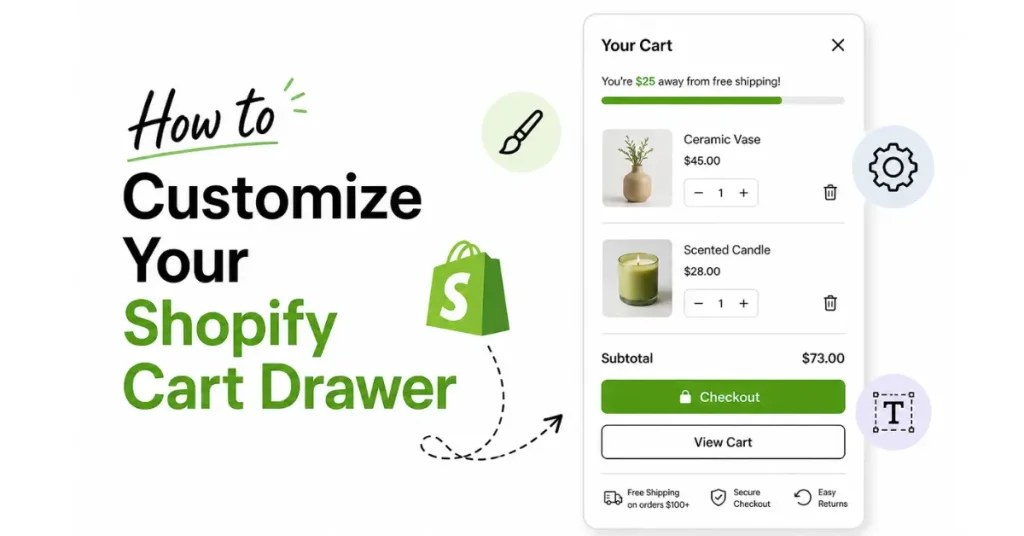
Quick answer: To edit the cart drawer in Shopify, go to Online Store → Themes → Edit theme, click the Theme settings gear (top left), open Cart, and set Cart type to Drawer. To edit the cart page, pick Cart from the editor's template menu instead. Upsells, a free shipping bar or free gifts need a cart drawer app or custom code.
Out of the box, a Shopify cart drawer has no upsells, no free shipping bar and no brand colors that actually match your store. The good news: you can edit and customize your Shopify cart drawer in under 10 minutes — free with the theme editor, deeper with code, or fully with an app — and you don't need a developer for the first two wins.
This guide covers all three paths — app, theme editor, and custom code — plus exact steps and verified file names for Dawn, Horizon, Prestige, and Impulse, ready-to-paste CSS, a cart AJAX API reference, how to customize the cart page itself, and what to do if you can't find the gear icon or the Cart type setting. Theme editor paths were re-checked against Shopify's Help Center on October 11, 2026.
Quick Summary
- Method 1 — cart drawer app: 10 minutes, no code, full features (upsells, free shipping bar, BOGO, trust badges). The route we recommend for most stores.
- Method 2 — Shopify theme editor: 5 minutes, free, basic only — switch the drawer on, give it a color scheme (Dawn-family themes), change its wording and fonts. No upsells, no free shipping bar.
- Method 3 — custom Liquid + CSS: 30+ minutes per feature, full pixel control, requires dev skills. Ready-to-paste snippets below.
- Theme matters: file paths and CSS selectors differ per theme — the lookup table below covers Dawn, Horizon, Prestige, and Impulse, with Dawn (v16.0.0) and Horizon (v4.2.0) re-verified against Shopify's public repos on October 11, 2026.
- Best first customization: a free shipping bar, through an app (Method 1) or code (Method 3), since Dawn and Horizon have none built in. Method 3, Step 5 has the snippet and shows what thresholds real stores display.
What Is a Shopify Cart Drawer — and Should You Use One Instead of the Cart Page?
A Shopify cart drawer (also called a slide cart or mini cart) is a side panel that slides in when a shopper clicks the cart icon or adds a product. Instead of redirecting them to a separate /cart page, the drawer shows their items, totals, and checkout button right there — no page reload, no lost browsing momentum, and a layout designed for thumb navigation on mobile.
Here's the trade-off against the classic cart page:
| Trade-off | Cart drawer | Cart page |
|---|---|---|
| Shopping flow | Slides in without a reload — shoppers keep browsing | Redirects to a separate /cart URL |
| Best for | Mobile-heavy stores, impulse and low-consideration purchases | Large or B2B-style orders that need careful review |
| Selling space | Compact — 1–3 upsells plus a free shipping bar | Roomy — full recommendation sections and content blocks |
What do live stores actually run? In our October 2026 check of 475 live Shopify stores (saved homepage and product-page HTML read on 11 October 2026; a hand-picked sample skewing to larger direct-to-consumer brands, and storefront-only, so every count is a lower bound), 243 stores (51.2%) carried the theme's native cart drawer markup or setting. 48 (10.1%) had one of the five cart-drawer options we tracked detected — four drawer apps plus Rebuy Smart Cart theme code — and 15 had both a native drawer and one of those options. A cart page was positively indicated on 13 stores, but the cart type couldn't be read on 201 (42.3%), so 13 is a floor, not a share. That shows what stores ship, not what converts.
You don't have to pick one: you can run the drawer as the default and keep the /cart page as a fallback (customizing that page is covered below). For the full data on when each wins, see cart drawer vs cart page, and if the terminology is fuzzy, here's slide cart vs mini cart.
Which Customization Method Should You Pick?
Before you start clicking, decide which path fits your situation:
| Method | Time | Cost | Skill Needed | Best For |
|---|---|---|---|---|
| Method 1: Cart App | 10 min | Free to about $50/mo | None | Stores wanting upsells, free gifts, BOGO, full design control |
| Method 2: Theme Editor | 5 min | Free | None | Tiny tweaks (drawer on/off, basic colors) |
| Method 3: Custom Code | 30+ min | Free | Liquid/CSS/JS | Devs who want pixel-perfect control |
Quick rule of thumb:
- If you want sales features (upsells, free shipping bar, BOGO) → Method 1
- If you only need to enable the drawer or change one or two basic colors → Method 2
- If you have a dev and need pixel-perfect tweaks → Method 3
Method 1: Restyle the Cart Drawer With an App (Recommended)
This is the fastest, most powerful, no-code path. You install a cart drawer app, click through a visual editor, and you're live in 10 minutes — with upsells, a free shipping bar, trust badges, and full brand customization included.
There are several good cart drawer apps out there (here's our honest comparison of the best ones, and ratings and pricing for seven of them, checked October 11, 2026, are below). For this walkthrough, we'll use Oxify Cart Drawer & Upsells because it's the one we build, and the screenshots match what you'll actually see.
The same 7 steps apply to any modern cart app — only the UI labels change.
Step 1: Pick a Color Template
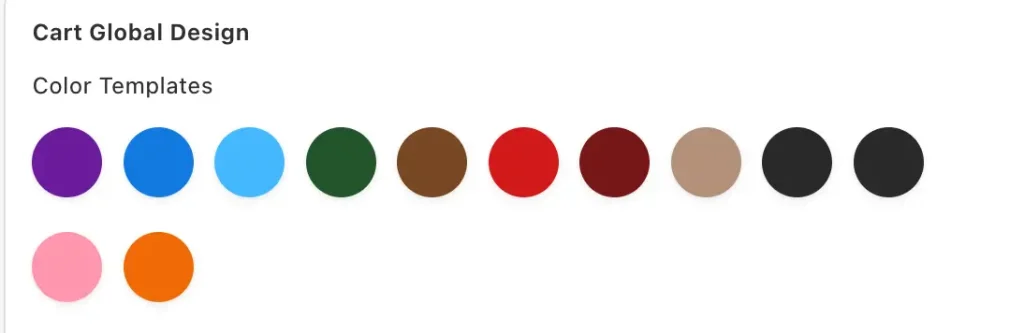
Open the Design tab. You'll see 12 ready-made color circles — purple, blue, sky blue, green, brown, red, beige, black, pink, orange, and more.
Click one and your entire cart re-skins instantly. Background, buttons, text — everything updates. This single click saves you 20 minutes of hex-code guessing.
Step 2: Set Your Brand Colors Manually
If none of the templates match your brand, drop in your hex codes under Cart Global Design:
- Cart background color — usually
#ffffff(white) or your brand off-white - Button background color — your primary CTA color (make it pop)
- Button text color — usually
#FFFFFF(white) or black for contrast - Title bar text color —
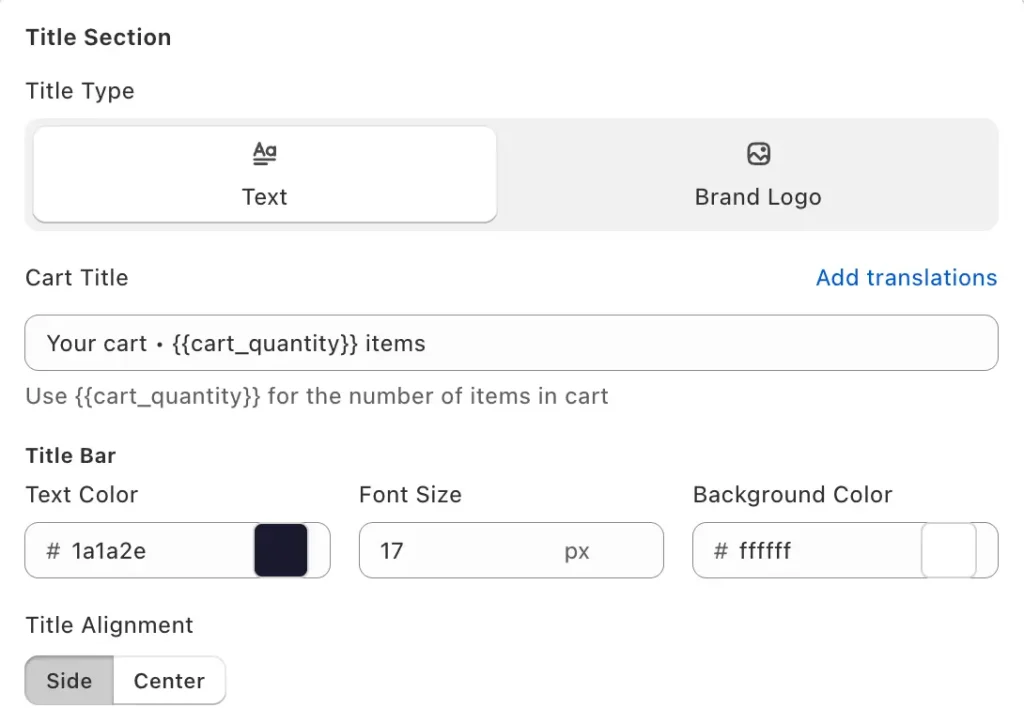
#1a1a2eworks for most stores
One rule worth stealing: your "Secure Checkout" button should be the loudest element in the entire drawer. If shoppers can't find it in one second, you're losing them.
Step 3: Choose Title Type — Text or Logo
Under the Title Section, pick:
- Text — something like
Your cart • {{cart_quantity}} items(the dynamic variable updates the count automatically) - Brand Logo — upload your logo for a more premium feel
Logos tend to suit skincare, fashion, and luxury; text suits grocery, supplements, and high-volume stores. Test both for 7 days each and check your AOV.
Step 4: Adjust Button Radius and Font Size
Tiny details that change the whole vibe:
- Button radius 0 — sharp, modern, masculine (think tech, gym, or streetwear)
- Button radius 8 — balanced (the default that works for most stores)
- Button radius 24+ — soft, friendly, beauty/wellness feel
- Font size 14–16 — compact carts (more items visible)
- Font size 17–20 — spacious carts (easier mobile reading)
Step 5: Turn On the Sales Boosters
This is where AOV moves. In the left sidebar, toggle on:
- Upsells — show 1–3 related products under the cart items (full upsell strategy guide)
- Upsells with Discount — same, but with an "Add for $5 off" hook
- Volume Discount — "Buy 2 save 10%, buy 3 save 20%"
- Add Ons — gift wrap, shipping protection, warranties
- Rewards — free shipping bar or free gift progress meter
- Discount Codes — let shoppers paste codes inside the cart (here's why this boosts conversion)
Don't switch all of them on day one. Start with Upsells and Rewards — those are the highest-leverage boosters — and add the rest only after you've watched your AOV for a couple of weeks.
Step 6: Add Trust Elements and the Overlooked Extras
Toggle on:
- Trust Badges — secure checkout, money-back, verified payments (see the 7 badges that move the needle)
- Announcements — "Free shipping over $50" or "Orders ship same day"
- Additional Notes — let shoppers add gift messages
- Countdown Timer — "Order in the next 14:32 to ship today"
These reduce checkout anxiety at the exact moment shoppers decide whether to pay.
While you're in the editor, open the settings most stores never touch: the Empty cart state (swap the bored "Your cart is empty" for a "Here's what's trending →" hook with a collection link), the Custom HTML & CSS slot (for the one odd tweak no toggle covers), a Subscribe & save toggle if you sell consumables, and split payments — showing Shop Pay Installments or Klarna inside the drawer, not just at checkout, defuses price shock early.
Step 7: Preview on Mobile and Save
Toggle the preview to mobile view, scroll through the cart, and check:
- Is the checkout button thumb-reachable (bottom 1/3 of the screen)?
- Are upsell images crisp on small screens?
- Is the close icon (×) visible against your background?
- Is the font readable without zooming?
- Does the drawer fill nearly the whole mobile screen width? (A near-full-width drawer is our design recommendation on phones, not a published Shopify standard — test it against a narrower drawer on your own traffic.)
Once it looks good, hit save. Done.
Total time: 10 minutes. Total skill needed: zero.
Method 1: Pros and Cons
Pros:
- Live in 10 minutes with zero code
- Full feature set out of the box: upsells, free shipping bar, BOGO, trust badges, countdown timer
- Visual editor with live preview — see changes instantly
- Updates automatically — no maintenance when Shopify or your theme updates
- Mobile-responsive by default, with built-in analytics and A/B testing on many apps
- Customer support if something breaks
Cons:
- Monthly subscription cost — the mainstream drawer apps run from a free plan up to roughly $50/mo on the plans their listings show, with one Shopify Plus tier at $99/mo
- Learning curve for advanced features (upsell rules, segmentation)
- Apps add storefront code. Shopify caps any app at a 10-point drop in the store's Lighthouse performance score, and Built for Shopify repeats that limit, but a cap is not a guarantee, so measure your own store (Issue 4 below)
- Limited by what the app's UI exposes — extreme custom needs may still require Method 3
Method 2: How Do You Edit the Cart Drawer in Shopify's Theme Editor? (Free, No App)
Open Online Store → Themes → Edit theme, click the Theme settings gear icon on the left of the top menu bar, open Cart, and set Cart type to Drawer. In Dawn-family themes the same Cart panel also lets you give the drawer its own color scheme and an empty-cart collection. Fonts and the color schemes themselves are store-wide, and the free editor has no upsell or free-shipping-bar features.
This works on any Online Store 2.0 theme that already ships a drawer. We verified Dawn and Horizon directly against Shopify's public repositories; the other free themes (Sense, Craft, Refresh, Studio, Origin, Ride) have no public repo, so check your own theme settings rather than trusting any list — including ours. Important: it only works if your theme already ships a cart drawer. If yours doesn't, jump to the legacy-theme section.
Step 1: Switch From Cart Page to Cart Drawer
Many themes start on the cart page or a small add-to-cart popup (Dawn's default is the popup). To switch to a drawer:
- From your Shopify admin, go to Online Store → Themes
- Next to your live theme, click Edit theme (older admin screens labelled this button Customize)
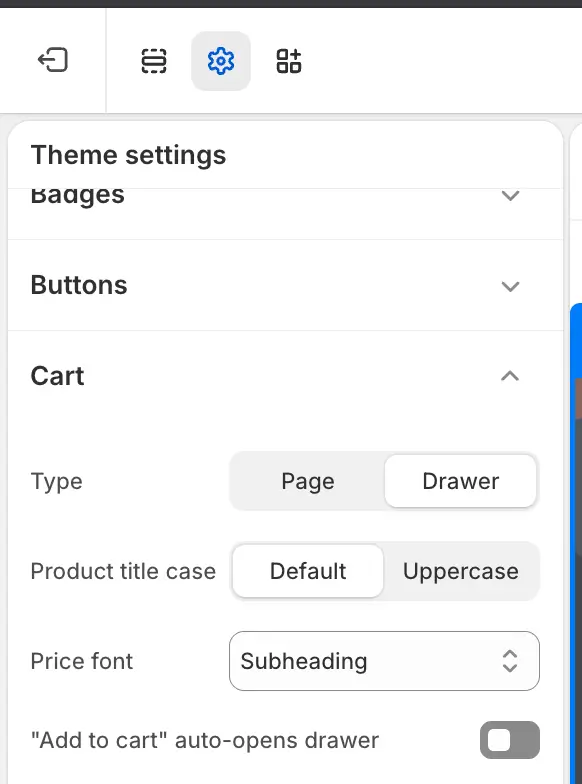
- In the theme editor, click the Theme settings gear icon on the left side of the top menu bar, next to the Sections and App embeds icons
- Click Cart
- Under Cart type, select Drawer — the alternatives depend on your theme: Dawn offers Page and Notification (the small corner popup, and Dawn's default), Horizon offers only Page (its default)
- Click Save
That's it. Your cart will now slide in from the side instead of redirecting. (For the full switch, including what to do with the old cart page, see how to replace the Shopify cart page with a slide cart drawer.)
Can't Find the Gear Icon or the Cart Type Setting?
This is where most people get stuck. Checked against Shopify's Help Center on October 11, 2026, the usual causes are:
- You're looking at the bottom of the sidebar. In the current theme editor the Theme settings gear sits in the top menu bar, on the left, between the Sections and App embeds icons — it's the highlighted icon in the screenshot above. Older tutorials, including earlier versions of this one, put it at the bottom of the left sidebar.
- You're looking for a Customize button. Shopify now labels the button next to your theme Edit theme.
- You're on the Shopify mobile app. There's no gear on a phone. Tap the horizontal or vertical menu (⋯) icon, then Theme settings → Cart.
- Your theme names or groups it differently. Premium themes don't all follow Shopify's labels, and some vintage themes have no drawer at all. Click your theme's name in the editor's top bar and choose View documentation, or see what to do if your theme has no drawer.
If you switched it on and nothing changed, check that you edited your live theme (unpublished themes show a Draft label next to their name) and that a cart app isn't overriding the theme's drawer — see troubleshooting.
Step 2: Adjust Cart Drawer Colors
In Dawn-family themes, Theme settings → Cart has a Cart drawer area below the Cart type setting. Pick the drawer's Color scheme there; you can also choose a collection to show when the cart is empty. To change what that scheme looks like:
- Open Theme settings → Colors
- Edit the scheme the drawer uses, or add a new one (Shopify allows up to 21 color schemes)
- Change:
- Background color
- Text color
- Button background and text colors
- Save
Note: color schemes are shared store-wide, so editing one recolors every section that uses it. For drawer-only colors, create a new scheme and assign it only to the cart drawer. Horizon 4.0 and later uses a store-wide color palette instead of color schemes, and its Cart settings have no drawer color option (checked October 11, 2026), so for drawer-only colors there you need Method 1 or 3.
Step 3: Edit Cart Drawer Typography
Under Theme Settings → Typography:
- Headings font — affects the cart title
- Body font — affects product names, prices, totals
- Font size scale — slider that bumps everything up or down
Again, these changes apply store-wide, not cart-only.
Step 4: Change the Drawer's Wording
Text like "Your cart", "Check out" or the empty-cart message isn't a Cart setting. It lives in your theme's default content. In the theme editor, click your theme's name in the top menu bar, choose Edit default theme content, search for "cart", edit the wording, and save. It's free, needs no code, and doesn't touch theme files.
Step 5: Toggle Built-In Cart Features
What you can switch on depends on the theme. Here's what the Cart settings group actually contains in Shopify's two public themes (checked against their repositories on October 11, 2026):
- Dawn (v16.0.0): show vendor, a cart note field, a collection to show in the empty drawer, and the drawer's own color scheme
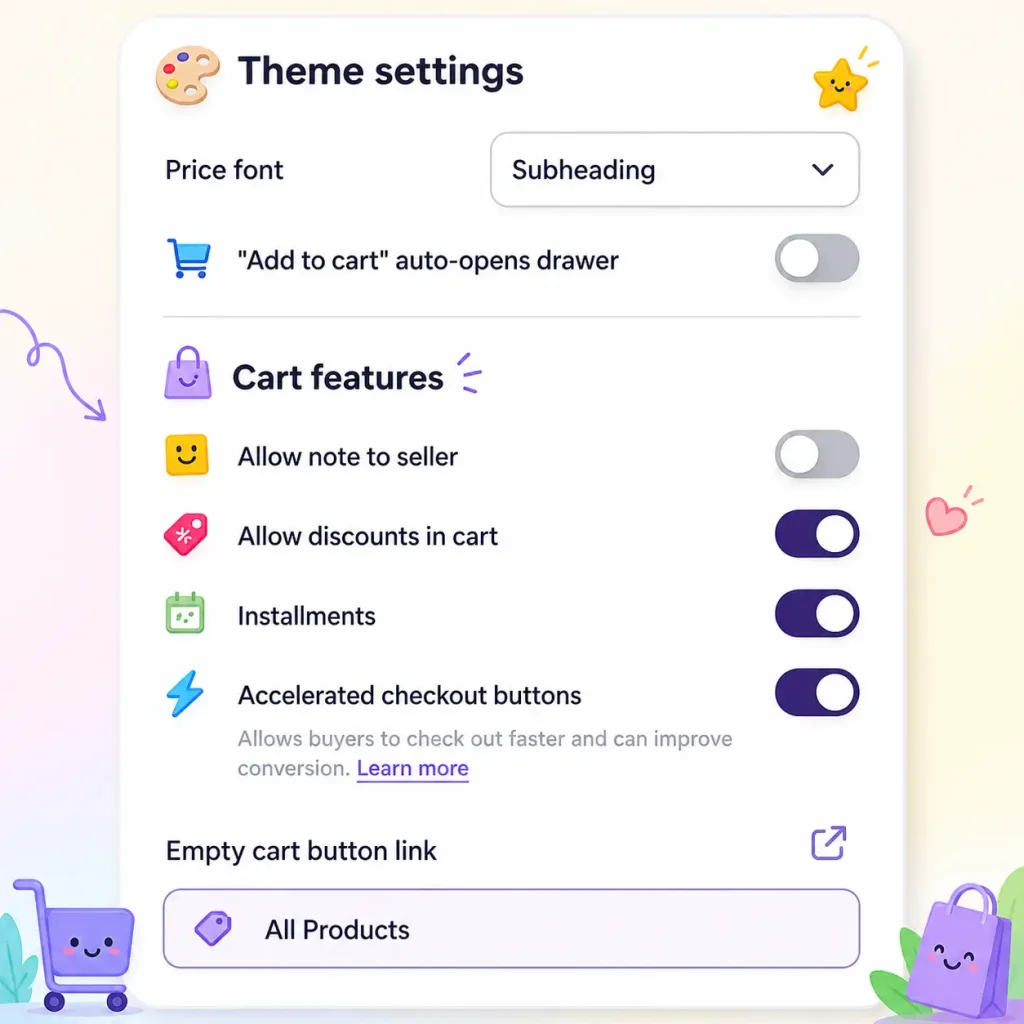
- Horizon (v4.2.0): "Add to cart" auto-opens drawer, Allow note to seller (optionally open by default), Allow discounts in cart, Installments, Accelerated checkout buttons, the empty cart button link, product title case, and thumbnail border styling
- Any theme: currency codes are a store-wide setting under Theme settings → Currency format (for Shopify Markets pricing, see our multi-currency cart drawer guide)
Open Theme settings → Cart, scroll through the available toggles, and switch on what you need.
Step 6: Add a Free Shipping or Announcement Bar (If Supported)
Some premium themes — reportedly including Impulse, Symmetry and Prestige; all closed-source, so we could not verify this from a public schema — include a built-in cart goal bar or free shipping progress bar. If yours does:
- Open Theme settings → Cart in the theme editor
- Look for "Free shipping bar" or "Cart goal"
- Set your threshold (e.g., $50 for free shipping)
- Customize the message and progress bar color
- Save
If your theme doesn't include this natively — Dawn and Horizon don't — you'll need Method 1 or Method 3.
What You CAN'T Do With the Theme Editor
Be honest about the ceiling. The native theme editor cannot:
- Add cart upsells or product recommendations
- Show "You may also like" sections in the cart
- Add volume discount tiers (Buy 2 Save 10%, etc.)
- Display BOGO offers inside the cart
- Add countdown timers
- Show trust badges inside the drawer
- Add gift wrap or shipping protection add-ons
- Display post-purchase upsells
- Style the drawer beyond its color scheme and fonts — width, spacing, button shape and layout need CSS
If you need any of those, Method 1 or 3 is your only option.
Total time: 5 minutes. Total skill needed: zero. Limitation: basic only.
Method 2: Pros and Cons
Pros:
- 100% free — no app subscription
- Native to Shopify — no third-party app script to load
- 5-minute setup, no code knowledge, no theme-breaking risk
- Settings persist through normal theme updates
- Works with any Shopify 2.0 theme that supports drawers
Cons:
- Extremely limited — colors, fonts, wording and a handful of theme toggles only
- No upsells, free shipping bar, BOGO, trust badges, countdown timers, or add-ons
- Colors come from store-wide color schemes, or a store-wide color palette in Horizon 4.0 and later (Dawn lets you assign the drawer its own scheme; Horizon doesn't)
- No mobile-specific controls, no analytics, no A/B testing
- Won't work on older themes or custom themes without native drawer support
Method 3: Style the Drawer With Custom Liquid + CSS Code
This method gives you total pixel-level control but requires comfort with Liquid templating, CSS, and ideally JavaScript (for a deeper CSS-only walkthrough, see our cart drawer custom CSS guide). Always duplicate your theme before editing code — one missing tag can break your whole storefront.
Step 1: Locate Your Cart Drawer File
- Go to Online Store → Themes and click Edit theme
- Click your theme's name in the top menu bar and choose Edit code (older admin screens: Actions → Edit code on the Themes page)
- In the left file tree, look under Snippets or Sections — the location depends on the theme. Dawn ships both
sections/cart-drawer.liquidandsnippets/cart-drawer.liquid(the section renders the snippet); Horizon keeps the markup insnippets/cart-drawer.liquid, plus a thinsections/cart-drawer-section.liquidwrapper that exists only so the Section Rendering API can re-render the drawer. Look for one of:cart-drawer.liquidmini-cart.liquidcart-notification.liquid(Dawn's corner-popup variant)
- Open the file
If you don't see any of these, your theme may not have a built-in drawer — see what to do when your theme has no drawer.
Step 2: Customize Cart Drawer Width and Position
Find your theme's CSS file under Assets (usually base.css, theme.css, or application.css) and add this at the bottom. No-file alternative: paste the same CSS into Theme settings → Custom CSS in the theme editor, which Shopify applies to every page except checkout.
/* Cart drawer width */
.cart-drawer,
.drawer__inner,
cart-drawer {
  max-width: 480px !important;
  width: 100% !important;
}

/* Cart drawer slides in from right */
.cart-drawer {
  right: 0;
  left: auto;
}

/* Mobile: full width */
@media screen and (max-width: 768px) {
  .cart-drawer,
  .drawer__inner {
    max-width: 100% !important;
  }
}
Replace .cart-drawer with whatever class your theme uses — the lookup table below has verified selectors for Dawn and Horizon; for anything else, inspect the open drawer in your browser.
Step 3: Style the Cart Drawer Background and Text
/* Cart drawer background */
.cart-drawer {
  background-color: #ffffff;
  color: #1a1a2e;
  padding: 24px;
}

/* Cart title */
.cart-drawer__title,
.drawer__heading {
  font-size: 18px;
  font-weight: 600;
  color: #1a1a2e;
  text-align: left;
}

/* Product names */
.cart-item__name {
  font-size: 15px;
  font-weight: 500;
}

/* Product prices */
.cart-item__price {
  color: #1a1a2e;
  font-weight: 600;
}
Step 4: Customize the Checkout Button
.cart__checkout-button,
button[name="checkout"] {
  background-color: #000098;
  color: #ffffff;
  border-radius: 8px;
  padding: 16px 24px;
  font-size: 16px;
  font-weight: 600;
  width: 100%;
  border: none;
  cursor: pointer;
  transition: background 0.2s ease;
}

.cart__checkout-button:hover {
  background-color: #0000cc;
}
Step 5: Add a Free Shipping Bar (Liquid + CSS)
In your cart-drawer.liquid file, find where the cart total is rendered and add this above it:
{% assign threshold = 5000 %}
{% assign remaining = threshold | minus: cart.total_price %}

<div class="free-shipping-bar">
  {% if cart.total_price >= threshold %}
    <p>🎉 You unlocked FREE shipping!</p>
  {% else %}
    <p>Add {{ remaining | money }} more for FREE shipping</p>
    <div class="progress-bar">
      <div class="progress-fill" style="width: {{ cart.total_price | times: 100 | divided_by: threshold }}%"></div>
    </div>
  {% endif %}
</div>
Then add the CSS:
.free-shipping-bar {
  text-align: center;
  padding: 12px;
  background: #f5f5f5;
  border-radius: 8px;
  margin-bottom: 16px;
}

.progress-bar {
  height: 6px;
  background: #e0e0e0;
  border-radius: 3px;
  overflow: hidden;
  margin-top: 8px;
}

.progress-fill {
  height: 100%;
  background: #000098;
  transition: width 0.3s ease;
}
Threshold is in cents (5000 = $50.00). The same snippet works on the cart page — see the cart page section.
Which number should you pick? In the same October 2026 store check, 251 of the 475 stores (52.8%) showed free-shipping or free-delivery text near the top of their homepage (announcement bar, header or menus), and 191 (40.2%) tied it to a money threshold. For the 165 stores whose threshold was printed in US dollars, the median was $75, the middle half ran from $50 to $124.50, and the most common single amounts were $50 (28 stores) and $75 (21). Those are amounts stores display, not shipping policies and not a recommendation, so set yours from your own average order value.
Step 6: Add Trust Badges Manually
Above the checkout button in cart-drawer.liquid:
<div class="cart-trust-badges">
  <img src="{{ 'badge-secure.png' | asset_url }}" alt="Secure checkout" width="40">
  <img src="{{ 'badge-refund.png' | asset_url }}" alt="Money back" width="40">
  <img src="{{ 'badge-shipping.png' | asset_url }}" alt="Fast shipping" width="40">
</div>
Upload your badge PNG files to Assets first.
Step 7: Test Thoroughly
After every change, test:
- Add to cart → drawer opens smoothly
- Remove items → totals update
- Adjust quantity → AJAX works
- Mobile view (resize browser to 375px width)
- Different products and variants
- Empty cart state
If anything breaks, revert your changes from the Older versions dropdown in the theme code editor.
Total time: 30+ minutes per feature. Skill needed: Liquid, CSS, and ideally JS.
Method 3: Pros and Cons
Pros:
- Total pixel-level control — every element exactly as you want
- No app subscription cost, no vendor lock-in — the cart is yours forever
- Lightweight and fast if coded clean
- Can build custom features no app supports, integrated with your theme's design system
Cons:
- Requires Liquid, CSS, and JS skills; 30+ minutes per feature plus testing
- Theme updates can overwrite your custom code (always duplicate first)
- One missing tag can break your storefront, and there's no support line
- No built-in analytics, A/B testing, or upsell logic — those require significant dev work
- Maintenance burden grows with every Shopify platform update
How to Edit the Cart Drawer in Specific Themes: Dawn, Horizon, Prestige, Impulse
Everything above works on almost any Online Store 2.0 theme, but file paths and CSS selectors are theme-specific. In the same store check, 446 of the 475 stores exposed a theme name. Dawn was the most common (47 stores), followed by Horizon and Prestige (18 each) and Broadcast (16); Impact and Impulse had 9 each. Four of those six names (Dawn, Horizon, Prestige and Impulse) get a row below; Broadcast and Impact do not, because we haven't verified their drawer code. Only 78 of the 446 (17.5%) ran a free Shopify theme such as Dawn or Horizon, so most stores run something else, where setting names and file paths can differ, which is why the table tells you to inspect your own drawer for Prestige and Impulse. Here's the lookup table, followed by per-theme steps:
| Theme | Enable the drawer | Drawer code files | Key CSS selectors | Native free shipping bar |
|---|---|---|---|---|
| Dawn (and Sense, Craft, Refresh, Studio, Origin, Ride) | Theme settings → Cart → Cart type: Drawer (or Page / Notification — the default) | sections/cart-drawer.liquid and snippets/cart-drawer.liquid (both ship), assets/component-cart-drawer.css, assets/cart-drawer.js | cart-drawer, .drawer__inner, .cart-item__name | No — use an app or the Liquid snippet above |
| Horizon | Theme settings → Cart → Cart type: Drawer (or Page — the default) | snippets/cart-drawer.liquid (markup), sections/cart-drawer-section.liquid (Section Rendering wrapper), assets/cart-drawer.js | cart-drawer-component, .cart-drawer__inner, .cart-drawer__items, .cart-drawer__summary | No — nothing in its settings schema (re-checked Oct 11, 2026, v4.2.0) |
| Prestige | Theme settings → Cart → Drawer | Varies by major version — inspect before editing | Varies by major version — inspect before pasting | Reported yes — check Theme settings → Cart in your version and Maestrooo's own docs; Prestige is closed-source so we could not verify it from a public schema |
| Impulse | Theme settings → Cart → Cart type: Drawer | Varies by version — inspect before editing | Varies by version — inspect before pasting | Reported yes — check Theme settings → Cart in your version and Archetype's own docs; Impulse is closed-source so we could not verify it from a public schema |
Dawn (v16.0.0) and Horizon (v4.2.0) paths and selectors re-verified against Shopify's public GitHub repositories on October 11, 2026. Prestige and Impulse are closed-source and rename classes between major versions — which is why the only honest answer there is to inspect your own store's drawer.
Dawn (and Sense, Craft, Refresh)
Dawn ships with a built-in cart drawer:
- Go to Online Store → Themes and click Edit theme on your live theme
- Click the Theme settings gear icon on the left of the top menu bar
- Open Cart and set Cart type to Drawer (the other options are Page and Notification — the small corner popup, which is Dawn's default)
- In the Cart drawer area of the same panel, pick the drawer's color scheme and, optionally, a collection to show when the cart is empty; edit the scheme itself under Theme settings → Colors
- Click Save
For code edits, Dawn ships the drawer in two files, which trips people up: sections/cart-drawer.liquid and snippets/cart-drawer.liquid (both present on main, re-verified October 11, 2026), with styles in assets/component-cart-drawer.css and behavior in assets/cart-drawer.js. The markup you will actually edit — .cart-drawer, .drawer__inner, .cart-drawer__overlay, .cart-drawer__footer, .drawer__close — is in the snippet. The drawer is a <cart-drawer> custom element, so the CSS snippets in Method 3 targeting cart-drawer and .drawer__inner work on it as-is. The same structure applies to Shopify's other free OS 2.0 themes — Sense, Craft, Refresh, Studio, Origin, and Ride.
Horizon (Shopify's Free Theme Foundation Since Summer '25)
Horizon arrived with Shopify's Summer '25 Edition as the company's new free theme foundation (Shopify's own changelog announces it as "Horizon: 10 new free themes by Shopify"; it does not describe Horizon as formally replacing Dawn, so neither will we). It's built on a newer block-based architecture — which is why older Dawn tutorials don't map onto it. Two things to know before you start:
- Horizon defaults to the cart page. Its
cart_typesetting offers exactly two options — Page and Drawer, with Page as the default — so a new Horizon store has no drawer until you switch it on. - It has an auto-open toggle. Once Cart type is set to Drawer, an auto-open cart drawer setting appears that pops the drawer open on every add-to-cart.
To enable and style it:
- Go to Online Store → Themes → Edit theme
- Click the Theme settings gear icon on the left of the top menu bar, open the Cart group, then set Cart type to Drawer
- Decide whether to switch on auto-open — good for impulse-driven stores, annoying for stores where shoppers add many items
- The drawer inherits one of Horizon's color schemes — change it under Theme settings → Colors
- Save, then preview on both desktop and mobile — Horizon animates the drawer differently on small screens
For code edits, Horizon's drawer is genuinely different from Dawn's. The markup lives in snippets/cart-drawer.liquid (a thin sections/cart-drawer-section.liquid wrapper exists only for the Section Rendering API), which renders a <cart-drawer-component> web component wrapping a <dialog> element, with supporting snippets (cart-products.liquid, cart-summary.liquid, cart-bubble.liquid for the icon count) and behavior in assets/cart-drawer.js. The classes you'll actually target:
/* Horizon cart drawer — selectors re-verified against
   the Shopify/horizon repo (v4.2.0), October 11, 2026 */
cart-drawer-component .cart-drawer__inner {
  max-width: 480px; /* drawer width */
}

cart-drawer-component .cart-drawer__items {
  padding: 16px; /* scrollable items area */
}

cart-drawer-component .cart-drawer__summary {
  padding: 16px; /* sticky totals + checkout area */
}
A Dawn snippet pasted into Horizon does nothing — .drawer__inner simply doesn't exist there. Horizon also has no free shipping bar anywhere in its settings schema (re-checked October 11, 2026 on v4.2.0 — its entire cart settings group is cart_type, product_title_case, cart_price_font, auto_open_cart_drawer, show_cart_note, cart_note_open_by_default, show_add_discount_code, show_installments, show_accelerated_checkout_buttons, empty_cart_button_link and the cart thumbnail border options), so that feature needs Method 1 or a Liquid edit. Horizon updates frequently; re-inspect after major theme updates, or use a cart drawer app (Method 1), which renders its own drawer identically on every theme.
Prestige
Prestige (a premium theme by Maestrooo) ships a native cart drawer and is reported to include a free shipping progress bar. It is closed-source, so we could not verify its settings from a public schema; check your own version:
- Go to Online Store → Themes → Edit theme
- Open Theme settings → Cart
- Set the cart type to Drawer
- In the same Cart settings, look for a free shipping / cart goal bar; if your version has one, enable it and set your threshold
- Colors and typography follow your global settings under Theme settings → Colors and Typography
Heads-up for code edits: Prestige has been rewritten across major versions, so class names differ significantly between recent and older releases. Inspect your own drawer before pasting CSS from a tutorial written for a different version.
For developers: refreshing the Prestige or Impact drawer from JavaScript. If your own script adds to cart via /cart/add.js, the drawer will not know about it until you tell it. Maestrooo's JavaScript events documentation (which applies to Prestige v7+, Impact and Stretch) exposes variant:add, line-item:change, cart:change and cart:error events you can listen for, plus a cart:refresh event you dispatch yourself:
document.documentElement.dispatchEvent(
  new CustomEvent('cart:refresh', { bubbles: true })
);
Maestrooo's docs are explicit that this only updates the drawer's contents; it does not open the drawer. You have to open it separately in JavaScript, and older Prestige versions (before v7) use a different event model, so check your version's changelog before relying on either.
Searching for openMiniCart? That function name does not appear in Maestrooo's public JavaScript events documentation (checked October 11, 2026), which covers only Stretch, Impact and Prestige v7+. For Maestrooo's other themes, the same article points developers to the custom.js file in the theme's Assets folder, so look there for the open and refresh hooks your version actually exposes before copying a forum snippet.
Impulse
Impulse (by Archetype Themes) also ships with a native drawer, plus extras that vary by version:
- Go to Online Store → Themes → Edit theme
- Open Theme settings → Cart
- Set Cart type to Drawer
- Look for the extras Impulse is reported to include — order notes and a cart goal / free shipping message — and switch on the ones your version offers
- Save and test on mobile
Before you publish any of these changes, run the drawer through our 10-point cart drawer best-practices checklist. It covers the checks theme editors skip, like tap-target size, keyboard focus and the empty-cart state.
On a different theme, such as Superstore, Crave, Flora or Symmetry? Shopify's Help Center describes the drawer setting generically as Theme settings → Cart → Cart type, but premium theme developers can rename or regroup it. Click the theme name in the editor's top bar and choose View documentation for your theme's exact steps.
One caveat that applies to all four themes: the native drawer and an app drawer will fight each other if both are enabled. If you install a cart drawer app (Method 1), set your theme's cart type back to Page and let the app render the drawer — see Issue 5 in the troubleshooting section below.
How Do You Change the Add to Cart Button Color on Shopify?
The add-to-cart button lives on the product page, not in the drawer — but it's the same shopper journey and the same two routes:
No code (most themes): Go to Online Store → Themes → Edit theme → Theme settings → Colors and change the Button (or "Primary button" / "Solid button") color in the color scheme your product pages use. In Dawn-family themes and Horizon, the add-to-cart button inherits the scheme's button color — there's no separate "add to cart color" setting, which is exactly why this question gets asked so often.
With CSS (cart-only or button-only control): Add this to the bottom of your theme's CSS file (Dawn: assets/base.css) or a custom CSS section:
/* Product page add-to-cart button */
.product-form__submit,
button[name="add"] {
  background-color: #000098;
  color: #ffffff;
}

.product-form__submit:hover {
  background-color: #0000cc;
}
.product-form__submit is Dawn's class; other themes differ, so right-click the button → Inspect to confirm yours. Keep the add-to-cart button and the drawer's checkout button visually consistent — same color family, same radius — so the path from product to checkout reads as one flow.
Bonus — changing the cart icon itself: in current Dawn the header cart icon is a standalone SVG asset, not a Liquid snippet: assets/icon-cart.svg and assets/icon-cart-empty.svg (verified against Shopify/dawn on September 10, 2026 — the only icon snippets left in snippets/ are icon-accordion.liquid and icon-with-text.liquid). Upload a replacement SVG under the same filename and every header that renders it picks up the new icon, including the drawer trigger.
Correction (September 10, 2026): an earlier version of this page said Dawn's cart icon lived in snippets/icon-cart.liquid. That was true of older Dawn releases and is no longer true of Dawn on main — the file does not exist there. If a tutorial tells you to edit snippets/icon-cart.liquid and you cannot find it, this is why.
How Do You Add a Sticky or Floating Cart Icon?
A sticky (or floating) cart icon stays visible as shoppers scroll, so the cart is always one tap away — especially useful on long product pages and mobile. Two ways to add one:
Option 1 — app toggle (no code). Most cart drawer apps include it as a switch. In Oxify Cart Drawer & Upsells (our app), the slide cart, sticky cart, and floating cart options live in the same Design tab as the color templates from Method 1 — turn it on, pick a corner, done.
Option 2 — CSS. If your theme's cart icon only lives in the header, add a fixed-position button that opens the cart:
/* Floating cart button */
.floating-cart {
  position: fixed;
  bottom: 20px;
  right: 20px;
  z-index: 999;
  width: 56px;
  height: 56px;
  border-radius: 50%;
  background: #000098;
  display: flex;
  align-items: center;
  justify-content: center;
  box-shadow: 0 4px 12px rgba(0, 0, 0, 0.2);
}

.floating-cart svg { fill: #ffffff; width: 24px; }
Attach that class to a link or button wired to your theme's cart-open trigger (or simply linking to /cart as a fallback). The catch: making it open the drawer rather than the cart page requires calling your theme's own JavaScript, which differs per theme — another case where the app toggle is the low-maintenance route.
How to Create a Cart Drawer in Shopify If Your Theme Has None
Some vintage and custom themes have no drawer at all — clicking the cart icon always redirects to /cart. Three ways out, in order of effort:
- Install a cart drawer app (fastest). App drawers don't depend on theme support — the app injects and renders its own drawer on any theme, including vintage ones. This is the only no-code option on a legacy theme.
- Switch to a free OS 2.0 theme. Dawn and Horizon both include a maintained drawer at no cost. If you're on an unsupported theme anyway, migrating gets you the drawer plus ongoing updates.
- Build one from scratch (developers). The core pattern is smaller than it sounds: a Liquid snippet that renders
cart.items, CSS to slide the panel in, and JavaScript that intercepts add-to-cart and refreshes the markup.
The minimal JavaScript skeleton for option 3:
// Intercept add-to-cart forms and open a custom drawer
document.querySelectorAll('form[action^="/cart/add"]').forEach(function (form) {
  form.addEventListener('submit', async function (e) {
    e.preventDefault();
    await fetch('/cart/add.js', { method: 'POST', body: new FormData(form) });
    const cart = await fetch('/cart.js').then(function (r) { return r.json(); });
    // Re-render your drawer's item list from `cart.items` here
    document.querySelector('#my-cart-drawer').classList.add('is-open');
  });
});
Budget a real day of work for a production-quality version: quantity steppers hitting /cart/change.js, an empty state, loading states, and mobile behavior all need building by hand (the endpoint reference below covers the API side). For most stores, option 1 delivers the same result in 10 minutes.
How Do You Edit and Customize the Shopify Cart Page (Not the Drawer)?
In the theme editor, choose Cart from the page selector dropdown at the top, then edit the cart section's settings in the left sidebar and add sections above or below it. Even drawer-first stores keep the /cart page as a fallback — shoppers can still land on it directly — so it's worth 10 minutes:
- Go to Online Store → Themes → Edit theme
- In the page selector dropdown at the top of the editor, choose Cart
- Click the cart section in the left sidebar to edit its settings — most themes let you toggle vendor names, order notes, and a "continue shopping" link here
- Use Add section to place content above or below the cart: a trust banner, a featured collection, or recently viewed products
- Click Save
To change the cart page's wording ("Your cart", "Continue shopping", the checkout button label), use Edit default theme content from the theme-name menu, exactly as for the drawer. For code edits in Dawn-family themes, the cart page lives in sections/main-cart-items.liquid and sections/main-cart-footer.liquid; in Horizon it is sections/main-cart.liquid, which places a _cart-summary block for the totals, while the drawer renders the cart-summary.liquid snippet (checked October 11, 2026). Want a free shipping bar here too? The Liquid snippet from Method 3 Step 5 works unchanged — paste it into main-cart-footer.liquid above the subtotal. And if you're deciding which surface to invest in, the comparison table at the top of this guide plus our full cart drawer vs cart page breakdown cover it — short version: the drawer wins for most stores, the page suits large, carefully-reviewed orders.
Shopify Plus Cart Customizations
On Shopify Plus, the cart drawer itself is customized exactly the same way as on any other plan — Plus doesn't unlock extra drawer settings. Where Plus changes the picture is the logic around the cart:
- Shopify Functions — server-side cart logic like automatic discounts, cart transforms (merging or expanding items at cart level), and payment or delivery customizations. Functions shipped through public apps run on all plans, but deploying your own custom Functions requires Plus.
- Checkout extensibility — customize checkout, Thank you, and Order status pages with checkout UI extensions and branding APIs (the replacement for
checkout.liquid). - Scripts are gone — Shopify Scripts were deprecated on June 30, 2026, and any Scripts still published on a store were deactivated and no longer run. If you're maintaining an older Plus store, migrate any legacy cart-level script logic to Shopify Functions.
- B2B carts — Plus B2B features like price lists and quantity rules flow into the cart automatically once configured.
Practical takeaway: use the three methods above for the drawer's look and features, and reach for Functions or checkout extensibility only when you need logic the drawer can't express — rules-based discounts, per-customer pricing, and the like.
Cart AJAX API Quick Reference (for Developers)
Every cart drawer — theme-native, app-rendered, or hand-built — talks to the same five endpoints. Bookmark this:
| Endpoint | Method | What it does | Gotcha |
|---|---|---|---|
/cart.js | GET | Returns the cart as JSON — items, item_count, total_price (in cents) | Read-only; fetch it after any change to re-render |
/cart/add.js | POST | Adds a variant: {"id": variantId, "quantity": 1} | Returns 422 if the variant is sold out or unavailable |
/cart/change.js | POST | Sets one line's quantity: {"line": 1, "quantity": 0} removes it | line is 1-indexed — the classic off-by-one bug |
/cart/update.js | POST | Bulk-updates quantities, the cart note, and attributes | Leaves items you don't mention untouched |
/cart/clear.js | POST | Empties the cart | Doesn't clear cart attributes or the note |
The two failure modes behind most "my cart drawer is broken" tickets:
- 422 responses — the variant is sold out, unpublished, or the requested quantity exceeds available stock. Read the JSON error body; don't fail silently or the shopper sees a dead button.
- Stale rendering — the cart updated server-side but your markup didn't. Either re-render from a fresh
/cart.jsfetch, or (in Dawn-family themes) use the Section Rendering API — append?sections=cart-drawerto the request to get updated HTML back in the same round trip.
Opening the drawer from your own code. In Dawn, the drawer is a <cart-drawer> custom element defined in assets/cart-drawer.js, with open(), close() and renderContents() methods, so document.querySelector('cart-drawer').open() slides it in. Other themes name things differently (Maestrooo themes use a dispatched cart:refresh event, covered in the Prestige section), so inspect your theme's JavaScript before you copy a snippet from a different theme family.
Troubleshooting Common Cart Drawer Issues
Even with the best setup, things go wrong. Here's how to fix the most common cart drawer problems across all three methods.
Issue 1: Cart Drawer Won't Open
Symptoms: Click the cart icon, nothing happens.
Likely causes:
- JavaScript conflict between two apps (e.g., a cart app + a slide-cart from your theme both trying to control the same icon)
- Cart drawer is disabled in theme settings
- Custom code has a syntax error blocking the JS
Fix:
- Open your store in an Incognito window and check the browser console (F12 → Console tab) for red errors
- Disable apps one by one to find the conflict
- If you installed a cart drawer app, go to Online Store → Themes → Edit theme → App embeds and confirm only ONE cart drawer is enabled
- If you used custom code, check for missing closing tags in
cart-drawer.liquid
Issue 2: Cart Items Don't Update Quantity
Symptoms: Click + or -, nothing changes. Or the cart total doesn't reflect the new quantity.
Likely causes:
- AJAX request is failing
- Custom code is not using Shopify's cart endpoints correctly
- Caching issue
Fix:
- Hard refresh the page (Cmd+Shift+R / Ctrl+Shift+F5)
- Check the browser console for failed network requests to
/cart/change.jsor/cart/update.js - If using custom code, make sure your fetch calls hit
/cart.js(read) or/cart/change.js(update) — see the endpoint reference above, including the 1-indexedlineparameter - If using an app, contact support with the console error
Issue 3: Cart Drawer Looks Broken on Mobile
Symptoms: Drawer extends past the screen, items overlap, checkout button is cut off, or close icon disappears.
Likely causes:
- Missing or wrong mobile breakpoints in CSS
- Drawer width set in pixels instead of percentage
- Padding/margin overflow
Fix:
- Open the page on a real phone (browser dev tools mobile view isn't always accurate)
- Add this CSS as a safety net:
@media screen and (max-width: 768px) { .cart-drawer { max-width: 100% !important; } .cart__checkout-button { position: sticky; bottom: 0; }} - Check that no parent container has
overflow: hiddenclipping the drawer - If using an app, look for a "mobile preview" toggle in the editor and verify there
Issue 4: Cart Drawer Slows Down My Store
Symptoms: Page Speed Insights score drops after enabling cart customizations. Cart icon takes 1+ second to respond.
Likely causes:
- App loading too many scripts
- Multiple cart apps installed
- Custom code with heavy JavaScript libraries
Fix:
- Run a Lighthouse audit before and after to confirm the source
- If you have multiple cart apps, uninstall all but one
- Prefer apps carrying the "Built for Shopify" badge — Shopify's Built for Shopify criteria include performance requirements, though the badge is a quality standard rather than a per-store speed guarantee. Measure on your own store either way.
- If using custom code, defer JS until after page load:
<script defer src="{{ 'cart-drawer.js' | asset_url }}"></script> - Compress and lazy-load any custom images inside the cart
For how to measure an app drawer's real speed cost on your own store, see does a cart drawer app slow down your Shopify store?
Issue 5: Two Cart Drawers Showing at Once
Symptoms: Two drawers open on top of each other, or items appear in one but not the other.
Likely causes:
- Theme has a built-in drawer AND you installed an app
- Two cart apps installed
- Old code from a previous app wasn't fully removed
Fix:
- Go to Online Store → Themes → Edit theme → App embeds and disable any extra cart drawer toggles — only keep the one you're using
- Go to Theme Settings → Cart and switch cart type to Page if you're using an app drawer (the app handles the drawer, the theme just feeds the cart data)
- If you previously uninstalled a cart app, check
theme.liquidfor leftover<script>or<div>references and remove them
Issue 6: Theme Updates Broke My Custom Code
Symptoms: Cart drawer customizations disappeared or broke after a theme update.
Likely causes:
- Theme update overwrote your edited
cart-drawer.liquidandtheme.css - New theme version uses different class names
Fix:
- This is exactly why you should duplicate your theme before editing code
- Restore your previous version from Online Store → Themes → Older versions (Shopify keeps a backup automatically)
- Going forward: keep all custom CSS in a separate file (
custom.css) and reference it intheme.liquidso updates don't overwrite it - Better long-term solution: switch to Method 1 (app), which lives outside theme files and survives all theme updates
5 Cart Drawer Customization Mistakes to Avoid (All 3 Methods)
Five common mistakes, whichever method you use:
- Using neon or trendy colors that fight your brand — your cart should feel like a continuation of your store, not a different planet
- Cramming 6 upsells into one cart — 1 to 3 max, otherwise the cart looks like a flea market
- Making the checkout button the same color as the cart background — happens more than you'd think (it's a conversion killer)
- Forgetting the close icon color — if shoppers can't find the × on a dark theme, they bounce
- Skipping the free shipping bar — if your homepage mentions free shipping (251 of the 475 stores we checked did), the cart is the natural place to show how close the shopper is
Mobile-First Customizations Worth Locking In
Five settings to lock in on phones, regardless of method:
- Sticky checkout button — always visible at the bottom even when scrolling cart items
- Tap-friendly quantity selectors —
+/-buttons should be at least 44×44px (Apple's HIG minimum) - Compact upsell cards — single column, large product image, one-tap "ADD" button
- Minimal font weight — bold headers, regular body, no italics (italics kill mobile readability)
- One CTA color — only the checkout button should pop; everything else is secondary
Track Whether Your Cart Drawer Changes Actually Work
Don't customize blind. Before you change anything, note three numbers, then re-check them 2–4 weeks later:
- AOV — Shopify admin → Analytics. This is the number upsells and free shipping bars are supposed to move.
- Cart-to-checkout rate — in GA4, compare
add_to_cartvsbegin_checkoutevents to see how many shoppers your cart loses between adding an item and starting checkout. - Cart abandonment — if it stays flat after a redesign, the drawer isn't your bottleneck; recovery tools may matter more.
If you're using a cart app, check its built-in analytics too — most report upsell revenue directly, which is the cleanest read on whether a specific booster earns its keep.
Which Customization Should You Do First?
If you only have 30 minutes today, do these in order:
- Switch on the cart drawer (Method 2, Step 1) — if you're still on a cart page, this alone improves UX
- Match your brand colors (Method 1 Step 2 OR Method 2 Step 2)
- Add a free shipping bar — through an app or the Liquid snippet; pick the threshold from your own AOV
- Turn on 1-2 upsells — start small, see what converts
- Add trust badges near the checkout button
Skip everything else until those five are live and tested.
Cart Drawer App Pricing and Ratings (Re-Verified October 11, 2026)
If you've picked Method 1, here's live data on seven cart drawer apps that actually turn up in this space. Every rating, review count and price below was pulled from the app's own Shopify App Store listing on October 11, 2026 — not copied from an older article — and each app's Built for Shopify status was checked by looking for the badge next to the app's own heading rather than the one in the "similar apps" carousel further down the page, which is where most guides get this wrong. One change since our September check: UpCart's listing is currently unavailable, so it has left the table (details below) and Essent Cart Drawer has joined it.
| App | Rating | Reviews | Price | Free plan / trial | Built for Shopify |
|---|---|---|---|---|---|
| Oxify Cart Drawer & Upsells (our app) | 4.9 | 40 | $9.99–$49.99/mo on the listing (0–100 / 101–200 / 201–500 / 501–1,000 orders); continuing tiers $79.99 (1–2k), $99.99 (2–3k), $149.99 (3k+), optional $299/mo Enterprise | No free plan; 14-day free trial | Yes |
| Amp Slide Cart Upsell Drawer | 5.0 | 773 | Free Forever; Growth $29.99/mo; Pro $49.99/mo (flat, not tied to order volume) | Permanent free plan; 7-day trial on paid | Yes |
| Cartly Slide Cart Drawer | 4.9 | 94 | $16.99 (0–100 orders) / $24.99 (101–300) / $49.99 (301–750) per month | Free up to 20 total store orders; 14-day trial | Yes |
| iCart Cart Drawer Cart Upsell | 4.7 | 451 | $9 (0–100 orders) / $19 (101–200) / $29 (201–500) per month | "Free trial" plan — first 100 orders free for lifetime | No |
| Qikify Slide Cart Drawer | 4.9 | 420 | Free; Premium $14.99/mo ($143.90/yr); Shopify Plus $99/mo | Free plan with the basic slide cart; 7-day trial | No |
| Essent Cart Drawer Cart Upsell | 5.0 | 1,081 | $8.99 (99 orders/mo) / $13.99 (up to 199) / $23.99 (up to 499) per month; more plans above 499 orders | Free up to 30 orders a month; 14-day trial on paid | Yes |
| Uplinkly Sticky Cart | 4.7 | 24 | Basic Free; Professional $9/mo | Free Basic plan, unlimited visitors; 7-day trial | No |
What each listing actually says — and who should skip each app
Oxify Cart Drawer & Upsells (listed on the App Store as "Oxify Cart Drawer & Upsell") — 4.9 across 40 reviews. $9.99–$49.99/mo across the four order-volume tiers shown on the listing, 14-day free trial, no free plan. It has by far the smallest review base of the Built for Shopify apps here — that is the honest trade-off. Best for: stores that want upsells, a free shipping bar and free gifts in one drawer from $9.99/mo. Skip it if: you need a permanent free plan, or you want the reassurance of hundreds of merchant reviews. App Store listing: apps.shopify.com/ia-cart-drawer-free-gifts · Built for Shopify badge: Yes · Verified October 11, 2026. (Disclosure: this is our app.)
Amp Slide Cart Upsell Drawer — 5.0 across 773 reviews, and the only Built for Shopify app here whose free plan has no order cap. Paid tiers are Growth $29.99/mo and Pro $49.99/mo, and the listing says those prices never increase with sales. Best for: stores that want a free, on-brand drawer and flat pricing as they grow. Skip it if: you want upsells without paying — the free plan covers design, announcements, trust badges and the discount box, and upsells start on Growth. App Store listing: apps.shopify.com/slide-cart · Built for Shopify badge: Yes · Verified October 11, 2026.
Cartly Slide Cart Drawer — 4.9 across 94 reviews, free up to your store's first 20 orders in total, then $16.99–$49.99/mo. Worth knowing: this listing was previously called "Fast Checkout In One Click," and the old handle now redirects here. Guides that recommend both names are recommending the same app twice. Best for: new stores that want to trial every feature before paying. Skip it if: you need a free plan that lasts — 20 total orders runs out fast. App Store listing: apps.shopify.com/cartly-cart-drawer-upsell · Built for Shopify badge: Yes · Verified October 11, 2026.
iCart Cart Drawer Cart Upsell — 4.7 across 451 reviews, with a generous entry point: the first 100 orders are free for lifetime, then $9/$19/$29 per month by order volume. It is not Built for Shopify, despite how often it is recommended without that caveat. Best for: budget-conscious stores that want bundles and volume discounts inside the cart. Skip it if: the Built for Shopify badge is a requirement for your store. App Store listing: apps.shopify.com/icart · Built for Shopify badge: No · Verified October 11, 2026.
Qikify Slide Cart Drawer — 4.9 across 420 reviews, free plan with the basic slide cart, Premium $14.99/mo, Shopify Plus $99/mo. Not Built for Shopify. Best for: stores that want a free basic slide cart with a sticky add-to-cart button. Skip it if: you need cart upsells or a reward bar for free — both sit on Premium. App Store listing: apps.shopify.com/sticky-cart-by-qikify · Built for Shopify badge: No · Verified October 11, 2026.
Essent Cart Drawer Cart Upsell (often searched as "Essential Cart Drawer") — 5.0 across 1,081 reviews, the largest review base in this table. Free up to 30 orders a month, then $8.99 (99 orders), $13.99 (up to 199) and $23.99 (up to 499) per month, with every feature on every plan; the listing says five more plans continue above 499 orders. It is no longer unlimited-free, which older guides still claim. Best for: small and mid-size stores, and stores selling across Shopify Markets. Skip it if: you regularly pass 30 orders a month and wanted a free app. Our Essent cart drawer alternatives page compares it in more depth. App Store listing: apps.shopify.com/essential-cart-drawer · Built for Shopify badge: Yes · Verified October 11, 2026.
Uplinkly Sticky Cart — 4.7, but across only 24 reviews, the thinnest evidence base of anything in this table. Free Basic plan, $9/mo Professional. Not Built for Shopify. It is a sticky-cart-button app rather than a full drawer builder, so treat it as a demotion from the list above, not a peer. Best for: stores that only want a floating cart button. Skip it if: you need upsells or a free shipping bar. App Store listing: apps.shopify.com/sticky-cart-by-uplinkly · Built for Shopify badge: No · Verified October 11, 2026.
Upcart—Cart Drawer Cart Upsell — not in the table this time. On October 11, 2026 its listing at apps.shopify.com/upcart-cart-builder showed "This app is not currently available on the Shopify App Store," named Rokt as the developer, and displayed no rating, reviews or pricing; a second, separate request returned the same notice. On September 23, 2026 it showed 4.7 across 942 reviews, Built for Shopify, from $29.99/mo. Listings do come back (see the warning below), so check it yourself before ruling it in or out.
Correction (September 10, 2026): a previous edition of this page listed Amp at "$14.99–$29.99/mo." No $14.99 tier exists on the Amp listing; the plans are Free Forever, Growth $29.99/mo and Pro $49.99/mo. We also wrote the app's name as "Amp: Slide Cart Upsell Drawer" — the listing has no colon. Separately, our review counts for Amp (692), UpCart (848), qikify (387), iCart (434) and our own app (37) were all accurate at their August 2026 check dates and are now superseded by the figures in the table above. Every number on this page was re-stamped to September 10, 2026, and re-checked again on September 23, 2026: review counts moved slightly (Oxify 39→40, Amp 764→768, UpCart 931→942, Cartly 95→94, Uplinkly 4.8/25→4.7/24); prices and Built for Shopify status were unchanged. Re-checked October 11, 2026: Amp 768→773, Qikify 416→420, iCart 452→451; Oxify, Cartly and Uplinkly unchanged; prices and badges unchanged. UpCart's listing became unavailable, so it left the table and Essent Cart Drawer was added.
Warning — check the listing yourself: before you follow any tutorial's app recommendation, open the App Store listing and confirm it still exists under the handle the article gives you. Handles move: apps.shopify.com/upcart-cart-drawer-cart-upsell 404s (UpCart lives at upcart-cart-builder), apps.shopify.com/slide-cart-drawer 404s (Amp lives at slide-cart), and apps.shopify.com/one-click-checkout redirects to Cartly. Listings also get pulled and come back — Qikify Slide Cart Drawer was unavailable when we checked on August 12 and August 19, 2026, and has been live and installable ever since; Fast Bundle made the same round trip, removed in July 2026 after a security incident and restored after an independent security review by early August 2026. UpCart is the latest example: live with 942 reviews on September 23, 2026, and showing a "not currently available" notice on October 11, 2026. All seven apps in the table above returned a live listing with a rating in its structured data on October 11, 2026.
Accuracy Audit: What the Other Cart Drawer Guides Get Wrong
We checked the two guides that rank alongside this one for cart drawer tutorials against the live App Store on September 10, 2026. Here is what does not match.
| Area | klinkode.com/cart-drawer-shopify/ | brainspate.com/blog/how-to-create-cart-drawer-in-shopify/ | Live listing, Sept 10 2026 |
|---|---|---|---|
| Cartly / "Fast Checkout In One Click" | Lists both as separate app recommendations, making a 4-app list | Not covered | One app. apps.shopify.com/one-click-checkout 301-redirects to cartly-cart-drawer-upsell, whose listing name is Cartly Slide Cart Drawer (4.9 / 95 reviews). Their four picks are really three. |
| Amp's app name | Listed as "Slide Cart Drawer" | "AMP - Slide Cart Drawer" | "Amp Slide Cart Upsell Drawer" at apps.shopify.com/slide-cart. The old name was correct when written; it is stale now. |
| UpCart's name and handle | Not covered | "UpCart, Cart Drawer, Cart Upsell"; page dated last-updated September 09, 2026 | "Upcart—Cart Drawer Cart Upsell" at upcart-cart-builder. The intuitive handle 404s. 4.7 / 931 reviews, Built for Shopify, $29.99–$54.99/mo — none of which they state. |
| Qikify | Not covered | "qikify Slide Cart, Sticky Cart", no numbers | "Qikify Slide Cart Drawer", 4.9 / 416 reviews, Free + $14.99/mo + $99/mo, and not Built for Shopify. |
| iCart | Not covered | Recommended with no rating, review count or price | 4.7 / 452 reviews; free for the first 100 orders, then $9/$19/$29 per month; not Built for Shopify. |
| Uplinkly Sticky Cart | Recommended with no rating, review count or price | Not covered | 4.8 across only 25 reviews — the smallest review base of any app in this space — and not Built for Shopify. |
| Ratings, review counts, prices shown | None for any of its four picks; page last updated August 17, 2025 | None for iCart; partial elsewhere | All seven apps publish a rating, review count and plan cards you can read in thirty seconds. |
The biggest single discrepancy is Klinkode's list of four apps, which is really a list of three: "Fast Checkout In One Click" and "Cartly" are the same Shopify listing, and following the old URL proves it in one redirect. A reader comparing those two entries against each other is comparing an app to itself.
The second is the Built for Shopify gap. iCart and Qikify are both recommended in these guides with no mention of badge status, and both fail the badge test when you check where the badge actually sits on the page — next to the app's own heading, not in the similar-apps carousel that appears a hundred kilobytes further down the HTML. A naive search of the page source for the phrase "Built for Shopify" returns a hit on essentially every App Store listing, which is very likely how the badge ends up misattributed across this whole category.
The third is simply numbers. Klinkode's page was last updated in August 2025 and lists no rating, review count or price for any app it recommends; Brainspate's is dated September 2026 but still names apps by handles and titles that have since changed. In fairness to both: these guides were written earlier, App Store figures decay fast, and ours will too. That is exactly why every figure on this page carries the date we pulled it and a direct link to the listing — so you can re-check it yourself in under a minute rather than trusting a snapshot.
Why Oxify Cart Drawer & Upsells Is Built For This
Full disclosure: Oxify is our app, so weigh this section accordingly — the numbers above were verified the same way as everyone else's.
Oxify Cart Drawer & Upsells is "Built for Shopify" certified, has a 4.9 rating across 40 reviews (checked October 11, 2026), and runs $9.99–$49.99/mo across four order-volume tiers, each with a 14-day free trial.
What's in the box:
- 12 pre-built color templates (skip the design step entirely)
- Side and center title alignment, text or brand logo title
- Slide cart, sticky cart, and floating cart options
- Cart upsells, FBT (Frequently Bought Together), and AI recommendations
- Free shipping bar, free gifts, BOGO, volume discounts
- Countdown timer, trust badges, announcement bar
- Product page upsells and addons, post-purchase upsell funnel
- Shipping protection and subscriptions
- Custom HTML & CSS slot for advanced tweaks
- Drag-and-drop editor with live preview
- Works on Online Store 2.0 themes via app embed — including Dawn and Horizon, which we test against directly
Who should skip it: stores that need a free plan (Amp, Qikify and Essent all have one), and stores that want a large review base before committing — Oxify's 40 reviews are a fraction of Essent's 1,081 or Amp's 773. See the Oxify cart drawer upsell features page for the full feature list.
👉 Try Oxify Cart Drawer & Upsells free →
How We Verified This Guide
This guide was first fact-checked on August 12, 2026. The latest full re-check was on October 11, 2026:
- App data — ratings and review counts read from each listing's structured data, and prices, free plans and trial lengths read from its pricing cards, for all seven apps in the table plus UpCart, on October 11, 2026. Built for Shopify status was counted only when the badge sat next to the app's own heading. History: the Qikify Slide Cart Drawer listing was unavailable on August 12 and August 19, 2026 and live again on August 26; iCart, described as unavailable in error in an earlier version, was confirmed live on August 26; UpCart showed a "not currently available" notice on October 11.
- Theme internals — Dawn (v16.0.0) and Horizon (v4.2.0) file names, CSS selectors, and cart settings re-verified against Shopify's public GitHub repositories (Shopify/dawn, Shopify/horizon) on October 11, 2026, including Dawn's drawer color-scheme setting, Horizon's
cart_typesetting, its auto-open toggle, and the absence of a free shipping bar in its settings schema. - Theme editor steps — the Edit theme button, the Theme settings gear in the top menu bar, the Cart type options and the mobile-app path checked against Shopify's Help Center (Theme editor features overview; Customizing Theme Settings) on October 11, 2026.
- Store data — the cart-drawer, theme and free-shipping figures come from our 11 October 2026 check of 475 live Shopify stores, which read each store's saved homepage and one product page only. It shows what stores ship, not what converts; the study post linked earlier in this guide lists its limits.
- Platform dates — the Shopify Scripts deprecation date (June 30, 2026) confirmed against Shopify's Help Center.
- Screenshots — taken in the Oxify Cart Drawer & Upsells editor and Shopify's theme editor (Horizon).
- Disclosure — Oxify builds one of the apps discussed. We say so wherever it appears, and closed-source themes (Prestige, Impulse) are marked "inspect your own store" rather than padded with unverifiable selectors.
FAQs
How do I edit the cart drawer in Shopify?
Why can't I find the gear icon or the Cart type setting in Shopify?
What is a cart drawer on Shopify, and how is it different from the cart page?
Can I customize my Shopify cart drawer without an app?
How do I edit the cart page in Shopify?
How do I customize the cart drawer in Dawn or Horizon?
What CSS selectors control the Shopify cart drawer?
How do I add a free shipping bar that updates as shoppers add to cart?
How do I create a cart drawer in Shopify if my theme doesn't have one?
Why are two cart drawers showing on my Shopify store?
How do I open or refresh the Shopify cart drawer with JavaScript?
What's the best cart drawer app for Shopify?
What to Do Next
You don't need to finish everything in one sitting. Pick one customization and ship it today.
If your cart doesn't have a free shipping bar yet, start there: it's a setting in a cart drawer app, or the Liquid snippet in Method 3, Step 5. Then come back next week and add upsells, then volume discounts — small compounding tweaks, zero ad spend, and the tracking section above tells you whether each one earned its place.
If you're going the app route, install Oxify Cart Drawer & Upsells free and customize your cart in under 10 minutes. If you're going the code route, duplicate your theme first, test every change on mobile, and use the snippets and selector table above as your starting point.
Either way, the cart is the last step before checkout, so it is worth an afternoon of your time. Fix it now.