
Shopify Order Notes in the Cart Drawer: How to Add Them (2026)
A customer wants their gift wrapped. Another needs the box left at the back door. A third is buying for a friend and wants a handwritten card inside.
If your Shopify cart drawer has no order notes field, all three people hit "checkout" with their fingers crossed — and you find out what they wanted after the parcel has already shipped.
This guide shows you three ways to add order notes to a Shopify cart drawer, the one code mistake that silently stops notes from saving in a slide-out cart, and the prompts that actually get used.
Short Answer
To add order notes to a Shopify cart drawer, go to Online Store → Themes → Customize → Theme settings → Cart and tick Cart note (Dawn) or Allow note to seller (Horizon). It is a global setting, so it covers the cart page and the drawer. A custom-coded drawer must also save the note with a /cart/update.js call.
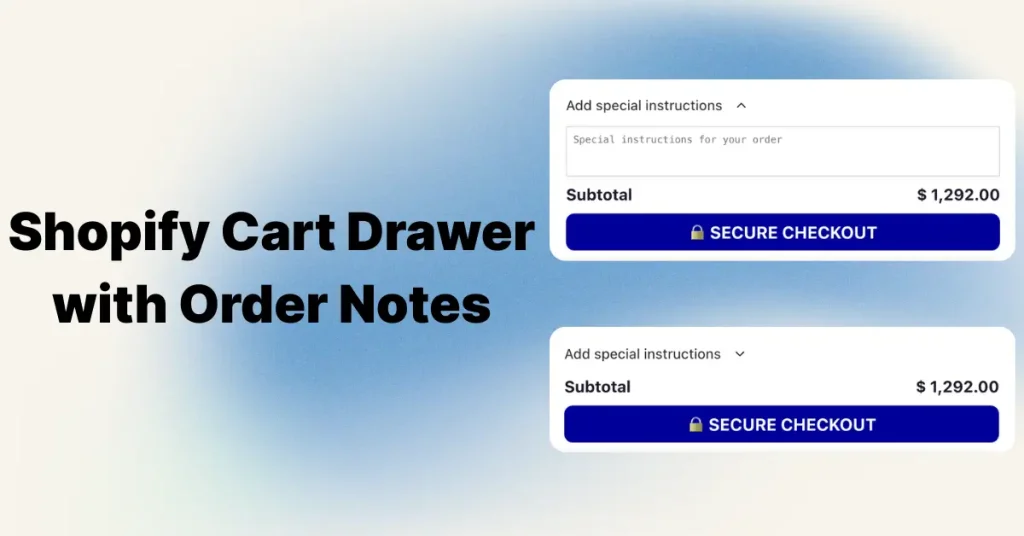
What Are Shopify Order Notes?
An order note is a free-text box where a customer leaves one message for the whole order before checking out. The message is stored on the cart, travels through checkout, and appears on the order in your Shopify admin so you or your packing team can read it before the box is taped shut.
Three Shopify features look similar and get mixed up constantly. They are not interchangeable:
| Feature | Scope | Format | Best for |
|---|---|---|---|
| Order note (cart note) | The whole order | One free-text box | "Leave at side gate", gift messages, allergies |
| Cart attributes | The whole order | Structured fields you define | Delivery date picker, gift-wrap checkbox, B2B PO number |
| Line item properties | One product in the cart | Fields on the product page | Engraving text, monogram, custom sizing |
The important limits: there is one order note per cart (a second note overwrites the first), it maxes out at 5,000 characters (the maximum Shopify's Admin API documents for an order note), and it cannot be made mandatory by Shopify itself. If any of those are a problem, you want cart attributes instead — covered below.
This guide focuses on the note inside the cart drawer — the slide-out panel that appears when someone clicks the cart icon. If you're still choosing between a drawer and a full cart page, our cart drawer vs cart page breakdown covers which converts better.
Why Order Notes Are Worth the Two Minutes
Order notes get treated as a "nice to have." In practice a note field does three unglamorous jobs:
- It moves questions before the payment instead of after it. A shopper who can type "does this fit a 4-year-old?" in the cart asks you there, not in a support email sent 20 minutes after paying.
- It cuts avoidable reships. Delivery instructions written on the order get followed. The same instruction sent in a DM at 11pm does not reach the person packing at 7am.
- It removes a reason to abandon. A buyer with an unanswered condition — gift wrap, an allergy, a building access code — has a reason to stall. A note box resolves that in-cart, which is exactly where cart abandonment is won or lost.
A caveat worth being honest about: notes are unstructured. If you get the same request 50 times a week, stop reading it out of a text box and turn it into a cart attribute or a real product option. Notes are for the long tail, not for your core workflow.
Which Method Should You Use?
There are three ways to get a note field into a cart drawer. Pick on how much control you need, not on price:
| Theme toggle | Cart drawer app | Custom code | |
|---|---|---|---|
| Time to set up | 2 minutes | ~30 seconds | 30–60 minutes |
| Cost | Free | Paid (trial available) | Free, plus your time |
| Works in a drawer | Yes, if your theme supports it | Yes | Only if you write the AJAX call |
| Control placement | No — fixed by the theme | Yes | Yes |
| Open or collapsed by default | Horizon only (Dawn always starts collapsed) | Yes | Yes, manually |
| Survives a theme update | Yes | Yes | No — re-apply each time |
| Pairs with upsells & free gifts | No | Yes | Build it yourself |
Honest recommendation: if all you need is a note box and your theme already has the toggle, use Method 1 and stop there. Method 2 earns its cost when the note is one part of a cart you're actively optimising. Method 3 is for custom-coded drawers and for any older theme whose editor has no cart-note option.
Method 1: Turn On Order Notes in Your Theme (Free, 2 Minutes)
Dawn and Horizon, Shopify's free themes, ship with order notes built in; you only need to switch them on. On 11 October 2026 we read their source on GitHub (Dawn v16.0.0, released 10 August 2026, and Horizon 4.2.0). In our 11 October 2026 check of 475 live Shopify stores (a hand-picked sample of well-known direct-to-consumer brands), Dawn was the most common theme name (47 stores), Horizon and Prestige came next with 18 each, and 78 of the 446 stores that exposed a theme name (17.5%) ran a free Shopify theme such as Dawn or Horizon. On any other theme, the steps below show where to look first.
- Go to Online Store → Themes in your Shopify admin
- Click Customize on your live theme
- Open Theme settings in the left sidebar and click Cart
- Tick Cart note. In Horizon the checkbox is called Allow note to seller and sits under the "Cart features" heading; a second box, Open note to seller by default, appears once it is ticked
- Click Save
Now open your store in a new tab, add a product, and click the cart icon. In Dawn the drawer shows a collapsed "Order special instructions" row that expands when clicked, and Dawn has no setting to start it open. In Horizon the row reads "Special instructions" and starts collapsed unless you ticked the open-by-default box.
Why this also fixes the drawer: in both themes the checkbox writes to a global theme setting (settings.show_cart_note), not a section setting. The cart page and the cart drawer both read it, so ticking it once turns the note on in both places. Some paid themes split these into two separate toggles — if the note shows on the cart page but not the drawer, look for a second checkbox under Theme settings → Cart.
Correction, 11 October 2026: an earlier version of this guide sent you to the Subtotal section of the Cart page to tick Enable cart note. That is the Dawn layout up to v5.0.0 (April 2022), where the checkbox was a section setting; Dawn v6.0.0 (June 2022) moved it to Theme settings, and many older tutorials still show the old path. If you are on an old fork you may still see the section checkbox.
Not seeing the drawer at all? Under Theme settings → Cart, set Type to Drawer. Dawn's default preset ships with Type set to popup notification, so a fresh Dawn store has no drawer until you change it; Horizon's default preset is Drawer. If Type is set to Page, clicking the cart icon navigates away instead of sliding out.
Change the Default Label (Worth Doing Right Away)
The stock label is "Order special instructions" in Dawn and "Special instructions" in Horizon. Either one tells a shopper nothing about what to write, so replace it with a specific prompt.
- Go to Online Store → Themes
- Click the … (three dots) next to your theme → Edit default theme content
- Type special instructions in the filter box
- Replace the text with a specific prompt (examples below)
- Save
In Dawn this edits the sections.cart.note translation string, which the theme uses for both the collapsed summary label and the textarea placeholder — so one edit updates both. Horizon's equivalent string is content.seller_note.
Method 2: Add Order Notes With a Cart Drawer App
Theme-level notes work, but they sit exactly where the theme puts them. In Dawn that is a collapsed row at the top of the drawer footer, above the subtotal and the Check out button. You can't reposition the field, control whether it starts open or collapsed (only Horizon has that setting), restyle it independently, or place it alongside upsells, a free gift unlock, and a shipping progress bar in the same drawer.
Whether an app is worth paying for depends on what else you want in that drawer. For context, in the same October 2026 check, 243 of the 475 stores (51.2%) already showed a drawer in their theme markup or settings, 48 (10.1%) had at least one of the five tracked cart-drawer rows detected (four drawer apps plus Rebuy Smart Cart code in the theme), and 15 (3.2%) had both. The scan shows what a store loads, not whether its note is switched on or what the drawer earns.
Setting Up Order Notes in Oxify Cart Drawer & Upsells
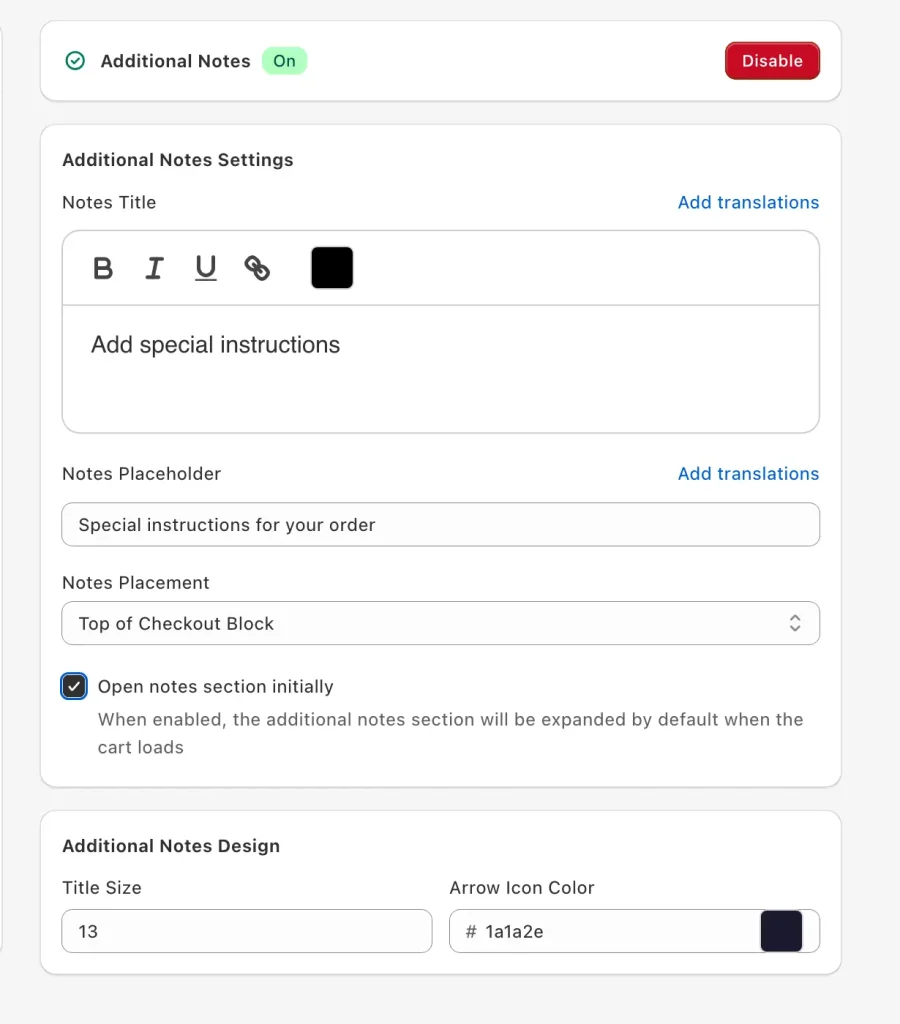
In Oxify Cart Drawer & Upsells (our app), enabling notes takes about 30 seconds:
- Open the Oxify app from your Shopify admin
- Go to Cart Edit (the cart drawer designer)
- Find the Additional Notes block in the left panel
- Click Enable — the toggle turns green
- Set the Notes Title (e.g. "Add a note to your order")
- Set the Notes Placeholder (e.g. "Gate code, gift message, or delivery instructions")
- Choose Notes Placement — top of the checkout block, above the subtotal, or collapsed at the bottom
- Optional: tick Open notes section initially to have the field expanded by default
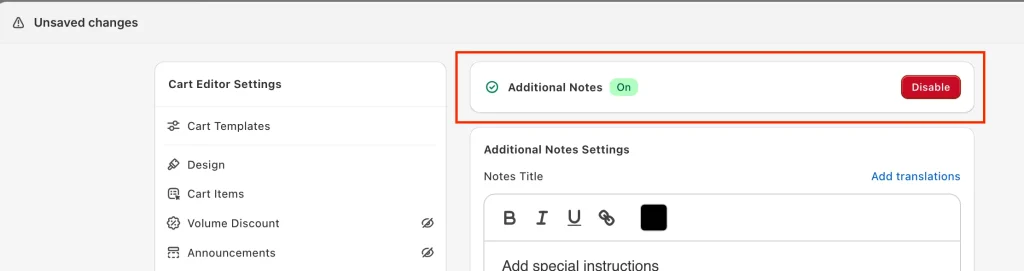
You can also match the title size and arrow icon colour to your theme, and add translated strings for multi-language stores. The field renders live in the drawer preview on the right of the editor, so you see the real shopper view before saving.
The practical advantage over the theme toggle is placement control. Dawn and Horizon already put the note above the checkout button but give you no say in it; choosing the position yourself, above the checkout button and the express payment buttons if your theme puts it elsewhere, is what separates a field people use from one they scroll past.
Who should skip it: if all you need is a note box and your theme already has one, Method 1 is free and enough. Oxify Cart Drawer & Upsells is a paid app — its App Store listing showed plans starting at $9.99 a month for stores with up to 100 monthly orders on 11 October 2026 — and what you are paying for is the upsell, free-gift and reward-bar layer around the note, not the note itself.
What Sits Next to the Note Box
Order notes on their own won't move revenue. The reason merchants install a full-funnel drawer such as the Oxify cart drawer is what surrounds the note field:
- A free shipping progress bar that nudges one more item into the cart
- A free gift unlock at a spend threshold
- Cart upsells and frequently bought together suggestions
- A discount code field that applies without redirecting to checkout
- Trust badges and a countdown timer to reduce drop-off
To compare options first, we've reviewed the best Shopify cart drawer apps — including where each one falls short.
Method 3: Add Order Notes With Code (Custom Themes)
On a custom or older theme with no note toggle, you can add the field yourself. This is where almost every tutorial online gives you code that quietly fails in a drawer.
The Mistake: Why a Plain Textarea Doesn't Save in a Drawer
Most guides tell you to paste this inside the cart form:
<!-- Works on a cart PAGE. Silently fails in a cart DRAWER. -->
<label for="CartNote">Add a note for your order</label>
<textarea name="note" id="CartNote">{{ cart.note }}</textarea>
On a full cart page that works, because clicking checkout submits the form and name="note" is posted along with it.
A cart drawer never submits that form. The checkout button in a drawer sends the shopper straight to /checkout, and the note — which only lived in the browser's DOM — is thrown away. The merchant tests it, sees the text typed in fine, checks the order, and finds the note blank.
The fix is to write the note to the cart as the shopper types, using Shopify's AJAX Cart API.
The Working Code (AJAX-Safe)
Open your cart-drawer.liquid snippet (or whatever your theme calls the drawer) and paste this inside the drawer's footer, above the checkout button:
<div class="cart-note">
  <label for="CartDrawer-Note">Add a note for your order</label>
  <textarea
    id="CartDrawer-Note"
    name="note"
    rows="3"
    maxlength="250"
    placeholder="Gate code, gift message, or delivery instructions"
  >{{ cart.note }}</textarea>
</div>

<script>
  (function () {
    var note = document.getElementById('CartDrawer-Note');
    if (!note) return;
    var timer;

    note.addEventListener('input', function () {
      clearTimeout(timer);
      timer = setTimeout(function () {
        fetch(window.Shopify.routes.root + 'cart/update.js', {
          method: 'POST',
          headers: { 'Content-Type': 'application/json' },
          body: JSON.stringify({ note: note.value })
        });
      }, 300);
    });
  })();
</script>
Five rules that make or break it:
- Build the URL from
window.Shopify.routes.root, not a hard-coded/cart/update.js. Shopify's Ajax Cart API reference says all Ajax requests should use locale-aware URLs, which keeps the shopper's market or language prefix on stores that use them. - Keep
name="note"exactly as written — Shopify reads that key, and it keeps the field working as a fallback if JavaScript fails. - Keep the debounce (
setTimeout). Without it you fire a request on every keystroke and rate-limit yourself. - Re-run the script whenever the drawer re-renders. Most drawers replace their own HTML after an add-to-cart, which destroys the listener. If your note stops saving after adding a second product, this is why — bind the listener on the drawer container instead of the textarea, or re-initialise after each render.
- Add
maxlength. Shopify caps the note at 5,000 characters, but neither Dawn nor Horizon sets a limit for you — 250 is plenty for real instructions and keeps the box from becoming an essay field.
If you'd rather not maintain this, copy what the free themes do. Both Dawn and Horizon wrap the textarea in a cart-note element that listens for typing and, after a short debounce, posts { note } to the cart update URL (routes.cart_update_url) — the same call as the code above.
Troubleshooting: Order Notes Not Showing or Not Saving
Seven things commonly go wrong:
| Symptom | Cause | Fix |
|---|---|---|
| Note shows on the cart page, not in the drawer | Theme uses two separate settings | Check Theme settings → Cart for a second toggle |
| Shopper types a note, order arrives blank | No AJAX call — the drawer never submits the form | Use the AJAX-safe code |
| Note saves, then stops after adding another item | Drawer re-rendered and destroyed the JS listener | Re-bind after each drawer render |
| Note missing on express-checkout orders | Buyer used Shop Pay / Apple Pay before the note saved | Place the note above the express buttons |
| Note is there but the warehouse never sees it | Packing slip or 3PL doesn't map the field | Add it to the packing slip |
| Note lost when clicking "View cart" | Theme listens for change, not input | Switch the event listener |
| Note field appears twice | Theme note + app note both enabled | Turn off the theme toggle and keep the app's |
The Dawn Bug Worth Knowing About
Older Dawn versions bound the note field to the change event instead of input. The difference sounds academic and isn't: change only fires when focus leaves the field.
So a shopper types their gate code, taps "View cart" or the checkout button directly, and the field never loses focus in a way that triggers the save. The note is gone. It works perfectly whenever you test it by clicking elsewhere first — which is exactly why it survives testing and fails in production.
We read Dawn's public releases on GitHub on 11 October 2026 to see how long this lasted. The cart-note script listened for change in every release from v6.0.0 (June 2022) to v12.0.0 (October 2023), and listens for input from v13.0.0 (31 January 2024) through the current v16.0.0. Themes forked from a Dawn release in that window, and a lot of copy-pasted tutorial code, can still carry the old behaviour. If you inherited a theme, open assets/cart.js, find the cart-note element and look at the addEventListener call. If it says 'change', change it to 'input' — and keep the debounce so you're not firing a request per keystroke. Horizon-based themes use assets/cart-note.js, which already saves on input events.
The fastest way to confirm whether a note actually reached the cart: type into the field, then open your browser console and run fetch(window.Shopify.routes.root + 'cart.js').then(r => r.json()).then(c => console.log(c.note)). If that logs your text, the note is on the cart and will reach the order. If it logs null, the field isn't saving — it's the AJAX problem above.
What to Write in the Note Prompt
"Order special instructions" tells a buyer nothing about what to write. A prompt that names a real scenario is far easier to answer.
- Florist: "Tell us what to write on the card"
- Bakery: "Any allergies or special requests?"
- Apparel: "Sending this as a gift? We'll leave out the receipt"
- Pet supplies: "Tell us your pet's name — we'll add a sticker"
- Furniture: "Delivery notes (gate code, parking, floor number)"
- Jewellery: "Engraving text or a message for the gift card"
- Skincare: "Any allergies or skin concerns we should know about?"
- B2B / wholesale: "PO number or delivery window"
Two rules underneath all of those: name the one thing you most often get asked, and only promise what you'll actually do. A prompt that says "we'll handwrite it" creates an obligation on every order — if you can't keep that at volume, don't offer it.
One privacy note that's easy to miss: never invite sensitive information into a free-text box. "Any medical conditions we should know?" pulls health data into an order record that your whole team and every connected app can read. Keep prompts to logistics and preferences.
If gift messages dominate your notes, that's the signal to add a real gift wrap option rather than leaning on the note box.
How to Read Order Notes After They Come In
The note lands in three places, and the third is the one that gets missed:
- Shopify admin — open the order; the note appears in the Notes box in the right-hand column
- Order exports and the API — as the
notefield on the order - Your packing slip — only if the template includes it
Whether the note prints depends on your packing slip template, so print one for a test order that has a note. If it is missing, go to Settings → Shipping and delivery → Packing slips → Edit template and add:
{% if order.note != blank %}
  <div class="order-note">
    <strong>Customer note:</strong> {{ order.note }}
  </div>
{% endif %}
This is the gap that is easiest to miss. The note is captured perfectly, the merchant can see it in admin, and the person packing the box never does — so the customer's instruction is ignored and they conclude you didn't read it. If you use ShipStation, ShipBob, or another 3PL, confirm the note maps into their "customer note" or "gift message" field, and test with a real order before you rely on it.
Echo the Note Back in the Confirmation Email
Printing the customer's own instruction back to them in the order confirmation email tells them it was received — which answers the "did they see my note?" question before it becomes a support email. It takes five minutes.
Go to Settings → Notifications → Order confirmation → Edit code and add this inside the email body:
{% assign customer_note = order.note | default: note %}
{% if customer_note != blank %}
  <h3>Your note to us</h3>
  <p>{{ customer_note | newline_to_br }}</p>
{% endif %}
Why the snippet tries two variables: Shopify's Liquid reference documents order.note on the order object, but merchants report both forms in notification templates. A December 2020 reply in one Shopify Community thread uses {{ note }}, and a December 2024 reply in another recommends {{ order.note }}. The snippet uses whichever one is set. An unset variable renders as a blank space with no error, so send a real test order instead of trusting the preview.
Reading Notes in Bulk
To review notes across many orders rather than one at a time, go to Orders → Export and export a CSV — the order note comes through as its own column, so you can sort and scan a month of them at once.
Do this once a quarter. It's the cheapest product research you'll ever run: the same request appearing 40 times is a product option you haven't built, a shipping choice you don't offer, or a question your product page fails to answer.
Placement and UX Mistakes That Cost Conversions
- The note sits below the checkout button. Nobody scrolls past a checkout button. Move it above. (Dawn and Horizon don't do this by default; custom code and some other themes do.)
- It sits below the express payment buttons. Worse than the above — Shop Pay and Apple Pay leave the page instantly, so anything underneath them is never seen. Product-page express buttons skip the cart entirely, so a drawer note never reaches those orders: 83 of the 451 sampled product pages (18.4%) in our 11 October 2026 check had a Shopify dynamic checkout button element in their HTML (one product page per store; the scan can't tell whether the button displays for every shopper).
- The label is just "Notes." Too vague to act on. Name the scenario.
- The textarea is huge and open by default. A big empty box reads as homework and pushes checkout below the fold on mobile. Collapse it behind an "Add a note" link, or cap it at 2–3 rows.
- No character hint. Some buyers hesitate because they don't know how much is too much. A small "(up to 250 characters)" removes the doubt.
- Never tested on a real phone. On mobile the on-screen keyboard covers the bottom half of the drawer. Test on an actual device that the field scrolls into view when focused, not just in the theme preview.
Most of these are placement problems, and placement is the one thing the free theme toggle won't give you. In Dawn's drawer the note is a collapsed row at the top of the footer, above the subtotal and the Check out button; in Horizon it sits in the cart summary above the checkout and express buttons. Those defaults are safe, but moving the note, restyling it or (in Dawn) starting it open means touching theme files, and re-doing it after every theme update. Choosing where the note sits, whether it starts open or collapsed, and seeing it in a live mobile preview is the practical reason merchants move from Method 1 to a cart drawer app.
Order Notes vs. Cart Attributes: Which Do You Need?
The rule of thumb:
- Use an order note when one free-text message covers it — gift messages, delivery instructions, allergies, anything unpredictable.
- Use cart attributes when you need structure or enforcement — a delivery date picker, a gift-wrap checkbox, a required PO number, or anything you want to filter and report on later.
"Can I make the note required?" Not natively. Shopify will not block checkout on an empty note, and a drawer's checkout button is not covered by any form validation. The simplest way to insist on an answer is a line item property with the HTML required attribute on the product page, because the add-to-cart form itself refuses to submit without it. For a cart-level answer, store it as a cart attribute and add your own script that stops checkout until it is filled — the same pattern as our guide to a terms checkbox in the cart drawer.
Most stores only need notes. When you find yourself copy-pasting the same field out of note text week after week, that's the moment to promote it to an attribute.
Slide Cart vs. Mini Cart: Does It Matter for Notes?
Both can hold a note field, but space decides how well it works. A slide cart runs full-height, so a note can sit above the checkout button without pushing it off-screen. A mini cart dropdown is short — add a note field and either the note or the checkout button ends up below the fold.
We compared them in our slide cart vs mini cart breakdown. Short version: if you want notes plus upsells in the same view, a slide cart is the only one with room for both.
Frequently Asked Questions
How do I add an order note to a Shopify cart drawer?
Why isn't my cart drawer note saving to the order?
What is the character limit for a Shopify order note?
Can I make the order notes field required?
Do order notes work with Shop Pay and Apple Pay express checkout?
Are order notes saved if a customer leaves and comes back?
Can customers edit their note after checkout?
Why don't order notes appear on my packing slips?
How do I show the order note in the confirmation email?
Why does the note disappear when a customer clicks "View cart"?
How do I add order notes to a vintage theme like Debut or Brooklyn?
Can I see all my order notes at once?
Get the Cart Drawer Right, Not Just the Note
Enabling order notes is a two-minute job. Making sure the note actually saves in a drawer, reaches the packing slip, and sits above the express checkout buttons is the part that decides whether it does anything for you.
If you want the note field plus the rest of the cart working together — upsells, free gifts, a free shipping bar, trust badges, and a mobile layout that doesn't push checkout below the fold — install Oxify Cart Drawer & Upsells (our app) from the Shopify App Store. On 11 October 2026 its listing showed the Built for Shopify badge, a 4.9 rating from 40 ratings and a 14-day free trial, and the Additional Notes block takes about 30 seconds to enable from the Cart Edit screen.
Building it yourself instead? Use the AJAX-safe code above, test with a real order, and check the note reaches your packing slip before you trust it.