 Oxify
OxifyShopify Trust Badges in the Cart Drawer: 6 Best Apps + Free Code (2026)
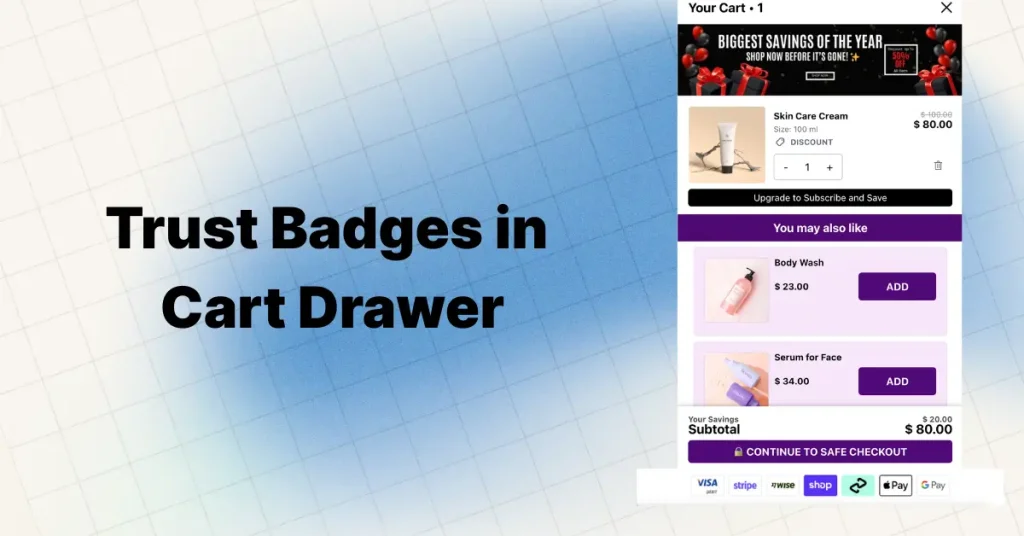
Short Answer
Shopify trust badges are payment logos and short guarantee lines that reassure shoppers before they pay. The best spot is directly below the checkout button in your cart drawer: one row of payment methods you accept, plus one returns or shipping line. Add them free with Liquid or a free badge app, or use a cart drawer app's badge block.
A shopper reads the reviews, picks a size and clicks "Add to Cart." The cart drawer slides open and shows a list of items, a subtotal and a checkout button. Closing it takes one tap.
That panel is the last screen before checkout, and the stock drawer in Shopify's free Dawn theme has nothing in it that says the store is safe to pay: no payment icons, no returns or guarantee line (we read its source on GitHub on 11 October 2026; details in the code section below).
70.22% is the average documented cart abandonment rate, averaged across 50 studies by Baymard Institute (last updated September 22, 2025). About 7 out of every 10 shoppers who add items to their cart never complete the purchase.
Here's the part trust badges can actually touch. Leaving aside shoppers who were "just browsing," Baymard's reasons data shows 19% abandoned because they didn't trust the site with their credit card information, 13% because the returns policy wasn't satisfactory, and 9% because there weren't enough payment methods. Those are exactly the doubts a payment-icon row and a one-line returns promise answer.
Trust badges will not fix the biggest reason, extra costs (40%), and nobody has published a credible controlled number for how much a cart-drawer badge row lifts conversion on its own, so treat any "up to X%" claim you read (including older versions of this page) with suspicion. What we can say is where the doubt shows up, and badges that sit only on product pages or at final checkout miss the drawer in between. For the cost side of reducing cart abandonment, see our dedicated guide.
This guide breaks down why that matters, which trust signals belong inside the cart drawer, 6 apps that make it simple (every rating re-checked on the Shopify App Store on October 11, 2026), a free copy-paste snippet, and the Liquid that pulls your store's real payment icons automatically.
There are three ways to add trust badges to a Shopify cart drawer: (1) a cart drawer app with a trust-badge or Custom HTML block, such as Oxify Cart Drawer & Upsells (our app), Ego Cart Drawer Cart Upsell or iCart; (2) a free badge app like SEOWILL Trust Badges & Icon or Conversion Bear Trust Badges, with its block placed in your theme's drawer; or (3) a snippet pasted into your theme's cart-drawer.liquid. Shopify's shop.enabled_payment_types Liquid object makes sure you only show payment methods you actually accept.
Why the Cart Drawer Is Your Biggest Trust Gap
Trust badges usually go in the homepage footer, under the "Add to Cart" button on product pages, and next to the card form at checkout. Those placements make sense. But they skip a stage.
The cart drawer sits between "I want this" and "I'll pay for this." It is the decision stage, and for many shoppers, especially on a phone, the objection stage.
Here's why that matters so much in 2026:
- On a phone the drawer covers the whole screen, so the checkout button and whatever sits next to it are all the shopper sees. Your own device split is in Shopify Analytics.
- Baymard's reasons-for-abandonment study of US online shoppers puts "I didn't trust the site with my credit card information" at 19% of the reasons left once "just browsing" is set aside.
- Closing the drawer takes one tap and commits the shopper to nothing, so one flicker of doubt is enough to lose the sale.
Key Insight
Product page badges help shoppers evaluate. Checkout page badges help shoppers commit. Cart drawer badges do something different — they prevent the doubt that kills momentum between evaluation and commitment.
The Psychology Behind Cart Drawer Hesitation
Once the drawer opens, the shopper stops browsing and starts checking the order. Four doubts are worth answering right there:
The 4 Doubts That Hit Inside the Cart Drawer
"Is this site legit?" — Especially for first-time visitors from Meta or Google Shopping ads. They've never heard of your brand. The cart drawer is their gut-check moment.
"Is my payment safe?" — Users judge security based on gut feeling and visual cues. If the cart drawer looks bare, it feels unsafe.
"Can I return this?" — Post-purchase anxiety starts before the purchase. Shoppers want to know the escape hatch exists before they commit.
"Will this actually arrive?" — Shipping speed and reliability concerns spike when the total is visible and the checkout button is staring back at them.
Trust badges inside the cart drawer directly answer each doubt. Not with paragraphs of text. With quick visual cues the brain can process in under 2 seconds.
Baymard estimates the average large ecommerce site can gain a 35.26% increase in conversion rate through better checkout design overall (that figure covers the whole checkout flow, not badges alone). The cart drawer is the first step of that flow.
Why This Matters More for Cold Traffic
If most of your traffic comes from Meta ads, Google Shopping, or TikTok, your visitors have zero brand familiarity. They landed on your store 30 seconds ago. They don't know you.
For these cold traffic visitors, the cart drawer is often where the purchase dies. One row of payment icons and a short guarantee line can answer the "should I trust this store?" question before it fully forms.
That's why stores running heavy paid traffic have the most to gain from treating the drawer as a trust surface. Pair badges with an honest cart countdown timer only when a real deadline exists, and with a free shipping bar so the biggest abandonment reason (extra costs) is answered too.
5 Types of Trust Badges That Actually Work in Cart Drawers
Not every trust badge belongs in the cart drawer. Space is limited — especially on mobile. You need badges that answer objections fast without creating visual noise.
Secure Payment Icons
This is the badge type to add first. Shoppers scan for payment logos they recognize — Visa, Mastercard, PayPal, Shop Pay, Apple Pay, Google Pay.
Seeing their preferred payment method right above or below the checkout button answers the "is my payment safe?" question, and it also answers Baymard's "not enough payment methods" objection (9% of abandoners) before the shopper reaches checkout.
Best Practice
Show only the payment methods you actually accept. Displaying logos for methods you don't support creates confusion. Stick to 4-6 recognizable icons in a clean horizontal row.
Example message: "Secure checkout · 256-bit SSL encryption"
Money-Back Guarantee Badge
This is your objection killer for post-purchase anxiety. When a shopper sees their subtotal in the cart drawer, buyer's remorse starts before they've even bought anything.
A guarantee badge reduces perceived risk at exactly the right moment. It's especially effective after a shopper has just unlocked a free gift or added an upsell.
Example message: "30-day hassle-free returns · No questions asked"
Fast Shipping Badge
Delivery concerns are a top reason for cart abandonment. In Baymard's latest data, 20% of abandoners left because delivery was too slow. A shipping badge in the cart drawer works even better when paired with a free shipping progress bar.
Make it dynamic if you can. Instead of "Fast Shipping," say "Ships within 24 hours" or "Arrives by Friday."
Example message: "Free shipping · Ships today, arrives by Friday"
Social Proof Micro-Badge
A small line like "Trusted by 25,000+ customers" or "Rated 4.9/5 from 12,000+ reviews" adds social validation at the decision point.
Important
Use real numbers. Pull from your actual review count and rating. Static fake numbers on a brand-new store feel dishonest and damage trust. If you're newer, skip this badge type until your numbers are credible.
Example message: "Join 47,892 happy customers · Rated 4.8/5"
Dynamic Social Proof as a Trust Badge
A static badge image, such as a generic "Trusted Store" icon or a stock security seal, asserts trust without proof, and shoppers have seen the same graphics on low-quality stores. The alternative is a line built from live data: your real review count, star rating or customer number, pulled from your review platform.
The logic is simple: a review count your shoppers can verify on the product page is harder to fake than a stock "Trusted Store" graphic, so it carries more weight with skeptical first-time visitors. (Pick your review app first; our best Shopify review apps guide compares them.)
This is where Oxify Cart Drawer & Upsells (our app) can help, with one limit. Its App Store listing (checked 11 October 2026) names Judge.me, Rivyo and Reviews.io under "Works with" and lists Custom HTML as a feature, so a review widget's embed code is what to try in a Custom HTML block. Okendo, Yotpo and Loox are not named there, so if you run one of them, confirm its widget can be embedded in the drawer before you plan around it. The block could show something like:
Example: "★ 4.8/5 from 12,847 verified reviews on Judge.me"
A line like that is not a static image. It reflects live data from your review platform, and it sits inside the cart drawer where hesitation happens.
Why Dynamic Beats Static
A static "100% Secure" badge tells shoppers you claim to be trustworthy. A dynamic review badge showing "4.8/5 from 12,847 verified reviews" tells them that thousands of customers have already reviewed you. That matters most for cold traffic from paid ads, who have never heard of your brand. Combine both in the drawer: static payment icons for security plus real review data for social proof.
Custom Policy Badge (COD, Warranty, Authenticity)
This one is market-specific but powerful. If you sell in COD-heavy markets like India or the Middle East, a "Cash on Delivery Available" badge in the cart drawer removes a massive friction point.
For high-ticket products like electronics or jewelry, an "Authenticity Guaranteed" or "2-Year Warranty" badge is a better fit than generic security seals.
Example message: "COD Available · 100% Authentic Products"
Identity badges such as "Veteran-Owned," "Made in USA" or "Family-Owned" work the same way. Use one only if it is true, keep it to a short text line rather than a seal, and test it: we have not found a credible published study that isolates what an identity badge does to conversion rate on its own.
Which Trust Badges Do Shoppers Actually Recognize?
Most "most trusted seal" rankings you will find online are years old, and several of the seals they rank have been renamed or retired. Before you pay for one, check what it is called today:
- Payment brand logos (Visa, Mastercard, PayPal, Shop Pay, Apple Pay, Google Pay). Not technically "seals," but the most universally recognized trust signal in a cart, and free to show for any method you accept.
- Norton Secured. Symantec sold its website-security business to DigiCert in 2017, so the seal now comes through DigiCert with a TLS certificate. Worth it only if you already buy that certificate.
- Google Trusted Stores was retired in 2017 and replaced by Google Customer Reviews, which shows a seller-rating badge based on post-purchase surveys.
- McAfee SECURE became TrustedSite, and TRUSTe is now TrustArc, a privacy-certification brand rather than a checkout seal.
- BBB Accredited Business. Still meaningful to US shoppers, but only if your business is actually accredited.
Here is the takeaway: in a cart drawer, you have extremely limited space. You don't need a massive Norton seal. Payment brand logos (Visa, Mastercard, PayPal) paired with a short guarantee text line suit a cart drawer better than a complex security seal, because they are compact and instantly recognizable.
Cart Drawer Badge Priority Stack
Tier 1 (Must-have): Payment method icons — Visa, Mastercard, PayPal, Shop Pay
Tier 2 (High-impact): Money-back guarantee or free returns text
Tier 3 (Bonus): Social proof line or fast shipping badge
Use the Custom HTML blocks in Oxify Cart Drawer & Upsells (our app) to place Tier 1 below checkout, Tier 2 above subtotal, and Tier 3 below the progress bar — all simultaneously.
Can You Add Trust Badges to Shopify Checkout?
Only on Shopify Plus for the checkout steps themselves. Plus stores get Checkout Extensibility, which lets you add checkout trust badges to the information, shipping and payment steps. Non-Plus stores cannot customize those steps. Badge apps follow the same rule: ShopClimb, for example, lists checkout badges as "Shopify Plus only" (on its $19.99/mo Plus plan).
Two details most guides get wrong. First, the thank-you and order status pages are different: checkout UI extensions there are available on every plan except Starter. Second, the checkout page is too late for many shoppers, because they already abandoned at the cart drawer stage. That is why cart drawer badges (available on all Shopify plans through a cart drawer app or theme code) plus checkout badges on Plus give you trust coverage from cart to post-purchase.
6 Best Apps to Add Trust Badges to Your Cart Drawer
You don't need to touch code to add trust badges to your Shopify cart drawer. These 6 apps each handle it differently, from dedicated free badge apps to full cart drawer rebuilds with badges built in.
Every rating, review count, price and Built for Shopify status below was checked on the app's own Shopify App Store listing on October 11, 2026. Disclosure: Oxify is our app. For drawer apps judged on everything else (upsells, rewards bars, pricing at scale), see our full Shopify cart drawer apps comparison.
Oxify Cart Drawer & Upsells (our app)
4.9 (40 reviews) · $9.99/mo (up to 100 orders) to $49.99/mo (501–1,000 orders) · 14-day free trial · Built for Shopify · App Store listing
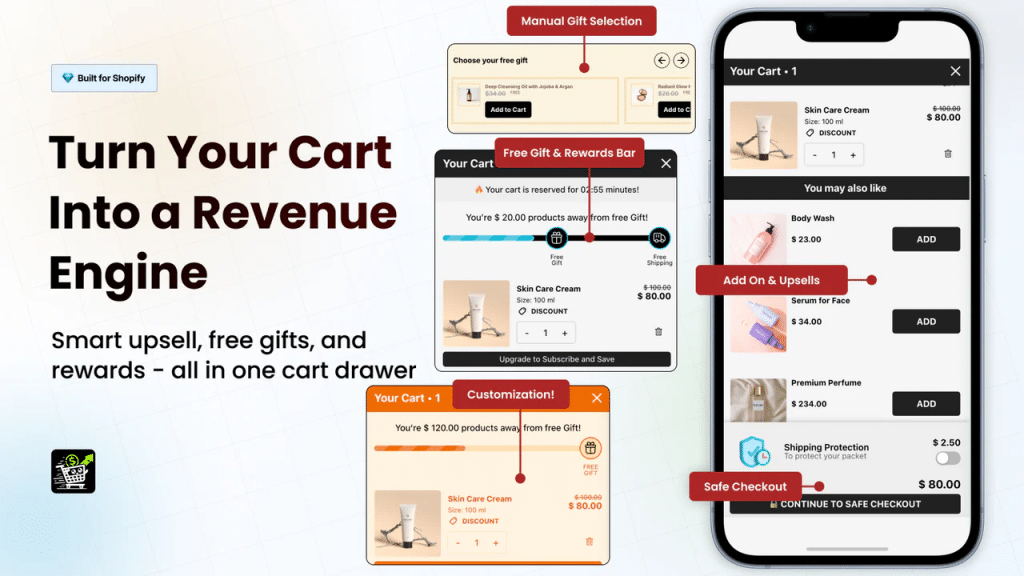
Oxify Cart Drawer & Upsells' angle is Custom HTML blocks built directly into the cart drawer. That means you can add trust badges at more than one position inside the drawer using your own HTML, not just a single uploaded image.
Want a row of payment icons above the checkout button AND a guarantee text badge below the subtotal AND a social proof line near the progress bar? You can do all three. Each as a separate HTML widget inside the drawer.
Beyond trust badges, Oxify is a complete slide cart drawer solution. Cart upsells, cross-sells, free gifts with purchase, BOGO offers, tiered progress rewards bar, countdown timers, discount code fields, order notes, sticky cart button, and built-in analytics.
- Custom HTML blocks inside cart drawer — add multiple trust badges anywhere
- Custom CSS support for pixel-perfect badge styling
- Built-in payment icons and split payment display
- Cart upsells, cross-sells, and free gifts with purchase
- Multi-tier progress rewards bar (free shipping, discounts, gifts)
- Announcement bar with urgency timer
- In-cart subscription upgrades
- Add-ons module (gift wrap, shipping protection)
- Real-time cart analytics and conversion tracking
- Works with PageFly, GemPages, Judge.me
- Multi-currency and multi-language support
- Mobile-optimized responsive design
Best for: stores that want trust badges, upsells, free gifts and a rewards bar in one drawer, set up as a Shopify cart drawer upsell app rather than a badge-only add-on. Skip it if you already like your cart drawer and only need a badge row: a free badge app does that, and at 40 reviews Oxify has a far smaller review base than Ego or iCart.
View Oxify Cart Drawer & Upsells on the Shopify App Store
Ego Cart Drawer Cart Upsell
4.9 (558 reviews) · Free plan (30 monthly orders) · Paid $12.99–$39.99/mo by Shopify plan · 7-day free trial · Built for Shopify · App Store listing
Ego is a slide cart drawer with trust badges listed as a feature on every plan, including Free. So a small store can get a whole new drawer with a badge row built in without paying, as long as it stays within the Free plan's 30 monthly orders.
Its pricing is unusual: paid plans are tied to your Shopify plan, not your order volume. The listing shows $12.99/mo for Basic and Grow stores, $19.99/mo for Advanced and $39.99/mo for Plus, each with unlimited orders. The Free plan covers 30 monthly orders through the app.
Trust badges, sticky cart, note and discount box on the Free plan
Rewards bar (multi-tier with animation on paid plans)
Smart upsells, AI upsells on paid plans
Free gift with cart conditions and shipping protection add-on on paid plans
Express payment buttons on paid plans
Best for: small stores that want a free cart drawer with a badge row today. Skip it if you are on Shopify Advanced or Plus with modest order volume, since you pay the higher plan price regardless of orders.
Correction (October 11, 2026): earlier editions of this list included UpCart (Cart Drawer Cart Upsell). Its listing (apps.shopify.com/upcart-cart-builder) now shows "This app is not currently available on the Shopify App Store," so we replaced it with Ego Cart Drawer Cart Upsell in the same slot. Listings do come back, so check before you rule it out; our UpCart alternatives guide covers other options.
iCart Cart Drawer Cart Upsell
4.7 (451 reviews) · First 100 orders free (lifetime), then $9 / $19 / $29 per month by order volume · Not Built for Shopify · App Store listing
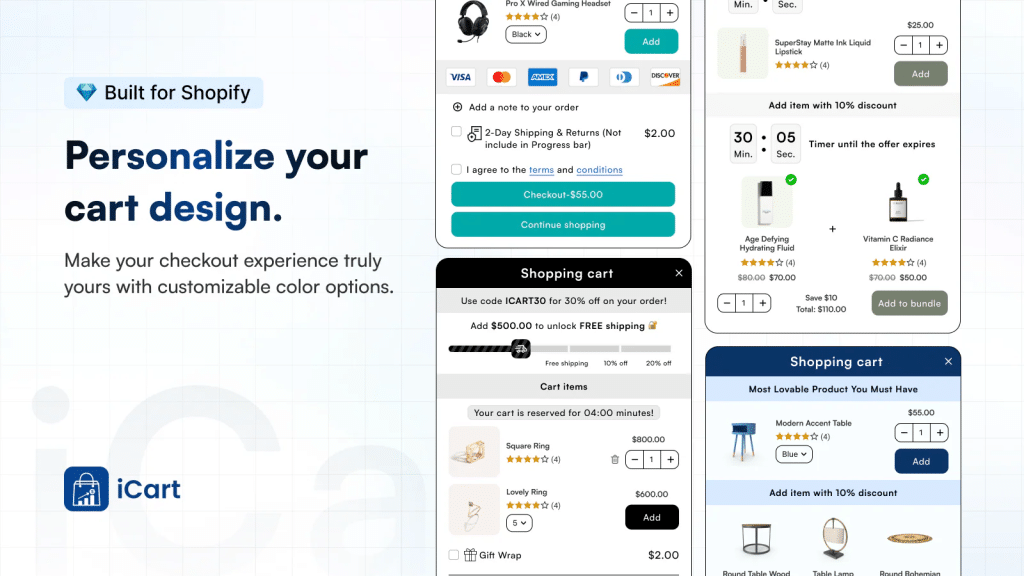
iCart offers a drag-and-drop cart editor with widget blocks — and trust elements are part of that widget library. You get a side cart drawer, popup cart, and full cart page, all customizable.
The app uses AI-powered product recommendations for upsells and lets you place trust badge blocks inside the cart layout. Good widget variety but less HTML flexibility than Oxify.
Drag-and-drop cart editor with trust badge widgets
AI-powered product recommendations for upsells
Progress bar with free shipping thresholds
Discount codes, surveys, birthday collection inside cart
Advanced analytics to track cart performance
Best for: stores that prefer a visual drag-and-drop editor over writing HTML. Skip it if the Built for Shopify badge matters to you: iCart does not have it.
Conversion Bear — Ultimate Trust Badges
4.9 (382 reviews) · Free · Not Built for Shopify · App Store listing
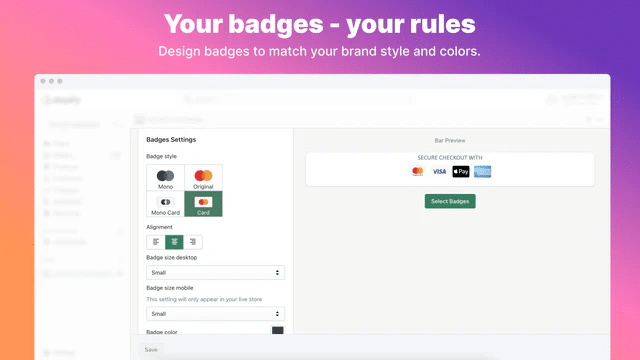
A dedicated trust badge app — not a cart drawer builder. But it works inside cart drawers because of how it lets you place badges on any page section with 1-click copy-paste.
300+ badge options. Customize colors, alignment, size and messaging, and place badges on any page or section, including the cart.
300+ free badge designs included
Place on any page/section including cart drawer
1-click copy-paste installation — no coding
Separate size options for desktop and mobile
Best for: stores that already have a cart drawer and just need to drop trust badges into it. Zero cost. Skip it if you also want upsells or a rewards bar in the drawer: it only does badges.
SEOWILL Trust Badges & Icon
4.9 (694 reviews) · Free · Built for Shopify · App Store listing
A free, dedicated badge app from CWILL (the listing notes it was formerly SEOAnt). You pick trust and payment badges, preview them on mobile and desktop, adjust the style, and display them in your store. It is the largest review base of the free badge-only apps here and the only one of them carrying the Built for Shopify badge.
One-click trust badge and payment badge creation
Mobile and desktop preview
Style adjustments at any time
Free
Built for Shopify
Best for: stores that want a free, certified badge app and will place the badge block in their theme's cart or drawer themselves. Skip it if you want geolocation-aware payment icons; ShopClimb does that on its paid plan.
Correction (September 23, 2026): earlier editions of this list included Avada Trust Badges, Sales Pop-up. Its listing (apps.shopify.com/avada-boost-sales) now shows "This app is not currently available on the Shopify App Store," so we replaced it with SEOWILL Trust Badges & Icon. It was still unavailable when we re-checked on October 11, 2026. Listings do come back, so check before you rule it out.
ShopClimb — Trust Badges
4.8 (149 reviews) · Free plan available · Premium $5.99/mo, Plus $19.99/mo · Not Built for Shopify · App Store listing
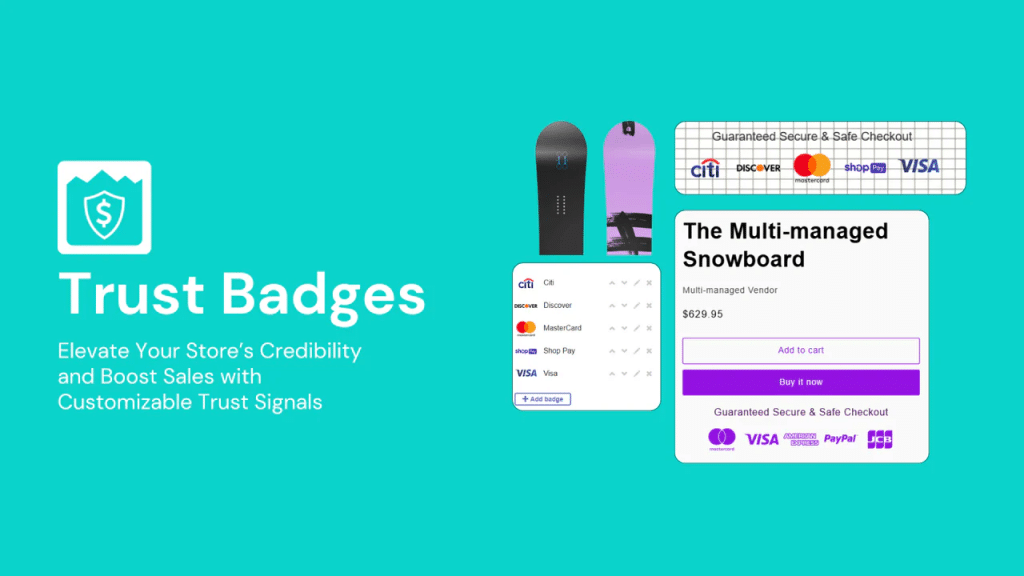
ShopClimb's standout feature: geolocation-aware badges. The app automatically shows payment icons relevant to the visitor's country. A German shopper sees local payment methods. A US shopper sees Visa and PayPal.
670+ premium badge designs. Checkout page badges available for Shopify Plus stores. Drag-and-drop placement across all pages.
- Geolocation-aware badges (shows local payment methods)
- Checkout page badges (Shopify Plus only)
- 670+ premium badge designs
- Multiple design styles: full-color, dual-color, circle
- Drag-and-drop zero-code installation
Best for: International stores selling across multiple countries. The geolocation feature (Premium plan and up) automatically tailors trust badges to each visitor's region. Skip it if you want checkout badges but are not on Shopify Plus: the checkout feature is Plus-only.
Trust Badge App Comparison: All 6 at a Glance
Ratings, review counts, prices and Built for Shopify status checked on each Shopify App Store listing on October 11, 2026.
| App | Rating | Price | Cart Drawer Built-in | Trust Badge Flexibility | Skip it if |
|---|---|---|---|---|---|
| Oxify Cart Drawer & Upsells (ours) | 4.9/5 (40) | $9.99/mo (≤100 orders) to $49.99/mo (≤1,000 orders); 14-day trial | Yes (Built for Shopify) | Custom HTML blocks at multiple drawer positions | You only need a badge row in a drawer you already like |
| Ego Cart Drawer Cart Upsell | 4.9/5 (558) | Free (30 orders/mo); $12.99–$39.99/mo by Shopify plan | Yes (Built for Shopify) | Trust badges feature on every plan | You are on Advanced or Plus with low order volume |
| iCart | 4.7/5 (451) | First 100 orders free, then $9–$29/mo | Yes | Drag-and-drop widget blocks | You want the Built for Shopify badge |
| Conversion Bear Trust Badges | 4.9/5 (382) | Free | No (badge-only) | 300+ badges, any section | You also need upsells or a rewards bar |
| SEOWILL Trust Badges & Icon | 4.9/5 (694) | Free | No (badge-only) | Trust + payment badges, Built for Shopify | You need geolocation-aware icons |
| ShopClimb Trust Badges | 4.8/5 (149) | Free – $19.99/mo | No (badge-only) | Geolocation-aware badges; checkout badges on Plus | You want checkout badges without Shopify Plus |
Our Recommendation
Already happy with your cart drawer and only need badges? Start with a free badge app: SEOWILL (largest review base, Built for Shopify) or Conversion Bear (most designs). Want a new drawer with a badge row at no cost while you are small? Ego's Free plan covers 30 orders a month. Want badges plus upsells, free gifts and discount code support in one drawer? That is what Oxify Cart Drawer & Upsells (our app) is built for, with Custom HTML blocks you can place at several positions in the drawer.
Where to Put Trust Badges in the Cart Drawer
Where you put trust badges inside the cart drawer matters as much as which badges you choose. Users perceive different parts of the same page as more or less secure based on visual layout. Same applies inside a cart drawer.
Directly below the checkout button
The prime spot. It's the last thing shoppers see before they commit. A clean row of payment icons plus "Secure Checkout" text right here catches the eye at the exact decision moment.
Above the subtotal
Works well for guarantee and return policy badges. When shoppers see the total, anxiety spikes. A "30-Day Returns" badge right above the number calms that spike.
Below the free shipping progress bar
If your cart drawer has a "You're $15 away from free shipping" bar (like the multi-tier progress bar in Oxify Cart Drawer & Upsells), placing a fast shipping badge underneath creates a natural reassurance flow.
As a thin footer strip
A single line like "✓ Free shipping over $50 · 30-day returns · Secure checkout" at the very bottom of the drawer. Subtle but effective.
You rarely need all four. Payment icons below the checkout button plus one text line above the subtotal covers the two biggest doubts. With Oxify's Custom HTML blocks you can place badges at more than one of these positions if you want to test it.
Design Rules for Cart Drawer Badges
- Use SVGs or optimized PNGs under 10KB total. Heavy images delay rendering and feel sluggish.
- Go grayscale or muted brand colors. Loud badges compete with the checkout button. Badge should reassure, not distract.
- Stack horizontally on desktop, vertically on mobile. Horizontal icon rows work on wider screens. On mobile, a single-line text badge prevents overflow.
- Add alt text. "Secure checkout with Visa, Mastercard, and PayPal" — important for accessibility.
- No animations or pop-ups inside the drawer. Auto-play animations feel aggressive and reduce trust.
Avoid This
Never use more than 3 to 5 badges in the cart drawer. A wall of seals in a small panel reads as a store trying too hard, and it pushes the checkout button down. One clean line beats a collage.
How to Add Trust Badges to Cart Drawer Without an App (Liquid Code)
If you're comfortable with basic Shopify theme edits, you can add trust badges to your cart drawer manually. The steps below use Dawn, Shopify's free reference theme; other themes may name the drawer file differently.
Manual Method: Step-by-Step
- Go to Online Store → Themes → Edit Code
- Open
snippets/cart-drawer.liquid. Dawn only renders the drawer when Theme settings → Cart → Type is set to Drawer, and its default is Popup notification, so change that setting first. For other themes, our guide to customizing the Shopify cart drawer covers the file locations. - Scroll to the checkout button (
CartDrawer-Checkout). It sits inside adivwith the classcart__ctas. Paste the snippet below straight after that div's closing tag. - Save, add a product to the cart and open the drawer on a real phone to check that the badges fit and the checkout button stays in view.
We read Dawn's source on GitHub on 11 October 2026 (release 16.0.0). Its drawer file contains the item list, the estimated total, a taxes-and-shipping line and the checkout button, and nothing about payment methods, returns or guarantees.
<style>
  .trust-section {
    font-family: -apple-system, BlinkMacSystemFont, 'Segoe UI', sans-serif;
    padding: 16px;
  }
  .trust-badges {
    display: flex;
    align-items: stretch;
    gap: 0;
    background: #fafaf8;
    border: 1px solid #ebebeb;
    border-radius: 8px;
    padding: 18px 4px;
  }
  .trust-badge {
    flex: 1;
    display: flex;
    flex-direction: column;
    align-items: center;
    gap: 10px;
    padding: 2px 6px;
    position: relative;
  }
  .trust-badge:not(:last-child)::after {
    content: '';
    position: absolute;
    right: 0;
    top: 12%;
    height: 76%;
    width: 1px;
    background: #e5e5e5;
  }
  .trust-badge-icon svg {
    width: 22px;
    height: 22px;
    stroke: #222;
    fill: none;
    stroke-width: 1.5;
    stroke-linecap: round;
    stroke-linejoin: round;
  }
  .trust-badge-label {
    font-size: 10px;
    font-weight: 500;
    color: #555;
    text-align: center;
    line-height: 1.35;
    letter-spacing: 0.02em;
  }
</style>

<section class="trust-section">
  <div class="trust-badges">

    <!-- Free Shipping -->
    <div class="trust-badge">
      <div class="trust-badge-icon">
        <svg viewBox="0 0 24 24">
          <rect x="1" y="3" width="15" height="13" rx="1"/>
          <polyline points="16 8 20 8 22 11 22 16 16 16 16 3"/>
          <circle cx="5.5" cy="18.5" r="2.5"/>
          <circle cx="18.5" cy="18.5" r="2.5"/>
        </svg>
      </div>
      <div class="trust-badge-label">Free<br>Shipping</div>
    </div>

    <!-- Easy Returns -->
    <div class="trust-badge">
      <div class="trust-badge-icon">
        <svg viewBox="0 0 24 24">
          <polyline points="1 4 1 10 7 10"/>
          <path d="M3.51 15a9 9 0 1 0 2.13-9.36L1 10"/>
        </svg>
      </div>
      <div class="trust-badge-label">Easy<br>Returns</div>
    </div>

    <!-- Money-Back Guarantee -->
    <div class="trust-badge">
      <div class="trust-badge-icon">
        <svg viewBox="0 0 24 24">
          <path d="M12 22c5.523 0 10-4.477 10-10S17.523 2 12 2 2 6.477 2 12s4.477 10 10 10z"/>
          <path d="M9 12l2 2 4-4"/>
        </svg>
      </div>
      <div class="trust-badge-label">Money-Back<br>Guarantee</div>
    </div>

    <!-- 24/7 Support -->
    <div class="trust-badge">
      <div class="trust-badge-icon">
        <svg viewBox="0 0 24 24">
          <path d="M3 18v-6a9 9 0 0 1 18 0v6"/>
          <path d="M21 19a2 2 0 0 1-2 2h-1a2 2 0 0 1-2-2v-3a2 2 0 0 1 2-2h3v5z"/>
          <path d="M3 19a2 2 0 0 0 2 2h1a2 2 0 0 0 2-2v-3a2 2 0 0 0-2-2H3v5z"/>
        </svg>
      </div>
      <div class="trust-badge-label">24/7<br>Support</div>
    </div>

  </div>
</section>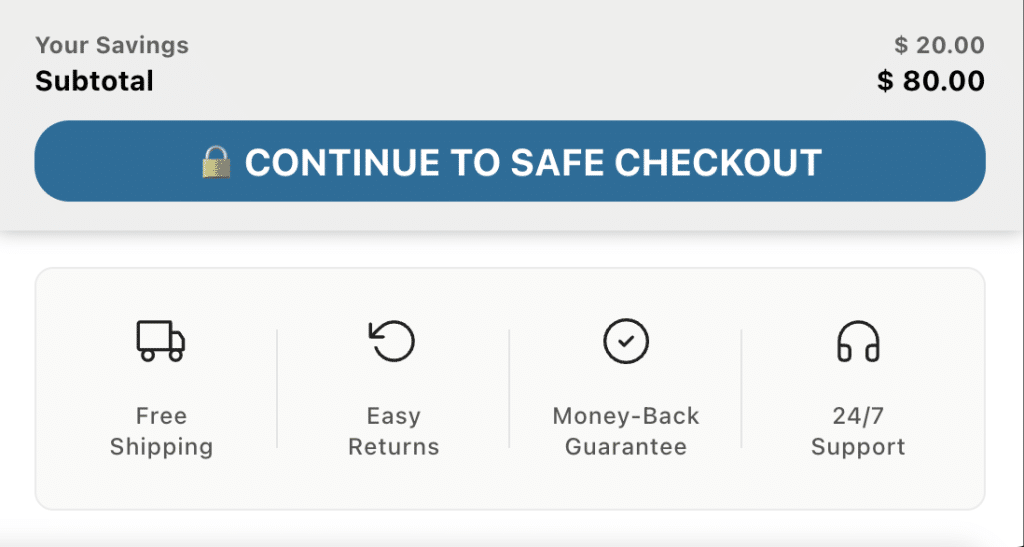
Easier Alternative
If you don't want to edit theme files, Oxify Cart Drawer & Upsells (our app) lets you paste this exact same HTML into a Custom HTML widget block inside the drawer — no theme code editing needed. You get the same result with zero risk of breaking your theme.
How to Add Payment Badges to Shopify With Liquid (Real Icons, No Uploads)
The snippet above uses generic icons. For payment trust badges (the Visa, Mastercard, PayPal and Shop Pay logos), there is a better option most guides skip: Shopify already knows which payment methods your store accepts, and Liquid can render the official icons for exactly those. It is the same approach Dawn uses in its footer.
If you only want them in the footer, you may not need code at all: in Dawn, open Online Store → Themes → Customize, select the Footer section and check that Payment method icons is ticked (it is on by default). The snippet below brings the same icons into the cart drawer, where shoppers decide.
<ul class="cart-payment-icons" role="list">
  {%- for type in shop.enabled_payment_types -%}
    <li>{{ type | payment_type_svg_tag: class: 'icon icon--full-color' }}</li>
  {%- endfor -%}
</ul>

<style>
  .cart-payment-icons { display: flex; flex-wrap: wrap; gap: 6px; justify-content: center; list-style: none; margin: 10px 0 0; padding: 0; }
  .cart-payment-icons svg { width: 38px; height: 24px; }
</style>
Paste it directly below the checkout button in your theme's cart drawer file (in Dawn, snippets/cart-drawer.liquid). Why this beats uploaded badge images:
- It never shows a method you don't accept. Turn a payment method off in Settings → Payments and its icon disappears on its own.
- It is inline SVG, so there are no extra image requests and the icons stay sharp on every screen.
- It follows your theme's styles, so it will not look bolted on.
For express buttons (Shop Pay, Apple Pay, Google Pay) as actual clickable buttons rather than icons, see express checkout buttons in the cart drawer.
Where Trust Badges Go on Shopify: Product Page, Cart Drawer or Checkout?
| Placement | Doubt it answers | Best badge | Available on |
|---|---|---|---|
| Product page | "Is this product any good?" | Reviews, guarantees, product-specific icons | All plans |
| Cart drawer | "Is it safe to pay here, and can I return it?" | Payment icons plus one returns or shipping line | All plans (app or theme code) |
| Checkout (information, shipping, payment steps) | "Is my card safe right now?" | Short security or guarantee note | Shopify Plus only (checkout UI extensions) |
| Thank-you and order status pages | "Did I make a good decision?" | Guarantee, support contact, delivery promise | All plans except Starter (checkout UI extensions) |
If you only do one, do the cart drawer: it is the last screen every buyer sees before checkout on every Shopify plan. For the full list of drawer fixes beyond badges, see our cart drawer CRO fixes for abandonment.
5 Mistakes That Kill Trust Instead of Building It
Mistake 1: Too Many Badges
When a cart drawer is covered in 8-10 different badges, it starts looking like a scam site trying too hard to prove it's legit. Stick to 3-5 max, and test badges against no badges before assuming they help.
Mistake 2: Fake or Static Numbers
"Trusted by 100,000+ customers" on a store that launched last month fools nobody. Shoppers are savvy. Use real data or skip social proof entirely.
Mistake 3: Ignoring Mobile
If your trust badges overflow or push the checkout button below the fold on mobile, they're hurting. Always test on a real phone.
Mistake 4: Only Placing Badges on the Full Cart Page
If your theme's cart type is set to Drawer, shoppers see the drawer first and may never open the /cart page, so badges placed only on that page go unseen. Your badges need to be in the drawer itself.
Mistake 5: No Testing
Assuming badges help without measuring is a gamble. Some audiences respond to payment icons. Some to guarantee text. You won't know unless you test.
Added Trust Badges and Conversions Dropped? What Went Wrong
It happens, and it is usually one of these causes. Check them in this order:
- The badges pushed the checkout button down. On a phone, a tall badge block can move the button below the fold. Shrink it to one row under the button.
- You show payment methods you don't accept. A shopper who picks PayPal and can't find it at checkout leaves. Use
shop.enabled_payment_typesso the icons match your settings. - Generic seals look like a template. "100% Secure" or "Verified" graphics with no issuer behind them are common on low-quality stores, so they can raise suspicion instead of calming it.
- The badge is a link. Clickable seals that open a verification page pull shoppers out of the cart. Make badges non-clickable.
- It loads slowly or shifts the layout. Badge images from a third-party server can pop in late and cause mis-taps. Use inline SVG.
- The drop isn't the badge. Before/after comparisons mix in seasonality, ad spend and traffic changes. Confirm with a split test before you rip anything out.
The safe fallback is the minimum: payment icons below the checkout button and nothing else, then test one addition at a time.
How to A/B Test Your Cart Drawer Badges
What to Test
- Badges vs. no badges — Run this first to confirm they help your store.
- Badge types — Payment icons only vs. payment icons + guarantee vs. guarantee + social proof.
- Placement — Below checkout button vs. above subtotal vs. drawer footer.
- Design style — Icon row vs. single-line text vs. icon + text combo.
What to Measure
- Drawer open → checkout initiated rate — Your primary metric. Oxify Cart Drawer & Upsells' built-in analytics tracks this automatically.
- Overall session conversion rate — Did the session end in a purchase?
- Cart abandonment rate — Track in Shopify Analytics under Reports → Behavior.
Quick Win
If you can't set up a formal A/B test, do a before/after comparison. Add badges, run for 2-4 weeks with consistent traffic, compare your drawer-to-checkout rate. Not perfect, but better than guessing.
Frequently Asked Questions
Do trust badges in the cart drawer actually increase conversions?
We added a trust badge to checkout and conversions dropped. What went wrong?
How many trust badges should I put in the cart drawer?
Which trust badge type works best in a cart drawer?
What is the best trust badge app for Shopify?
Are trust badges free on Shopify?
Does Shopify have built-in trust badges?
Can I add multiple trust badges at different positions in the cart drawer?
Can I add trust badges to my Shopify cart drawer without an app?
How do I add payment icons to my Shopify cart drawer?
Can I add trust badges to the Shopify checkout page?
Do trust badges slow down my cart drawer?
Why This Matters for Your Store
If you run paid ads (Meta, Google Shopping, TikTok), cold traffic interacts with the cart drawer before ever reaching checkout. Badges on the checkout page do not help shoppers who never get there. Oxify Cart Drawer & Upsells (our app) puts trust badges where cold traffic actually makes buying decisions.