 Oxify
OxifyShopify Cart Drawer Custom CSS: Fixes & Code (2026)
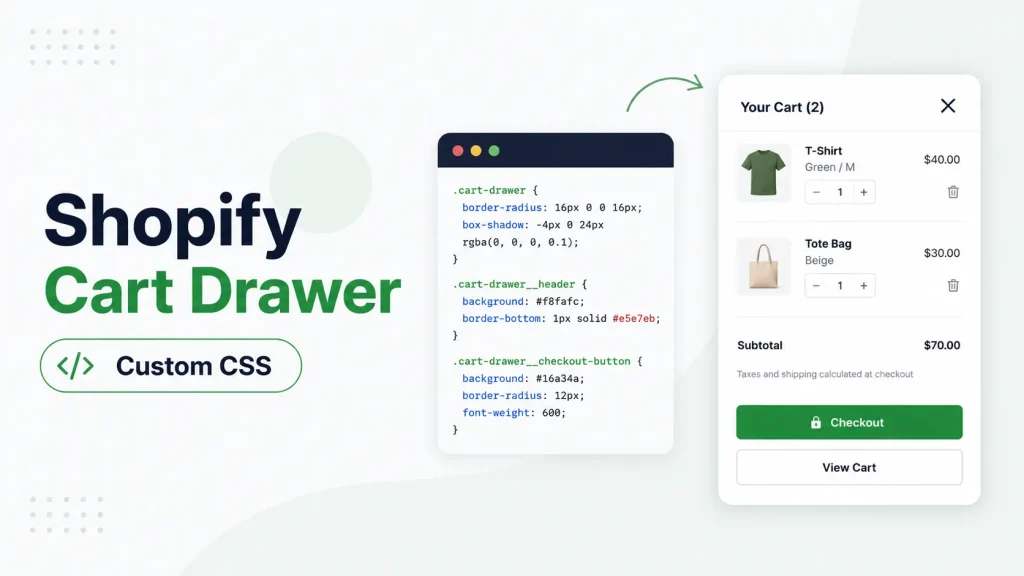
Quick answer: Shopify cart drawer custom CSS goes in your theme's Custom CSS box or a cart app's CSS editor, and every selector should start from your theme's drawer element: cart-drawer in Dawn, cart-drawer-component in Horizon. If a rule does nothing, the class name is usually wrong for your theme, so right-click the drawer and choose Inspect first.
Below are working fixes for the usual complaints: lines you can't remove, an underline, uneven spacing and a checkout button that blends in. In October 2026 we read Dawn v16.0.0's drawer code (released 10 August 2026) and ran the border, spacing, image, width and button fixes in headless Chrome, on a test page built from Dawn's own stylesheets. That showed the first version of this post had snippets that did nothing (borders, underline) or the opposite (spacing) on Dawn. They are corrected below.
Why Your Cart Drawer CSS Isn't Working
If you've already pasted CSS and nothing changed, the cause is almost always one of these three, in this order:
- The class isn't in your theme's drawer. A rule for a class that doesn't exist matches nothing and fails silently. In Dawn v16.0.0, for example, there is no
.cart-item__remove-text, and neither.cart-itemnor.cart-drawer__footerhas a border to remove. - A theme rule is more specific than yours. The browser applies the most specific selector and only uses load order to break a tie. Your
cart-drawer .cart-items td(one class, two element names) loses to Dawn's own.cart-drawer .cart-items td(two classes, one element name). Match the theme's selector, or add!importantas a last resort, as the spacing fix below does:
cart-drawer .cart-items td { padding-top: 8px !important; }- Your selector is too broad. If you write
.cart { background: black; }, you might recolor your cart page and checkout too. Always start your selector with the drawer element so it only touches the drawer.
Pro tip: Right-click the drawer → Inspect. The highlighted tag shows you the exact class name to target. If the line or spacing you want to change doesn't respond, click the line itself: it can sit on a parent element, not the one you assumed.
Will These Selectors Match Your Theme?
The snippets below use class names from Dawn and the free themes built on it. Horizon, Shopify's newer free theme, names nearly everything differently, so a Dawn snippet pasted into Horizon does nothing. This is what the snippets in this post target in each theme, read from the Shopify/dawn and Shopify/horizon repositories in October 2026:
| Drawer part | Dawn v16.0.0 | Horizon v4.2.0 |
|---|---|---|
| Drawer element | cart-drawer | cart-drawer-component (inside a dialog) |
| Panel | .drawer__inner | .cart-drawer__inner |
| One line item | .cart-item | .cart-items__table-row |
| Product image | .cart-item__image | .cart-items__media-image |
| Remove control | Icon button, .cart-remove-button | Icon button, .cart-items__remove |
| Footer (totals and checkout) | .drawer__footer | .cart-drawer__summary |
| Checkout button | .cart__checkout-button | .cart__checkout-button |
Real storefronts vary more than two columns suggest. Treat every snippet here as a pattern to confirm with Inspect. For file paths and theme settings, including Prestige and Impulse, see our guide to editing the Shopify cart drawer.
Where to Paste Your CSS (Pick One)
| Method | Best for | Risk |
|---|---|---|
| App CSS editor (e.g. Oxify Cart Drawer & Upsells) | Styling that app's own drawer; survives theme updates | Its class names are the app's, not Dawn's |
| Theme → Custom CSS box | Tiny one-off tweaks to your theme's drawer | Applies store-wide |
| Edit Code → stylesheet | Devs only | Can break storefront |
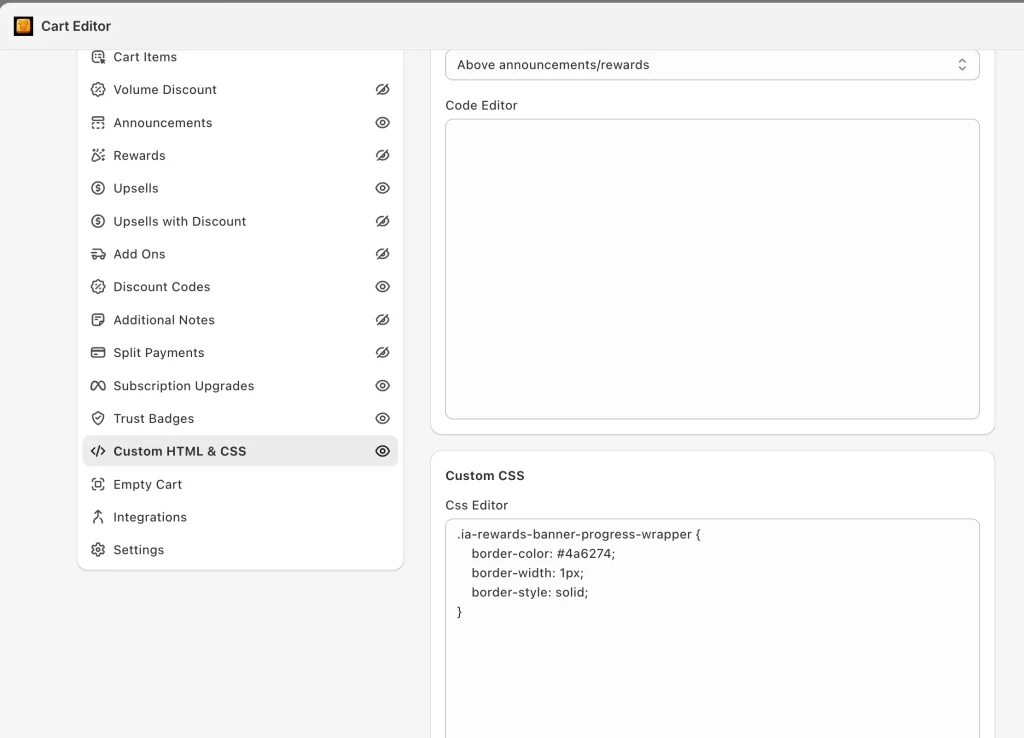
If you use a cart drawer app like Oxify Cart Drawer & Upsells (our app), it has a built-in Custom HTML & CSS panel, a CSS editor box right in the dashboard. No theme files are touched, and a theme update can't wipe it. That panel styles the app's own drawer, so inspect that drawer and use the classes you see there rather than the Dawn ones below. More on that at the end.
Now the fixes. All the code below targets Dawn's drawer; the table above gives the Horizon names.
Fix 1: Remove Borders and Lines
Out of the box Dawn draws three lines in the drawer: one above the footer (the totals and checkout button), one under the "Product / Total" headings, and an outline around the whole panel. (A fourth, under the order note, shows only when notes are switched on.) It draws none between items, so there is nothing to remove there. Snippets that remove a border from .cart-item, .drawer__header or .cart-drawer__footer, including the ones in the first version of this post, change nothing on Dawn, because those elements have no border.
Remove the three lines:
/* line above the totals and checkout button */
cart-drawer .drawer__footer {
  border-top: none !important;
}

/* outline around the whole panel */
cart-drawer .drawer__inner {
  border: none !important;
}

/* line under the "Product / Total" headings */
cart-drawer .cart-items th {
  border-bottom: none !important;
}
Want a soft divider between items instead? Dawn has none, so add one:
cart-drawer .cart-item {
  border-bottom: 1px solid #f0f0f0 !important;
}
Fix 2: Kill the Underline
In Dawn v16.0.0 the remove control is an icon button, so there is no "Remove" text to underline. The underline you will see in the stock drawer is on the product name when you hover over it:
cart-drawer .cart-item__name:hover {
  text-decoration: none !important;
}
If your drawer does show an underlined "Remove" link, it comes from your theme or an app, and its class name varies. Inspect the link and put its class into this, subtle and grey instead of loud:
/* replace .your-remove-class with the class Inspect shows */
cart-drawer .your-remove-class {
  text-decoration: none !important;
  color: #888 !important;
  font-size: 13px;
}
Fix 3: Tighten or Loosen the Spacing
Cart items too far apart? Too cramped? In Dawn the space above each item is padding on the item's cells (1.7rem, about 17px, in the stock drawer), not on the .cart-item row. Padding added to the row is added on top: in our test it made each item 16px taller, the opposite of tightening.
Reduce the gap between items:
cart-drawer .cart-items td {
  padding-top: 8px !important;
}
In the same test this made each item 9px shorter. Raise the number to loosen instead. It needs !important because Dawn's own rule for these cells is more specific than yours.
Add breathing room inside the drawer:
cart-drawer .drawer__inner {
  padding: 20px !important;
}
Fix 4: Make the Checkout Button Impossible to Miss
A checkout button that blends into the drawer background is the one thing in the drawer you can't afford to make hard to find. .cart__checkout-button is the same class in Dawn and Horizon; in Horizon, start the selector with cart-drawer-component instead.
cart-drawer .cart__checkout-button {
  background-color: #1a1a1a !important;
  color: #ffffff !important;
  border-radius: 30px;
  font-weight: 600;
  padding: 16px !important;
}
Rule: the checkout button should be the boldest, highest-contrast thing in the drawer.
Fix 5: Resize Product Images
Tiny thumbnails make products hard to recognize. Bigger images = clearer cart. The object-fit: cover line crops instead of stretching; without it, a fixed square box squashes any product photo that isn't square.
cart-drawer .cart-item__image {
  width: 90px !important;
  height: 90px !important;
  border-radius: 8px;
  object-fit: cover;
}
Fix 6: Make the Drawer Wider (Without Breaking Mobile)
Dawn sets the panel to width: 40rem (400px at the default font scale) with max-width: calc(100vw - 3rem), so a stock Dawn drawer can never be wider than the screen minus 30px. Other themes don't always have that cap, and once you set your own width it is easy to lose, so keep a max-width in your rule.
cart-drawer .drawer__inner {
  width: 420px !important;
  max-width: 90vw !important;
}
Fix 7: Hide an Element You Don't Want
Sometimes the fastest fix is to just remove something — a label, an icon, a note field. This example hides the per-unit price, which Dawn shows only for products priced per unit (per kg, per 100 ml and so on):
cart-drawer .cart-item__price-wrapper .unit-price {
  display: none !important;
}
Swap the selector for whatever element you want gone (find it with Inspect). Use this carefully — hide clutter, not anything shoppers need.
Fix 8: Change the Slide-In Speed
Dawn already slides the drawer in: .drawer__inner has transition: transform var(--duration-default) ease, and --duration-default is 200ms in Dawn's base stylesheet. If that feels abrupt, set your own; in our test the override took effect:
cart-drawer .drawer__inner {
  transition: transform 0.3s ease-in-out !important;
}
Quick Troubleshooting Table
| Problem | Cause | Fix |
|---|---|---|
| CSS does nothing | The class isn't in your theme's drawer, or a theme rule is more specific | Right-click → Inspect, copy the real class; add !important only as a last resort |
| A line won't go away | The border is on a parent element (Dawn's footer line is on .drawer__footer) | Inspect the line itself, not the area around it |
| Dawn snippet does nothing on Horizon | Horizon's drawer is cart-drawer-component with different classes | Use the Horizon column in the table above |
| Whole store restyled | Selector too broad | Prefix with your theme's drawer element |
| Drawer overflows phone | Fixed width, no cap | Add max-width: 90vw |
| Styles vanished after update | CSS lived in theme files | Move to an app's CSS editor |
The 5-Step Order to Style Your Drawer
Don't paste everything at once. Work in this order so you can see what each change does:
- Fix the broken stuff first — borders, underlines, spacing.
- Match your brand colors — pull exact hex codes from your logo.
- Resize images for clarity.
- Style the checkout button last — make it the loudest element.
- Test on a real phone, then save a backup of your final CSS.
The Honest Limit of Custom CSS
CSS can make your cart drawer look great. It cannot make it do more.
CSS can't add a free shipping bar, upsells, BOGO offers, volume discounts, or a countdown timer. Those need real functionality — either custom JavaScript and Liquid (developer territory) or an app.
And CSS you add by editing theme files has a real weakness: it breaks. A theme update can overwrite it, and if you switch themes the work stays behind.
This is where a cart drawer app earns its place. Oxify Cart Drawer & Upsells (our app) keeps your Custom HTML & CSS in a dashboard panel — outside your theme files, so it survives theme updates. You get a CSS editor and a Custom HTML box with a location picker, so you can both style the drawer and drop in your own elements. The Oxify cart drawer and upsell page has the full feature list.
You also get everything CSS can't do:
- Free shipping progress bar and tiered reward bar
- In-cart upsells, cross-sells and "frequently bought together"
- Volume discounts, BOGO, and free gifts with purchase
- Countdown timers, trust badges and a sticky cart
On its App Store listing it shows a 4.9★ rating from 40 ratings and carries the Built for Shopify badge — Shopify's mark for apps that meet its highest standards for performance, design, and integration. Plans start at $9.99/month for up to 100 orders a month and scale with order volume; the listed plans include a 14-day free trial (App Store listing, October 2026). Skip an app if all you want is a few cosmetic tweaks to the drawer your theme already ships — the snippets above cover that for free.
Bottom Line
Most cart drawer CSS problems come down to two things: a class name that isn't in your theme's drawer, and a theme rule that is more specific than yours. Check the class with Inspect, work through the snippets above one at a time, and test on your phone.
Want to skip the code and theme-file risk entirely? Install Oxify Cart Drawer & Upsells (our app) — use the built-in CSS editor to design your cart in minutes, and unlock upsells and free shipping bars while you're at it. Comparing options first? See our roundup of the best Shopify cart drawer apps.