 Oxify
OxifyHow to Add a Cart Drawer Upsell on Shopify (7 Steps, 2026)
Quick answer: To add a cart drawer upsell on Shopify, install a cart drawer app that supports upsells, such as Oxify Cart Drawer & Upsells (our app), then turn on its Upsells block and pick a recommendation mode and template. That takes about five minutes with no theme code. The no-app route needs Liquid edits and shows one fixed product.
Key Takeaways
- A cart drawer upsell is a product suggestion inside the slide-out cart, shown between the line items and the checkout button, with a one-tap Add button.
- Dawn and Horizon do not ship a drawer upsell. We searched both themes' cart code on 11 October 2026 and found no recommendation or upsell code, so you need an app or custom Liquid.
- App route: about 5 minutes, no code. Theme-code route: 1 to 3 hours and one static product for every shopper.
- Keep it to 2 or 3 suggestions and never push the checkout button below the fold on mobile.
- Measure it with upsell revenue per offer plus AOV and cart-to-checkout rate, so an AOV gain that costs you orders shows up.
You can also do it with theme code or a generic upsell app, but both routes are slower and riskier. I will compare all three methods first, then walk you through the exact setup, screen by screen, from a real store dashboard. Still deciding what to upsell and where? Start with our Shopify cart upsell strategy guide, because this page covers the setup, not the strategy.
The 3 Ways to Add Cart Drawer Upsells (Compared)
Disclosure: the walkthrough below uses our own app, so here is how the three methods compare before you commit to one:
| Method | Setup time | Code needed | Risk | Best for |
|---|---|---|---|---|
| Theme code (no app) | 1 to 3 hours | Yes, Liquid + JSON | Breaks on theme updates | Developers |
| Generic upsell app | 30 to 60 min | Often, code added to your theme's cart file | Theme conflicts | Stores keeping their theme cart |
| Cart drawer app | 5 min | None | Low: installs as a theme extension; the usual clash is another cart app still active | Everyone else |
Method 1, theme code: You edit settings_schema.json and cart-drawer.liquid to hard-code one upsell product into the drawer. It works, but you get a single static product, no AI, no analytics, and the whole thing can break when your theme updates. I cover this in more detail below.
Method 2, generic upsell app: Apps built for checkout or product page upsells can sometimes reach the cart drawer, but many do it by injecting code. The typical process: download a theme backup, open browser dev tools, find the HTML class that controls your drawer, paste code into the theme file, then fix the alignment with custom CSS. Check the app's own cart drawer instructions first, because the exact steps depend on the app and your theme.
Method 3, cart drawer app: The app replaces your theme's cart drawer with its own, with upsells built in as a toggle. This is the method the rest of this guide covers, because it is the only one that takes minutes instead of hours.
What Is a Cart Drawer Upsell (and Why It Works)
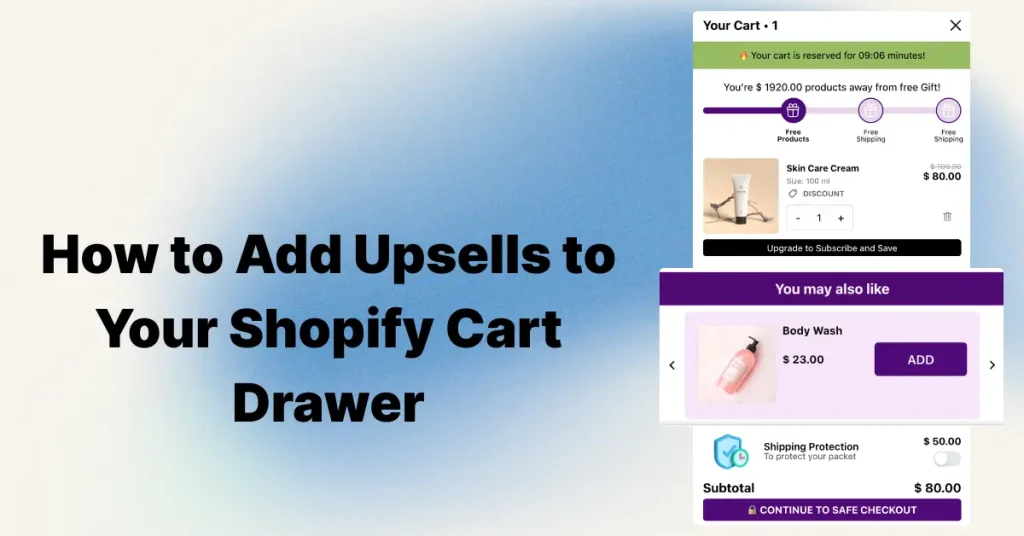
A cart drawer upsell is a product suggestion shown inside the sliding cart panel, right before checkout. The shopper has already decided to buy, and you show one more small thing that fits.
Why the drawer is a strong spot for an upsell:
- Intent is at its peak. The shopper just added something to the cart. They are buying.
- Zero friction. The drawer opens on the same page. No redirect, no popup, no broken flow.
- One tap to add. If the upsell has variants, a small bottom sheet slides up so the shopper picks a size or color without losing their cart.
What it can add up to: UK hair-care brand Replenhair's Oxify dashboard shows £8,742 of app-attributed revenue from the cart drawer, 57% of its £15,451 total across three placements (the rest came from the product page and post-purchase). That is attributed revenue read off the dashboard since install, not a controlled test. The screenshot and setup are in the Replenhair case study, and the product-selection side is in our guide to in-cart recommendations on Shopify.
What You Need
- A Shopify store, any plan. Basic works.
- A cart drawer app that supports upsells.
Dawn and Horizon, two of Shopify's free themes, do not include cart drawer upsells. On 11 October 2026 we searched every Liquid and JavaScript file with "cart" in its name in both public GitHub repositories (15 files in Dawn, 24 in Horizon) for recommendation and upsell code and found none. For upsells, you either write code or install an app. Paid themes vary, so check your theme's cart settings before you buy anything.
For this tutorial I am using Oxify Cart Drawer & Upsells. It is rated 4.9 stars from 40 reviews on the Shopify App Store (checked 11 October 2026), carries the Built for Shopify badge (meaning it passed Shopify's performance and quality standards), and includes AI upsells on every plan. Disclosure: it is our app, and it is not the right pick if you want a permanently free plan (there is a 14-day trial, then paid plans), a review history in the thousands (it has 40 reviews), or only one hard-coded product, which the theme-code route below covers. Still comparing apps? Our best Shopify cart drawer apps roundup covers 15 options honestly, including where competitors win, and the best Shopify upsell apps guide covers tools that upsell outside the drawer too.
Step 1: Install the App
Open the Oxify Cart Drawer & Upsells listing and click Install. There is a 14-day free trial on every plan, so you can test everything before paying. Plans scale with your order volume and start at $9.99 a month for up to 100 monthly orders (listing checked 11 October 2026); full details are on the pricing page.
The app installs as a Shopify theme extension, which matters for three reasons:
- No code is injected into your theme files
- Uninstalling leaves zero leftover code
- Store speed stays protected (a Built for Shopify requirement)
The app's drawer replaces your theme's default cart. Match it to your brand under the Design tab: colors, fonts, corner radius, all of it.
Step 2: Open the Cart Editor

From the app dashboard, open the Cart Editor.
The left menu lists every block your cart drawer can show: Cart Templates, Design, Cart Items, Volume Discount, Announcements, Rewards, Upsells, Upsells with Discount, Add Ons, Discount Codes, Trust Badges, and more.
Each block has a small eye icon. Open eye means the block is live in your cart. Crossed eye means hidden. One glance tells you exactly what your customers see.
Step 3: Click Upsells and Enable It

Click Upsells in the left menu.
At the top of the panel, check the status bar. When it shows Upsells Active: On with a green badge, you are live. If it is off, one click enables it.
Technically, you are done. Upsells now appear in your cart drawer with default settings. But defaults leave money on the table. The next three steps are where the conversion gains live.
Step 4: Pick Your Recommendation Algorithm
This setting controls which products appear as upsells. Three modes under Upsell Recommendation Settings:
Related (Using A.I.) The AI reads what is in the cart and picks related products from your catalog in real time. This is the default. It updates itself as your catalog changes, so there is nothing to maintain.
Complementary Shows natural partners: a case with a phone, laces with sneakers, a filter with a coffee machine. Best for stores where products have obvious pairings.
Manual You assign exact upsells per product. Use this when you have a deliberate funnel, like always pushing your highest-margin item.
My honest advice: start with AI if your store has a few hundred orders of history. Manual picks stay frozen while the AI adapts to every cart in real time. On a brand-new store with little sales data, AI has less to learn from, so hand-pick Manual or Complementary pairings for your top sellers first. Either way, switch a pairing only after your own sales data proves it performs better.
Step 5: Choose a Template
Click View Templates to control how upsells look. The selected template shows right next to the button. My store runs Grid Slider, which displays upsells in a swipeable row.
Quick rules:
- Slider layout for 3 or more upsell products
- Single card for one strong offer
- Always check the mobile preview first, because on a phone the drawer takes the full screen.
Step 6: Customize the Upsell Text
Scroll to Upsell Text Settings. Five fields control every word the shopper sees:
- Add Upsell Button Text. The button on each card. Default "ADD". Keep it short.
- Choose Options Button Text. Appears when the upsell has variants. Default "Choose".
- Bottom Sheet Button Text. The confirm button inside the variant picker sheet. Default "ADD TO CART".
- Save Text. Shows the discount per card. Type "Save {{amount}}" and the real savings number fills in automatically.
- Upsell Title. The heading above the block. Default "You may also like". You can bold it or recolor it. "Complete your order" and "Goes great with this" are two alternatives worth trying.
Selling in multiple languages? Every field has an Add translations link that works with Shopify Markets. No separate translation app.
Step 7: Preview Your Store
Open your storefront, add a product to the cart, and watch the drawer slide out. Upsells appear under the cart items with one-tap add buttons.
The full path, one more time:
- Install Oxify Cart Drawer & Upsells
- Open the Cart Editor
- Click Upsells and enable it
- Pick your Recommendation Algorithm
- Choose a template
- Customize the text
- Preview
Can You Add Cart Drawer Upsells Without an App?
Yes, if you can write Liquid. The short version:
- Add an "Upsell Settings" block to your theme's
settings_schema.jsonso you can pick the upsell product from the theme customizer - Edit
snippets/cart-drawer.liquidand insert display code above the drawer footer - Style it with CSS to match your theme
Before you go this route, know the tradeoffs:
- You get one static product for everyone, no AI, no per-cart relevance
- No analytics, so you will never know what it earns
- A theme update can wipe or break your code
- No discount logic, no variant bottom sheet, no translations
For a developer testing an idea, fine. For a store that wants upsells to move AOV and be measured, the app route is faster and adds analytics, discounts and variant handling, at the cost of a monthly fee. If you only need the basics and have zero budget, that code method exists. Everyone else should spend the five minutes instead of the three hours.
Should the Cart Drawer Auto-Open After Add to Cart?
Your drawer upsell only earns money if the shopper sees the drawer. That is why most cart drawer setups open the drawer automatically on every add to cart: the upsell appears at the moment intent peaks. In Dawn, choosing Cart type: Drawer gives you this behavior (Dawn's default settings file sets the cart type to Notification). Horizon defaults to Drawer and shows a separate auto-open toggle, which is off by default; we read both themes' settings files on GitHub on 11 October 2026. Our guide to editing the Shopify cart drawer has the exact theme settings.
There are real reasons not to auto-open, though:
- Multi-item shopping sessions. Grocery, supplements, and stationery shoppers add five or six items in a row. A drawer sliding over the page after every add turns into a wall they have to close each time.
- Quick-add from collection pages. When shoppers add straight from a product grid, an auto-opening drawer hides the grid they were browsing.
- Small mobile screens. On a phone the drawer usually covers the whole viewport, so an unwanted open reads as an interruption, not a helpful suggestion.
A practical middle ground: keep auto-open on for stores where most orders are one or two items, and for multi-item catalogs switch to a lighter confirmation (Dawn's Notification cart type or an updated cart-count bubble). Then put the upsell where the shopper will definitely see it once, when they open the cart to check out. Whichever you choose, compare cart-to-checkout rate before and after, not just upsell revenue.
Cart Drawer Upsell vs Product Page Upsell vs Add-to-Cart Popup
If you want to launch product page and cart upsells quickly, it helps to know what each placement is for. They do not compete. They catch different shoppers.
| Placement | When the shopper sees it | Best offer type | Main risk |
|---|---|---|---|
| Product page (FBT, add-ons) | Before they commit to the first item | Bundles and "frequently bought together" pairs | Distracts from the main Add to Cart button |
| Add-to-cart popup | Right after the add, as a modal | One strong accessory | Feels pushy; easy to close without reading |
| Cart drawer | Every time the cart opens, right before checkout | Small add-ons, refills, upgrades, free-shipping gap fillers | Pushing the checkout button below the fold |
| Post-purchase page | After payment | One-click reorders and complementary items | Only one post-purchase app can run at a time |
For most stores the order of setup is: cart drawer first (it reaches every shopper who goes through the cart), product page second, post-purchase third. The product page side is covered in product page upsells on Shopify.
One limit to know: Shopify's Help Center says accelerated checkout buttons let a shopper check out directly from the product page, and that the Buy it now button skips the cart. Those shoppers never see the drawer.
Upsells Not Showing? Fix These 4 Things
This is the part most tutorials skip. If you enabled upsells and see nothing in your drawer, check these in order:
- Your theme cart is set to Page, not Drawer. Go to your theme customizer, find the cart setting, and switch the cart type to Drawer. If the theme opens a full cart page, the drawer never fires.
- The Upsells block is hidden. Back in the Cart Editor, check the eye icon next to Upsells. Crossed eye means hidden, even if upsells are technically active.
- The AI has nothing to recommend. If the cart item has no related products in your catalog yet (common on brand-new stores with few products), switch to Manual mode and assign upsells directly.
- An old cart app is conflicting. If you previously used another cart or upsell app, uninstall it fully. Two apps fighting over the same drawer is the most common conflict we see in support.
Still stuck? The Oxify support team handles setup over chat and will configure it with you.
4 Tips That Decide How Much Your Upsells Earn
1. Show 2 to 3 products, never more. This is our rule of thumb: too many suggestions invite decision paralysis, and shoppers scroll past all of them. Keep the upsell row tight.
2. Attach a discount. "Add this" is fine. "Add this and save 20%" gives the shopper a concrete reason to act now, so test a discount against your margin. In Oxify this is the Upsells with Discount block, directly under Upsells in the same menu. The Save {{amount}} text displays the exact savings per card.
3. Price upsells below the cart item. A $12 add-on next to a $60 cart feels like an easy yes. A $90 add-on feels like a second decision. A useful rule of thumb (not a benchmark) is to keep in-cart upsells at roughly a fifth to a quarter of the cart value, then let your own attach rate tell you where the ceiling is.
If you offer free shipping over a threshold, the gap to that threshold is a second price anchor: an add-on that closes the gap is a natural pick.
4. Keep checkout visible. Never let the upsell block push the checkout button below the fold. If a shopper has to scroll past suggestions to find checkout, you risk the whole order, not just the upsell.
For the full playbook beyond the cart, from product page upsells to post-purchase offers that appear after payment, see our cart upsell strategy guide.
How to Know It Is Working
Track two numbers. For the full CTR, attach, and attribution scorecard, use how to measure cart upsell performance.
- Upsell revenue. Oxify's analytics show revenue per offer, so you can see which products earn their spot and swap the ones that do not. Review weekly.
- Average order value. Compare AOV in Shopify analytics before and after enabling upsells. This is the number upsells exist to move.
In our cart drawer vs cart page comparison, merchant data showed consistent daily upsell revenue rather than one-time spikes.
FAQ
How do I add an upsell to my Shopify cart?
Can I add cart drawer upsells without an app?
Do I need to know code for the app method?
Will cart drawer upsells slow down my store?
Can I choose exactly which products show as upsells?
What if my upsell product has sizes or colors?
Can I show upsells with a discount attached?
Why are my upsells not showing in the cart drawer?
Does the Dawn or Horizon theme have a built-in cart drawer upsell?
Should my cart drawer open automatically when a product is added?
What is the difference between a cart upsell and a cart drawer upsell?
Which products make the best cart drawer upsells?
Start Showing Upsells Today
A cart drawer upsell is one of the quickest AOV changes to set up on a Shopify store. The shopper already decided to buy. You are just showing one more thing that fits.
Install Oxify Cart Drawer & Upsells (our app), open the Cart Editor, click Upsells, and enable it. Five minutes from now, your cart will be selling for you.