 Oxify
OxifyShopify In-Cart Recommendations: Setup, Fixes & Benchmarks (2026)
Your shopper just clicked "Add to Cart." Their wallet is already half open.
This is the most valuable second in your whole store. They are not browsing anymore. They are buying. Right now, you have one shot to slip in something extra before they hit checkout.
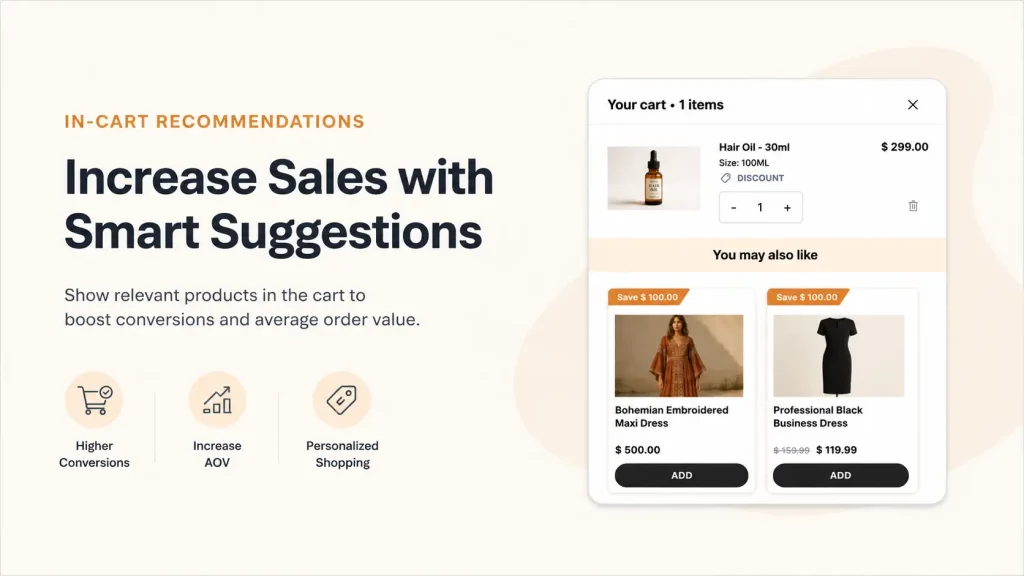
That is exactly what in-cart recommendations (also called cart suggestions or cart upsells) do. They show small, related products right inside the cart drawer or cart page. One tap, and the item joins the order. No new tab. No re-entry. No price shock.
Here is the catch most stores miss. Baymard Institute, the ecommerce UX research firm, benchmarked cart cross-sells on large desktop sites and found 52% present cart cross-sells that are either completely irrelevant or based only on what other customers bought (Baymard, published January 2021). That benchmark is nearly six years old, so read 52% as a direction rather than today's exact share. The failure it describes is easy to spot in your own cart.
This guide is the version we wanted when we built cart recommendations ourselves: verified data, the exact API parameters, the eligibility rules that silently hide your products, and a setup path you can ship today.
Short Answer
In-cart recommendations are product suggestions shown inside the cart drawer or cart page while a shopper is about to check out. On Shopify they are powered by the Product Recommendations API (/recommendations/products.json), which accepts a product_id, a limit of 1 to 10, and an intent of either related (algorithmic) or complementary (hand-picked in the free Search & Discovery app).
You can add them three ways: hand-code the API into your theme, use a cart drawer app, or add complementary pairings in Search & Discovery if your theme exposes them. Contrary to what most guides claim, Dawn and Horizon, the free Shopify themes we checked on October 11, 2026, do not ship cart-drawer recommendations in the theme editor. That is why most stores on a free theme need an app or custom code.
Key Takeaways
- The cart is the highest-intent upsell surface you own. The buying decision is already made, so the second "yes" is far cheaper than the first.
- AI beats static picks, with enough data. Cart-app vendor Growth Suite reports a 3.8% add-to-cart rate for AI cart suggestions vs 1.56% for manual picks, more than 2x (vendor data, February 2026). Growth Suite's rule of thumb is to start with manual picks below roughly 100 orders; Shopify publishes no order threshold.
- Know your baseline. Littledata's Shopify benchmark (423 stores, 90 days to October 3, 2026) puts the median add-to-cart rate at 6.8%; above 12% is the top 20% of stores and above 18% the top 10%. Benchmarks below.
- Real merchant data: UK brand Replenhair's Oxify dashboard shows £8,742 of app-attributed revenue from the cart drawer, 57% of its £15,451 total across three placements (case study with screenshot).
- The golden rule: show 2 to 3 relevant suggestions, never more. Decision paralysis kills conversion.
- The silent killer: Shopify hides recommendations that fail eligibility checks — out of stock, draft status, $0 price, gift cards, or already in the cart. Most "my recommendations aren't showing" tickets are this, not a bug. Full rules below.
- Fastest path for most stores: a Built for Shopify cart drawer app like Oxify Cart Drawer & Upsells, which ships all three recommendation algorithms plus FBT, free gifts, and a shipping bar out of the box.
What Are In-Cart Recommendations on Shopify?
In-cart recommendations are product suggestions that appear inside the shopping cart. They show up as small product cards with an image, name, price, and a quick "Add" button.
You will see them in two main places:
- Cart drawer, the slide-out panel that opens when someone adds an item
- Cart page, the full page shoppers see before checkout
Think of them as the candy bars at a checkout counter. The shopper is already there. The barrier to add one more item is tiny. The product is small, useful, or fun.
The goal is simple. Get one more item into the cart before the customer leaves. If you are new to the surface itself, start with what a cart drawer is and why it matters.
Upsell vs Cross-Sell vs In-Cart Upsell: What's the Difference?
These three terms get mixed up all the time. Here is the plain-English breakdown.
- Upsell is asking the customer to buy a bigger or premium version of what they already picked. (250ml serum becomes the 500ml.)
- Cross-sell is asking them to add something different that goes with their pick. (Phone gets a case.)
- In-cart upsell is doing either or both, but inside the cart itself, right before checkout.
In-cart recommendations are mostly cross-sells (because they suggest add-ons), but the smartest setups use both. Recommend the bigger size AND the matching add-on. That gets you two ways to win the same order. For the difference between recommendation formats specifically, see FBT vs cross-sell vs related products. If you are choosing a tool, start with the best Shopify cross-sell apps.
Why In-Cart Recommendations Work So Well
The cart is a high-intent zone. The shopper has already decided to spend money. That changes everything about how they think.
Here is what makes this moment special:
- The hardest decision is over. They already said yes to one product. Saying yes to a smaller add-on feels easy.
- No page switching. They stay in the same view, so there is no risk of losing them to a new tab.
- Context is fresh. A phone case shown next to a phone makes instant sense. The brain does not have to work to connect the dots.
- One-click adds reduce friction. No need to read a long product page. The picture and price tell the whole story.
You will see a lot of confident "in-cart upsells lift AOV 10 to 30 percent" figures in other guides. We could not trace most of them to a published sample, so we do not repeat them. The figures in this guide that we could trace each carry their source: Growth Suite's AI-vs-manual add-to-cart rates (vendor data), Littledata's Shopify add-to-cart benchmark, Baymard's 2021 research, and Shopify's own documentation. Your own before-and-after data beats all of them.
Here is the math with illustrative numbers. A store doing 500 orders a month with a 5 percent cart upsell rate at a 12 dollar average add-on generates an extra 300 dollars a month. That is 3,600 dollars a year from a feature that runs on autopilot once set up. On bigger stores, the same setup throws off five-figure annual lifts.
That is real money from traffic you already paid for.
The Psychology That Makes In-Cart Recommendations Convert
Why do tiny product cards inside a cart do so much work? Five proven principles do the heavy lifting.
- Commitment and consistency. Once a shopper adds the first product, their brain wants to stay in "yes" mode. The next yes is the easiest one of the day.
- Price anchoring. Showing a 14 dollar add-on next to a 60 dollar cart makes the add-on feel small. The original price is the anchor.
- Reciprocity. Offering a free shipping bar or free gift makes the shopper feel they are getting something. They want to "earn" it by spending a little more.
- Loss aversion. "You are 8 dollars away from free shipping" frames staying at the current cart as a loss. Shoppers add to avoid leaving value on the table.
- Social proof. A "Bestseller" tag or rating on the recommendation card tells the brain "other people did this." That removes doubt instantly.
You do not need to use all five. Two stacked together (commitment + reciprocity, or anchoring + social proof) is usually enough.
How Do In-Cart Product Recommendations Work on Shopify?
Shopify has a built-in tool for this called the Product Recommendations API. It is the same engine that powers the "You may also like" section in most themes.
Here is how it works in plain English:
- A shopper adds a product to their cart.
- Your theme or cart app sends that product ID to Shopify's recommendations endpoint.
- Shopify looks at sales data, product descriptions, and collection links to find related items.
- The API returns up to ten products in order of relevance.
- Your cart drawer or cart page shows them with a quick add button.
Shopify supports exactly two recommendation intents:
- Related products are generated automatically. The algorithm starts with collection-based matches for new stores, then shifts to sales-pattern matches as data builds up. This is the default intent.
- Complementary products are configured by you using the free Shopify Search & Discovery app. These are perfect-fit add-ons you pick by hand, like a charger for a laptop. You can set up to 10 per product.
Most cart drawer apps build on top of this API. They add design controls, smart rules, and analytics so you do not need to write code.
The exact API parameters (most guides get these wrong)
If you are building this yourself, these are the parameters the Ajax Product Recommendations API actually accepts:
| Parameter | Required | Accepted values |
|---|---|---|
product_id | Yes | The numeric product ID to base recommendations on |
limit | No | 1 to 10. Default is 10. Asking for more than 10 will not work |
intent | No | related (default) or complementary. There are no other values |
section_id | Only for the HTML endpoint | The section handle to render |
There are two endpoints, and picking the right one saves you a lot of work:
/recommendations/products.jsonreturns raw JSON. Use this when you want to build your own card markup in JavaScript./recommendations/productsreturns rendered HTML via the Section Rendering API. Use this when you want Liquid to do the work, so your recommendation cards automatically inherit your theme's styling, money formatting, and translations. This is almost always the better choice, and it is the one most tutorials skip.
Both endpoints accept a locale prefix (/en-ca/recommendations/products.json), which matters if you run Shopify Markets with multiple currencies. Skip the prefix and international shoppers can see prices in the wrong currency.
Cart Drawer vs Cart Page vs Popup: Which Wins?
You have three places to put your in-cart recommendations. They are not equal. Here is the side-by-side.
| Feature | Cart Drawer | Cart Page | Popup |
|---|---|---|---|
| Keeps browsing flow | Yes | No | Maybe |
| Page reload needed | No | Yes | No |
| Mobile experience | Excellent | Good | Poor |
| Upsell space | Great | Best | Tight |
| Risk of annoying users | Low | Low | High |
| Modern best practice | Yes | Older | Avoid |
The cart drawer wins for most stores. It slides in over the page, keeps the shopper one click from continuing to shop, and gives you enough room for two recommendations plus a free shipping bar plus a checkout button. This is what most people now call a "smart cart" on Shopify, because it stops being a static receipt and starts acting like a salesperson.
Popups are the weakest option. They feel aggressive and most shoppers click out instinctively.
If you are weighing the two surfaces directly, see cart drawer vs cart page, and if you are ready to switch, how to replace the Shopify cart page with a slide cart drawer walks through the trade-offs.
7 Types of In-Cart Recommendations That Actually Convert
Not all recommendations are the same. Here are the seven types you can mix and match.
1. Product Add-Ons. Small, cheap items that complete the main product. (Yoga mat gets a carrying strap. Coffee maker gets filters.)
2. Frequently Bought Together (FBT). Shopify shows the items most often purchased with the cart item. AI-powered. Sets itself. See the best FBT apps if you want this as a dedicated widget.
3. Premium Upgrades. If they have the 250ml, offer the 500ml at a better per-unit price. Higher AOV, same cart slot.
4. Bundles. Two or three items together at a small discount. Great for skincare, gifting, and starter packs.
5. Free Gift Threshold. "Spend 80 dollars, pick a free gift." Pushes carts past your average order value. Setup walkthrough: add a free gift in your cart drawer.
6. Volume or Quantity Breaks. "Buy 2, save 10%. Buy 3, save 15%." Powerful for consumables and apparel. (You can run these natively with Oxify Quantity Breaks.)
7. Subscription Upgrades. "Get this delivered every month for 10% off." Works inside the cart for products people reorder — details in subscription upgrades in the cart drawer.
Most stores stack three of these. A common winner: free shipping bar + one product add-on + free gift threshold.
Where to Place In-Cart Recommendations
Placement matters more than people think. The wrong spot can hurt your cart-to-checkout rate.
Here are the spots that work, ranked from highest impact to lowest.
Inside the cart drawer (top performer). This is the slide-out panel that opens the second someone adds a product. Shoppers are most attentive here. Place one or two recommendations below the cart items but above the checkout button.
On the cart page (still strong). For stores using a full cart page, a row of three to four recommendations below the cart summary works well. Make sure it does not push the checkout button below the fold.
In a sticky cart on the side. Some stores use a mini cart that stays open as the shopper browses. Recommendations here can run through the whole session.
In the empty cart. An overlooked one. When the cart is empty there is nothing to cross-sell against, so show bestsellers instead of a dead end. More in empty cart design.
Do not stack them in too many places. Shoppers get fatigued fast. One smart placement beats three loud ones.
9 Smart Plays That Make Recommendations Actually Convert
Showing random products is the fastest way to lose trust. Here are the plays that move the needle, drawn from running real Shopify stores.
1. Pick add-ons, not alternatives
If a shopper added a yoga mat, do not show another yoga mat. Show the carrying strap, the cleaning spray, or the resistance band. Alternatives create doubt. Add-ons create stacks.
This is the single biggest fix for the Baymard problem. Pure "customers also bought" data will happily recommend a competing yoga mat, because people who shop for yoga mats look at several. Relevance means complementary, not co-viewed.
2. Use the "fifth of the cart" rule
A useful rule of thumb (not a benchmark): keep the recommended product at roughly a fifth, and at most a quarter, of the cart total. A ten dollar add-on next to a fifty dollar product feels small. A thirty dollar add-on feels like a second purchase decision.
3. Pair recommendations with a free shipping bar
This is a sneaky-good combo. If your shopper is eight dollars away from free shipping, show items priced between eight and fifteen dollars. The math does itself in their head. Their brain says, "I might as well, shipping is free anyway."
Vendor guides commonly say to set the threshold about 30% above your current AOV (Growth Suite, February 2026). Full setup: free shipping bar in the cart drawer.
4. Show social proof on the card
A small "Bestseller" tag or "★ 4.9 (820)" rating next to the add button can do more work than a discount. People trust other shoppers more than they trust your copy. Trust badges in the cart drawer work on the same principle.
5. Cap it at two or three products
More choices kill conversion. The cart is not a catalog. Two well-picked items beat ten random ones. Growth Suite's cart drawer guide gives the same advice, limiting suggestions to 1 to 3 because more creates decision paralysis. Shopify's developer docs land on the same number: for complementary products they recommend showing 2 to 3 by default (Shopify developer docs, read October 11, 2026; written for product pages, and the logic carries to a small drawer).
Practical note: because the API's limit defaults to 10, you have to set it explicitly. Leave it out and you will get ten products back and have to trim them client-side.
6. Make the "Add" button huge and obvious
The add button should be the loudest thing in the recommendation card. No drop-downs. No size pickers unless absolutely needed. One tap, item in cart, done.
Use a real <button> element, not a styled <div>. A div is invisible to keyboard users and screen readers, which means a slice of your traffic simply cannot add the item.
7. Test the headline above your recommendations
Small copy tests make big differences. Try:
- "Complete your order"
- "You might also need"
- "Pairs well with your cart"
- "Customers also added"
Run each for two weeks. Keep the winner.
8. Segment by cart value
A shopper with a 20 dollar cart and a shopper with a 200 dollar cart need different recommendations. Show shipping protection on larger carts. Show cheap impulse buys on smaller ones.
9. Design mobile first
Mobile is the majority of sessions for the typical store: Littledata's October 2026 benchmark puts the median mobile share at 69% (tablets excluded), and mobile shoppers add to cart far less often than desktop ones (5.4% against 9.9% median). Check your own split under Analytics → Reports → Sessions by device type. If your recommendation card is too small to tap, the price is hidden, or the add button is below the fold, you lose every mobile shopper. Test on a real phone before you launch, not just a browser resize.
Real Brand Examples to Steal From
Big Shopify brands use these plays every day. Here is what they do, observed from public-facing store experiences:
- Bombas uses cart-page recommendations paired with a "free 2-day shipping" reminder, so the recommendation feels less like a sales pitch and more like a perk reminder.
- ColourPop unlocks exclusive "cart specials" that only appear once the cart hits a threshold. The phrasing makes shoppers feel like insiders.
- Bison Coolers prices in-cart recommendations just under their free shipping gap, so the shopper "completes" the order without overthinking it.
- Pura Vida features a mystery cart recommendation with a "Reveal" button, sparking curiosity-based conversions.
- Wandering Bear Coffee uses the cart to nudge shoppers toward a subscription upgrade with a "save 15%" angle.
The pattern across all of them is the same. Emotionally framed offers, never random products, always relevant to what is already in the cart.
What to Avoid (These Quietly Kill Sales)
Baymard's 2021 cart cross-sell benchmark found 52% of large desktop sites present cross-sells that are either completely irrelevant or based only on what other customers bought. That is the trap most stores fall into. A few common moves quietly hurt revenue. Skip them.
- Recommending out-of-stock items. Frustrating and pointless.
- Showing the same product already in the cart. Embarrassing. (Shopify filters this for its own recommendations, but custom builds often do not.)
- Pricing add-ons higher than the main product. Feels like a trap.
- Auto-adding items without permission. Trust killer, and a policy risk.
- Forcing variant pickers inside the cart. Drop the friction.
- Hiding the checkout button under the recommendations. Never block the path to purchase.
- Running two cart apps at the same time. They will conflict, break the drawer, and slow page loads.
- Pushing the same recommendation to every shopper. Personalization beats static every time.
- Fetching recommendations on every drawer open. Cache the response per product. Otherwise you add a network round-trip to the most conversion-critical moment in the session.
Worth knowing: badly-done cart upsells can genuinely cost you conversions, not just fail to help. We went into that trade-off in do upsells hurt conversion rate?
A Simple Framework for Picking the Right Products
Use this three-step check before you set up any recommendation:
- Is it useful? Does it solve a problem the main product creates? (Shoes need socks. Phones need cases.)
- Is it cheap? Does it cost less than a quarter of the cart total?
- Is it fast to understand? Can the shopper "get it" from a one-line description?
If the answer is yes to all three, it belongs in your cart.
Manual Recommendations vs AI Recommendations
You have two ways to power your in-cart suggestions. Both have a place.
Manual recommendations are picked by you. You tell the cart, "When someone buys product A, show product B." Clean, predictable, and great for hero combinations like phone + case.
AI recommendations use Shopify's algorithm or a third-party engine. They learn from sales patterns and adjust over time. Growth Suite, which sells a cart drawer app, reports that AI-powered cart suggestions average a 3.8 percent add-to-cart rate vs 1.56 percent for manual picks, more than 2x. The difference comes down to context. AI reads what is actually in the cart and adapts. Manual rules are static guesses.
One caveat. AI needs data. Shopify's related-products logic starts from purchase history and product descriptions, and uses related collections when those are not available (Shopify developer docs, read October 11, 2026). Shopify publishes no minimum order count; the 100-order figure you will see quoted is a vendor rule of thumb (Growth Suite). On a young store, start with manual or complementary pairings and let the related intent take over as sales build up.
The smartest setup uses both. Manual rules for your top sellers and obvious pairs. AI fallback for everything else. We compared the two head-to-head in manual vs AI frequently bought together.
The 3 Recommendation Algorithms (and When to Use Each)
Most cart drawer guides talk about "smart recommendations" without ever showing how they actually work. Here is the inside view from Oxify Cart Drawer & Upsells, which exposes all three algorithms Shopify supports:
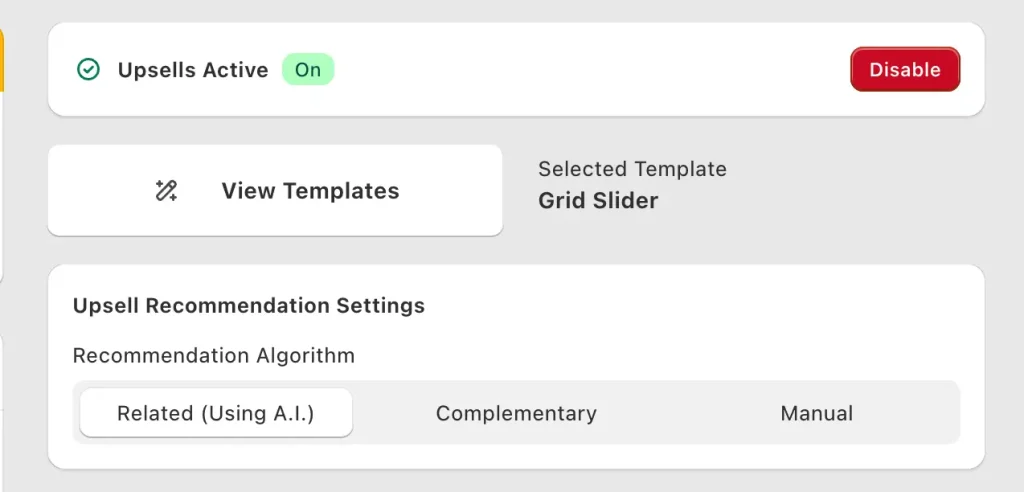
Here is how to pick the right one for your store.
1. Related (Using A.I.) — best for stores with 100+ orders
Shopify's AI reads the cart in real time and surfaces products other customers actually bought together. It updates as your sales data grows. This is the default for most growing stores because it requires zero manual setup and gets smarter every week.
Use this when: You have roughly 100 or more orders (our rule of thumb, not a Shopify limit), you sell more than 30 SKUs, and you want recommendations that adapt to seasons and trends without you babysitting them.
2. Complementary — best for stores with obvious add-on pairs
You pre-define perfect-fit pairings through Shopify's free Search & Discovery app. Phone gets a case. Coffee maker gets filters. Yoga mat gets a strap. The cart shows exactly what you said it should, every time.
Use this when: Your catalog has clear "this needs that" pairings, you sell fewer than 30 SKUs, or you are a brand-new store without enough sales data for AI to work.
Setup: Shopify admin → Apps → Search & Discovery → Product recommendations → Add recommendations → pick a product → select up to 10 complementary products.
3. Manual — best for promotional control
You hand-pick exactly which products show as recommendations regardless of what is in the cart. Great for pushing a new launch, clearing inventory, or featuring a high-margin product across every cart.
Use this when: You are running a campaign, launching a new product, or want to control margin by always recommending your most profitable SKU.
The smartest setup: Use Related (AI) as the default, override with Manual on specific products where you want to control the recommendation, and add Complementary pairings for your hero products. Stacking all three gives you both algorithmic lift and editorial control.
Real Merchant Data: What In-Cart Upsells Actually Generate
Most articles on this topic quote industry benchmarks. Here is what two real Oxify stores' dashboards show. Both figures are read directly off the app's Analytics V2 tiles, with screenshots in the linked case studies. They are app-attributed revenue since install, not controlled A/B tests, so read them as what is possible rather than a forecast.
| Store | Cart drawer revenue | Other placements | What the drawer ran |
|---|---|---|---|
| Replenhair (UK hair care) | £8,742 (57% of £15,451 total) | Product page £4,136, post-purchase £2,573 | A full-width recommendation plus a "Special offers just for you" row with its own 10% saving |
| Crossword (Indian bookstore chain) | ₹340,639 (100% of app revenue) | None switched on | A three-tier reward bar (free shipping, then extra 5%, then extra 10% off) |
What this tells you in practical terms:
- The cart drawer did the heaviest lifting in both stores. At Replenhair it out-earned the product page and post-purchase placements combined.
- You do not need every placement to start. Crossword runs the drawer alone.
- Attributed is not the same as incremental. Some shoppers would have bought the add-on anyway. The honest test is AOV and cart-to-checkout rate before vs after, which is why the measurement section below matters.
The two highest-impact moves we see across the Oxify install base:
- Pure in-cart upselling (Related AI recommendations, 2-3 products max, placed below cart items and above checkout).
- Upsells with discount (the same recommendations, but with a small 5-10% off applied only if added from the cart). Replenhair's second offer row works exactly this way, with a 10% saving shown against the struck-through price.
If you want both built into one app, Oxify Cart Drawer & Upsells ships with three recommendation algorithms, upsells with discount, free gifts, and a free shipping bar in a single install. Pricing starts at $9.99/month for up to 100 orders and scales with order volume, with a 14-day free trial on every plan.
How to Add In-Cart Recommendations to Your Shopify Store
You have three real options. Before you pick, one correction to a claim you will see repeated in a lot of guides.
Myth check: Dawn and Horizon, Shopify's free themes, do not ship cart-drawer product recommendations you can toggle on in the theme editor. If you read Dawn's cart-drawer.liquid source, the only secondary content in the drawer is an optional collection shown when the cart is empty. Dawn does include a product-recommendations section, but it is built for the product page, not the cart. Some paid third-party themes (Be Yours, Impulse, and others) do add a cart recommendations toggle — check your specific theme rather than assuming.
Checked October 11, 2026 against Shopify's public theme code. In Dawn (github.com/Shopify/dawn, version 16.0.0, released August 10, 2026), snippets/cart-drawer.liquid renders only an optional collection in the empty cart. Horizon (github.com/Shopify/horizon, latest commit September 21, 2026) ships a product-recommendations section and block, but its cart-drawer snippets contain no recommendations code and its cart-drawer section defines no blocks you could add one to. We did not inspect Shopify's other free themes.
Which themes have cart recommendations built in?
Check your own theme before you buy anything. This is where the free path lives or dies.
| Theme | Cart drawer recommendations? | Where to find it |
|---|---|---|
| Dawn and Horizon (Shopify's free themes) | No | Both have a product-recommendations section, but it is for the product page only; neither cart drawer has a recommendations block |
| Be Yours | Yes | Theme settings → Cart drawer → "Enable cart recommendations" |
| Other paid themes (Impulse, Prestige, Symmetry and similar) | Varies by theme and version | Theme settings → Cart drawer / Cart page. Many ship a shipping-goal bar without recommendations |
The honest summary: if you are on Dawn or Horizon, there is no toggle to find. That is not a limitation of your setup, it is simply what the theme ships. You need either a paid theme that includes it, an app, or custom code.
Option 1: Check your theme, then use Search & Discovery
If your theme does have the toggle, turn it on, then install the free Shopify Search & Discovery app to control which products appear as complementary pairings.
This is free and fast. The limits: you get whatever design the theme builder shipped, and you cannot run conditional logic like "show a free gift if the cart is over 50 dollars."
Option 2: Install a cart drawer app (recommended for growing stores)
This is where most growing stores end up, and for the majority of themes it is the only no-code path. An app like Oxify Cart Drawer & Upsells gives you a full cart drawer with smart recommendations, frequently bought together bundles, AI suggestions, free gifts, a free shipping bar, and a countdown timer, all in one place. You pick what shows, when, and to whom, with no code needed.
Oxify Cart Drawer & Upsells (our app) is rated 4.9 stars from 40 reviews on the Shopify App Store (checked October 11, 2026), Built for Shopify certified, and includes a 14-day free trial on every plan. Pricing starts at $9.99 a month for up to 100 orders, then scales by order volume ($19.99 to 200, $29.99 to 500, $49.99 to 1,000, $79.99 to 2,000, $99.99 to 3,000, $149.99 above 3,000), with an optional $299/mo Enterprise plan.
Cart recommendation apps compared
These are the apps merchants most often shortlist for in-cart recommendations specifically, not general upsell apps. Ratings, review counts, prices and Built for Shopify status for Oxify, Selleasy and iCart were checked on each Shopify App Store listing on October 11, 2026, and move over time, so treat them as a snapshot. UpCart's row keeps its September 23, 2026 figures because on October 11, 2026 its listing showed "not currently available". Selleasy's listing read the same on October 13, 2026. Existing installs of both keep working, but new stores cannot install them; check the listing before installing.
| App | Rating (reviews) | Starts at | Built for Shopify | Best for |
|---|---|---|---|---|
| Oxify Cart Drawer & Upsells | 4.9 (40) | $9.99/mo, 14-day trial | Yes | All three algorithms plus free gifts and shipping bar in one drawer |
| Selleasy | 4.9 (2,748) | Free to install; paid from $9/mo | Yes | Widest placement coverage — product page, cart, and post-purchase |
| iCart Cart Drawer Cart Upsell | 4.7 (451) | First 100 orders free, then $9/mo | No | Granular AND/OR display rules and per-widget conditions |
| UpCart | 4.7 (942, Sept 23) | $29.99/mo (free on development stores only) | Yes | Drawer design and add-ons like shipping protection |
Oxify (our app) has the smallest review base in this table (40 reviews, against 451 for iCart and 2,748 for Selleasy), so skip it if a large public review history decides your shortlist, or if your theme already has a recommendations toggle you are happy with.
Two things to weigh that the star ratings do not show. First, a cart drawer app replaces your theme's drawer entirely, so theme compatibility matters more than feature count — test on your actual theme during the trial. Second, watch how pricing scales with order volume rather than the headline entry price; several apps in this category are cheap at 100 orders and considerably less cheap at 2,000.
For the wider field including bundle and FBT-focused options, see the 15 best Shopify cart drawer apps breakdown, or how to choose a bundle app if bundling is your priority. We also maintain direct comparisons against UpCart, iCart, Selleasy, and Rebuy.
Option 3: Custom build with the Recommendations API
If you have a developer and very specific rules, you can call the API directly. Total control, but you own the design, testing, and maintenance. The next section is the actual build.
Developer Walkthrough: Build Cart Drawer Recommendations Yourself
This is the path most guides gloss over. Here is the working version, using the Section Rendering endpoint so your cards inherit theme styling automatically.
Step 1. Create a section for the recommendation cards. Add sections/cart-recommendations.liquid. Inside it, loop recommendations.products and render each product with your existing card snippet. The recommendations Liquid object only populates when the section is rendered through this API, so it will look empty if you preview it directly — that is expected, not a bug.
Step 2. Decide which product drives the recommendations. With multiple items in the cart, pick one deliberately. The most common choices are the highest-priced line item (best add-on economics) or the most recently added one (freshest context). Do not just grab cart.items.first — that is whatever the shopper added first, which may be the least relevant thing in the cart.
Step 3. Fetch the rendered section.
async function loadCartRecommendations(productId) {
  // limit: the API default is 10, so cap it explicitly.
  // intent: 'related' (algorithmic) or 'complementary' (hand-picked).
  const params = new URLSearchParams({
    product_id: productId,
    limit: 3,
    intent: 'related',
    section_id: 'cart-recommendations',
  });

  // Keep Shopify's locale prefix so prices and
  // translations stay correct under Markets.
  const root = window.Shopify?.routes?.root || '/';

  const res = await fetch(
    `${root}recommendations/products?${params}`
  );

  // Fail silently. A dead recommendation
  // must never block the cart.
  if (!res.ok) return;

  const html = await res.text();
  const doc = new DOMParser()
    .parseFromString(html, 'text/html');

  const markup = doc.querySelector('.cart-recommendations');
  if (!markup) return;

  document
    .querySelector('#cart-recommendations-slot')
    .replaceWith(markup);
}
Step 4. Add the product with the Cart AJAX API. Post the variant ID (not the product ID) to /cart/add.js. This is the single most common bug in DIY builds — product IDs will fail for any product with variants.
// Note: variantId, NOT productId. Posting a
// product ID fails on any product with variants.
await fetch(`${root}cart/add.js`, {
  method: 'POST',
  headers: { 'Content-Type': 'application/json' },
  body: JSON.stringify({
    items: [{ id: variantId, quantity: 1 }],
  }),
});
Step 5. Refresh the drawer without a page reload. Request your cart drawer section from /?sections=cart-drawer and swap the returned HTML in. Reloading the page here kills the whole advantage of a drawer.
Step 6. Re-fetch recommendations after the add. Otherwise the shopper sees a card for an item that is already in their cart. Filter out anything whose ID now appears in the cart.
Step 7. Handle the edge cases. Test all of these before shipping:
- Sold-out variants (hide the add button, do not let the request fail visibly)
- Products with required variant selection (either skip them or render a compact selector)
- Multi-currency and Shopify Markets (keep the locale prefix)
- Subscription-only products (selling plans need to be passed explicitly)
- An empty API response (render nothing, not an empty heading)
- Discount codes in the drawer recalculating after an add
Step 8. Make it accessible. Real <button> elements, keyboard-operable controls, focus kept inside the drawer while open, and an aria-live region announcing "Added to cart." Skipping this locks out keyboard and screen reader shoppers entirely.
Step 9. Track it. Fire an event on both impression and add, so you can compute a real attach rate. Do not put API keys or webhook URLs in theme JavaScript — everything in the theme is public.
If you would rather not maintain nine steps of custom JavaScript through every theme update, that is precisely what the apps exist for. Adding upsells to your cart drawer covers the no-code route.
Troubleshooting: Why Your Cart Recommendations Aren't Showing
This is the most common support question on the topic, and it is almost never a bug. Shopify silently filters products that fail eligibility checks. A product must meet all of these to appear:
| Requirement | Applies to |
|---|---|
| Product status is Active (not draft or archived) | Related and complementary |
| Published to the Online Store sales channel | Related and complementary |
| Inventory above 0 — even "continue selling when out of stock" will not override this | Complementary only |
| Out of stock allowed only if "continue selling when out of stock" is on | Related only |
| Price is above $0.00 | Both |
| Not already in the shopper's cart | Both |
| Not a gift card | Both |
| Not marked Unlisted | Both |
Work through these in order:
- Nothing shows at all. Hit the endpoint directly in your browser:
yourstore.com/recommendations/products.json?product_id=123&limit=10. If it returns an emptyproductsarray, the problem is your data or eligibility, not your code. - Empty or weak results on a new store. Related recommendations lean on purchase history and product descriptions, with related collections as the fallback. Shopify ignores the
allandfrontpagecollections for that fallback and does not use orders imported from another platform (Shopify developer docs). A new product that sits only in those collections, on a store with no sales yet, can come back with little or nothing. Set complementary pairings manually in Search & Discovery instead of waiting for the algorithm. - Complementary products set but not appearing. Check inventory first — this is the number one cause. Complementary products with 0 inventory are hidden unconditionally.
- Works on the product page but not the cart. Your theme almost certainly has a product-page recommendations section and no cart one. That is Dawn's default behavior. You need the custom section or an app.
- Recommendations are irrelevant. The
relatedintent is co-purchase driven and will surface substitutes. Switch tocomplementaryfor your top 20 products and let AI handle the long tail. - Wrong currency or language. You dropped the locale prefix. Use
window.Shopify.routes.rootrather than a hardcoded/. - Add button does nothing. You are posting a product ID where a variant ID is required.
- Drawer breaks intermittently. Check for two cart apps running at once. They fight over the same DOM node.
Shopify Add-to-Cart Rate Benchmarks (and Where Cart Recommendations Fit)
The median Shopify store adds a product to the cart in 6.8% of sessions. Above 12% puts a store in the top 20% and above 18% in the top 10% (Littledata, 423 stores, 90 days to October 3, 2026). Your add-to-cart rate is the share of sessions where a shopper adds at least one product. Cart recommendations sit right after it: they do not create the first add, they turn one add into two. Here is the benchmark in full:
| Benchmark | Add-to-cart rate |
|---|---|
| Median Shopify store | 6.8% |
| Top 20% of stores | Above 12% |
| Top 10% of stores | Above 18% |
| Bottom 20% of stores | Below 3.4% |
| Mobile sessions (median) | 5.4% |
| Desktop sessions (median) | 9.9% |
| Industry | Median | Top 20% | Stores in sample |
|---|---|---|---|
| Beauty & Skincare | 13% | 22% | 36 |
| Food & Beverage | 11% | 22% | 31 |
| Health & Supplements | 7.8% | 15% | 35 |
| Fashion & Apparel | 6.8% | 9.7% | 73 |
| Home & Furniture | 4.6% | 8.4% | 56 |
Source: Littledata's Shopify add-to-cart benchmark, read October 11, 2026 (data for the 90 days from July 6 to October 3, 2026, generated October 7, 2026). The sample is Littledata customers with Google Analytics 4 connected and at least 1,000 sessions and 90 purchases in the period, so very small stores are not included. Many guides, including an earlier version of this one, still quote an older 4.6% average. Use the current median and check the date on any benchmark you compare against. Find your own figure in Shopify admin under Analytics → Reports → Conversion rate breakdown ("Sessions with cart additions").
Two things follow from those numbers:
- If your add-to-cart rate is in the bottom fifth (below 3.4% in Littledata's sample), fix the product page first. Photos, price clarity, reviews and shipping information decide the first add. Cart recommendations cannot help a shopper who never opens the cart.
- If it is healthy, the cart is where the next gain is. A shopper who already added one item is the easiest person on your site to sell a second item to. That is the whole case for in-cart suggestions, and it is why you should measure them on items per order and AOV, not on the store-wide add-to-cart rate, which they barely move.
How to Measure If Your Recommendations Are Working
Set up real tracking from day one. Otherwise you are guessing.
Watch these five numbers:
- Attach rate. Percent of carts that include a recommended product. Record your week-one figure as the baseline and judge every change against it.
- Recommendation click-through rate. How often shoppers tap the add button after seeing a card. There is no reliable public benchmark for this, so set your own baseline in week one and improve against it.
- AOV with vs without recommendations. Compare orders that included a recommended item against those that did not.
- Cart-to-checkout rate. Make sure your recommendations did not slow down the path to checkout. If this drops, something is too pushy. This is the guardrail metric — a recommendation that lifts AOV while dropping checkout completion can be a net loss.
- Per-recommendation revenue. Which specific products got added the most? Double down on winners, kill losers.
Shopify's built-in recommendations report is built for product pages. Its Product recommendation conversions over time report counts a click when a customer views a product page after clicking a recommendation, and it relies on the tracking parameters (pr_prod_strat, pr_rec_pid, pr_ref_pid, pr_seq) on the product URL the API returns (Shopify Help Center, developer docs, read October 11, 2026). A one-tap Add button in a drawer never opens that page, so send your own impression and add events (Step 9) or use your app's dashboard.
Most cart drawer apps show these stats inside their dashboard. If yours does not, switch.
Quick Setup Checklist
Before you turn on in-cart recommendations, run through this list:
- Pick 2 to 3 add-on products per main product
- Confirm each add-on is Active, published to Online Store, and has inventory above 0
- Keep add-on prices under 20 percent of the average cart
- Set
limitexplicitly (the API default of 10 is too many) - Write a short, clear headline above the recommendations
- Test on a real mobile device, not a resized browser window
- Verify the checkout button is still above the fold on a small screen
- Set a baseline AOV and cart-to-checkout rate before you launch, so you can measure lift and catch damage
- Plan to refresh recommendations every 4 to 6 weeks
- Set up tracking for attach rate and CTR from day one
Frequently Asked Questions
How do in-cart product recommendations work on Shopify?
/recommendations/products.json. You pass a product_id, an optional limit (1 to 10, default 10) and an intent of related or complementary. Related picks come from purchase history, product descriptions and collections; complementary picks are the pairings you set in Search & Discovery. Shoppers add them with one tap without leaving the cart.Does Dawn have cart drawer recommendations built in?
Why are my Shopify cart recommendations not showing?
yourstore.com/recommendations/products.json?product_id=123 directly: an empty products array points to your data or eligibility, not your code.Are AI cart recommendations better than manual ones?
What is the difference between related and complementary intent?
What is the best Shopify cart recommendations app?
Can I add in-cart recommendations for free?
What is the difference between in-cart upsell and post-purchase upsell?
How much revenue can in-cart upsells actually generate?
What is a good add-to-cart rate on Shopify?
What is the impact of in-cart offers on conversion rate?
What are Shopify cart suggestions?
Start Small, Measure, Then Scale
In-cart recommendations are one of the highest-leverage tweaks you can make to a Shopify store. The traffic is already there. The shopper is already buying. You are just helping them complete a smarter order.
The Replenhair and Crossword dashboards above show what a properly configured cart can carry: the cart drawer was the largest revenue placement in both. It is not theoretical, and the screenshots are in the case studies.
Start with two complementary products per main item, and verify each one is Active with inventory above zero so Shopify does not quietly filter it out. Place them inside the cart drawer using the Related (AI) algorithm. Watch your attach rate and your cart-to-checkout rate for two weeks. Then layer in upsells with discount, a free shipping bar, and a countdown timer. Each layer compounds.
If you want a faster path, Oxify Cart Drawer & Upsells gives you all three recommendation algorithms (Related AI, Complementary, Manual), upsells with discount, frequently bought together bundles, free gifts, a free shipping progress bar, and a sticky cart out of the box. 4.9 stars from 40 reviews, Built for Shopify certified, 14-day trial on every plan.
Your cart drawer is doing one job today. Make it do five.