 Oxify
OxifyHow To Replace Shopify Cart Page With Slide Cart Drawer (2026)
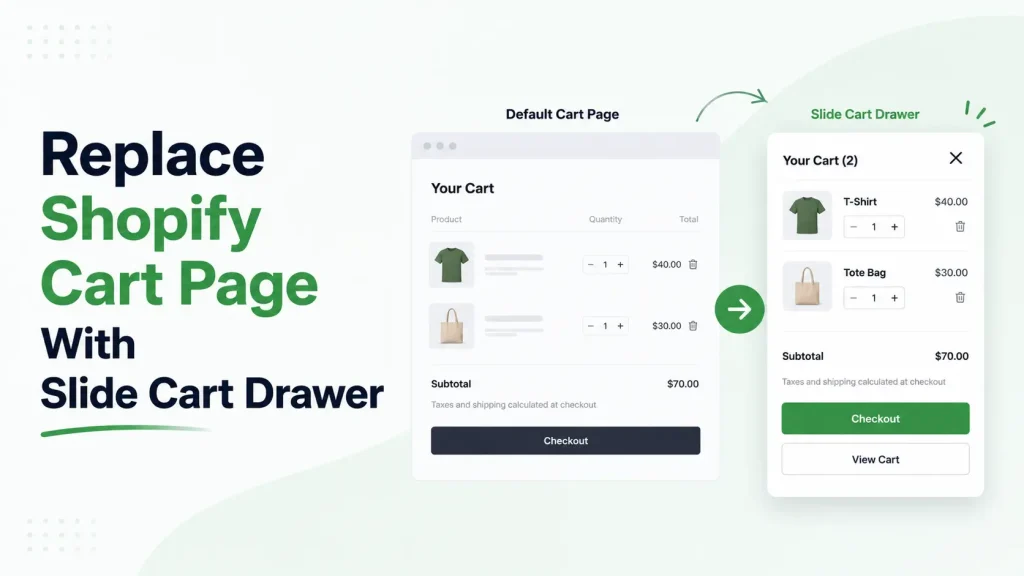
You can replace the Shopify cart page with a slide cart drawer in three ways: switch your theme's cart type to "Drawer" (free, about 5 minutes), add custom Liquid and JavaScript (1–3 hours), or install a cart drawer app (15–20 minutes). A slide cart drawer is a side panel that opens when a shopper adds a product.
If your theme's cart type is "Page," every add-to-cart sends the shopper off the product page to a plain cart page, and they have to click "Continue Shopping" to keep browsing. A drawer keeps them where they were.
This guide covers all three ways to do it (free theme setting, custom Liquid code, and using an app), with real code snippets, a comparison table, and the troubleshooting steps most tutorials skip. By the end, you'll have a working slide cart and know which method fits your store.
TL;DR — Which Method Should You Use?
- Theme setting (free, 5 minutes): Pick this if you just want to ditch the cart page and don't care about extras.
- Custom Liquid code (free, 1–3 hours, dev skills needed): Pick this if you want full control and don't mind editing theme files.
- Cart drawer app (usually paid, 15 minutes): Pick this if you want the drawer plus upsells, free shipping bar, free gifts, and AOV-boosting features.
If you only want to stop the cart-page redirect, start with the free theme setting. Add an app when you need the drawer to do more. Look at your theme before you build anything.
What Is a Slide Cart Drawer?
A slide cart drawer is a side panel that slides in over your store when a shopper adds a product. The shopper sees their cart, edits quantities, and checks out — without ever leaving the page they were on.
It's also called a mini cart, side cart, sliding cart, or cart drawer. They all mean the same thing — though there are subtle differences between a slide cart and a mini cart worth understanding.
The default Shopify cart is different. It's a full page at yourstore.com/cart, and on a theme set to the "Page" cart type every "Add to Cart" click sends shoppers there, breaking the browsing flow. The drawer keeps shoppers in the flow. The page interrupts it.
Slide Cart Drawer vs Default Cart Page: What's the Difference?
| Feature | Slide Cart Drawer | Default Cart Page |
|---|---|---|
| Page reload | No (inline) | Yes (full redirect) |
| Mobile experience | Native, thumb-friendly | Cramped, scroll-heavy |
| Continue shopping | One tap (close drawer) | Click "Continue Shopping" + reload |
| Upsell space | Yes (FBT, recommendations) | Limited |
| Free shipping bar | Yes (sticky in drawer) | Static at top |
| Best for | Conversion & AOV | Order review only |
For a deeper comparison with real conversion data, see our breakdown of Shopify cart drawer vs cart page.
Why Should You Replace the Default Cart Page?
Cart abandonment is a major leak in e-commerce, and a full-page redirect after add-to-cart is one friction point you can remove. On a phone it costs a page load and the shopper's place on the page.
Here's why a slide drawer helps:
- Less friction: Shoppers don't lose their place on a product or collection page.
- Mobile-friendly: A drawer fits a phone screen far better than a full cart page.
- A place for AOV features: A free shipping bar in the cart drawer stays in view while shoppers add items, so they can see how far they are from the threshold.
- More upsell real estate: You can show frequently bought together items or BOGO offers right when shoppers are ready to check out. See our guide to Shopify upselling strategies that increase AOV.
When You Should NOT Replace the Cart Page
Most stores should switch. But not every store. Skip the drawer if:
- You sell B2B with complex carts (custom quotes, bulk pricing tables, line-item notes per product).
- Customers regularly buy 20+ line items per order — drawers feel cramped at that size.
- Your cart needs detailed shipping calculators, tax breakdowns, or address forms before checkout.
- You're an enterprise store with custom checkout requirements.
For a typical D2C store selling apparel, beauty, supplements, home goods, or gadgets with a handful of line items per order, a slide cart drawer fits well.
Which Shopify Themes Support Cart Drawers Natively?
If you're on a Shopify Online Store 2.0 theme, you likely have a cart drawer setting built in. In Dawn, Shopify's reference theme, it is the Type setting under Theme settings → Cart, with three options: Drawer, Page and Popup notification. Dawn's published settings default to Popup notification (we read its settings files on GitHub in October 2026), so out of the box Dawn shows a small confirmation, not a cart page.
Themes that offer a drawer without code edits (options change between theme versions, so confirm in your own theme editor):
Free Online Store 2.0 themes:
- Dawn
- Sense
- Refresh
- Craft
- Crave
- Ride
- Origin
- Studio
- Taste
- Colorblock
- Horizon
- Spotlight
Older Vintage themes that include cart drawers:
- Brooklyn
- Pop
- Supply
Premium themes with cart drawer support: Atlantic, Blockshop, Parallax, Testament, Alchemy, Symmetry, Impulse, Prestige, Motion, Empire.
If your theme isn't listed, you'll need Method 2 (custom code) or Method 3 (an app).
What Are the 3 Ways to Replace Shopify Cart Page With a Slide Cart?
Below are all three methods, ordered from easiest to hardest. Pick the one that matches your skill level and feature needs.
Comparison Table: Theme vs Code vs App
| Feature | Theme Setting | Custom Code | Cart Drawer App |
|---|---|---|---|
| Setup time | 5 minutes | 1–3 hours | 15–20 minutes |
| Skill needed | None | Liquid + JS + CSS | None |
| Cost | Free | Free (or dev cost) | Monthly fee, usually scaled to orders |
| Free shipping bar | ❌ | Manual build | ✅ Built-in |
| Upsells / FBT | ❌ | Manual build | ✅ Built-in |
| Free gift on threshold | ❌ | Manual build | ✅ Built-in |
| BOGO / volume discounts | ❌ | Manual build | ✅ Built-in |
| Sticky cart icon | ❌ | Manual build | ✅ Built-in |
| Theme update–safe | ✅ | ⚠️ Risk on update | ✅ |
| Best for | Hobby stores | Devs / agencies | Growing brands |
Method 1: How to Enable the Built-in Theme Cart Drawer (Free, 5 Minutes)
If you're on Dawn or another theme from the list above that offers a drawer, you already have a basic drawer option. You just have to turn it on.
Step-by-Step Instructions
- From your Shopify admin, go to Online Store → Themes.
- Find your live theme and click Customize.
- Click the Theme settings gear icon at the bottom-left of the editor.
- Scroll to the Cart section.
- Under the cart type setting (labelled "Type" in Dawn), select Drawer (instead of "Page" or "Popup notification").
- Click Save in the top-right corner.
Test by adding a product on your live store. If the drawer doesn't appear, jump to the troubleshooting section below.
What You Get (and What You Don't)
The free built-in drawer is bare-bones. You get:
- Cart items list
- Quantity controls
- Subtotal
- Checkout button
You don't get:
- Free shipping progress bar
- Upsells or recommended products
- Free gift on threshold
- BOGO or volume discounts
- Sticky cart icon that stays visible
- Discount code field inside the drawer
- Trust badges
- Countdown timers
Pros and Cons of the Theme Method
Pros:
- Completely free — no app fees
- 5-minute setup with zero code
- Survives theme updates with no risk
- Works out of the box on most modern themes
Cons:
- No AOV-boosting features at all
- Can't customize beyond what your theme allows
- No analytics or performance tracking
- If you change themes, you'll need to redo it
If you just want to remove the cart page redirect and don't care about boosting AOV, this is fine. If you want the drawer to make you more money, jump to Method 3.
Method 2: How to Replace Cart Page With Custom Liquid Code (Dev-Friendly)
This method gives you complete control. You'll add a snippet to your theme, hook it into your header, and use Shopify's AJAX cart API to power it. You need basic Liquid, JavaScript, and CSS knowledge.
Important: Always duplicate your theme before editing code. Go to Online Store → Themes → Actions → Duplicate first.
Step 1: Create the Cart Drawer Snippet
In your theme code editor, go to Snippets → Add a new snippet and name it cart-drawer.liquid. Paste this:
<div id="slide-cart-drawer" class="slide-cart-drawer hidden">
<div class="slide-cart-overlay" id="slide-cart-overlay"></div>
<aside class="slide-cart-panel">
<header class="slide-cart-header">
<h3>Your Cart</h3>
<button id="close-slide-cart" aria-label="Close cart">×</button>
</header>
<div id="slide-cart-items" class="slide-cart-items">
<!-- Items injected by JS -->
</div>
<footer class="slide-cart-footer">
<div class="slide-cart-subtotal">
<span>Subtotal</span>
<span id="slide-cart-subtotal">$0.00</span>
</div>
<a href="/checkout" class="slide-cart-checkout-btn">Secure Checkout</a>
</footer>
</aside>
</div>
Step 2: Add Styles
In your theme's main CSS file (usually assets/base.css or assets/theme.css), add:
.slide-cart-drawer { position: fixed; inset: 0; z-index: 9999; }
.slide-cart-drawer.hidden { display: none; }
.slide-cart-overlay {
  position: absolute; inset: 0;
  background: rgba(0,0,0,0.4);
}
.slide-cart-panel {
  position: absolute; top: 0; right: 0;
  width: 400px; max-width: 100%; height: 100%;
  background: #fff;
  display: flex; flex-direction: column;
  transform: translateX(100%);
  transition: transform 0.3s ease;
}
.slide-cart-drawer:not(.hidden) .slide-cart-panel {
  transform: translateX(0);
}
.slide-cart-header, .slide-cart-footer {
  padding: 1rem; border-bottom: 1px solid #eee;
}
.slide-cart-footer { border-top: 1px solid #eee; border-bottom: none; }
.slide-cart-items { flex: 1; overflow-y: auto; padding: 1rem; }
.slide-cart-checkout-btn {
  display: block; width: 100%; padding: 1rem;
  background: #000; color: #fff; text-align: center;
  text-decoration: none; border-radius: 4px;
}
@media (max-width: 480px) {
  .slide-cart-panel { width: 100%; }
}
Step 3: Render the Snippet in Your Theme
Open theme.liquid and add this just before the closing </body> tag:
{% render 'cart-drawer' %}Step 4: Add the JavaScript
Create a new file in Assets → Add a new asset called slide-cart.js and paste:
document.addEventListener('DOMContentLoaded', () => {
  const drawer = document.getElementById('slide-cart-drawer');
  const overlay = document.getElementById('slide-cart-overlay');
  const closeBtn = document.getElementById('close-slide-cart');
  const itemsBox = document.getElementById('slide-cart-items');
  const subtotalEl = document.getElementById('slide-cart-subtotal');

  const openCart = async () => {
    const res = await fetch('/cart.js');
    const cart = await res.json();
    renderCart(cart);
    drawer.classList.remove('hidden');
  };

  const closeCart = () => drawer.classList.add('hidden');

  const renderCart = (cart) => {
    subtotalEl.innerText = formatMoney(cart.total_price);
    itemsBox.innerHTML = cart.items.map(item => `
      <div class="cart-item">
        <img src="${item.image}" width="60" alt="${item.title}">
        <div>
          <p>${item.product_title}</p>
          <p>Qty: ${item.quantity}</p>
          <p>${formatMoney(item.line_price)}</p>
        </div>
      </div>
    `).join('');
  };

  const formatMoney = (cents) =>
    '$' + (cents / 100).toFixed(2);

  // Intercept all add-to-cart forms
  document.querySelectorAll('form[action*="/cart/add"]').forEach(form => {
    form.addEventListener('submit', async (e) => {
      e.preventDefault();
      e.stopImmediatePropagation(); // stop the theme's own add-to-cart handler (see the note below)
      const formData = new FormData(form);
      await fetch('/cart/add.js', { method: 'POST', body: formData });
      openCart();
    }, true); // capture phase: runs before the theme's listener
  });

  // Intercept cart icon clicks
  document.querySelectorAll('a[href="/cart"]').forEach(link => {
    link.addEventListener('click', (e) => {
      e.preventDefault();
      openCart();
    });
  });

  closeBtn.addEventListener('click', closeCart);
  overlay.addEventListener('click', closeCart);
  document.addEventListener('keydown', (e) => {
    if (e.key === 'Escape') closeCart();
  });
});
Why the capture phase? The snippet assumes your theme does not add to cart with JavaScript itself, and Dawn does. Its product-form.js listens for the same submit event, calls preventDefault(), posts to /cart/add.js on its own and, when the cart type is Page, sends the shopper on to /cart (we read it in Shopify's Dawn repository on GitHub in October 2026). Without the capture flag and stopImmediatePropagation(), both handlers run: the add is posted twice and shoppers still land on the cart page. If your theme is not based on Dawn, read its product-form script before relying on this.
One more limit: formatMoney hard-codes a dollar sign. That is fine for a demo, but a store selling in several currencies should format with the currency field that /cart.js returns (see our guide to a multi-currency cart drawer).
Step 5: Load the JavaScript
In theme.liquid, just before </body>, add:
<script src="{{ 'slide-cart.js' | asset_url }}" defer></script>Step 6: Test on Your Storefront
Save everything. Open your store in incognito mode. Click any "Add to Cart" button. The drawer should slide in from the right. Click the overlay or the X to close.
Mobile Drawer Best Practices (iOS Safari Quirks)
Custom drawers often break on phones. These details trip up many custom slide carts, especially on iOS Safari:
- Don't use
height: 100vh. iOS Safari measures viewport height including the URL bar, so 100vh ends up taller than the visible screen. Useheight: 100%with aposition: fixedparent instead. - Add
safe-area-inset-bottompadding to the checkout button area so it isn't hidden behind the iOS home indicator:padding-bottom: env(safe-area-inset-bottom); - Prevent body scroll when the drawer is open. Add
document.body.style.overflow = 'hidden'on open and restore on close — otherwise the page scrolls behind the drawer on iOS. - Use
pointer-events: noneon the overlay during transitions to avoid click-through bugs where taps register on the page below. - Test on a real iPhone. Chrome DevTools mobile emulation can miss several of the above.
Pros and Cons of the Custom Code Method
Pros: Fully custom, lightweight, no monthly fees, total control over UX.
Cons: No upsells, no free shipping bar, no free gifts. Theme updates can break it. A free shipping bar, upsells, or free gifts each need their own code, plus testing against your discount setup, which is why stores that want those features usually move to Method 3.
Method 3: How to Use a Cart Drawer App (Best When You Want Upsells)
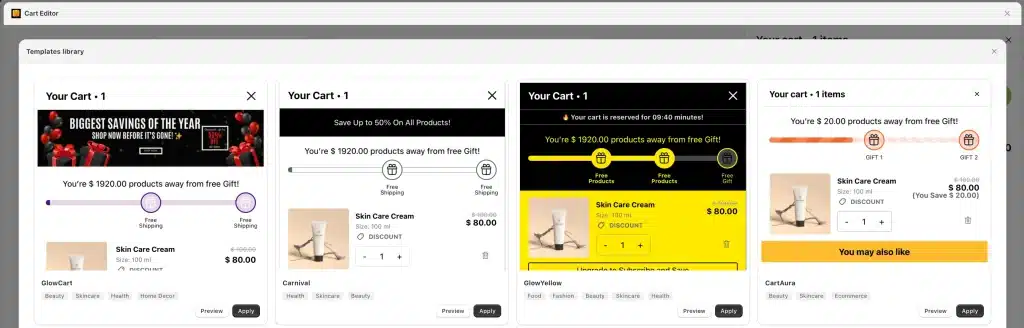
A dedicated cart app replaces the default cart with a fully featured drawer that includes the AOV features the free theme version is missing, without writing a line of code. It is the right pick when you need more than a bare drawer: upsells, a free shipping bar, free gifts.
Top Shopify Cart Drawer Apps Compared
Our top recommendation is Oxify Cart Drawer & Upsells (our app) — a Built for Shopify app rated 4.9 from 40 App Store reviews that handles the full cart funnel in one app: slide cart, upsells, FBT, AI recommendations, free shipping bar, free gifts, BOGO, volume discounts, sticky cart, countdown timer, and post-purchase upsells.
On its App Store listing (checked October 2026), plans start at $9.99 a month for up to 100 monthly orders, with a 14-day free trial and no free plan. Skip it if the free theme drawer already does what you need, or if you want a free plan (there is none).
For a wider comparison including UpCart, iCart, Qikify Slide Cart, AMP Slide Cart, and Cartly, see our full guide to the best Shopify cart drawer apps. (On 11 October 2026 the UpCart listing showed "not currently available"; check the listing before installing.)
Why an App Beats the Other Two Methods
- Setup is 15 minutes, no code
- Free shipping bar, upsells, and free gifts come built in, with no per-feature code
- It loads as an app embed rather than edits to your theme files, so theme updates are far less likely to break it
How to Install Oxify Cart Drawer & Upsells
- Visit the Oxify Cart Drawer & Upsells listing on the Shopify App Store.
- Click Install and approve the permissions.
- In the app dashboard, hit Enable Cart Drawer.
- Configure the drawer style — colors, fonts, button text — to match your brand.
- Set your free shipping threshold (a common rule of thumb is ~30% above your current AOV; see the threshold section below).
- Add 1–3 upsell products. Don't show more than three or it gets cluttered.
- Turn on the sticky cart icon so the cart is always one tap away.
- In the theme editor under App embeds, make sure the Oxify cart embed is toggled on.
- Hit Publish and test on your live store in incognito mode.
Total time: 15–20 minutes for a clean setup that looks like a custom-built cart drawer. Learn more about the full feature set on the Oxify Cart Drawer & Upsells overview page.
Pros and Cons of Using a Cart Drawer App
Pros:
- Plug-and-play setup — no Liquid, no JavaScript, no CSS
- AOV features (free shipping bar, upsells, gifts, BOGO) built in
- Theme-update safe
- Regular updates to stay compatible with Shopify changes
- Built-in analytics on cart performance
Cons:
- Monthly subscription cost, usually scaled to your monthly orders (Oxify Cart Drawer & Upsells starts at $9.99 a month for up to 100 orders)
- One more app on your store. Shopify requires an app not to lower the storefront's Lighthouse performance score by more than 10 points (Shopify's performance requirements), so run PageSpeed before and after installing
- Some apps come with feature bloat — you only need what your store will actually use
How Do You Set Up the Drawer for Maximum AOV?
A drawer on its default settings fixes the flow but adds no AOV features. These are the settings worth checking.
1. Set the Free Shipping Threshold Smart
A common rule of thumb is to start about 30% above your current AOV: if your AOV is $40, try $52, then adjust from your own order data. Too low and it costs you margin without lifting AOV. Too high and shoppers give up.
For more detail, see our guide to setting up a free shipping bar in your cart drawer.
2. Pick the Right Upsells
Don't show random products. Show:
- Items frequently bought together with what's already in cart
- Cheap add-ons (under $20) that are easy to say yes to
- Consumables for the main product (filters, refills, accessories)
For a deeper playbook, see our cart upsell Shopify strategy guide.
3. Use Real Trust Signals
Add a small row near the checkout button: a padlock icon, "Secure Checkout," and accepted payment logos. Small, but it nudges hesitant buyers over the line. Here's how to add trust badges to your cart drawer the right way.
4. Test Your Checkout Button Text
Button copy is cheap to change, so test it instead of assuming: for example "Checkout" against "Secure Checkout." Run one change at a time and judge it on completed orders, not clicks.
How Do You Fix Common Slide Cart Drawer Issues?
The Drawer Won't Open
Likely causes:
- JavaScript not loaded yet: Make sure your script has the
deferattribute or fires insideDOMContentLoaded. - App embed disabled: Go to theme editor → App embeds → confirm your cart drawer app is toggled on.
- Theme conflict: Another theme script may be intercepting the cart click. Check the browser console for errors.
Items Don't Show or Subtotal Is Wrong
You're probably not using Shopify's AJAX cart endpoints correctly. Confirm you're calling /cart.js for the cart state and /cart/add.js for adds. Always re-fetch /cart.js after every change to refresh the drawer. Shopify's official AJAX cart docs have the full reference.
The Drawer Looks Broken on Mobile
Check your CSS. The panel should be 100% width on screens under 480px. If content overflows, add overflow-y: auto to the items container and make sure the panel uses height: 100% not height: 100vh (vh causes issues on iOS Safari).
Two Cart Drawers Are Opening
You probably have both the theme drawer setting and a cart app enabled. Pick one. If using an app, set theme cart type back to "Page" — the app will override it.
The Drawer Is Slow
Usually a script loading issue. Make sure scripts are deferred. If using multiple cart-related apps, consider consolidating to one. Then measure: run PageSpeed Insights with the app embed on and off, since Shopify requires apps not to lower the storefront's Lighthouse performance score by more than 10 points. Our guide to whether a cart drawer app slows down your store covers the test.
The /cart URL Still Loads the Old Cart Page
Some apps redirect /cart automatically. If yours doesn't, you can either rely on the JavaScript click interceptor (Method 2 covers this) or add a redirect in your app settings.
Add-to-Cart Stops Working After App Install
Real merchant issue we see often: a slide cart app conflicts with another cart-related app or theme script, and the add-to-cart button stops responding. To diagnose, disable other cart-related apps one at a time, then check the browser console for JavaScript errors. If you're using Vintage themes like Symmetry or Impulse, the app may need a manual theme integration step — check your app's docs for the snippet to paste.
What Are the Most Common Slide Cart Setup Mistakes?
- Cluttering the drawer. Six upsells, a quiz, a wheel-spin popup, trust badges, and a video — shoppers leave. Keep it clean.
- Skipping mobile testing. Always test on a real phone, not just the desktop preview.
- Showing too many free gifts. One free gift on threshold is great. Three feels desperate.
- Forgetting to test discount codes. Add a product, apply a code, watch the subtotal update. Catch the bug before customers do.
- Editing the live theme directly. Always duplicate first. Always.
- Ignoring accessibility. Add a focus trap inside the drawer, ESC-key support, and ARIA labels on the close button. With WCAG and EAA enforcement growing, this matters more than it used to.
Frequently Asked Questions
Can I replace the Shopify cart page with a slide cart for free?
Why is my Shopify cart drawer not opening?
Will switching to a slide cart drawer break my theme?
Can I customize the cart icon in Shopify?
sections/header.liquid loads the cart icon from the asset files icon-cart.svg and icon-cart-empty.svg (checked in Dawn's code on GitHub, October 2026), so replace those or change the markup in the header. Other themes may inline the SVG instead. Duplicate your theme first, because the header loads on every page. Most cart drawer apps also let you swap the icon style and color in their settings.Is a sticky cart helpful for Shopify stores?
Does the Dawn theme have a cart drawer?
Does a slide cart drawer slow down my Shopify store?
Is a slide cart drawer better than a popup cart?
What's the difference between a slide cart drawer and a mini cart?
Do I need to remove the default Shopify cart page completely?
Can I add upsells to the free Shopify cart drawer?
Which Shopify themes support a cart drawer natively?
Should You Replace the Default Shopify Cart Page?
For a typical D2C store, yes. A cart-page redirect adds friction at exactly the moment shoppers are deciding to buy, while a slide cart drawer keeps them in the flow and gives you space to upsell.
The free theme setting is fine if you only want to clean up the flow, and the custom code route works if you have dev resources. If you want upsells, a free shipping bar and gifts in the same drawer, an app like Oxify Cart Drawer & Upsells (our app) is the faster route, and its listing offers a 14-day free trial.
Ready to ditch the cart page? Install Oxify Cart Drawer & Upsells and have your slide cart live in under 20 minutes.