 Oxify
OxifyHow to Upsell on Shopify Product Pages: Setup Guide (2026)
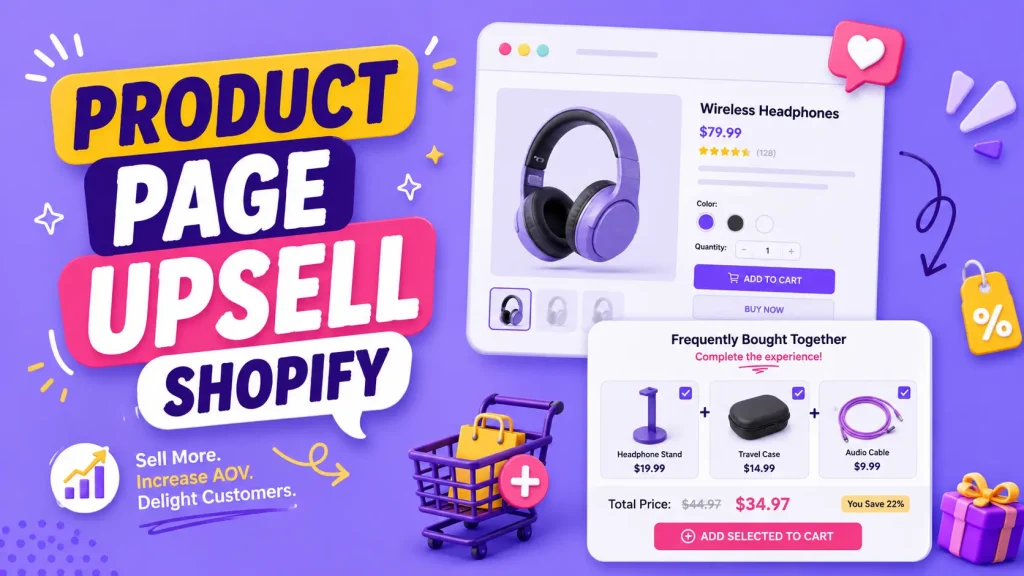
A product page upsell on Shopify is an offer shown before Add to Cart: a bigger pack, a matching item or a bundle. To upsell on a Shopify product page, pick one or two offers, place them beside the Add to Cart button, switch them on with a theme block or an upsell app, and track average order value.
If you are working out how to upsell on Shopify, the product page is the easiest place to start. A product page upsell reaches the shopper while they are still deciding, so it can raise average order value (AOV) without extra ad spend.
This guide stays on the product page itself: how the offer types differ, a quick test for picking offers people want, setup steps for a theme block and for an app, where to place the offer, what already sits around the Add to Cart button, one store's dashboard numbers, and the metrics to watch. For the payment step, see our Shopify checkout upsell guide.
What is a product page upsell on Shopify?
It is an offer that lives on the product page itself. The shopper has not paid yet. They are deciding. That is what makes this spot so useful.
Three terms get mixed up a lot. Here is the simple split:
- Upsell: a better or bigger version of the same item. Example: the 100ml serum instead of the 50ml.
- Cross-sell: a different item that pairs well. Example: socks with the running shoes.
- Bundle: a few items packed together for one price, usually with a small saving.
All three can sit on the product page. If you want the deeper version of these terms, here is the difference between FBT, cross-sell, and related products.
Where can you upsell on Shopify, and why start on the product page?
A shopper can see an upsell at four points. Only the first one reaches people who never add anything to cart.
| Placement | Shopper sees it | Typical offer | Guide |
|---|---|---|---|
| Product page | Before Add to Cart | Bigger pack, matching item, bundle, add-on | This guide |
| Cart page or cart drawer | After Add to Cart | Cross-sell, free-shipping nudge, cart add-on | Cart upsell guide |
| Checkout | During checkout | One more item before paying | Checkout upsell guide |
| Post-purchase | After payment is taken | One-click extra item | Post-purchase guide |
The product page is also where the order is still open. Baymard Institute's 2026 average across 50 studies is 70.22% of online shopping carts abandoned, so an offer that only appears in the cart reaches the carts that already exist, and most of those do not convert. You are not asking for more money. You are helping the shopper buy the right version while they are still choosing.
The 3-second match test
This is the rule I use before turning on any offer. If an upsell cannot pass all three checks in about three seconds, it gets cut.
- Is it relevant? Would a real person want this with the item in front of them? A case with a phone, yes. A case with a winter coat, no.
- Is it an easy yes? Can they accept it in one tap, with no thinking? If they have to do math or read a paragraph, you lost them.
- Is the gain clear? Do they instantly see what they get? Save money, save a trip, get more, never run out.
Most weak upsells fail check one or check three. They are random, or the value is hidden. Fix those two and your numbers climb.
The product page upsells that convert
You do not need all of these. Pick the one or two that fit your store.
- Tier upgrade (good, better, best): show a premium version next to the standard one. The middle option often wins.
- Quantity breaks: "Buy 2, save 10%. Buy 3, save 20%." Great for items people use up, like skincare, coffee, or supplements.
- Frequently bought together: group the main item with one or two natural partners and one button to add them all. Here is what frequently bought together does to conversion rate.
- Add-ons: small, low-risk extras like gift wrap, a warranty, or a starter kit. See the best Shopify product add-on apps if this is your main play.
- Free gift threshold: "Spend $50, get a free travel size." This nudges a slightly bigger basket.
How to set up product page upsells on Shopify
You have three ways to do it. Here is the quick comparison, then the steps.
| Method | Cost | Setup effort | Best for |
|---|---|---|---|
| Theme block | Free | Low | A basic related-products row |
| App | Paid, with free trial | Low | Real offers (FBT, tiers, add-ons) |
| Custom code | Dev time | High | Full control, no monthly fee |
Option 1: Use your theme (free, but limited)
Some Online Store 2.0 themes (like Dawn and Horizon) include a basic "complementary products" or "you may also like" block. Shopify's Help Center says the complementary products block is only available in compatible themes, so check yours first.
- Go to your Shopify admin, then Online Store, then Themes, then Customize.
- Open a product template and look for a Complementary products or Product recommendations section.
- Add the section, then set the related products under Search & Discovery (Shopify's free app) so the picks are not random.
If the block comes up empty, check the products, not the theme. Per Shopify's Help Center, a recommended product only shows when it is Active, published to the Online Store channel, priced above $0, not a gift card and not already in the shopper's cart, and a complementary product also needs stock above 0.
The catch: themes do not show price tiers, true bundles, or one tap "add all" buttons. For a simple related row, the theme is fine. For offers that actually lift AOV, you will want an app.
Option 2: Use an app (recommended for most stores)
An app is faster to launch and safer than code, as long as you pick one with the Built for Shopify badge and check your speed before and after. Here is the flow with Oxify Cart Drawer & Upsells (our app), which runs product page upsells and add-ons, frequently bought together, and one click post-purchase offers in one app:
- Install the app from the Shopify App Store. No code needed.
- Open the dashboard and create a new product page upsell or frequently bought together offer.
- Pick the main product, then add one or two partner products that pass the match test.
- Set a small saving if you want one (for example, 10% off when bought together).
- Write the offer so it sells itself: a clear title, a one-line reason to add it, and a real product photo.
- Place the block near the Add to Cart button, match your store colors, then check it on desktop and phone.
Not sure which products to show? Oxify Cart Drawer & Upsells also has a Product list widget you can place on the product page. Its product source can be Related or Complementary (Shopify Search & Discovery recommendations), Manual (products you pick, or a collection), or Recently viewed (kept in the shopper's browser).
If your win is quantity breaks or bundles instead, use Oxify Quantity Breaks (our app). Create a deal, open the Offers tab, and stack your tiers (1 pack, 2 pack, 3 pack), each with its own quantity and discount. Add a label like "Most Popular" on the tier you want pre-selected. The full walkthrough is here: how to set up tiered pricing on Shopify.
Option 3: Custom code (advanced)
With a developer, you can build an upsell block using Shopify's app blocks and metafields. You map a "recommended product" metafield to each item, then render it under the buy box.
This avoids monthly fees. But you own every bug, and heavy scripts can slow your page. Slow pages lose sales. For most stores, an app that passes Shopify's performance check is the smarter trade.
Where to place upsells on the product page
Placement matters as much as the offer.
- Best spot: right next to the Add to Cart button. This is where eyes already are.
- Inside the variant picker: good for tier upgrades. The shopper is already choosing.
- Just below the buy box: good for frequently bought together blocks.
- Avoid: big pop-ups that cover the screen, especially on mobile. They block the page and raise drop-off.
Look at what already sits around the buy box before you add to it. A sticky add-to-cart bar, Shopify's dynamic checkout buttons and a Shop Pay Installments banner can all share the space. If yours has them, preview your offer on a phone with them switched on.
Keep it inline and clean. The shopper should never lose sight of the Add to Cart button.
Product page upsell ideas by store type
These are patterns, not named stores or test results. The wording changes by store type, but the idea is the same. Pick the one that fits what your shoppers already buy.
- Fashion and apparel: "Complete the look." On a top, show the matching leggings, shorts, or jacket the model is wearing, with one button to add the set. Shoppers buy the outfit, not just one piece.
- Tech and accessories: an upgrade plus a bundle ladder. Let the shopper add an upgrade (like a stronger case or a stand), then show a "case plus screen protector" bundle with the saving spelled out. A single case order turns into a bigger one.
- Beauty and skincare: "Pair it with." Under a serum, show the cleanser and moisturizer that complete the routine. Here is more on frequently bought together for beauty products.
- Coffee, supplements, and refills: a quantity ladder. Show "1 bag," "2 bags (save 15%)," and "3 bags (save 20%)" right on the page. People who buy these stock up, so the bigger pack is an easy yes. One thing to plan for: a quantity ladder may share the page with a subscribe-and-save option. Decide which one is the default so the two offers do not compete.
Notice the common thread: every example pairs items that truly belong together, and the value is clear at a glance. That is the match test in action.
Real numbers from our dashboard
Here is a real view of the Product Page Upsell Analytics screen in the Oxify Cart Drawer & Upsells app (our app). It is one store's dashboard, and the screenshot does not show the store or the date range, so read it as an example of how the numbers break down, not as a benchmark.
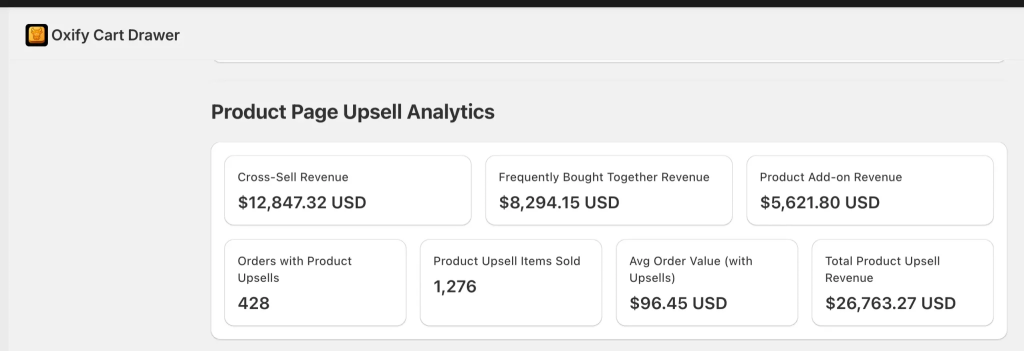
Here is what those numbers say:
- Total product upsell revenue: $26,763.27. That is money the product page offers brought in on top of the base orders.
- By offer type: cross-sell $12,847.32, frequently bought together $8,294.15, and product add-ons $5,621.80. The three add up to the total, and cross-sells pulled the most.
- 428 orders included a product upsell, with 1,276 upsell items sold across them. That is close to three extra items per upsell order.
- Average order value with upsells: $96.45.
Two takeaways from this one store. First, all three offer types brought in revenue, so it can pay to run more than one. Second, the product page was a real revenue line here, not a rounding error.
How to pick and price a bundle
Bundles are the highest-impact product page upsell, but only when they make sense. Use these three rules.
- Pick items that truly go together. Camera and memory card, razor and refills, shirt and matching pants. A coffee maker bundled with a t-shirt feels like a trick and hurts trust.
- Keep the saving small and clear. A light nudge (for example, 10% off the set, or "Save $15") is enough. A deep cut just trains people to wait for discounts.
- Show the saving, not just the price. "Save $15 when bought together" beats a quiet total. People act on the gain they can see.
For a deeper breakdown, see frequently bought together vs bundle revenue.
Which app should you use?
I will be straight with you. Both apps below are ours at Oxify, so weigh that as you read. Ratings and prices are from the live App Store listings in October 2026.
- Oxify Cart Drawer & Upsells (our app): built for the full funnel. Product page upsells and add-ons, frequently bought together, one click post-purchase offers, free gifts, a free shipping bar, and a sticky cart in one app. Rated 4.9 from 40 reviews, carries the Built for Shopify badge, and starts at $9.99/month for stores with up to 100 monthly orders (higher plans by order volume), with a 14-day free trial. The product page upsell analytics shown above come from this app. Best when you want offers on the product page, in the cart, and after checkout without stacking apps. Skip it if all you need is a related-products row (your theme's block is free) or if bundles and quantity breaks are your main play.
- Oxify Quantity Breaks (our app): the pick when bundles and quantity breaks are your main play. Full bundle builder, build your own box, quantity breaks, tiered pricing, volume discounts, BOGO, and Buy X Get Y, all shown on the product page. Built for Shopify, rated 4.9 from 13 reviews, $14.99/month ($129.99/year) with a 14-day free trial. Every feature is included on the one plan. It is a bundle and volume-discount app, so look at Oxify Cart Drawer & Upsells instead if you want cart drawer or post-purchase offers.
Want the full landscape with honest pros and cons for other tools? See the best Shopify upsell apps roundup. Whatever you pick, check your page speed before and after. An offer is not worth a slow site.
Mistakes that quietly cost you sales
- Too many offers. More choices freeze people. Two beats five.
- Random picks. An unrelated suggestion breaks trust fast.
- Pushy words. "You must add this" feels like a sleazy salesperson. Helpful beats pushy.
- Unmeasured scripts. Shopify only lists apps that lower your storefront's Lighthouse performance score by no more than 10 points. Run PageSpeed Insights on a product page before and after you switch an offer on.
- Ignoring mobile. Most shoppers are on phones. If your offer cuts off on a small screen, you are leaking money.
- No testing. Turn an offer on, measure, keep winners, cut the rest.
A fair question: can upsells ever hurt you? Yes, if they add friction or feel pushy. Here is an honest look at whether upsells hurt conversion rate so you can avoid the traps.
How to measure success
Average Order Value, or AOV, is the score to track.
AOV = total revenue / number of orders
When upsells work, AOV goes up. Watch two safety numbers too:
- Take rate. The share of shoppers who accept an offer. A low take rate usually means the offer failed the match test.
- Cart abandonment. If it rises after you add offers, your page may be too busy or too slow. Pull back.
A good dashboard makes this easy. The Oxify view above tracks revenue by offer type, orders with upsells, items sold, and AOV with upsells, so you can see which offers earn and which to cut. Give it two weeks before you judge anything. One slow day is not a trend.
Your 5-step starter plan
Do this week:
- Pick your top 3 products by traffic. Start where the visitors already are.
- List 1 to 2 offers per product that pass the 3-second match test.
- Place them near the Add to Cart button. Keep it inline, not in a pop-up.
- Write value words only. Save, get more, free, never run out.
- Check AOV and abandonment after 2 weeks. Keep what works, cut what does not.
Repeat it across more products as you go. For the bigger picture beyond the product page, see our Shopify upselling strategies guide.
Frequently Asked Questions
What is a product page upsell on Shopify?
How do I add an upsell to a Shopify product page?
Does a product page upsell increase average order value?
What is the difference between an upsell and a cross-sell?
Where should upsells go on a Shopify product page?
What is the difference between a product page upsell and a cart or checkout upsell?
What discount should I offer on a bundle?
Will product page upsells slow down my site?
Do I need an app or can I do it free?
Ready to set this up?
Want product page upsells live without touching code? Install Oxify Cart Drawer & Upsells (our app; 4.9 rating from 40 reviews, Built for Shopify, 14-day free trial) and turn on product page offers, frequently bought together, and post-purchase upsells. If bundles and quantity breaks are your focus, start with Oxify Quantity Breaks (our app) instead.
Pick your top 3 products, add one offer that passes the match test, and check your AOV in two weeks.