
Shopify Announcement Bar vs Cart Drawer Message
Quick answer: A Shopify announcement bar is the site-wide strip every visitor sees (theme block or bar app). A cart drawer message appears inside the bag after add-to-cart. Use the bar for one store-level fact and the drawer for this bag's gap ("$12 away"). If both quote shipping, the numbers must match, and the drawer must sit above any sticky bar.
Header: "Free shipping over $50." Drawer: "Free shipping over $75." Checkout: $62 shipping. Three truths. Zero trust.
That is the whole article. The rest is how to pick the surface and not break mobile. Theme and app details were re-checked on October 11, 2026 against Dawn's and Horizon's source on GitHub, Shopify's own documentation and the App Store listings.
Key Takeaways
- Site-wide: one message for everyone, including people who never open the cart.
- In-cart: message for people who already added a product. Can mention remaining spend. Pairs with tiered rewards.
- Rhyme rule: same shipping (or sale) number in header, drawer, and policy.
- Drawer above the bar. In stock Dawn the cart drawer sits at z-index 1000 and the header group at 3 to 4, so an overlap means something added a higher layer.
- What real stores do: in our October 2026 store check, 251 of 475 stores (52.8%) mentioned free shipping or free delivery at the top of the homepage.
- Oxify splits the products: the free Oxify Announcement Bar is the site-wide strip, and in-cart messages live inside Oxify Cart Drawer & Upsells (our app). Do not install two site-wide bars.
Three Surfaces People Confuse
| Surface | Where it lives | Who sees it | Good copy |
|---|---|---|---|
| Theme announcement | Dawn / Horizon header block | Every visitor | Short sale or hours. No live "you're $X away" unless the theme can read the cart |
| Site-wide bar app | App embed across the storefront | Every visitor | Shipping threshold, a scheduled campaign with a start and end date, delivery cutoff. Oxify Announcement Bar (free) is this job |
| In-cart announcement | Inside the slide-out bag | Only after add-to-cart | Gap to the next reward, wrap cutoff, "signature required on this SKU" |
A rewards progress bar is not an announcement. It is a live meter. You can have a one-line announcement and a rewards bar in the same drawer. Two different jobs. If both say "free shipping," they still rhyme.
How to Add an Announcement Bar in Shopify (Native, Free)
Dawn and Horizon, Shopify's free themes, both ship one in the header group by default. No app, no Liquid:
- Online Store → Themes → Customize.
- In the header group, select the Announcement bar section.
- Edit or add announcement blocks. In Dawn each block has text and an optional link, and the color scheme is one setting for the whole section. Dawn caps the section at 12 blocks (
max_blocksin its schema) and rotates them only if you turn on its auto-rotate setting (3 to 10 seconds per slide). Horizon's schema sets no block cap and starts rotating by itself as soon as it has two or more announcements. - Save. Preview on mobile before publishing.
We read both sections' source on GitHub (Shopify/dawn and Shopify/horizon, main branch) on October 11, 2026. A paid theme, or a free theme you downloaded long ago, can differ, so confirm in your own editor.
Because the bar sits in the header group, it renders on every page that uses the theme's main layout; Shopify's section-groups documentation describes the group that way. A section's hidden state is saved once, in the group file, so the eye icon in the theme editor hides the bar everywhere that layout is used (unless you are editing a market-specific version), not on one template. If it is missing only on one kind of page, that page probably uses a different layout (Dawn's password page renders its own header and footer sections) or an app or CSS is hiding it.
What the native bar cannot do: scheduling (Dawn's section has no date or time setting, so it shows until someone edits it), countdown timers (neither Dawn's nor Horizon's announcement settings include one), page targeting, and live cart math ("$12 away"). Country targeting is a partial exception, covered next. For the rest, that is the line between the theme block and a bar app. Oxify Announcement Bar lists scheduling and geo-targeting; for a countdown in the strip Oxify has a separate Countdown Timer Bar app. Hextom's Quick Announcement Bar is another bar app (detected on 16 of the 475 stores in our check), but on October 11, 2026 its listing showed "not currently available"; check the listing before installing. Pick one bar, and note twelve blocks is a capacity, not a goal — see the ceiling below.
Geo and Page Targeting
Two targeting jobs the plain theme block does not do on its own:
- Geo: "Free US shipping over $60" shown to a Berlin visitor is an anti-ad. Either keep the bar market-neutral or change it per market. Shopify's help center says contextual storefront customizations by market are available on the Advanced plan and higher, and its own example is an announcement bar shown only to Australian customers (checked October 11, 2026). On lower plans, use a bar app that targets by country and quotes that market's threshold.
- Page: a shipping-threshold bar earns its pixel on collection and product pages, where the add-to-cart decision happens. A "sale ends tonight" bar on the returns-policy page is noise. Target by template when your app allows it.
The Rhyme Rule
Write the number once. Reuse it.
- Header: "Free shipping over $60"
- Drawer announcement: "You're $12 away from free shipping" on a $48 cart — math that matches $60
- Rewards rung 1: $60
- Shipping policy page: $60
If Markets change the threshold by country, the bar must follow Markets. A US $60 line on a /fr cart that ships free at 80 € is the same bug in another language. Oxify Cart Drawer & Upsells (our app) supports a threshold per market on reward goals, so the in-cart number can follow Markets; the header bar then has to follow too. Pair with multi-currency and multi-language drawers.
We call it the rhyme rule because mismatched banners teach banner blindness. That is experience from installs, not a Baymard chapter title.
When to Use Which (Intent)
Use site-wide when:
- People who never add to cart still need the fact (store closed Sunday, duty notice, sale ends tonight)
- You want the shipping threshold visible on collection pages so they add a second item before the drawer
Banner blindness is real. Nielsen Norman Group (2018) defines it as people skipping page elements they believe are ads, whether or not they are, and reports that ad-like content in the top banner area gets little attention. A top strip styled like an ad inherits that problem. A cart drawer message does not: the shopper just opened the drawer on purpose, the message sits next to their own items, and it can quote their own gap. That is an argument about attention, not a measured result. For free-shipping messaging specifically, the drawer progress bar is the surface that can show the shopper's own remaining amount — setup in the free shipping bar guide. Keep the header bar as the first announcement of the threshold; let the drawer do the persuading.
Use in-cart when:
- The sentence needs the current bag ("$12 away," "this item is final sale")
- You do not want the homepage looking like an airport departure board
- The message would be creepy or noisy on every page (personal gap, gift wrap)
Use both when: the site-wide line is the campaign, the in-cart line is the remaining gap. Same campaign. Two lengths.
Use neither extra bar when: the theme header already says it, and the rewards bar already says it. A third "FREE SHIPPING!!!" is not SEO. It is a tax on attention.
What Do Real Stores Say Near the Top of the Homepage?
On October 11, 2026 we saved the homepage of each store in our October 2026 check of 475 live Shopify stores and read the part before the main content (announcement bar, header and menus) for "free shipping" or "free delivery" text. The sample is hand-picked, well-known direct-to-consumer brands in 10 verticals, so it skews toward larger, app-heavy brands and describes only the stores we checked.
| Signal on October 11, 2026 | Stores | Share of 475 |
|---|---|---|
| Free shipping or free delivery text at the top of the homepage | 251 | 52.8% |
| … and a money threshold attached to it | 191 | 40.2% |
| … with the threshold printed in US dollars | 165 | 34.7% |
| Native theme cart-drawer markup or setting | 243 | 51.2% |
| One of the 2 countdown or announcement-bar apps we tracked detected | 31 | 6.5% |
Of the 165 stores that printed a dollar threshold, the median was $75 (quartiles $50 and $124.50), and $50 was the most common single amount, on 28 stores. Those are amounts printed on homepages, not verified shipping policies and not a recommended number.
How to read it: about half of these brands mention free shipping near the top of the homepage, and about half have native theme cart-drawer markup or a drawer setting. Only 31 stores had one of the two tracked bar apps detected, so at least 220 of the 251 free-shipping stores had neither detected (Oxify's apps were detected on none of the 475); the scan cannot tell whether their message comes from the theme's bar, another app or hard-coded markup. It says nothing about which surface converts better: it reads page HTML on one day, not what the carts say, and a detection is not a result.
z-Index: The Bar Must Not Eat the Cart
Sticky announcement bars often use a huge z-index so they sit on top of the header. Then the cart drawer opens under the bar. Shoppers cannot tap Checkout. A Shopify Community thread from May 2024 describes exactly this on mobile and desktop; the suggested fixes were to lower the bar's z-index or raise the drawer's.
We checked how stock Dawn stacks (Shopify/dawn, main branch, October 11, 2026). The cart drawer (.drawer in component-cart-drawer.css) is z-index: 1000. The header-group sections are z-index: 3 and 4 in base.css. The announcement bar's own section file sets no z-index and no sticky rule; the sticky element in Dawn is the header. So an untouched Dawn bar cannot cover the drawer. If yours does, something added a higher layer: a z-index: 99999 in custom CSS, or an app's sticky bar. Start there.
Rule: cart drawer (and its overlay) above the announcement bar. If you pasted z-index: 99999 on the bar, that is the bug. Lower the bar or raise the drawer. Test mobile Safari. Test sticky bar + sticky header + drawer together.
Second bug: if the bag does not fill the screen after you restyle the bar (sticky to static, or hidden), look in your theme's drawer CSS for a height calculated from the bar's height, often a custom property with "announcement" in its name. A stale value leaves a gap at the bottom of the drawer.
This is not an "exploit." It is CSS stacking. Fix it in theme custom CSS or by using a bar app that already plays with drawers. Do not stack a third-party bar on top of the theme bar "to be safe."
Timers, Motion, and Trust
A looping 15:00 countdown that resets on refresh is a false deadline, and regulators treat it that way: the FTC's 2022 report Bringing Dark Patterns to Light names fake countdown timers as deceptive. The sources, and the UK rules, are in the countdown timer guide. Shoppers notice too.
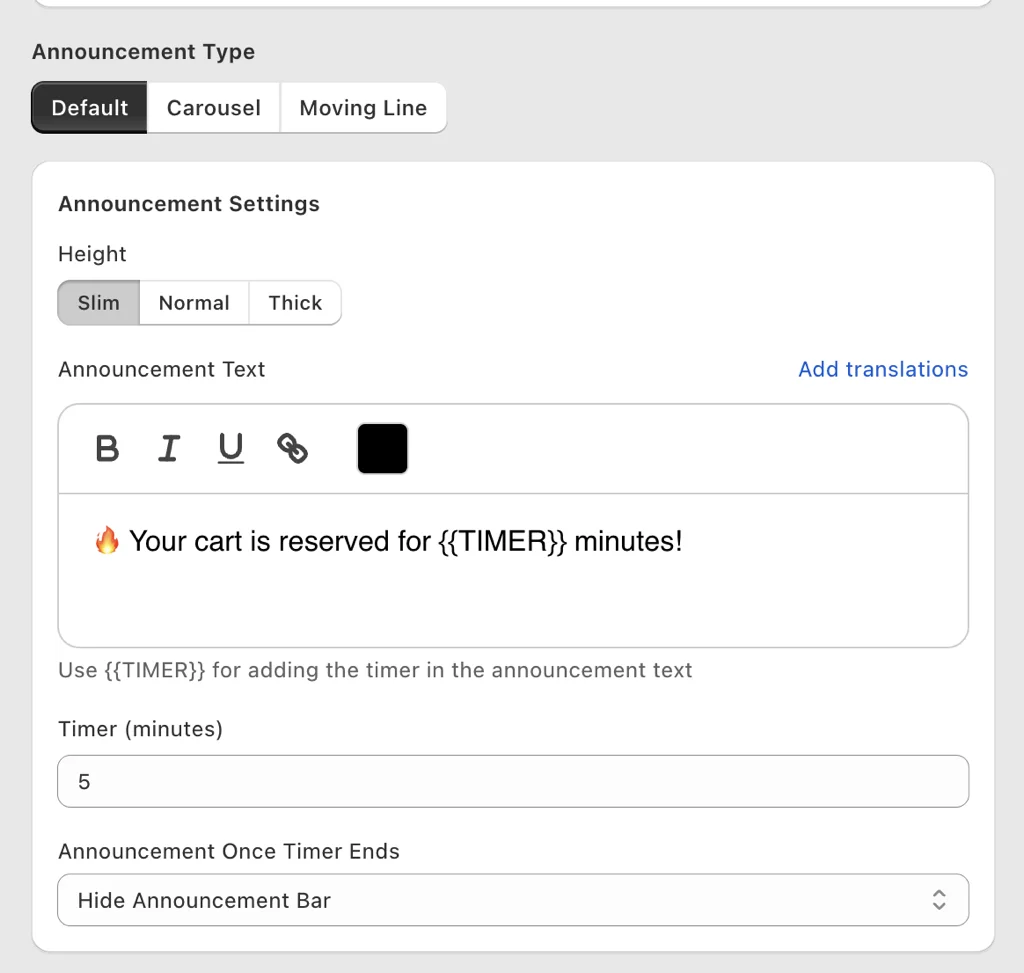
Inside the drawer, Oxify Cart Drawer & Upsells (our app) gives the announcement three types — Default, Carousel, and Moving Line — three heights (Slim, Normal, Thick), and a {{TIMER}} placeholder for a countdown in minutes. The honest setting is the last one: what happens when the timer ends. "Hide Announcement Bar" is the option that keeps the message true; a timer that resets on refresh is the one that gets screenshotted.
- Real deadline: sale ends at a timestamp. Clock hits zero. Bar goes away or changes copy.
- Fake urgency: skip it. Especially next to a terms checkbox or a warranty toggle. You cannot look like a casino and a contract on the same screen.
Keep the site-wide bar to one line on mobile. Two rotating messages is the ceiling. Five rotating messages is a news ticker. People came to buy a shirt.
We do not quote unsourced "8–15% conversion lifts" from popup vendors. If your bar has a job, you will see it in add-to-cart and in the rewards / upsell scorecard, not in a round number from someone else's deck.
How to Set It Up
- Pick one site-wide sentence. Put it in the theme bar or in Oxify's free announcement bar, not both.
- In the cart app, add an in-cart line only if it adds information (gap, cutoff, SKU warning).
- Match numbers to reward rungs and to Shopify shipping settings.
- Open the drawer on mobile. Confirm the bar does not cover Checkout. Fix z-index if it does.
- Preview a second language. English header + Spanish drawer is still a clash.
Sticky, Moving, and "Covering the Cart"
Theme questions people ask: announcement bar size, font, custom CSS, Liquid, sticky, moving/scrolling.
- Sticky: in stock Dawn the header sticks, not the bar, so a bar that stays on scroll comes from a different theme, custom CSS or an app. Useful, but it is also the usual route to a bar covering the cart drawer. Lower the bar's z-index or raise the drawer's.
- Moving / scrolling: Dawn rotates between announcements (off by default) and Horizon rotates by itself when it has two or more. Neither section's schema has a continuous-scroll ticker setting, so a marquee needs a bar app; the Oxify Announcement Bar listing names scrolling, rotating and sliding bars. One extra message is fine. A ticker of five sales is noise.
- Liquid / custom CSS: fine for a one-line theme bar. Do not paste a high z-index "to be safe."
Announcement Bar Not Showing? Check These Five
- Section hidden. The eye icon on the Announcement bar section hides it on every page that uses that layout, not only the template you are viewing. Check that it is visible in the header group.
- No blocks. The section shows no announcement when every block was deleted. Add one back.
- Wrong theme. You edited a draft theme, not the published one. Check the theme name in the editor header.
- App embed off. If the bar comes from an app, its embed toggle lives in Theme settings → App embeds. Installing the app is not enough; the embed must be on.
- CSS collision or another layout. A custom
display: none, a header app, or a popup layer can hide it, and pages that use a different layout (Dawn's password page, for one) never render the header group. Test in an incognito window with other app embeds toggled off one at a time.
Frequently Asked Questions
How do I add an announcement bar in Shopify for free?
Why is my Shopify announcement bar not showing?
Can I add a countdown timer to the Shopify announcement bar?
How do I make a moving or scrolling Shopify announcement bar?
Why does my announcement bar cover the cart drawer?
Can I show a different announcement bar in each country?
Is Oxify's announcement bar the same as the cart app?
Should the shipping number match the rewards bar?
Can the in-cart message be translated?
What to Do Next
One sentence site-wide. One optional in-cart line that rhymes. Drawer above the bar. Real timer or no timer.
Theme block too weak? Use the free Oxify Announcement Bar (site-wide only; 4.9 from 52 reviews on the App Store, checked October 11, 2026). Gap copy and rewards belong in Oxify Cart Drawer & Upsells — that is the paid cart app, from $9.99/mo (4.9 from 40 reviews). Do not run the free bar plus the theme bar plus another slider.
Who should skip them: if Dawn's or Horizon's native bar already says what you need, you do not need the bar app; and if you only want a cart message without upsells or rewards, the cart app is more than the job requires.