 Oxify
OxifyCart Volume Discounts & Quantity Breaks in the Shopify Cart Drawer

Short answer: To show cart volume discounts and quantity breaks in the Shopify cart drawer, repeat the product page's ladder in the slide cart: the shopper's current tier, only the next break ("Add 2 more, save $5.40"), a quantity stepper and a discounted subtotal. Native discounts price the order at checkout but cannot draw that prompt; a cart drawer app or theme code must. Selling in bulk to businesses? Shopify's built-in B2B volume pricing is covered further down.
"Cart volume" here means the Shopify feature: a discount that grows with the quantity or value in the cart. This guide is not about, or affiliated with, any website named CartVolume, and it is not a supplier directory.
A lot of stores nail "Buy 3, save 10%" on the product page. Then the cart drawer shows a single unit at full price. The deal vanished. The shopper checks out small, or they leave to hunt a coupon.
This guide is for Shopify stores that already know what quantity breaks are and want them to work inside the slide cart. You will get the difference between quantity breaks and cart-level (tiered cart) discounts, the drawer layout that fits a phone, a margin-safe tier table, and the Shopify discount limits that break stacked apps.
This is a how-to, not an app roundup. If you are still choosing a tool, our best Shopify quantity breaks apps comparison ranks 12 product-page quantity break apps by real monthly cost, and the best Shopify volume discount apps guide covers tiered pricing, bulk and wholesale discount apps.
Disclosure: Oxify publishes this blog and sells two Shopify apps mentioned below (a cart drawer and a quantity breaks app). Their ratings and prices were checked on their live App Store listings on October 13, 2026. We did not install or benchmark the competing tools named in this guide, so it makes no claims about how they perform.
Key Facts (Checked October 13, 2026)
- Shopify allows a maximum of 25 active automatic discounts per store, and that total includes app-based discounts. Source: Shopify Help Center — discount combinations. That ceiling used to be far lower for apps: a shopify.dev changelog entry dated November 21, 2024 raised the limit for automatic function-based (app) discounts from 5 to 25 so developers could migrate off Shopify Scripts.
- Discounts belong to three classes — product, order, and shipping (the exact values of the Admin API
DiscountClassenum) — and can combine across classes when each discount is set as combinable. Shopify states plainly that "multiple shipping discounts can't apply to the same order," though a shipping discount can still combine with a product or order discount. - Customers can use a maximum of 5 product or order discount codes and 1 shipping discount code on the same order. That combining behaviour applies to orders placed through the Online Store, the Storefront API and Shopify POS.
- For all plans except Shopify Plus, all products that are part of a Buy X get Y discount are ineligible for further product discounts.
- Only one product discount applies per cart line by default. The Admin API field that lifts that limit —
productDiscountsWithTagsOnSameCartLine— is available only on Shopify Plus and needs matching tag sets on both discounts. This is the single most common reason a quantity break and a second promo do not both show up on the same line. - Automatic discounts are evaluated on the cart and again at checkout. Any "add 2 more to unlock 15% off" progress UI inside the cart drawer has to come from theme code or an app — Shopify does not ship that widget.
- Shopify's own B2B volume pricing is a separate system from discounts: up to 10 price breaks per product, set inside a catalog (a B2B feature), with minimum, maximum and increment quantity rules that are re-validated at checkout. Basic, Grow and Advanced stores can assign up to 3 active catalogs; Plus gets unlimited. Source: Shopify Help Center — quantity rules and volume pricing and catalogs and pricing in B2B.
Key Takeaways
- Quantity breaks cut the unit price when someone buys more of the same SKU. Cart volume discounts cut the cart when spend or total units hit a threshold.
- The product page table is forgotten the moment they tap Add to cart. Repeat the next tier in the drawer.
- Three tiers is the sweet spot. We break that down in how many quantity break tiers.
- Shopify automatic discounts cap at 25 active per store (app-based discounts count), and discounts only stack when each one is set as combinable within Shopify's product/order/shipping classes. Plan the stack or use an app built on Shopify Functions.
- Off Shopify Plus, one product discount per cart line is the hard ceiling. Two stacked product-level promos on the same item will not both apply, no matter what the app UI implies.
- A progress bar to the next break beats a wall of percentages on a 375-pixel screen.
Quantity Breaks vs Tiered Cart Discounts (Cart-Level Discounts)
People use these words as synonyms. They are not the same machine.
What is a cart-level discount? It is a discount that looks at the whole cart rather than one product: "spend $75, get 10% off the order" or "any 5 items, 15% off." In Shopify terms it is usually an order-class discount (it reduces the subtotal), while a quantity break is a product-class discount (it reduces the price of specific line items). A tiered cart discount is simply a cart-level discount with several steps, such as 5% at $50, 10% at $75 and 15% at $100. Because they sit in different discount classes, a quantity break and a cart-level tier can combine on the same order when both are set as combinable.
| Area | Quantity break | Cart volume discount |
|---|---|---|
| Trigger | Units of one product (or a small set) | Cart subtotal or total units across products |
| Example | Buy 3 of this coffee, $14 each | Spend $75, take 10% off the cart |
| Best for | Consumables, refill packs, wholesale-style retail | Stores with a wide catalog and a free-ship twin goal |
| Drawer job | "Add 2 more to unlock 15% off this item" | "You're $18 from 10% off this order" |
Regular percent-off coupons mostly lift conversion. Quantity breaks mostly lift AOV and protect margin, because the discount is earned on extra units. We put the math in quantity breaks vs regular discounts.
You can run both. Do not show both as two loud bars in the same drawer. One primary climb is enough.
Why the Drawer Is the Place Most Stores Forget
Sam adds one bag of dog food from a collection "quick add." He never opened the product page. He never saw your tier table. The drawer is the first and last place he will see "3 bags = 12% off."
Even people who saw the table often pick qty 1. They are still testing you. In the cart, the total is real, and "Add 2 more, save $9" is a concrete next step.
Keep that step small: the next tier should sit one unit above what the shopper already holds, not three. Measure your own attach rate (units per order for that SKU) instead of borrowing a benchmark.
What to Show in the Drawer (Phone-First)
You have a thin panel. Do not paste the full product-page widget.
Show this, in this order:
- Current tier. "You're at 1 bag — $18 each."
- Next tier only. "Add 2 more, $16.20 each (save $5.40)."
- Plus/minus that is obvious. Quantity steppers beat a tiny dropdown.
- Auto-applied total. The subtotal should already include the break. If they have to type a code, many will not.
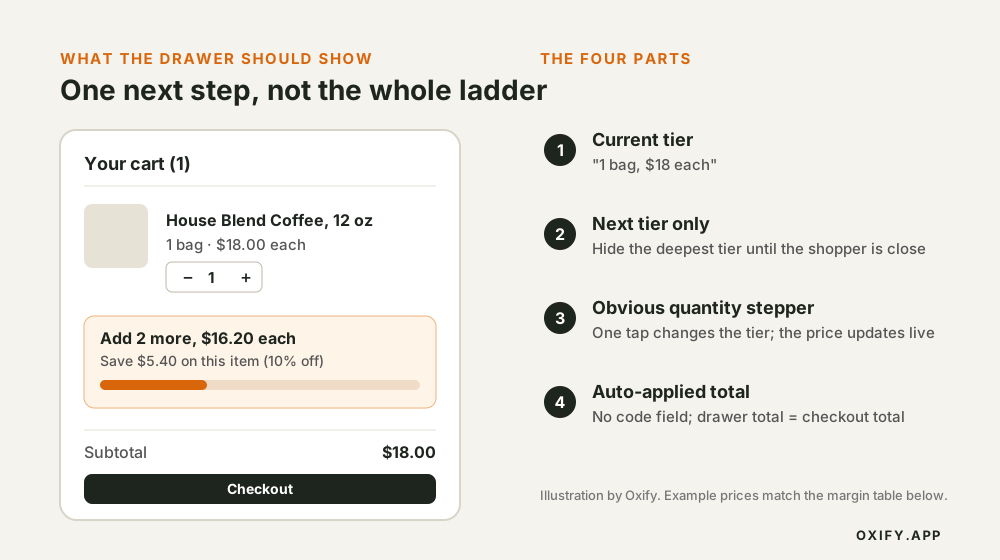
Hide the top tier until they are close. "Buy 24, save 30%" on a first-time retail order feels like a wholesale sheet, not a store.

The screenshot above is the whole idea in one frame. Each Quantity Tier you add on the admin side becomes a tappable button in the drawer, and the line item shows the new price with the amount saved next to it. The shopper never leaves the drawer to take the deal, and never has to work out the per-unit math themselves.
For cart-wide volume:
- Use a bar: "You're $18 from 10% off."
- Name the reward in words, not just a percent: "10% off this order" is clearer than "Tier 2."
- If you also have free shipping, do not run two bars that fight. Pair them: free ship at $50, 10% at $80, or pick one hero goal. See free shipping bars and tiered cart rewards.
Tier Setup That Protects Margin
Copy this skeleton, then plug in your costs.
- Tier 1: 1 unit, full price. This is the default. It should not feel like a punishment.
- Tier 2 (hero): just above what people already buy. If most orders are 1, hero is 2 or 3, not 12.
- Tier 3: for fans and gifters. Deeper save, still above cost of goods plus shipping.
Worked example (coffee, $18 bag, $6 product cost):
| Qty | Price each | Order | Gross profit |
|---|---|---|---|
| 1 | $18.00 | $18 | $12 |
| 3 | $16.20 (10% off) | $48.60 | $30.60 |
| 6 | $15.30 (15% off) | $91.80 | $55.80 |
You gave up $5.40 on the 3-bag order vs three full-price bags. You still more than doubled profit vs the 1-bag cart. That is the point of a break. If 15% puts you under cost plus ads, the tier is too deep. More tactics sit in quantity break strategies that increase AOV.
For the exact admin click paths behind each tier type, native discounts and app, see how to set up tiered pricing on Shopify.
How to Create Quantity Breaks on Shopify (Native vs App)
Shopify gives you three routes. Pick by who the price is for and whether the shopper needs to see the next tier.
| Method | Built for | Tiers | Next-tier prompt in the drawer | Limit to know |
|---|---|---|---|---|
| Native automatic discount | Any shopper, retail | One discount per tier (minimum quantity) | No | 25 active automatic discounts, apps included |
| B2B catalog volume pricing | Wholesale and case-pack products | Up to 10 price breaks per product, plus min, max and increment rules | Not documented by Shopify; test your theme | Up to 3 active catalogs on Basic, Grow and Advanced; unlimited on Plus |
| App or theme code | Any shopper, with a visible ladder | Set by the app | Yes | Functions-based discounts count toward the 25 cap |
Native, no app: go to Discounts → Create discount → Amount off products, choose Automatic discount, set a percentage, restrict Applies to to the product or collection, and set Minimum quantity of items to the tier (for example 3). Repeat with a second automatic discount for the next tier (6 units, 15%). When a cart qualifies for both, Shopify applies the better one, so the ladder works at checkout. What you do not get is any on-page or in-drawer display: the shopper only sees the saving once it has been applied. The full click path, including the traps, is in how to set up tiered pricing on Shopify.
Native tiered cart discount: same menu, but choose Amount off order with a Minimum purchase amount ($75) or minimum quantity across the cart. That gives you a cart-level volume discount. Again, no progress bar.
With an app: a quantity breaks app draws the tier table on the product page, and a cart drawer app shows the next tier and a progress bar in the slide cart. Most modern apps create the discount through Shopify Functions, so it still counts toward the 25-automatic-discount cap below. If you want to compare tools, start with the best Shopify quantity breaks apps list for product-page tiers, or tiered cart rewards for spend-based goals.
Shopify Limits That Break Naive Setups
Native automatic discounts can do "buy 2+ get 10% off." They cannot draw a next-tier widget in the drawer. They also cap you at 25 active automatic discounts per store — and that count includes discounts created by apps through Shopify Functions.
Stacking has rules of its own. Every Shopify discount belongs to one of three classes — product, order, or shipping — and two discounts combine only when both are marked combinable. Product discounts apply first, order discounts hit the revised subtotal, shipping last. Shopify's Help Center limits product-plus-order combinations to eligible merchants: no checkout.liquid customizations and no Licensify app. On non-Plus plans, anything inside a Buy X get Y offer cannot take a second product discount. If a shopper's code conflicts with your automatic break, Shopify keeps whichever gives the better overall value — which can silently replace the tier they saw in the drawer.
When a quantity break and a cart-level tier do combine, the order discount is taken on the already-discounted subtotal, so the percentages do not add. Take the 6-bag row from the margin table above: a 10% "spend $75" order discount on $91.80 is $9.18, leaving $82.62. That is 23.5% off the $108 list price, not 25%, and gross profit drops from $55.80 to $46.62. Run that arithmetic on your deepest tier before you let the two combine.
Ten products with three tiers each is already 30 rules. You are over the cap before you start. That is why stores use a quantity-breaks app or Shopify Functions. Compare tools in our best Shopify quantity breaks apps ranking (product-page tiers) and the best Shopify volume discount apps guide (tiered, bulk and wholesale pricing).
Two more landmines:
- Two apps, two prices. A bundles app paints one unit price. A cart app paints another. The checkout total wins, and the shopper feels lied to. Use one discount engine, or an app pair that shares the same rules.
- Code + automatic. If an influencer code knocks the quantity break off (Shopify keeps the better overall value, not both, unless the discounts are set combinable), say so in the drawer or block the combo. Surprise total changes feel like bugs. When two percent-off order discounts do combine, Shopify calculates both on the same subtotal: its Help Center example is 10% plus 20% on a $100 subtotal, which takes $30 off.
Selling in Bulk? Drawer Slides, Hardware and Other Case-Pack Products
If your store sells unit-priced parts in dozens or hundreds (drawer slides, dovetail boxes, cabinet fronts), the buyer's questions are different: what is the per-unit price at 200, what is the minimum order, and does the discount show before checkout? This section is for sellers setting that up. It is not a supplier directory, and we do not list or price suppliers.
Minimum order quantity (MOQ). Shopify's quantity rules cover it: minimum, maximum and increment, set per variant in a catalog. The default increment is 1; set it to 10 if the product ships in cartons of ten. The minimum is per variant: Shopify's own example is that a customer cannot combine 5 gray hats and 5 blue hats to meet a minimum of 10. So a 50-unit MOQ on a slide that comes in three lengths means 50 of one length.
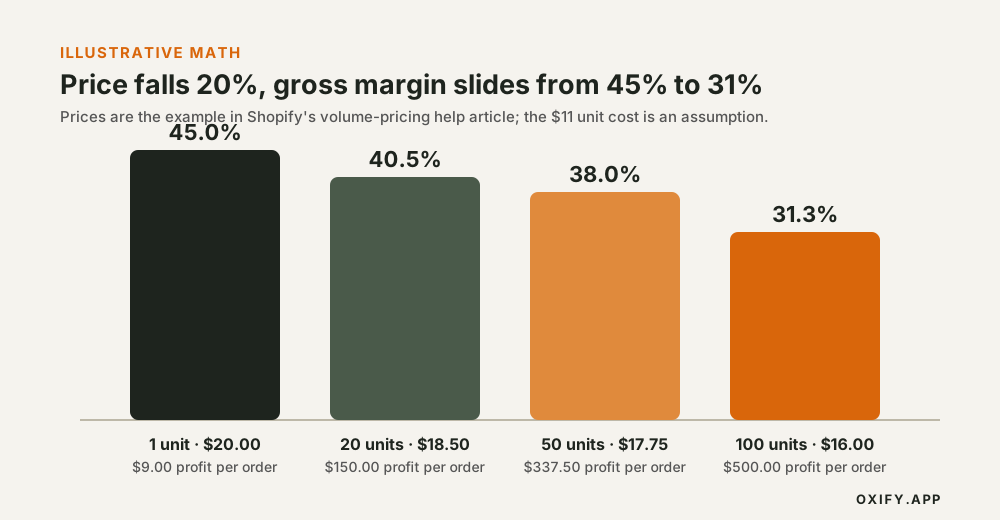
Quantity tiers. Volume pricing in the same catalog accepts up to 10 price breaks per product. Each break quantity must be above the minimum and a multiple of the increment, and the shopper must reach it on each variant. Shopify's help article uses $20 at 1 unit, $18.50 at 20, $17.75 at 50 and $16 at 100. Here is what those same prices do to margin if the unit costs you $11 (the cost is our assumption; shipping and fees are excluded):
| Order size | Price each | Gross profit per unit | Gross margin | Gross profit on the order |
|---|---|---|---|---|
| 1 | $20.00 | $9.00 | 45.0% | $9.00 |
| 20 | $18.50 | $7.50 | 40.5% | $150.00 |
| 50 | $17.75 | $6.75 | 38.0% | $337.50 |
| 100 | $16.00 | $5.00 | 31.3% | $500.00 |
What native volume pricing will not do. It lives in catalogs, which Shopify documents as a B2B feature, so do not assume it reaches anonymous retail shoppers. Any overall adjustment set on the catalog does not apply to a variant that has volume pricing, and the page does not say how the tiers render in a cart drawer. Two practical consequences: show the minimum and the break quantities on the product page yourself (Shopify tells you to make sure the theme displays the minimum), and test your drawer with a real wholesale login before launch. For retail shoppers who buy in multiples, use the quantity-break routes above.
Retail and wholesale in one store. Keep the two ladders from fighting. Wholesale price breaks belong in the catalog; retail "buy 3, save 10%" belongs in an automatic discount or app. If a buyer can see both, the checkout total is the one they pay, so match the drawer to it.
Make the Drawer Match the Discount (A Five-Step Test)
A progress bar is a display layer. It does not create the discount, and it only tells the truth if its threshold is the same number as the discount's minimum. Before you launch, run this on a phone:
- Add one unit. The drawer shows the next break and the full price.
- Increase to the tier. The line price and subtotal drop immediately, with no refresh.
- Decrease one unit. The break comes off and the prompt returns. Most "stuck bar" bugs show up on removal, not on add.
- Remove the line. The bar resets.
- Go to checkout. The paid total equals the drawer total. Then repeat once with a discount code to see which discount wins.
If you build the bar yourself, re-read the cart after every add, change and remove through Shopify's Ajax Cart API (/cart.js) and recompute from the response. Do not keep your own running count.
How to Launch in the Drawer This Week
- Pick one hero product (or one collection) that already sells in multiples.
- Set three tiers with the hero one step above typical qty.
- Show next-tier copy in the cart drawer with a stepper. Auto-apply. No code field required for this deal.
- Match the product page so the table and the drawer tell the same story.
- Track units per order for that SKU, AOV, and drawer-to-checkout. If units rise and checkout falls, the prompt is blocking pay. Shorten it.
Need a no-code cart that can show the next break next to checkout? Oxify Cart Drawer & Upsells (our app; 4.9 stars from 40 reviews as of October 13, 2026; listed plans from $9.99 to $49.99/month by order volume, 14-day free trial) is built for that screen: quantity breaks, a tier progress bar, and auto-applied totals in the slide cart. The Oxify cart drawer upsell page shows the rest of the drawer. If you also want product-page bundles and Build-Your-Own-Box, that lives in a separate app — Oxify Quantity Breaks & BYOB (our app; Built for Shopify, 4.9 stars from 13 reviews, $14.99/month with every feature included and a 14-day free trial) — so the product page and the cart do not argue about the price. Skip both if you only need the discount to apply at checkout with no on-page prompt: native automatic discounts do that for free.
Copy You Can Steal
- "Add 2 more bags. Drop to $16.20 each."
- "You're 1 unit from 10% off this item."
- "Cart deal: $18 more unlocks 10% off everything in this order."
- Unlocked: "15% off applied. Nice work."
Skip "Buy more, save more" as the only line. It is true and empty. Numbers close the gap.
Mistakes That Quietly Kill the Offer
- Five tiers in the drawer. People stop and leave. Three is enough.
- Next tier is $80 away. That is not a nudge. That is a different customer.
- Discount shows in the drawer, not at checkout. Always test the paid order, not just the panel.
- Selling out the hero size. If qty 3 is the offer and you have two units in stock, hide the break or cap it.
- Stacking with a size upgrade. "Go to 5 lb" and "buy 3 of 2 lb" on the same line is two stories. Pick one. Size swaps live in the variant upgrade in cart guide.
Frequently Asked Questions
Can I show quantity breaks in the Shopify cart drawer?
What is the difference between volume discounts and quantity breaks?
Should quantity breaks live on the product page or in the cart?
Do volume discounts in the cart hurt conversion?
How many discounts can combine on one Shopify order?
Why did my quantity break disappear at checkout?
What is a cart-level discount?
Can I create quantity breaks on Shopify without an app?
What does a tiered cart discount app do that Shopify does not?
What is a cart volume discount on Shopify?
Does Shopify have built-in volume pricing?
How do I set a minimum order quantity on Shopify?
How do I offer per-unit pricing tiers for 200-unit or 500-unit orders?
Why does my cart drawer discount bar not update when I remove an item?
What to Do Next
Pick one SKU. Put three honest tiers on the product page and the same next-step line in the cart drawer. Auto-apply. Measure units per order for two weeks.
If you want the drawer, the bar, and checkout in one place, install Oxify Cart Drawer & Upsells and connect your volume discounts so the total in the panel matches the total they pay. That match is the whole trust game.