 Oxify
OxifySticky Add to Cart & Sticky Cart on Shopify: Themes, Dawn Code & Apps (Oct 2026)

Short answer: A sticky add to cart (sticky ATC) is a bar that slides in on a Shopify product page once the main Add to cart button scrolls out of view. A sticky cart is a different thing: a cart icon that stays on screen on every page. Check your theme first. Shopify's Horizon theme and nine other free themes built the same way (Atelier, Dwell, Fabric, Heritage, Pitch, Ritual, Savor, Tinker, Vessel) ship a sticky add to cart bar. Dawn and the other 13 free themes we checked do not, so on those you add one with the free code in this guide or with an app.
Jump to:
- Sticky add to cart bar: does your theme already have it?
- Copy-paste code for Dawn (Liquid, CSS and JS)
- Best sticky add to cart apps, with prices checked 5 Oct 2026
- Sticky cart (floating cart icon, bubble or drawer)
- Mobile: overlap, safe area and layout shift
- Luxury, beauty and fragrance product pages
- FAQ
Which Option Fits Your Store? (Pick by Situation)
| Situation | Best pick | Cost | Why |
|---|---|---|---|
| Theme is Horizon, Atelier, Dwell, Fabric, Heritage, Pitch, Ritual, Savor, Tinker or Vessel | Turn on the built-in bar | $0 | Product information section → "Sticky add to cart bar" (setting read in Horizon's source; details below) |
| Dawn or another free Dawn-style theme, comfortable pasting code | The Dawn snippet in this guide | $0 | Clicks Dawn's own Add to cart button, so variants, quantity, subscriptions and your cart drawer keep working |
| Free, no code | Sticky Add To Cart Bar Pro or Qikify Slide Cart Drawer | Free | Pro is free to 500 visitors a month; Qikify's free plan adds a floating cart button and slide cart (no Built for Shopify badge) |
| Cheapest paid sticky bar only | Sticky Add To Cart Bar Pro ($3/mo) or SEOWILL ($7.99/mo) | $3 to $8 | Single-purpose bars; Pro prices by visitors, SEOWILL is flat |
| Sticky bar plus cart drawer and upsells under one subscription | Essent, EA or Oxify (ours) | $0 to 30 orders (Essent); $9.99+ (EA, Oxify) | See the cost-at-volume table: only Essent and Oxify scale with orders |
| Just a floating cart icon (sticky cart) | Dawn's Sticky header setting or a 40-line snippet | $0 | No app needed on Dawn |
Key facts (verified 5 and 11 October 2026)
- 10 of the 24 free themes in Shopify's Theme Store ship a sticky add to cart bar. We read Horizon's source on GitHub and the live demo product page of every free theme.
- Dawn 16.0.0 has no sticky add to cart setting. Its "Sticky content" option keeps the product details column in view on desktop; it does not add an Add to cart bar.
- EA Sticky Add to Cart Drawer is no longer free for live stores ($9.99/month after a 7-day trial), and Zoorix Sticky Add To Cart Bar has no free plan ($4.99/month). Several guides still list both as free.
- Only two apps here price by order volume (Oxify and Essent); Sticky Add To Cart Bar Pro prices by visitors, and the rest are flat or tied to your Shopify plan.
- The published conversion tests are small, vendor- or agency-run and from single stores. They show gains of roughly 5 to 9% in orders, not a guarantee. See what the tests show.
What Is a Sticky Cart in Shopify?
A sticky cart is a cart icon, bubble or mini-cart link that stays fixed on screen on every page of a Shopify store, usually with a live item count, so a shopper can open the cart without scrolling back to the header. It is also called a floating cart, a sticky basket or a persistent cart button. Tapping it opens the cart drawer, the /cart page or checkout, depending on your setup. If you searched for "stcky cart" or "sticky basket", this is the feature (and the sticky cart section below covers it).
What Is a Sticky Add to Cart Button (Sticky ATC)?
A sticky add to cart (also written sticky ATC, floating add to cart button or sticky add to cart bar) lives on the product page only. It stays hidden while the original Add to cart button is on screen, then slides in with the product name, price and an Add to cart button once the shopper has scrolled past it. Most product pages carry reviews, videos and FAQs below the button, so the button ends up several screens above the shopper at the moment they decide to buy.
| Feature | What it is | Where it shows | Built in to Shopify themes? |
|---|---|---|---|
| Sticky add to cart bar | Bar with thumbnail, name, price and an Add to cart button | Product pages, after the main button scrolls away | Horizon and 9 other free themes; not Dawn |
| Sticky cart icon (floating cart) | Cart bubble with item count that follows the shopper | Every page | No. Dawn's "Sticky header" keeps the header cart icon in view instead |
| Persistent cart | Not a visible element: Shopify remembers the cart in the browser | Nowhere (invisible) | Yes: Shopify's cart cookie lasts 2 weeks, per Shopify's cookie list |
Stores often want the first two. The third is a platform behavior, not something a sticky element adds, so ignore any app that sells it as a feature. Two of the apps below, Oxify Cart Drawer & Upsells and Qikify Slide Cart Drawer, bundle the bar, the floating icon and a cart drawer. For the drawer itself, see what a cart drawer is and slide cart vs mini cart.
Does Your Shopify Theme Already Have a Sticky Add to Cart Bar?
Check before you install anything. On 5 October 2026 we read the source of Shopify's two public theme repositories on GitHub (Shopify/dawn and Shopify/horizon) and fetched the live demo product page of all 24 free themes listed on themes.shopify.com, then searched each for sticky add to cart markup.
| Theme | Sticky add to cart bar? | What we checked |
|---|---|---|
| Horizon (free) | Yes, on by default | Source: a "Sticky add to cart bar" checkbox in the Product information section (enable_sticky_add_to_cart, default true, repo theme version 4.2.0) |
| Atelier, Dwell, Fabric, Heritage, Pitch, Ritual, Savor, Tinker, Vessel (free) | Yes | Demo product page contains the same <sticky-add-to-cart> element as Horizon. Their source is not public, so the setting label may differ slightly. |
| Dawn 16.0.0 (free) | No | Source: only "Sticky content" (product details column) and "Sticky header" |
| Refresh, Craft, Sense, Studio, Taste, Ride, Origin, Crave, Colorblock, Publisher, Trade, Spotlight, Rise (free) | No | Demo product page has no sticky add to cart markup (only sticky header and sticky details column). Source not public. |
| Paid and third-party themes | Varies | Not verified by us. Omnithemes reports a built-in option in Prestige, Combine, Eurus and Be Yours; check your theme's documentation. |
How to Turn On the Built-In Sticky Add to Cart Bar (Horizon Family)
- In Shopify admin go to Online Store → Themes → Customize.
- In the page selector at the top, choose Products → Default product.
- Click the Product information section in the left sidebar.
- Tick Sticky add to cart bar and click Save.
That label and path come from Horizon's source; sibling themes should match but we could not read their code. If you do not see the checkbox, your theme version predates the feature or does not include it.
What the Horizon bar does, from its source: it shows after the buy buttons scroll above the screen, hides again when the footer comes into view, hides while Shopify's chat widget is active, shows a thumbnail, title, the selected variant's name, price and an Add to cart button, hides for sold-out variants, and becomes a full-width bottom bar on screens under 750px. It does not let shoppers change the variant inside the bar, and it has no analytics. That is the case for an app: variant selection in the bar, display rules, click stats.
Dawn's "Sticky Content" Is Not a Sticky Add to Cart
Dawn's product page has a setting called Sticky content (Product information section → "Sticky content"). It pins the product details column beside the gallery while the images scroll, on desktop. It does not create an add to cart bar, and nothing in Dawn's source adds one on mobile. Some search answers, and an earlier version of this guide, say no free Shopify theme has a sticky add to cart. That is true of Dawn and its siblings and wrong for Horizon and its nine relatives.
How to Add a Sticky Add to Cart Bar to Dawn Without an App (Copy-Paste Code)
This is the code path for Dawn and themes that share its markup. It is written against Dawn 16.0.0, read from the GitHub release dated 10 August 2026 (the main branch still reported 16.0.0 on 5 October 2026). Dawn changes its product form between versions, so a snippet written for one version often fails on another; Shopify Community threads such as this one on Dawn v5 show the errors. Check your version first: it is the theme_version value near the top of config/settings_schema.json. If you are not on 15 or 16, treat this as a starting point.
The design choice that makes it robust: the bar has no add to cart form of its own. It clicks Dawn's own Add to cart button (ProductSubmitButton-{section.id}), so Dawn's AJAX add, quantity field, subscription plan, error messages and your cart drawer or notification all run exactly as they do from the main button. The bar only mirrors Dawn's state: the selected variant's name, the price, and the sold-out or loading state.
- Duplicate your theme first (Online Store → Themes → ⋯ → Duplicate) and edit the copy.
- In Edit code → Snippets, choose Add a new snippet, name it
sticky-atc-barand paste the code below. - Open Sections → main-product.liquid, scroll to the closing
</product-info>tag (about line 754 in 16.0.0) and add this line directly above it:{% render 'sticky-atc-bar', product: product, section_id: section.id %} - Save, preview a product page at phone width and scroll past the Add to cart button.
{%- comment -%}
  snippets/sticky-atc-bar.liquid (written against Dawn 16.0.0)
  Render it from sections/main-product.liquid, on the line just above </product-info>:
  {% render 'sticky-atc-bar', product: product, section_id: section.id %}
{%- endcomment -%}
{%- liquid
  assign current_variant = product.selected_or_first_available_variant
  assign bar_image = current_variant.featured_image | default: product.featured_image
-%}

<div id="StickyATC-{{ section_id }}" class="sticky-atc" role="region" aria-label="{{ product.title | escape }}">
  {%- if bar_image -%}
    <img class="sticky-atc__image" src="{{ bar_image | image_url: width: 120 }}" alt="" width="48" height="48" loading="lazy">
  {%- endif -%}
  <div class="sticky-atc__info">
    <p class="sticky-atc__title">{{ product.title | escape }}</p>
    <p class="sticky-atc__meta"><span class="sticky-atc__variant"></span> <span class="sticky-atc__price"></span></p>
  </div>
  <button type="button" class="sticky-atc__button button button--primary"><span>{{ 'products.product.add_to_cart' | t }}</span></button>
</div>

<style>
  .sticky-atc {
    position: fixed; inset-inline: 0; bottom: 0; z-index: 20;
    display: flex; align-items: center; gap: 1.2rem;
    padding: 1rem 1.6rem calc(1rem + env(safe-area-inset-bottom, 0px));
    background: rgb(var(--color-background)); color: rgb(var(--color-foreground));
    border-top: 0.1rem solid rgba(var(--color-foreground), 0.12);
    transform: translateY(100%); visibility: hidden;
    transition: transform 0.25s ease, visibility 0s linear 0.25s;
  }
  .sticky-atc.is-visible { transform: none; visibility: visible; transition-delay: 0s; }
  @media (prefers-reduced-motion: reduce) { .sticky-atc { transition: none; } }
  .sticky-atc__image { width: 4.8rem; height: 4.8rem; object-fit: cover; border-radius: 0.4rem; flex: none; }
  .sticky-atc__info { flex: 1; min-width: 0; }
  .sticky-atc__title { margin: 0; font-weight: 600; white-space: nowrap; overflow: hidden; text-overflow: ellipsis; }
  .sticky-atc__meta { margin: 0; font-size: 1.3rem; opacity: 0.8; }
  .sticky-atc__button { flex: none; min-width: 14rem; min-height: 4.8rem; }
  /* Mobile only? Uncomment: @media (min-width: 990px) { .sticky-atc { display: none; } } */
  /* Keep keyboard focus clear of the bar (WCAG 2.2, 2.4.11) */
  html { scroll-padding-bottom: 9rem; }
</style>

<script>
  (function () {
    var id = '{{ section_id }}';
    var bar = document.getElementById('StickyATC-' + id);
    var main = document.getElementById('ProductSubmitButton-' + id); // Dawn's own Add to cart button
    if (!bar || !main) return;
    var barButton = bar.querySelector('.sticky-atc__button');
    var footer = document.querySelector('footer');
    var pastButton = false, footerInView = false, raf = 0;

    // 1) Show the bar only after the main button has scrolled UP out of view
    function render() { bar.classList.toggle('is-visible', pastButton && !footerInView); }
    new IntersectionObserver(function (entries) {
      var e = entries[entries.length - 1];
      pastButton = !e.isIntersecting && e.boundingClientRect.top < 0;
      render();
    }).observe(main);
    if (footer) {
      new IntersectionObserver(function (entries) {
        footerInView = entries[entries.length - 1].isIntersecting;
        render();
      }).observe(footer);
    }

    // 2) Mirror Dawn's state: variant label, price, sold-out/loading
    function sync() {
      raf = 0;
      var picker = document.getElementById('variant-selects-' + id);
      var parts = picker
        ? Array.prototype.map.call(picker.querySelectorAll('select, input[type="radio"]:checked'), function (el) { return el.value; })
        : [];
      bar.querySelector('.sticky-atc__variant').textContent = parts.join(' / ');
      var priceEl = document.querySelector('#price-' + id + ' .price-item--sale');
      bar.querySelector('.sticky-atc__price').textContent = priceEl ? priceEl.textContent.trim() : '';
      var label = main.querySelector('span');
      if (label) barButton.firstElementChild.textContent = label.textContent.trim();
      var blocked = main.disabled || main.getAttribute('aria-disabled') === 'true';
      barButton.setAttribute('aria-disabled', blocked);
    }
    function queueSync() { if (!raf) raf = requestAnimationFrame(sync); }
    var watch = { childList: true, subtree: true, attributes: true, attributeFilter: ['disabled', 'aria-disabled', 'class'] };
    new MutationObserver(queueSync).observe(main, watch);
    var price = document.getElementById('price-' + id);
    if (price) new MutationObserver(queueSync).observe(price, { childList: true, subtree: true });
    if (main.form) main.form.addEventListener('change', queueSync); // Dawn fires "change" on input[name="id"] after a variant switch
    sync();

    // 3) The bar adds nothing itself: it clicks Dawn's button, so Dawn's own AJAX add,
    //    quantity, selling plan, errors and cart drawer / notification all still run.
    barButton.addEventListener('click', function () {
      if (barButton.getAttribute('aria-disabled') === 'true') return;
      main.click();
    });
  })();
</script>
What This Code Does That Most Snippets Don't
- It stays hidden until the main button has scrolled up out of view. A common IntersectionObserver version (including the one in earlier editions of this guide) toggles on "button not visible", which also shows the bar at page load whenever the button sits below the first screen, so phone shoppers see two Add to cart buttons at once. This one checks that the button is above the viewport.
- It hides when the footer is on screen, so it never covers footer links (Horizon's own bar does the same).
- It reads variants from Dawn instead of keeping its own list. The label comes from the picker's checked radio or select; the price from
#price-{section.id}(Dawn re-renders that element on every variant change, and the code watches it). Variant-heavy products add no extra HTML. - It respects the sold-out state and Dawn's loading state (the bar ignores taps while Dawn is adding).
- It animates with
transform, skips animation underprefers-reduced-motionand addsscroll-padding-bottomso keyboard focus is not hidden under the bar (the reasons are in the mobile section).
What we checked, and what we did not. On 5 October 2026 we loaded this CSS and JavaScript into Dawn's public demo store (theme-dawn-demo.myshopify.com, which runs Dawn 15.0.0, one major version behind the code we read) in Chrome with a 390 × 844 phone viewport. The bar stayed hidden at page load although the main button sat below the first screen; it appeared only after the button scrolled above the viewport; it hid again at the footer; its variant label followed the picker; a sold-out variant disabled it; and tapping it fired one submit on Dawn's product form. We blocked that submit so nothing was added to the demo cart. We did not test the Liquid snippet inside the theme editor, with a cart drawer, with subscription products or on a live store. Preview on your duplicate before publishing.
Limits and Gotchas
- No variant picker inside the bar. It shows the selected variant; changing it means scrolling to Dawn's picker. If shoppers need to switch variants from the bar, use an app (see the app comparison).
- The line
env(safe-area-inset-bottom)adds nothing in stock Dawn. Safari already insets pages that do not setviewport-fit=cover, and Dawn's viewport tag (layout/theme.liquid line 6) is justwidth=device-width,initial-scale=1. It is harmless to leave in, and it starts to matter only if you opt the whole site intoviewport-fit=cover, which changes how every page fills a notched screen, so test them all first. - Mobile only? Uncomment the
min-width: 990pxline in the CSS to hide the bar on desktop. - Theme updates can break it. If Dawn renames
ProductSubmitButton-or the price id, the script exits silently and the bar never appears. Re-check after every theme update. - No analytics. The bar clicks the main button, so your Add to cart events still fire; you just cannot tell bar clicks from main-button clicks without adding your own tracking.
If the code feels like too much maintenance, a free app is the lower-effort route. Do not run the theme's own bar and an app's bar together on a Horizon-family theme: untick "Sticky add to cart bar" first.
Best Sticky Add to Cart Apps for Shopify (Prices and Ratings Checked 5 October 2026)
Every rating, review count, price and Built for Shopify badge below was read from the live Shopify App Store listing on 5 October 2026. The order of the first six rows is carried over from earlier editions and is not a score. Disclosure: Oxify is our app. It is a cart drawer and upsell suite that includes a sticky cart icon and a sticky add to cart bar, so it is rarely the cheapest answer if all you want is a bar; a dedicated app usually costs less.
| App | Rating (reviews) | Built for Shopify | Free plan | Paid from | Sticky ATC bar | Floating cart | Cart drawer | Upsells |
|---|---|---|---|---|---|---|---|---|
| Oxify Cart Drawer & Upsells | 4.9 (40) | Yes | No (14-day trial) | $9.99/mo | Yes | Yes | Yes | Yes |
| EA Sticky Add to Cart Drawer | 4.9 (215) | Yes | Development stores only | $9.99/mo (7-day trial) | Yes | Yes | Yes | Yes |
| Qikify Slide Cart Drawer | 4.9 (417) | No | Yes | $14.99/mo (7-day trial) | Yes (variant and quantity pickers) | Yes | Yes | Premium plan |
| SEOWILL Sticky Add To Cart | 4.9 (141) | Yes | 25 clicks/mo | $7.99/mo (14-day trial) | Yes | Yes (Pro) | Mini cart | No |
| Sticky Add To Cart Bar Pro | 4.9 (43) | Yes | 500 visitors/mo | $3/mo | Yes | Not listed | No | No |
| STKY Sticky Add To Cart Bar | 4.9 (495) | No | 25 clicks/mo | $6.99/mo (14-day trial) | Yes | Yes | Yes | Yes |
| Essent Cart Drawer Cart Upsell | 5.0 (1,058) | Yes | 30 orders/mo | $8.99/mo (14-day trial) | Yes (variant picker and quantity) | Yes | Yes | Yes |
| Zoorix Sticky Add To Cart Bar | 5.0 (203) | No | No | $4.99/mo (7-day trial) | Yes | Not listed | Works with your drawer | No |
Source: each app's Shopify App Store listing, read on 5 October 2026. "Not listed" means the listing does not mention the feature, not that it is absent.
What Other Guides Get Wrong (Verified Against the Live Listings)
Sticky add to cart roundups go stale fast. These are the claims we found out of date on 5 October 2026, including two of our own:
| Claim | Where it appears | Live listing, 5 Oct 2026 |
|---|---|---|
| EA Sticky Add to Cart is free | EasyApps guide (marked updated March 2026; EasyApps is the app's developer and ranks its own app first) and Libautech's cart apps list (August 2026) | Free for development stores only; live stores pay $9.99/mo after a 7-day trial |
| Zoorix Sticky Add To Cart Bar is free, 340 reviews | Omnithemes' app table | No free plan ($4.99 or $9.99/mo); 203 reviews |
| Qikify Slide Cart Drawer has 585 reviews | Omnithemes' app table | 417 reviews, no Built for Shopify badge |
| Uplinkly 4.8 from 205 reviews; Corner Cart 4.8 from 89 | Growave's list | Uplinkly 4.7 from 24; Corner Cart Drawer & Free Gift 4.9 from 316 (Built for Shopify) |
| "Sticky Add To Cart BOOSTER PRO" has 1,624 reviews | Growave's list, linking to apps.shopify.com/sticky-add-to-cart-bar | That listing is now named STKY and shows 495 reviews |
| No free Shopify theme has a sticky add to cart | Search answers, and our earlier edition | Horizon and nine sibling free themes include one |
| STKY is a bar with no cart drawer | Our earlier edition | Its listing includes a slider cart drawer with upsells and floating cart icons on every plan |
App-by-App Notes: Best For, Watch Out For
Oxify Cart Drawer & Upsells (ours)
- Best for: stores that also want a cart drawer, upsells and free gifts, and would otherwise run a separate sticky bar app next to a drawer app.
- Pros: 4.9 from 40 reviews and the Built for Shopify badge; floating cart button (7 icon styles) and a sticky add to cart bar in the same app; the listing also covers free gift with purchase, reward and free shipping bars, cross-sell and bundles, in-cart subscription upgrades and post-purchase upsells.
- Watch out: no permanent free plan (14-day trial on every plan) and a small review base next to some rivals. For a bar alone it costs more than the dedicated apps below. Pricing is by monthly orders; see the cost table and the full tier list on Oxify's pricing page.
- Skip it if: you only want a sticky bar and no drawer.
- More on Oxify: best Shopify cart drawer apps, Rebuy alternatives and UpCart alternatives.
Essent Cart Drawer Cart Upsell
- Best for: small stores: free up to 30 orders a month, with the sticky bar (image, variant picker, quantity) on every plan.
- Pros: 5.0 from 1,058 reviews, Built for Shopify, every feature on every plan, no per-order overage fees per its listing.
- Watch out: the free tier ends at 30 orders and plans above 499 orders do not show prices on the listing. Our Essent alternatives comparison has more.
EA Sticky Add to Cart Drawer
- Best for: a flat-price bar plus side cart ($9.99/month, 7-day trial) with no order tiers on the listing.
- Pros: 4.9 from 215 reviews, Built for Shopify; sticky bar, sticky cart button, side cart upsells, shipping and rewards bar and quick buy.
- Watch out: the free plan is limited to development stores now.
Qikify Slide Cart Drawer
- Best for: a genuinely usable free plan: sticky add to cart with variant and quantity pickers, floating cart button, slide cart, announcement bar, order note and gift wrap.
- Pros: 4.9 from 417 reviews; Premium ($14.99/mo or $143.90/yr) adds cart upsells, reward bar and shipping estimate; a Shopify Plus plan is $99/mo.
- Watch out: no Built for Shopify badge on the listing today (our earlier edition recorded it as Built for Shopify), and its review count is well below the 585 some older guides quote. Read recent reviews before using it on a busy store.
Sticky Add To Cart Bar Pro and SEOWILL Sticky Add To Cart
- Best for: the cheapest dedicated bars. Sticky Add To Cart Bar Pro (Great Apps Factory) is free to 500 visitors a month with all features, then $3 (10k visitors), $5 (50k) or $10 (unlimited). SEOWILL (formerly SEOAnt) is free to 25 clicks and $7.99/mo for unlimited, and adds a sticky cart with slider and a countdown timer (see FOMO countdown timers and cart sales).
- Pros: both Built for Shopify, both 4.9.
- Watch out: small review bases (43 and 141); neither is a cart drawer.
STKY Sticky Add To Cart Bar and Zoorix
- Best for: STKY has the most reviews of any dedicated sticky bar here (4.9 from 495) and bundles floating cart icons, a slider cart drawer with upsells and quick buy. Free to 25 add to cart clicks a month; paid plans by Shopify plan: $6.99 (Basic), $11.99 (Grow), $18.99 (Advanced), 14-day trial. Zoorix (5.0 from 203) starts at $4.99/mo and its Premium plan ($9.99) adds bars on collection pages and homepage.
- Watch out: neither carries the Built for Shopify badge. If you searched "STKY cart", STKY is this app.
Other Listings We Checked
- Corner Cart Drawer & Free Gift: 4.9 from 316, Built for Shopify. Free plan includes a cart drawer, sticky add to cart and floating mini cart; paid plans $15, $29 or $59 by Shopify plan, up to 5,000 orders a month.
- Ultimate Sticky Add to Cart: 5.0 from 27, Built for Shopify, one $11.99/mo plan with countdown timer and custom CSS/JS.
- Uplinkly Sticky Cart: 4.7 from 24, free basic plan, Professional $9/mo.
- Libautech: Sticky Add to Cart: 5.0 from 8 reviews, Built for Shopify, free plan with standard layouts, Pro $6.99/mo. Very small review base, so treat it as unproven.
What Each Sticky Add to Cart App Costs at 100, 500 and 1,000 Orders a Month
Most sticky bar apps charge a flat fee, so volume does not matter. Two price by orders, one by visitors and two by your Shopify plan. Figures are read from the listings on 5 October 2026.
| Sticky ATC app | 100 orders/mo | 500 orders/mo | 1,000 orders/mo | How it is priced |
|---|---|---|---|---|
| Oxify (ours) | $9.99 | $29.99 | $49.99 | By monthly orders: $9.99 (to 100), $19.99 (to 200), $29.99 (to 500), $49.99 (to 1,000). The listing stops there; higher tiers run to $149.99 plus a $299 Enterprise plan. 14-day trial. |
| Essent | $13.99 | Not on listing | Not on listing | Free to 30 orders; $8.99 (to 99), $13.99 (to 199), $23.99 (to 499); "5 more plans" above 499 are not priced on the listing |
| EA | $9.99 | $9.99 | $9.99 | Flat; no order tiers on the listing |
| Qikify | $0 or $14.99 | $0 or $14.99 | $0 or $14.99 | Free plan, or Premium for upsells |
| Sticky Add To Cart Bar Pro | Depends on visitors, not orders: $3 up to 10k visitors a month, $5 up to 50k, $10 unlimited | Free to 500 visitors | ||
| STKY | $6.99, $11.99 or $18.99 a month depending on your Shopify plan (Basic, Grow, Advanced) | Free to 25 clicks | ||
| SEOWILL | $7.99 | $7.99 | $7.99 | Flat; free to 25 clicks |
| Zoorix | $4.99 or $9.99 | $4.99 or $9.99 | $4.99 or $9.99 | Flat; Premium adds collection-page bars |
Two takeaways. A flat $3 to $8 bar is the cheapest way to get only a bar. If you also want a drawer and upsells, compare Oxify and Essent at your order volume, because both move up a tier as you grow; Essent's $8.99 plan covers up to 99 orders (a dollar under Oxify's $9.99), but at exactly 100 orders it moves to $13.99, and above 499 you cannot compare without Essent's full price list.
Free Sticky Add to Cart Options, Ranked by What the Free Plan Includes
- Your theme's own bar (Horizon family) or the Dawn code: free, no limits, no app.
- Qikify: sticky add to cart, floating cart button and slide cart with no click or visitor cap listed.
- Essent: every feature, up to 30 orders a month.
- Sticky Add To Cart Bar Pro: all features up to 500 visitors a month.
- Corner Cart Drawer and Uplinkly: free plans with the sticky element.
- STKY and SEOWILL: capped at 25 clicks a month, enough to test, not to run a store.
EA Sticky Add to Cart Drawer and Zoorix are not on this list because neither has a free plan for live stores.
Sticky Cart on Shopify: How to Add a Floating Cart Icon, Bubble or Drawer Link
The sticky cart question is separate from the product-page bar: it keeps the cart reachable on every page. You have three routes, from least to most effort.
Option 1 (No Code): Use Dawn's Sticky Header
In Dawn, open Customize → Header and set Sticky header to On scroll up (the default in 16.0.0), Always or Always, reduce logo size. The header, and the cart icon in it, then stays reachable while scrolling. This also matches Baymard's finding: it recommends a clearly visible cart link in the upper-right of the sitewide header, with an item count (guideline #607). A second floating bubble is an add-on to that, not a replacement.
Option 2 (Free Code): A Floating Cart Button for Dawn
This snippet adds a round cart button that appears once the cart has items. It does not keep its own count; it mirrors Dawn's header cart bubble, and tapping it clicks Dawn's own cart icon, so a "Drawer" cart opens the drawer and a "Page" or "Notification" cart goes to /cart. It hides on the cart page and lifts itself above the sticky add to cart bar from the previous section so the two never overlap. Create snippets/sticky-cart-button.liquid, paste this, then add {% render 'sticky-cart-button' %} to layout/theme.liquid just above </body>:
{%- comment -%} snippets/sticky-cart-button.liquid (Dawn 16.0.0). Render in layout/theme.liquid just before </body>:  {% render 'sticky-cart-button' %}  {%- endcomment -%}
{%- unless request.page_type == 'cart' -%}
  <button type="button" id="StickyCart" class="sticky-cart" aria-label="{{ 'templates.cart.cart' | t }}" hidden>
    <svg xmlns="http://www.w3.org/2000/svg" width="24" height="24" viewBox="0 0 24 24" fill="none" stroke="currentColor" stroke-width="2" stroke-linecap="round" stroke-linejoin="round" aria-hidden="true"><circle cx="9" cy="21" r="1"/><circle cx="20" cy="21" r="1"/><path d="M1 1h4l2.68 13.39a2 2 0 0 0 2 1.61h9.72a2 2 0 0 0 2-1.61L23 6H6"/></svg>
    <span class="sticky-cart__count" aria-hidden="true"></span>
  </button>

  <style>
    .sticky-cart {
      position: fixed; right: 1.6rem; bottom: calc(1.6rem + env(safe-area-inset-bottom, 0px)); z-index: 19;
      width: 5.6rem; height: 5.6rem; border-radius: 50%; border: 0; cursor: pointer;
      display: flex; align-items: center; justify-content: center;
      background: rgb(var(--color-button)); color: rgb(var(--color-button-text));
      box-shadow: 0 0.4rem 1.2rem rgba(0, 0, 0, 0.25);
    }
    .sticky-cart[hidden] { display: none; }
    .sticky-cart__count {
      position: absolute; top: -0.4rem; right: -0.4rem; min-width: 2.2rem; height: 2.2rem; padding: 0 0.5rem;
      border-radius: 1.1rem; background: #c8102e; color: #fff; font-size: 1.2rem; font-weight: 600;
      display: flex; align-items: center; justify-content: center;
    }
    /* Lift the bubble above the sticky add to cart bar while that bar is showing */
    body:has(.sticky-atc.is-visible) .sticky-cart { bottom: calc(9.6rem + env(safe-area-inset-bottom, 0px)); }
  </style>

  <script>
    (function () {
      var icon = document.getElementById('cart-icon-bubble'); // Dawn's header cart link
      var fab = document.getElementById('StickyCart');
      if (!icon || !fab) return;
      function sync() {
        var bubble = icon.querySelector('.cart-count-bubble'); // Dawn only renders it when the cart has items
        var n = bubble && bubble.querySelector('span[aria-hidden="true"]');
        var count = n ? n.textContent.trim() : bubble ? '99+' : '';
        fab.querySelector('.sticky-cart__count').textContent = count;
        fab.hidden = !count; // show the bubble only when the cart has items
      }
      new MutationObserver(sync).observe(icon, { childList: true, subtree: true, characterData: true });
      sync();
      // Clicking it clicks Dawn's own cart icon: the drawer opens for "Drawer" carts, /cart loads otherwise
      fab.addEventListener('click', function () { icon.click(); });
    })();
  </script>
{%- endunless -%}
We exercised this logic on the Dawn demo store by simulating Dawn's cart bubble (zero, 3, more than 99 and back to empty items) and checking that a tap reached Dawn's cart icon. We did not run it with a real cart or a cart drawer. Dawn's cart type (Drawer, Page or Notification) is set under Theme settings → Cart; see cart drawer vs cart page for which to choose.
Option 3: An App (Oxify's Floating Cart Button as the Example)
Apps add what the snippet cannot: icon styles, per-device rules and a drawer behind the button. In Oxify Cart Drawer & Upsells (ours) the floating cart button has these settings:
| Setting | Options |
|---|---|
| Cart icon | 7 styles: classic cart, shopping bag, heart bag, outline cart, cart with plus, filled cart, modern angled cart |
| Button size | Slider, default 65px |
| Position | Bottom right (default), bottom left, top right, top left |
| Device | All devices, desktop only or mobile only |
| Colors | Four controls: button background (default #000000), icon (#ffffff), quantity badge background (#e42626) and quantity text |
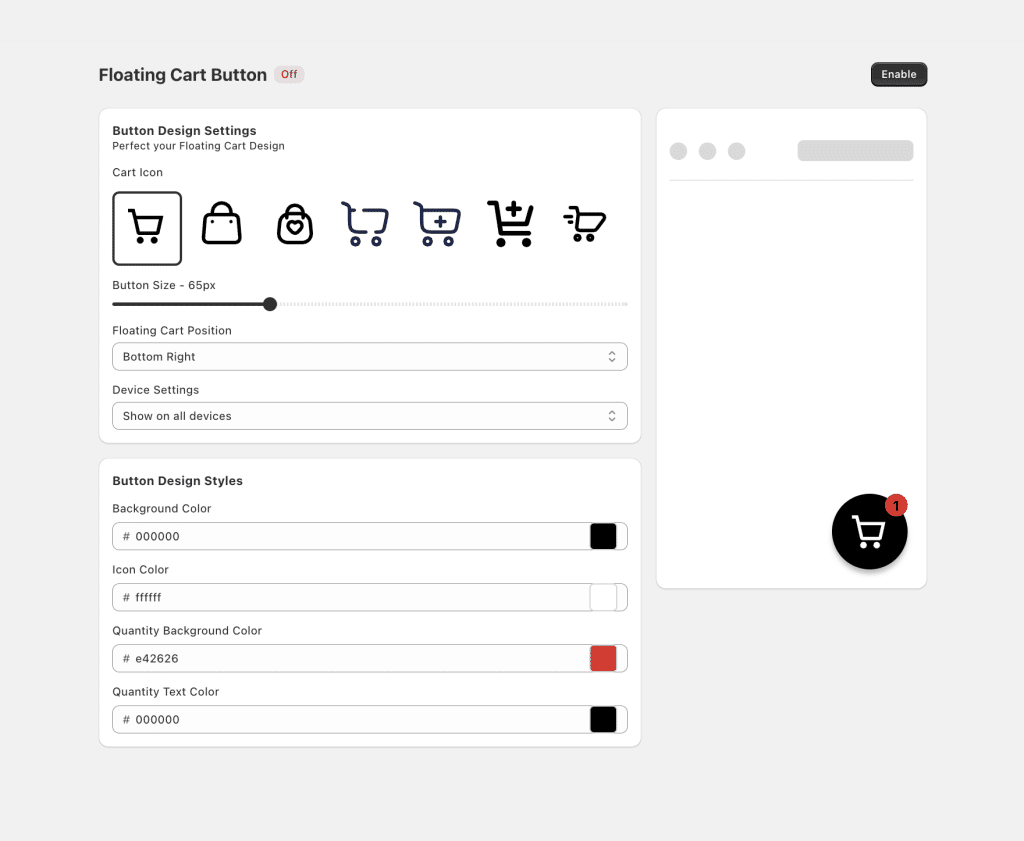
Keep the item-count badge on and choose a position that does not collide with your chat widget (see the mobile section). For styling beyond the settings, see Shopify cart drawer custom CSS and how to customize your Shopify cart drawer.
Does a Sticky Add to Cart Increase Conversions? What the Public Tests Show
Short answer: sometimes, by single digits, and the design matters. We found two public A/B tests we could read in full and traced every number below to its page. We could not trace the round "8 to 20% lift" figures that circulate in app marketing to any published test, so we left them out.
- Growth Rock, desktop: a sticky add to cart area fixed on the right side of a supplement store's product page produced 7.9% more orders (99% significance) and 8.6% more add to carts. The test ran 14 days with roughly 2,000 orders per variation.
- Growth Rock, mobile (same store, three variations over 14 days with more than 3,000 orders each): a bar that slid up like a drawer lifted orders 5.2% (98% significance) and add to cart clicks 11.8%. A bar that only scrolled the shopper back to the button lifted add to cart clicks 6%; the write-up reports the order lift only for the drawer-style version.
- Zipify: on a Zipify Pages sales page (the founder's own store, not a standard theme product page), a sticky footer button gave 10% more mobile add to cart clicks and a 9% higher order conversion rate at 95% confidence. A sticky header variant was tested alongside it, and the founder reports a second test with a similar outcome.
Read these as an upper range, not a forecast: each is one store, run by an agency or a software vendor, and neither tests Dawn's or Horizon's native bars. For context, Baymard's average documented cart abandonment rate is 70.22% across 50 studies; that figure covers abandonment in general and says nothing specific about sticky bars.
Break-Even Math (Illustration, Not a Forecast)
- 10,000 monthly visitors × 1.4% conversion = 140 orders. A 5% lift (below both published tests) adds 7 orders.
- At a $50 average order value that is $350 a month. A $9.99 to $19.99 app, or the free code, costs less than one extra order.
- Run it for two weeks against your own baseline. If you cannot see a lift, turn the bar off.
For other ways to cut abandonment, see our guide to the best Shopify apps to reduce cart abandonment and the cart drawer CRO fixes.
Sticky Add to Cart on Mobile: Overlap, Safe Area, Tap Size and Layout Shift
Each point below is tied to a primary source (Baymard, W3C, Google's web.dev or WebKit) rather than to blog folklore.
- Give the button white space; do not make it a slab. Baymard's guideline #791 says that if you use a sticky Add to Cart button you should surround it with sufficient white space rather than use a full-width button, because competing calls to action distract and make it harder to add the product (Baymard's ecommerce UX best practices). A full-width bar with a normal-size button inside it is fine, and it is what Horizon uses on screens under 750px.
- Do not stack it on top of a chat bubble or cookie banner. Baymard warns that "sticky" chat elements often block critical page content on mobile (guideline #940). The W3C's WCAG 2.2 explainer for 2.4.11 names sticky footers and cookie banners as the usual offenders. Horizon's own bar hides itself while Shopify's chat widget is active. In practice: move the chat launcher to the other corner or raise it above the bar, and load the page with your consent banner open to check both.
- Keep keyboard focus visible. WCAG 2.2 success criterion 2.4.11 (Focus Not Obscured, Level AA) fails if a sticky footer completely hides the focused element; the W3C's suggested fix is CSS
scroll-padding, which the Dawn code above includes. - Make the tap target big enough. Google's web.dev guidance recommends tap targets of about 48 by 48 CSS pixels with space around them. The legal floor is lower: WCAG 2.2 success criterion 2.5.8 (Level AA) requires at least 24 by 24 CSS pixels.
- Safe area: it is for pages that opt in. WebKit's default (
viewport-fit=auto) makes Safari inset the page automatically;env(safe-area-inset-bottom)and its siblings are what you use once a page opts intoviewport-fit=coverand has to avoid the home indicator itself (WebKit: Designing Websites for iPhone X). Dawn's viewport tag does not setcover, so the padding line adds nothing there; Horizon's current source does set it and pads its bar. - Layout shift (CLS): overlay it, do not insert it. Google's CLS guidance says UI that pops in at the top or bottom of the viewport should reserve space or sit outside the document flow, and its CLS article says to animate with
transformrather thantop,bottomorheight, and to respectprefers-reduced-motion. Aposition: fixedbar that slides in with a transform meets both. The "good" CLS threshold is 0.1 or less at the 75th percentile of page loads. - Test on a real phone. Desktop emulation does not reproduce a real keyboard, toolbar or chat widget stack.
Variants, Subscriptions and What Happens After the Tap
How Should the Bar Handle Variants?
Show the selected variant in the bar, and make sure it can never disagree with the product page. For one option with a few values (size only), an app's compact picker inside the bar works: Qikify's listing mentions variant and quantity pickers and Essent's mentions a variant picker and quantity. For size and color, or fragrance and volume, show the current selection as text ("50 ml, Eau de Parfum") and let shoppers change it on the page, which is how Horizon's bar and the Dawn code above behave. Out-of-sync state is the classic bug: the bar says "Large" while the page says "Small", and the wrong item lands in the cart.
If a product needs a plan choice or configuration before purchase (subscriptions, build-your-own bundles, engraving), turn the bar off on that template. A one-tap add can skip a required choice. The Dawn code sidesteps part of this because it clicks the main button, so the selected subscription plan should travel with the add (we did not test subscription products); see our subscription upgrade guide for the cart side.
What Should Happen After Add to Cart?
| Behavior | What it does | Best for |
|---|---|---|
| Open the cart drawer | Slide-out cart shows the item and any offers | Most stores; the add is visible and upsells get a place to show |
| Notification or stay on page | Item added, shopper keeps browsing (Dawn's default "Notification" cart type) | Collection-heavy shopping |
| Redirect to /cart | Sends the shopper to the cart page | Single-product stores |
| Redirect to checkout | Skips the cart | High-intent single-product flows; it removes the chance to upsell |
Use "Add to cart" rather than "Buy now" in the bar so shoppers can keep comparing. For the trade-offs, see cart drawer vs cart page and why to replace the cart page with a slide cart.
Sticky Add to Cart for a Luxury, Beauty or Fragrance Product Page: What to Show and What to Leave Out
Premium brands often skip the sticky bar because default bars look like a discount store. The research does not say to skip it; it says the bar should carry little and the page should carry the proof. Below, what is backed by a source is labeled, and what is our own design judgment is labeled too.
What the Bar Should Show
- Four things only: a small thumbnail, the product name, the selected size or variant (for fragrance, "50 ml" versus "10 ml discovery") with the price, and one Add to cart button. Design judgment, with support: Horizon's native bar shows exactly this set, and Baymard's #791 warns that competing calls to action distract.
- Brand it like the page. Use your type and button style, with white space around the button (Baymard #791). Judgment.
- Keep reviews on the page, a single line in the bar. Baymard's 2026 health and beauty study (more than 275 sessions across 18 sites, fragrance retailers included) found that in beauty a high star rating is often less influential than the reviewer's own profile, such as skin type or age. That detail belongs in the review section below the fold, which is why the button scrolls out of view in the first place. If you add a rating to the bar, make it one quiet line.
What Social Proof to Use, and How Real It Must Be
- Show the real average and the real count, even if it is not 5.0. The Medill Spiegel Research Center's analysis of online reviews found purchase likelihood peaks at ratings of 4.0 to 4.7 and declines as ratings approach 5.0, and that displaying reviews lifted conversion about 380% for higher-priced products against about 190% for lower-priced ones (Spiegel Research Center). A line like "4.7 (212 reviews)" is supported; a perfect score is not obviously better.
- Only show proof that exists. In the US the FTC finalized a rule in August 2024 banning fake reviews and testimonials; it covers fake or AI-generated reviews, undisclosed insider reviews and bought social media indicators (FTC announcement). Do not put "Loved by 12,000 customers" or live viewer counts in the bar unless the number is true and measured.
- Samples and discovery sizes are well received. In the same Baymard study participants responded warmly to free samples offered in the cart; offering a small size as a variant is our extension of that for a scent a shopper cannot smell online, and is judgment rather than a tested result.
What to Leave Out
- Countdown timers, "only 3 left" counters, flashing colors and discount badges. We found no study that tests these inside a luxury sticky bar. Leaving them out is our judgment: they read as a sale, which sits badly with full-price positioning, and each one is one more competing call to action beside the button.
- A chat bubble or cookie banner overlapping the bar (see the mobile section).
- Anything that makes the bar taller than a thumb-height strip. Judgment; Horizon's mobile bar is one row.
For the drawer side of the experience (gift wrap, a matching discovery set, trust signals), see trust badges in the cart drawer, the free shipping bar and in-cart product recommendations. For ratings sources, see best Shopify review apps.
Troubleshooting a Sticky Add to Cart or Sticky Cart
- The bar never appears. For an app, confirm its app embed is on (Online Store → Themes → Customize → App embeds) and clear caches. For the Dawn code, check the browser console: if Dawn renamed
ProductSubmitButton-or the price element, the script exits without a message. - Two bars at once. You turned on a theme's built-in bar and installed an app (or pasted the code). Untick Sticky add to cart bar in the Product information section, or disable the app's bar.
- The bar shows the wrong variant. A bar that keeps its own variant list drifts out of sync with the page. Use one that reads the page's selection or clicks the page's own button.
- It overlaps chat or a cookie banner. Move the chat launcher or raise it above the bar, and check both on a phone ( details ). Do not fix this by guessing z-index values: a chat widget's z-index varies by vendor.
- The floating cart count does not update. A bubble that keeps its own count needs to listen to your theme's add events. The Dawn snippet above sidesteps this by mirroring the header bubble.
For theme compatibility questions in general, see whether apps work with every Shopify theme.
When Not to Use a Sticky Add to Cart
- Very short product pages. If the page fits one or two screens, the main button is almost always visible and the bar adds clutter.
- Configurable products. Custom, engraved or build-your-own products where a one-tap add can skip a required choice.
- Subscriptions with a mandatory plan choice. Same reason.
- Stores already heavy on scripts. An app adds JavaScript. Shopify's Built for Shopify requirements say a badged app must not reduce the storefront Lighthouse performance score by more than ten points, which is one reason to prefer a badged app or the code above. See does a cart drawer app slow down your store.
If you fit one of these cases, use the sticky cart icon alone and skip the product-page bar.
How We Checked This Guide (Last Verified 5 October 2026)
This guide was written by Aditya Singh at Oxify. What we did, and did not do:
- Themes: read the source of Shopify's Dawn (16.0.0) and Horizon (4.2.0) repositories on GitHub, and fetched the live demo product page of each of the 24 free themes in the Theme Store, searching for sticky add to cart markup. We could not read the source of the other 22 themes.
- Code: written from Dawn 16.0.0's product form markup, price snippet and scripts. Its JavaScript and CSS were run in a browser on Dawn's public demo store (Dawn 15.0.0) as described in the code section. The Liquid snippet itself was not run in a theme.
- Apps: read rating, review count, Built for Shopify badge and plan prices from each app's live listing on 5 October 2026. We have not installed or load-tested these apps, so we make no claim about their speed or reliability beyond the badge.
- Research: every figure is traced to the page linked beside it (Growth Rock, Zipify, Baymard, W3C, web.dev, WebKit, the Spiegel Research Center, the FTC). Where something is our judgment it is labeled.
- Not verified: third-party theme claims (Omnithemes), Essent's prices above 499 orders, Oxify's sticky bar settings beyond what its listing and product show.
FAQ
Does Shopify have a built-in sticky add to cart?
Does the Dawn theme have a sticky add to cart?
How do I make the add to cart button sticky in Shopify?
What is a sticky cart in Shopify?
What does sticky ATC mean in Shopify?
What is the best sticky add to cart app for Shopify?
Is there a free sticky add to cart app for Shopify?
How much does a sticky add to cart app cost on Shopify?
What is STKY on Shopify?
Does a sticky add to cart increase conversions?
How does a sticky add to cart work on mobile with chat widgets and cookie banners?
Should luxury, beauty or fragrance brands use a sticky add to cart?
Ready to Add a Sticky Add to Cart or Sticky Cart?
Start with what costs nothing: your theme's own bar if it has one, the Dawn code if it does not, or a free app. If you also want a cart drawer, upsells and free gifts, Oxify Cart Drawer & Upsells (our app, 14-day free trial) includes a floating cart button and a sticky add to cart bar alongside them. Whatever you pick, test it for two weeks against your own numbers and keep it only if the lift is real. For the bigger picture, see our best Shopify cart drawer apps comparison and Shopify upselling strategies.