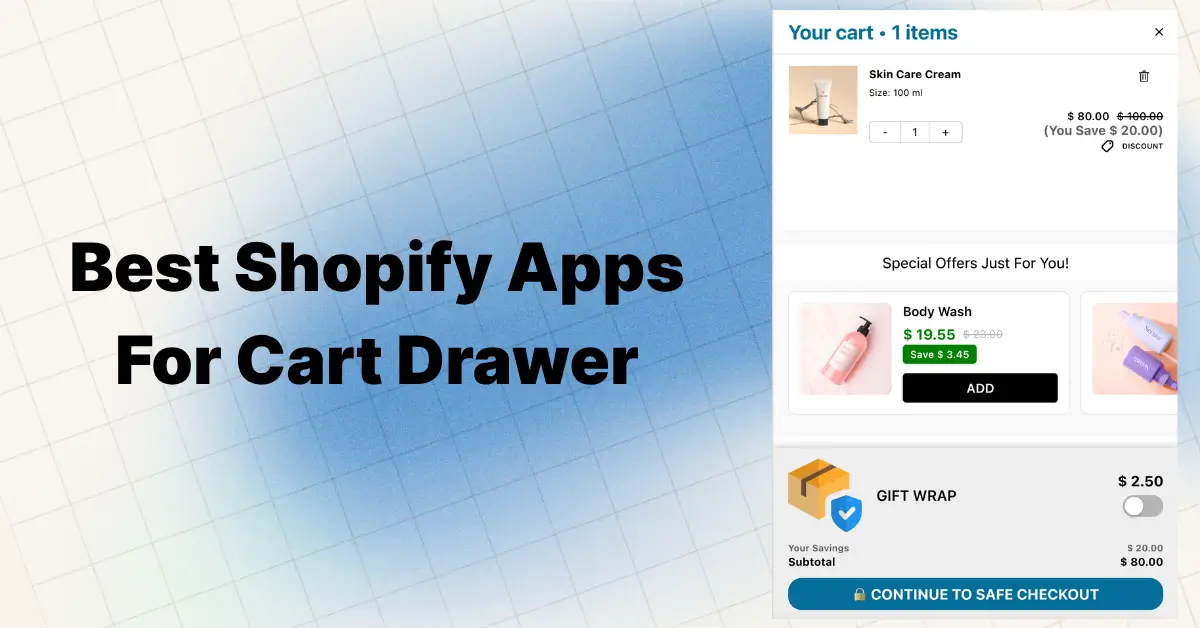
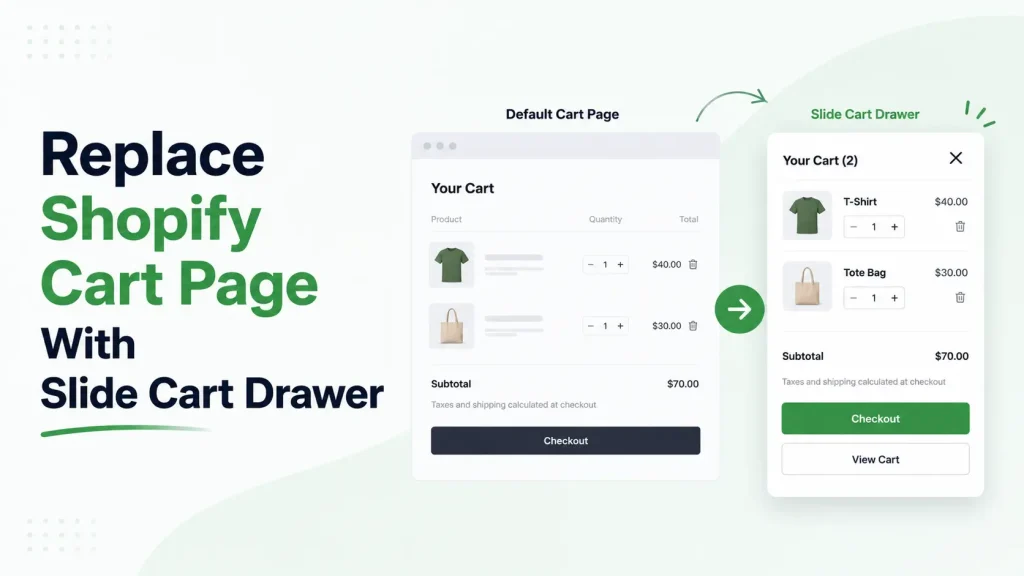
A shopper adds your bestseller to their cart. Shopify yanks them off the product page, throws them on a plain cart page, and makes them click “Continue Shopping” to keep browsing. Many of them just close the tab.
The fix is simple: replace the default cart page with a slide cart drawer — a small panel that slides in from the side, shows the cart, and lets shoppers keep moving without breaking the flow.
This guide covers all three ways to do it (free theme setting, custom Liquid code, and using an app), with real code snippets, screenshots, a comparison table, and the troubleshooting steps most tutorials skip. By the end, you’ll have a working slide cart and know exactly which method fits your store.
TL;DR — Which Method Should You Use?
- Theme setting (free, 5 minutes): Pick this if you just want to ditch the cart page and don’t care about extras.
- Custom Liquid code (free, 1–3 hours, dev skills needed): Pick this if you want full control and don’t mind editing theme files.
- Cart drawer app (paid, 15 minutes): Pick this if you want the drawer plus upsells, free shipping bar, free gifts, and AOV-boosting features.
For 90% of growing Shopify stores, an app is the right answer. We’ll cover all three so you can decide.
What Is a Slide Cart Drawer?
A slide cart drawer is a side panel that slides in over your store when a shopper adds a product. The shopper sees their cart, edits quantities, and checks out — without ever leaving the page they were on.
It’s also called a mini cart, side cart, sliding cart, or cart drawer. They all mean the same thing — though there are subtle differences between a slide cart and a mini cart worth understanding.
The default Shopify cart is different. It’s a full page at yourstore.com/cart. Every “Add to Cart” click sends shoppers there, breaking the browsing flow. The drawer keeps shoppers in the flow. The page interrupts it.
Slide Cart Drawer vs Default Cart Page: What’s the Difference?
| Feature | Slide Cart Drawer | Default Cart Page |
|---|---|---|
| Page reload | No (inline) | Yes (full redirect) |
| Mobile experience | Native, thumb-friendly | Cramped, scroll-heavy |
| Continue shopping | One tap (close drawer) | Click “Continue Shopping” + reload |
| Upsell space | Yes (FBT, recommendations) | Limited |
| Free shipping bar | Yes (sticky in drawer) | Static at top |
| Best for | Conversion & AOV | Order review only |
For a deeper comparison with real conversion data, see our breakdown of Shopify cart drawer vs cart page.
Why Should You Replace the Default Cart Page?
Cart abandonment is the biggest leak in e-commerce. Mobile traffic is now over 60% of Shopify visits, and the default cart page redirect is one of the friction points hurting that mobile conversion.
Here’s why a slide drawer helps:
- Less friction: Shoppers don’t lose their place on a product or collection page.
- Mobile-friendly: A drawer fits a phone screen far better than a full cart page.
- Higher AOV: A well-placed free shipping bar in the cart drawer consistently lifts order completion and average order value.
- More upsell real estate: You can show frequently bought together items or BOGO offers right when shoppers are ready to check out. See our guide to Shopify upselling strategies that increase AOV.
- Faster checkout flow: One less page click means fewer chances to bail.
When You Should NOT Replace the Cart Page
Most stores should switch. But not every store. Skip the drawer if:
- You sell B2B with complex carts (custom quotes, bulk pricing tables, line-item notes per product).
- Customers regularly buy 20+ line items per order — drawers feel cramped at that size.
- Your cart needs detailed shipping calculators, tax breakdowns, or address forms before checkout.
- You’re an enterprise store with custom checkout requirements.
For 95% of D2C Shopify stores selling apparel, beauty, supplements, home goods, or gadgets — a slide cart drawer wins.
Which Shopify Themes Support Cart Drawers Natively?
If you’re on a Shopify Online Store 2.0 theme, you likely have a cart drawer setting built in. Here are the themes that support it without code edits:
Free Online Store 2.0 themes:
- Dawn
- Sense
- Refresh
- Craft
- Crave
- Ride
- Origin
- Studio
- Taste
- Colorblock
- Horizon
- Spotlight
Older Vintage themes that include cart drawers:
- Brooklyn
- Pop
- Supply
Premium themes with cart drawer support: Atlantic, Blockshop, Parallax, Testament, Alchemy, Symmetry, Impulse, Prestige, Motion, Empire.
If your theme isn’t listed, you’ll need Method 2 (custom code) or Method 3 (an app).
What Are the 3 Ways to Replace Shopify Cart Page With a Slide Cart?
Below are all three methods, ordered from easiest to hardest. Pick the one that matches your skill level and feature needs.
Comparison Table: Theme vs Code vs App
| Feature | Theme Setting | Custom Code | Cart Drawer App |
|---|---|---|---|
| Setup time | 5 minutes | 1–3 hours | 15–20 minutes |
| Skill needed | None | Liquid + JS + CSS | None |
| Cost | Free | Free (or dev cost) | $0–$80/month |
| Free shipping bar | ❌ | Manual build | ✅ Built-in |
| Upsells / FBT | ❌ | Manual build | ✅ Built-in |
| Free gift on threshold | ❌ | Manual build | ✅ Built-in |
| BOGO / volume discounts | ❌ | Manual build | ✅ Built-in |
| Sticky cart icon | ❌ | Manual build | ✅ Built-in |
| Theme update–safe | ✅ | ⚠️ Risk on update | ✅ |
| Best for | Hobby stores | Devs / agencies | Growing brands |
Method 1: How to Enable the Built-in Theme Cart Drawer (Free, 5 Minutes)
If you’re on Dawn, Sense, Refresh, Crave, or any other Shopify Online Store 2.0 theme, you already have a basic drawer option. You just have to turn it on.
Step-by-Step Instructions
- From your Shopify admin, go to Online Store → Themes.
- Find your live theme and click Customize.
- Click the Theme settings gear icon at the bottom-left of the editor.
- Scroll to the Cart section.
- Under “Cart type,” select Drawer (instead of “Page” or “Popup notification”).
- Click Save in the top-right corner.
Test by adding a product on your live store. If the drawer doesn’t appear, jump to the troubleshooting section below.
What You Get (and What You Don’t)
The free built-in drawer is bare-bones. You get:
- Cart items list
- Quantity controls
- Subtotal
- Checkout button
You don’t get:
- Free shipping progress bar
- Upsells or recommended products
- Free gift on threshold
- BOGO or volume discounts
- Sticky cart icon that stays visible
- Discount code field inside the drawer
- Trust badges
- Countdown timers
Pros and Cons of the Theme Method
Pros:
- Completely free — no app fees
- 5-minute setup with zero code
- Survives theme updates with no risk
- Works out of the box on most modern themes
Cons:
- No AOV-boosting features at all
- Can’t customize beyond what your theme allows
- No analytics or performance tracking
- If you change themes, you’ll need to redo it
If you just want to remove the cart page redirect and don’t care about boosting AOV, this is fine. If you want the drawer to make you more money, jump to Method 3.
Method 2: How to Replace Cart Page With Custom Liquid Code (Dev-Friendly)
This method gives you complete control. You’ll add a snippet to your theme, hook it into your header, and use Shopify’s AJAX cart API to power it. You need basic Liquid, JavaScript, and CSS knowledge.
Important: Always duplicate your theme before editing code. Go to Online Store → Themes → Actions → Duplicate first.
Step 1: Create the Cart Drawer Snippet
In your theme code editor, go to Snippets → Add a new snippet and name it cart-drawer.liquid. Paste this:
<div id="slide-cart-drawer" class="slide-cart-drawer hidden">
<div class="slide-cart-overlay" id="slide-cart-overlay"></div>
<aside class="slide-cart-panel">
<header class="slide-cart-header">
<h3>Your Cart</h3>
<button id="close-slide-cart" aria-label="Close cart">×</button>
</header>
<div id="slide-cart-items" class="slide-cart-items">
<!-- Items injected by JS -->
</div>
<footer class="slide-cart-footer">
<div class="slide-cart-subtotal">
<span>Subtotal</span>
<span id="slide-cart-subtotal">$0.00</span>
</div>
<a href="/checkout" class="slide-cart-checkout-btn">Secure Checkout</a>
</footer>
</aside>
</div>
Step 2: Add Styles
In your theme’s main CSS file (usually assets/base.css or assets/theme.css), add:
.slide-cart-drawer { position: fixed; inset: 0; z-index: 9999; }
.slide-cart-drawer.hidden { display: none; }
.slide-cart-overlay {
  position: absolute; inset: 0;
  background: rgba(0,0,0,0.4);
}
.slide-cart-panel {
  position: absolute; top: 0; right: 0;
  width: 400px; max-width: 100%; height: 100%;
  background: #fff;
  display: flex; flex-direction: column;
  transform: translateX(100%);
  transition: transform 0.3s ease;
}
.slide-cart-drawer:not(.hidden) .slide-cart-panel {
  transform: translateX(0);
}
.slide-cart-header, .slide-cart-footer {
  padding: 1rem; border-bottom: 1px solid #eee;
}
.slide-cart-footer { border-top: 1px solid #eee; border-bottom: none; }
.slide-cart-items { flex: 1; overflow-y: auto; padding: 1rem; }
.slide-cart-checkout-btn {
  display: block; width: 100%; padding: 1rem;
  background: #000; color: #fff; text-align: center;
  text-decoration: none; border-radius: 4px;
}
@media (max-width: 480px) {
  .slide-cart-panel { width: 100%; }
}
Step 3: Render the Snippet in Your Theme
Open theme.liquid and add this just before the closing </body> tag:
{% render 'cart-drawer' %}Step 4: Add the JavaScript
Create a new file in Assets → Add a new asset called slide-cart.js and paste:
document.addEventListener('DOMContentLoaded', () => {
  const drawer = document.getElementById('slide-cart-drawer');
  const overlay = document.getElementById('slide-cart-overlay');
  const closeBtn = document.getElementById('close-slide-cart');
  const itemsBox = document.getElementById('slide-cart-items');
  const subtotalEl = document.getElementById('slide-cart-subtotal');

  const openCart = async () => {
    const res = await fetch('/cart.js');
    const cart = await res.json();
    renderCart(cart);
    drawer.classList.remove('hidden');
  };

  const closeCart = () => drawer.classList.add('hidden');

  const renderCart = (cart) => {
    subtotalEl.innerText = formatMoney(cart.total_price);
    itemsBox.innerHTML = cart.items.map(item => `
      <div class="cart-item">
        <img src="${item.image}" width="60" alt="${item.title}">
        <div>
          <p>${item.product_title}</p>
          <p>Qty: ${item.quantity}</p>
          <p>${formatMoney(item.line_price)}</p>
        </div>
      </div>
    `).join('');
  };

  const formatMoney = (cents) =>
    '$' + (cents / 100).toFixed(2);

  // Intercept all add-to-cart forms
  document.querySelectorAll('form[action*="/cart/add"]').forEach(form => {
    form.addEventListener('submit', async (e) => {
      e.preventDefault();
      const formData = new FormData(form);
      await fetch('/cart/add.js', { method: 'POST', body: formData });
      openCart();
    });
  });

  // Intercept cart icon clicks
  document.querySelectorAll('a[href="/cart"]').forEach(link => {
    link.addEventListener('click', (e) => {
      e.preventDefault();
      openCart();
    });
  });

  closeBtn.addEventListener('click', closeCart);
  overlay.addEventListener('click', closeCart);
  document.addEventListener('keydown', (e) => {
    if (e.key === 'Escape') closeCart();
  });
});
Step 5: Load the JavaScript
In theme.liquid, just before </body>, add:
<script src="{{ 'slide-cart.js' | asset_url }}" defer></script>Step 6: Test on Your Storefront
Save everything. Open your store in incognito mode. Click any “Add to Cart” button. The drawer should slide in from the right. Click the overlay or the X to close.
Mobile Drawer Best Practices (iOS Safari Quirks)
Mobile is where most of your traffic and most of your abandonment lives. A few details that trip up nearly every custom slide cart on mobile:
- Don’t use
height: 100vh. iOS Safari measures viewport height including the URL bar, so 100vh ends up taller than the visible screen. Useheight: 100%with aposition: fixedparent instead. - Add
safe-area-inset-bottompadding to the checkout button area so it isn’t hidden behind the iOS home indicator:padding-bottom: env(safe-area-inset-bottom); - Prevent body scroll when the drawer is open. Add
document.body.style.overflow = 'hidden'on open and restore on close — otherwise the page scrolls behind the drawer on iOS. - Use
pointer-events: noneon the overlay during transitions to avoid click-through bugs where taps register on the page below. - Test on a real iPhone. Chrome DevTools mobile emulation does not catch any of the above.
Pros and Cons of the Custom Code Method
Pros: Fully custom, lightweight, no monthly fees, total control over UX.
Cons: No upsells, no free shipping bar, no free gifts. Theme updates can break it. To add a free shipping bar, upsells, or free gifts, you’d need to write 200–400 additional lines of JavaScript per feature — which is why most stores choose Method 3.
Method 3: How to Use a Cart Drawer App (Recommended for Most Stores)
This is what 95% of growing Shopify stores choose. A dedicated cart app replaces the default cart with a fully-featured drawer that includes all the AOV-boosting features the free version is missing — without writing a single line of code.
Top Shopify Cart Drawer Apps Compared
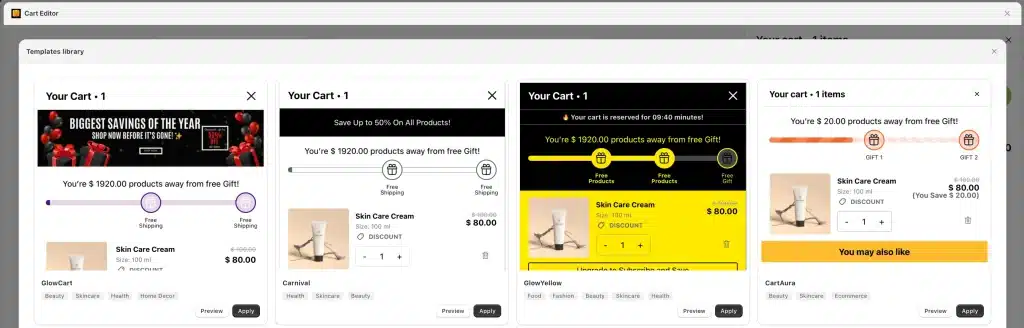
Our top recommendation is Oxify Cart Drawer & Upsells — a Built for Shopify app with a 5.0 rating that handles the full cart funnel in one app: slide cart, upsells, FBT, AI recommendations, free shipping bar, free gifts, BOGO, volume discounts, sticky cart, countdown timer, and post-purchase upsells.
For a wider comparison including UpCart, iCart, Qikify Slide Cart, AMP Slide Cart, and Cartly, see our full guide to the best Shopify cart drawer apps.
Why an App Beats the Other Two Methods
- Setup is 15 minutes, no code
- Free shipping bar, upsells, and free gifts come built-in (proven AOV lifters)
- Theme updates won’t break it
- The features that actually grow revenue are included from day one
How to Install Oxify Cart Drawer & Upsells
- Visit the Oxify Cart Drawer & Upsells listing on the Shopify App Store.
- Click Install and approve the permissions.
- In the app dashboard, hit Enable Cart Drawer.
- Configure the drawer style — colors, fonts, button text — to match your brand.
- Set your free shipping threshold (most stores use ~30% above their current AOV).
- Add 1–3 upsell products. Don’t show more than three or it gets cluttered.
- Turn on the sticky cart icon so the cart is always one tap away.
- In the theme editor under App embeds, make sure the Oxify cart embed is toggled on.
- Hit Publish and test on your live store in incognito mode.
Total time: 15–20 minutes for a clean setup that looks like a custom-built cart drawer. Learn more about the full feature set on the Oxify Cart Drawer & Upsells overview page.
Pros and Cons of Using a Cart Drawer App
Pros:
- Plug-and-play setup — no Liquid, no JavaScript, no CSS
- AOV features (free shipping bar, upsells, gifts, BOGO) built in
- Theme-update safe
- Regular updates to stay compatible with Shopify changes
- Built-in analytics on cart performance
Cons:
- Monthly subscription cost (most are $14.99–$79.99/mo by store volume)
- One more app on your store — pick a Built for Shopify–certified one to avoid speed hits
- Some apps come with feature bloat — you only need what your store will actually use
How Do You Set Up the Drawer for Maximum AOV?
Most merchants install a drawer, leave the defaults, and wonder why it’s not boosting sales. Here are the details that actually move the needle.
1. Set the Free Shipping Threshold Smart
The sweet spot is roughly 30% above your current AOV. If your AOV is $40, set free shipping at $52. Too low and it costs you margin without lifting AOV. Too high and shoppers give up. We’ve broken this down in detail in our guide to setting up a free shipping bar in your cart drawer.
2. Pick the Right Upsells
Don’t show random products. Show:
- Items frequently bought together with what’s already in cart
- Cheap add-ons (under $20) that are easy to say yes to
- Consumables for the main product (filters, refills, accessories)
For a deeper playbook, see our cart upsell Shopify strategy guide.
3. Use Real Trust Signals
Add a small row near the checkout button: a padlock icon, “Secure Checkout,” and accepted payment logos. Small, but it nudges hesitant buyers over the line. Here’s how to add trust badges to your cart drawer the right way.
4. Test Your Checkout Button Text
“Checkout” is weak. Try “Secure Checkout” or “Complete My Order.” These often outperform the default in A/B tests.
5. Mobile-First Always
Open your store on your phone. Add a product. Does the drawer cover the whole screen comfortably? Is the checkout button thumb-reachable? Test on a real device, not just the desktop preview.
How Do You Fix Common Slide Cart Drawer Issues?
The Drawer Won’t Open
Likely causes:
- JavaScript not loaded yet: Make sure your script has the
deferattribute or fires insideDOMContentLoaded. - App embed disabled: Go to theme editor → App embeds → confirm your cart drawer app is toggled on.
- Theme conflict: Another theme script may be intercepting the cart click. Check the browser console for errors.
Items Don’t Show or Subtotal Is Wrong
You’re probably not using Shopify’s AJAX cart endpoints correctly. Confirm you’re calling /cart.js for the cart state and /cart/add.js for adds. Always re-fetch /cart.js after every change to refresh the drawer. Shopify’s official AJAX cart docs have the full reference.
The Drawer Looks Broken on Mobile
Check your CSS. The panel should be 100% width on screens under 480px. If content overflows, add overflow-y: auto to the items container and make sure the panel uses height: 100% not height: 100vh (vh causes issues on iOS Safari).
Two Cart Drawers Are Opening
You probably have both the theme drawer setting and a cart app enabled. Pick one. If using an app, set theme cart type back to “Page” — the app will override it.
The Drawer Is Slow
Usually a script loading issue. Make sure scripts are deferred. If using multiple cart-related apps, consider consolidating to one. Built for Shopify–badged apps meet Shopify’s performance benchmarks.
The /cart URL Still Loads the Old Cart Page
Most apps redirect /cart automatically. If yours doesn’t, you can either rely on the JavaScript click interceptor (Method 2 covers this) or add a redirect in your app settings.
Add-to-Cart Stops Working After App Install
Real merchant issue we see often: a slide cart app conflicts with another cart-related app or theme script, and the add-to-cart button stops responding. To diagnose, disable other cart-related apps one at a time, then check the browser console for JavaScript errors. If you’re using Vintage themes like Symmetry or Impulse, the app may need a manual theme integration step — check your app’s docs for the snippet to paste.
What Are the Most Common Slide Cart Setup Mistakes?
- Cluttering the drawer. Six upsells, a quiz, a wheel-spin popup, trust badges, and a video — shoppers leave. Keep it clean.
- Skipping mobile testing. Always test on a real phone, not just the desktop preview.
- Showing too many free gifts. One free gift on threshold is great. Three feels desperate.
- Forgetting to test discount codes. Add a product, apply a code, watch the subtotal update. Catch the bug before customers do.
- Editing the live theme directly. Always duplicate first. Always.
- Ignoring accessibility. Add a focus trap inside the drawer, ESC-key support, and ARIA labels on the close button. With WCAG and EAA enforcement growing, this matters more than it used to.
Frequently Asked Questions
Can I replace the Shopify cart page with a slide cart for free?
Yes. Most Shopify Online Store 2.0 themes (Dawn, Sense, Refresh, etc.) include a free cart drawer setting. Go to Online Store → Themes → Customize → Theme settings → Cart, then change “Cart type” to “Drawer.” It’s basic but works.
Why is my Shopify cart drawer not opening?
The most common causes are: the cart drawer app embed is disabled in the theme editor, your script is loading before the DOM is ready, or another app is intercepting the cart click. Check the browser console for errors first, then verify the app embed is on under Theme editor → App embeds.
Will switching to a slide cart drawer break my theme?
No, if you use a Built for Shopify app like Oxify Cart Drawer & Upsells. It installs without code edits. If you go the manual code route, always duplicate your theme first.
Can I customize the cart icon in Shopify?
Yes. In the theme code editor, open header.liquid or icon-cart.liquid and replace the existing SVG with your custom icon. Most cart drawer apps also let you swap the icon style and color in their settings.
Is a sticky cart helpful for Shopify stores?
Yes — especially on mobile. A sticky cart icon stays visible as users scroll, so the cart is always one tap away. It reduces friction for buyers ready to check out and is one of the highest-impact mobile UX changes you can make.
Can I keep the cart page for some shoppers?
Yes. Most apps let you keep /cart as a backup or for accessibility. The default behavior on add-to-cart becomes the drawer.
Does a slide cart drawer slow down my Shopify store?
A well-built one shouldn’t. Look for “Built for Shopify” badges — those apps meet Shopify’s performance standards. The free theme drawer adds essentially zero load. Custom code can be lightweight if you defer scripts. App speed varies — pick a Built for Shopify–certified one to be safe.
What about subscriptions and bundles?
Top slide cart apps support subscriptions, Shopify Bundles, and selling plans. Confirm before installing if you sell either.
Is a slide cart drawer better than a popup cart?
Yes for most stores. Popups feel intrusive on mobile. Drawers feel native and respect the browsing flow.
What’s the difference between a slide cart drawer and a mini cart?
They’re often used interchangeably, but a slide cart usually slides in from the side as a fuller cart UI, while a mini cart can be a smaller hover/dropdown preview from the cart icon. See our slide cart vs mini cart breakdown for the full distinction.
Do I need to remove the default Shopify cart page completely?
No. The /cart URL stays accessible (Shopify won’t let you fully delete it), but you redirect or override it. Most shoppers will never see it once the drawer is active.
Can I add upsells to the free Shopify cart drawer?
Not directly. The free theme drawer doesn’t support upsells. You need either custom code (Method 2) or a cart drawer app (Method 3).
Which Shopify themes support a cart drawer natively?
All Online Store 2.0 themes including Dawn, Sense, Refresh, Crave, Ride, Origin, Studio, Taste, and Horizon, plus Vintage themes Brooklyn, Pop, and Supply. Older custom themes often don’t support it without code edits.
Should You Replace the Default Shopify Cart Page?
For 95% of D2C Shopify stores, yes. The default cart page redirect adds friction at exactly the moment shoppers are deciding to buy. A slide cart drawer keeps them in the flow and gives you space to upsell.
The free theme version is fine if you only want to clean up the flow. The custom code route works if you have dev resources. But if you’re serious about lifting AOV and recovering revenue, a proper app like Oxify Cart Drawer & Upsells pays for itself in the first few weeks.
Ready to ditch the cart page? Install Oxify Cart Drawer & Upsells and have your slide cart live in under 20 minutes.