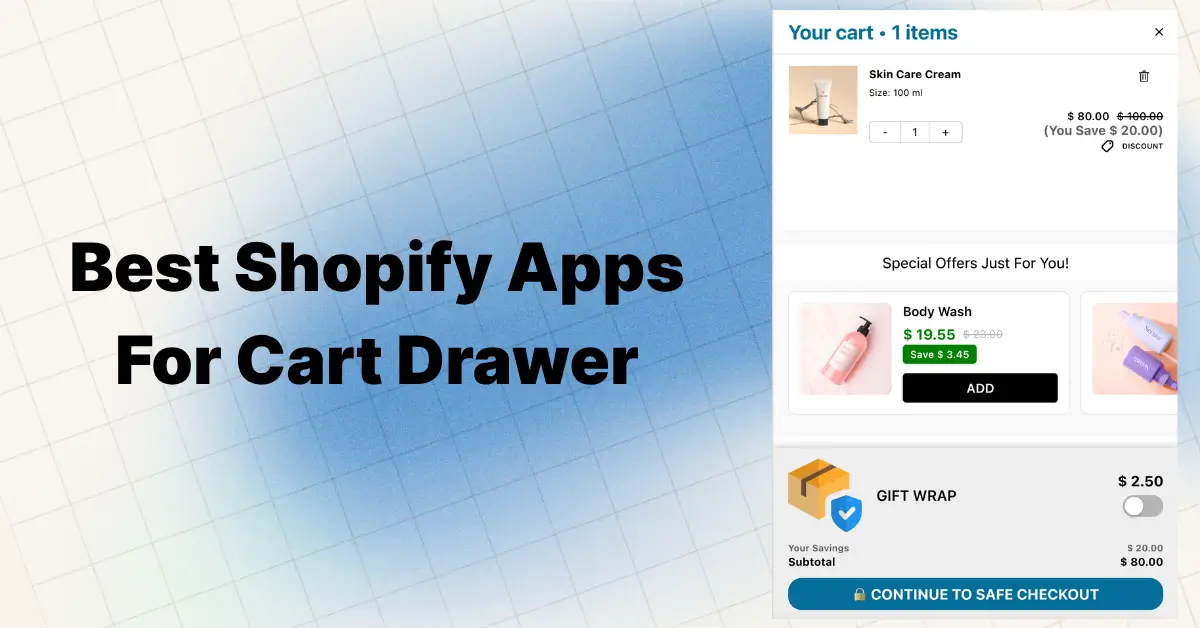
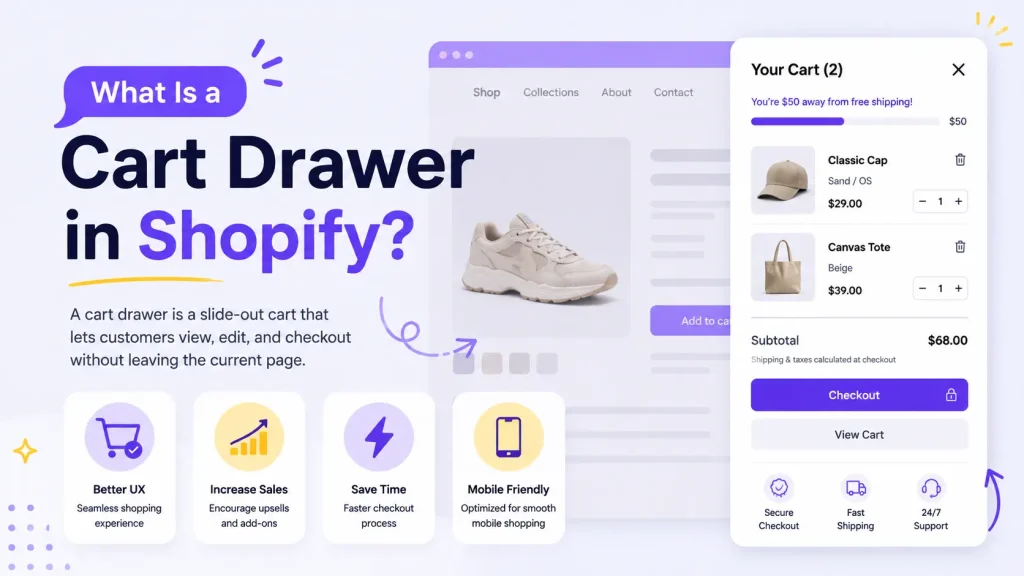
A cart drawer in Shopify is a panel that slides in from the side of the screen when a shopper adds a product or taps the cart icon. It shows the items, quantities, and total, plus a checkout button. The shopper reviews everything without being sent to a separate cart page, so they stay on the page they were browsing.
The question people ask next: is a cart drawer the same as a mini cart? Yes, basically. “Cart drawer,” “mini cart,” “slide cart,” and “slide-out cart” all describe the same thing. It is a common online store design used across many platforms. On Shopify, it works the way described above and is built right into most modern themes.
We build a Built for Shopify cart drawer app, so the steps, limits, and fixes below come from working inside real merchant carts, not from guessing.
Key Takeaways
- A cart drawer is a slide-in cart panel that replaces the trip to a full cart page.
- Most modern Shopify themes (Dawn, Sense, Craft, Refresh, Ride) include a basic one for free.
- You turn it on in the theme editor: Theme settings > Cart > switch Page to Drawer.
- The free theme drawer shows the cart but cannot run upsells, free gifts, or a shipping bar.
- An app adds those money-making features. A Built for Shopify app keeps it fast.
- A cart page can still be the better pick for high-ticket or complex orders.
Cart Drawer vs Mini Cart vs Cart Page
These three terms get mixed up all the time. Here is the difference in plain words.
| Term | What it is | Does the page reload? |
|---|---|---|
| Cart drawer | A panel that slides in from the side | No |
| Mini cart | A small dropdown preview near the cart icon | No |
| Cart page | A full separate page at yourstore.com/cart | Yes |
So “cart drawer,” “slide cart,” “slide-out cart,” and “drawer cart” all mean the same thing. “Mini cart” sometimes means the drawer, and sometimes means the smaller dropdown preview.
The one thing that matters: a cart page loads a brand new page. A cart drawer does not. The shopper never leaves where they were.
How a Cart Drawer Works (Step by Step)
Here is what the shopper sees:
- They click “Add to cart” on a product.
- A panel slides in from the side of the screen.
- The panel shows the item they just added, anything else in the cart, and the subtotal.
- They can change quantities, remove items, or add a note.
- They click “Checkout,” or close the drawer and keep shopping.
No new page loads at any point. On a phone, where most Shopify traffic comes from, this matters even more. Every extra page load on mobile is a chance for the shopper to get distracted or drop off.
What Powers a Cart Drawer
You do not need to code to use a cart drawer, but it helps to know what is happening under the hood.
When a shopper adds an item, the theme talks to Shopify’s Cart API in the background. This is called AJAX. It updates the cart without a page reload, then opens the drawer to show the new total.
In a free theme like Dawn, this lives in a file called cart-drawer.liquid. You can see the real code in Shopify’s open-source Dawn theme on GitHub. It also ships with accessibility built in, like keyboard support and screen-reader labels, which a good drawer should always have.
The takeaway: the drawer is not magic. It is a small piece of your theme that you can turn on, style, or replace with an app.
Does Your Shopify Theme Already Have a Cart Drawer?
Most likely, yes. Almost every modern Shopify theme includes a basic cart drawer.
Shopify’s free Dawn theme has one. So do Sense, Craft, Refresh, Ride, and most paid themes in the Shopify Theme Store.
Here is how to turn it on:
- Go to Online Store > Themes in your Shopify admin.
- Click Customize on your live theme.
- Open Theme settings (the gear icon on the left).
- Find the Cart section.
- Change the cart type from Page to Drawer.
- Click Save, then test by adding a product on your live store.
If your theme is older or custom-built, this option may not show up. In that case you need a cart drawer app or custom code. Our guide on replacing the Shopify cart page with a slide cart drawer covers every method.
Why Isn’t My Cart Drawer Opening?
This is one of the most common cart drawer questions, so here are the usual causes and fixes:
- The cart type is still set to “Page.” Go back to Theme settings > Cart and switch it to Drawer.
- An app embed is turned off. If you use a cart drawer app, open the theme editor, click App embeds, and make sure the app’s toggle is on. Then save.
- A page builder is fighting the cart. Tools like PageFly or GemPages can block the drawer if their “Add to cart” action is set to redirect. Set the button action to “Open cart” instead.
- Your theme does not support it. Older or heavily customized themes may have no drawer at all. Switch to a modern theme or use an app.
- A script error. If the drawer just sends shoppers to /cart, open your browser console and look for errors. A missing click handler is the usual cause.
If you use a Built for Shopify app, most of these never come up, because the app handles the cart behavior for you.
What the Default Theme Drawer Can and Cannot Do
This is the part most “what is a cart drawer” articles skip. It is also the part merchants ask about most once their drawer is on.
The built-in theme drawer can:
- Show cart items, quantities, and the subtotal
- Let shoppers update or remove items
- Show a checkout button
- Match your theme’s basic colors and fonts
The built-in theme drawer cannot:
- Show upsells or “frequently bought together” picks
- Run a free shipping progress bar (“You’re $12 away from free shipping”)
- Offer free gifts, BOGO deals, or volume discounts
- Show trust badges or a countdown timer
- Let shoppers apply a discount code inside the drawer
- Track which cart offers actually make you money
Think of it this way. The default drawer is a display tool. It shows the cart. It does not grow the cart.
That is fine for some stores. If you only want shoppers to see their items without a page reload, the free theme drawer does the job.
But the drawer is the last thing a shopper sees before checkout. It is the single best spot in your store to lift order value. That is why most growing stores upgrade it with an app.
What an Upgraded Cart Drawer Looks Like in Action
Here is a real flow, step by step, so you can picture the difference:
- A shopper adds a $40 hoodie. The drawer slides in.
- A bar at the top says “Add $10 more for free shipping.”
- Right under the hoodie, the drawer suggests a matching $14 beanie.
- The shopper adds the beanie to hit free shipping. The cart is now $54.
- A discount field lets them paste a code and see the savings before checkout.
The shopper feels like they got a deal. You raised the order value with no extra ad spend. None of that is possible with the default drawer alone. Our Cart Drawer & Upsell app is built around this exact flow.
Why Stores Use Cart Drawers
Three reasons come up again and again:
- Fewer steps to checkout. Shoppers review the cart without leaving the page. Less friction is one of the simplest ways to reduce cart abandonment.
- Shoppers keep browsing. A cart page is a dead end. A drawer closes with one tap, and the shopper is right back where they were, which makes adding a second item easy.
- Prime upsell space. When the drawer shows a relevant add-on or a free shipping bar, shoppers raise their own order value. See our guide to in-cart recommendations.
When a Cart Page Is Still the Better Choice
A drawer is not always the answer. Be honest about your store. A full cart page can work better when:
- You sell high-ticket items (furniture, fine jewelry) where buyers want room to slow down
- Carts often hold many line items that feel cramped in a narrow panel
- Buyers compare specs, warranties, or financing before they pay
Plenty of strong stores run a hybrid: drawer for quick adds, cart page for the full review. We break this down with examples in our cart drawer vs cart page guide.
How to Add or Upgrade a Cart Drawer
You have three options, from simplest to most technical:
1. Turn on your theme’s built-in drawer. Free, takes two minutes (steps above). Basic features only.
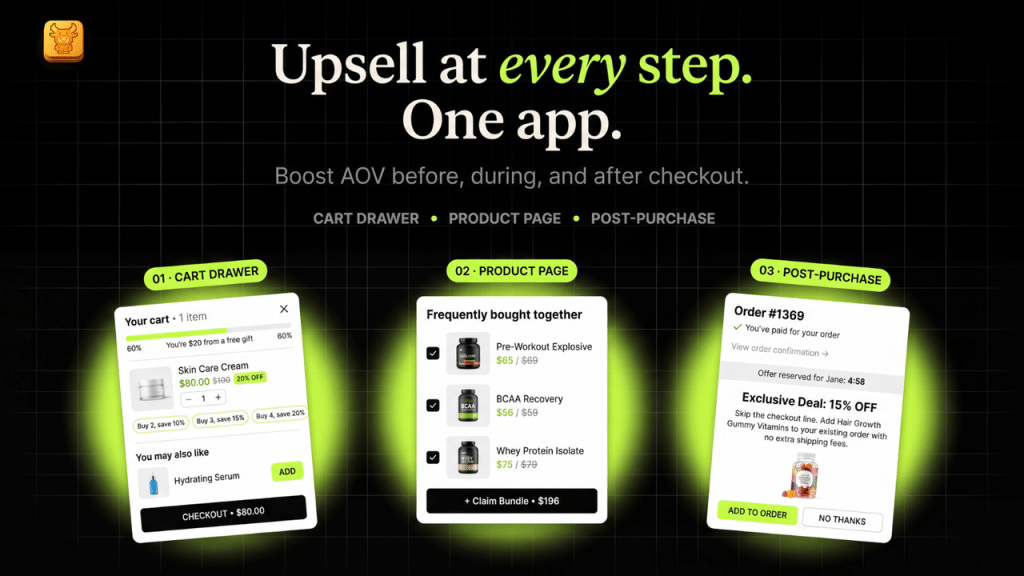
2. Install a cart drawer app. This is how you get upsells, free gifts, shipping bars, and full design control without touching code. Our pick is our own Oxify Cart Drawer & Upsells, a Built for Shopify app with a 5.0 rating that handles the whole cart funnel in one install. See how it stacks up against every option in our honest roundup of the best Shopify cart drawer apps.
3. Custom code. Full control, but you need a developer, and theme updates can break your work. If you only want small visual tweaks, custom CSS for your cart drawer is usually enough.
What a Good Cart Drawer Includes
If you do upgrade, here is the checklist that works across stores:
- Opens on its own right after add to cart
- Loads fast (a slow drawer is worse than no drawer)
- Works with a keyboard and screen readers (accessibility matters)
- A free shipping progress bar with a clear target
- One to three upsell picks, never more
- A discount code field inside the drawer
- A sticky cart icon so the cart is always one tap away on mobile
- An order notes field if you take gift or custom requests
- Trust badges near the checkout button
- A design that matches your brand, not the app’s default look
Our step-by-step customization guide shows how to set all of this up in about 15 minutes.
A Quick Note on Speed
A lot of merchants worry an app will slow their store. Here is the straight answer:
- The theme’s built-in drawer adds almost no load.
- A bloated app can slow your cart by a few hundred milliseconds.
- A well-built app adds little to nothing.
The safest move is to pick a Built for Shopify app. That badge means Shopify checked the app for speed, design, and clean integration.
Frequently Asked Questions
What is a cart drawer in simple terms?
It is a small cart panel that slides in over your store when a shopper adds a product. They can see and edit the cart and check out without loading a new page.
Is a cart drawer the same as a mini cart?
Mostly, yes. Both show the cart without a page reload. “Mini cart” sometimes means a small dropdown preview, while a cart drawer is the larger slide-in panel. Many themes and apps use the terms to mean the same thing.
Does Shopify have a built-in cart drawer?
Shopify itself does not, but most modern themes do, including Dawn. You switch it on in the theme editor by setting the cart type to “Drawer.”
Why is my cart drawer not opening?
The usual causes are the cart type still set to “Page,” an app embed turned off, a page builder set to redirect on add, or a theme that does not support drawers. Check those four first.
Does a cart drawer slow down my store?
The built-in theme drawer has no real speed cost. App-based drawers vary. A well-built one adds little to nothing, while a bloated one can slow the cart. A Built for Shopify app is the safe pick.
Can I keep my cart page if I use a drawer?
Yes. The /cart page stays live even with the drawer on. Shoppers who type the URL or click “View cart” can still reach it.
Do I need an app for a cart drawer?
Not for the basics. You need an app when you want upsells, free gifts, a free shipping bar, discount codes in the cart, or design control beyond what your theme allows.
The Bottom Line
A Shopify cart drawer is the slide-in panel that replaces the trip to a separate cart page. Your theme probably already has a basic one, and turning it on takes two minutes.
The real question is not “what is a cart drawer.” It is “what is my cart drawer doing for me.” A default drawer shows the cart. A good drawer grows it.
If you want upsells, free gifts, a free shipping bar, and full design control in one app, install Oxify Cart Drawer & Upsells free from the Shopify App Store. Setup takes about 15 minutes, with a free plan plus a 14-day free trial on paid tiers. You can see the full feature set on the Cart Drawer & Upsell page.