 Oxify
OxifyDoes Shopify Have a Built-In Preorder Feature?
Short answer: Not on its own. Shopify has no standalone preorder switch, and its Help Center says you need a pre-order app from the Shopify App Store to sell pre-orders. The only app-free option is "Continue selling when out of stock," which is really a backorder: no badge, no deposit, no ship date.
Shopify does have the plumbing: a "purchase option" that lets an order carry a deposit, a ship date and a stored payment method. An app creates and runs it. This guide separates what is built in from what needs an app, lists the checkout limits from Shopify's own docs (re-read on October 11, 2026), and answers the question behind most searches: can you take a preorder now and charge the card only when stock arrives? If you want the no-code route, a preorder app is the way in.
Preorder vs backorder vs reservation (know the difference first)
These three sound alike but are not the same. Getting them straight saves you a lot of pain.
- Preorder: The customer buys a product before it ships. They pay in full, leave a deposit or, depending on the setup, pay nothing until it ships. It is a real, committed sale.
- Backorder: You keep selling an item that is out of stock right now, but you plan to restock and ship soon. Payment is usually taken in full.
- Reservation: The customer holds a spot without paying. They finish buying later. This is the weakest option for cash flow. If the card is saved now and charged when the item ships, that is a preorder with payment due later (see the pay-later section below).
Most stores want a true preorder. That is where Shopify gets a little tricky.
What Shopify actually gives you (3 real methods)
There are three real ways to do this. Let's go through each one plainly.
Method 1: The "Continue selling when out of stock" toggle (backorder)
This is the only preorder-like option that works with no app at all.
You find it in a product's (or variant's) Inventory section. Turn on Inventory tracked, then tick Continue selling when out of stock. The "Add to cart" button now stays live when stock hits zero. Shopify's own Help Center lists "products available for preorder" as one reason to use it, but the setting only lets orders through. It is really a backorder. Here is what it does not do:
- It does not show a "Preorder" badge. The button still says "Add to cart."
- It does not tell the shopper the item ships later.
- It does not collect a deposit or partial payment.
- It does not send a back-in-stock email.
- It does not cap how many orders you take.
- It does not apply to Shopify POS orders. Staff can still sell a zero-stock item there, and POS warns them first.
So buyers think they are getting something ready to ship, then get confused when it does not arrive. You can see the exact setting in the Shopify Help Center.
Bottom line: fine for one quick test, weak for real selling.
Method 2: Shopify's native preorder purchase option (needs an app)
This is the built-in system most people do not know about. Shopify has a real "pre-order" purchase option that handles proper preorders, deposits and split payments.
The important part: it does not run on its own. Shopify's preorder help docs say you install a pre-order app from the App Store and finish the setup inside that app first. The Shopify admin then shows the pre-order details on the product page and the orders list.
The traps almost nobody warns you about are in the docs too. This is what Shopify's Help Center and developer docs said when we re-read them on October 11, 2026:
Shopify's pre-order limits (Help Center and developer docs, read October 11, 2026)
- Payment provider: Pre-orders are currently only available to merchants using Shopify Payments or PayPal Express. The developer docs also list Adyen on Shopify and Stripe (Stripe only for some merchants).
- Wallets and local methods: Customers cannot pay with Shop Pay, Apple Pay or Google Pay, or with local payment methods such as Klarna and iDEAL.
- Sales channels: Online Store and Custom Storefront only. The developer docs add that pre-orders cannot be used through Shopify POS, on draft orders or with B2B.
- Checkout: Not supported on stores with customized checkouts (the developer docs name checkout.liquid), and not with cart permalinks.
- Discounts and delivery promises: "Buy X get Y" discounts are not supported, and pre-orders are not supported by Shop Promise.
- Purchase options: A customer cannot combine two purchase options on the same product in one checkout, so you cannot pre-order a subscription product. A cart can still hold preorder and regular products together.
- Several preorders in one cart: The earliest payment due date applies to all of them, "due on fulfillment" beats a fixed date, and the deposits are added together at checkout.
- Customer consent: At the Payment step the customer must confirm they understand they are buying with a purchase option.
- Uninstalling the app: Any preorder data you created in the app is deleted after 48 hours (customer payment information is excluded). Apps with a backup mechanism can restore it.
- Your promise to the buyer: You need a reasonable basis for the ship time you state. If you state no date, you need a reasonable belief the item will ship within 30 days of purchase. If you cannot ship in time, you must give a revised date and explain the customer's right to cancel or get a refund.
How much does the wallet limit matter? That depends on how your shoppers pay, so look at how your own orders were paid before you decide. For background on Shopify's dynamic checkout (express) buttons, see how express checkout buttons behave.
Method 3: Custom code or preorder APIs (developers)
You can also build your own preorder flow. Shopify's developer docs treat pre-orders as a use of selling plans: an app calls the sellingPlanGroupCreate mutation and sets pricing, delivery, inventory and billing policies. There is no single "create preorder" call.
Deposits live in the billing policy: a partial amount is charged at checkout and the balance later, on a set date or a set number of days after checkout. The inventory policy decides whether stock is committed when the order is placed or when it is fulfilled. Two more things worth knowing: the app, not Shopify, schedules the balance charge and handles failed payments, and the docs name no Shopify Plus requirement.
This is powerful but risky. You will likely want a developer, and you can find one through the Shopify Partner directory. For almost everyone, this is overkill.
Quick comparison
| Method | Cost | Preorder badge + button | Deposits | Restock emails | Needs code? |
|---|---|---|---|---|---|
| Continue selling toggle | Free | No | No | No | No |
| Preorder app | Free plans; paid from $4.95/mo* | Yes | Yes | Yes | No |
| Custom code / APIs | Developer cost | Yes | Yes | Depends | Yes |
*The six apps shown first on the Shopify App Store's Pre-orders category page all had a free plan on October 11, 2026. The exact limits are in the pay-later section below.
For most stores, a preorder app is the practical choice. It is fast, affordable and needs no theme editing.
Can customers pay later? Charging the card only when stock arrives
Yes, with a preorder app, but how much you can defer depends on the app. Shopify's preorder purchase option stores the customer's payment method, so an app can charge a deposit at checkout and the balance later, on a set date or a set number of days after checkout. Charging nothing at checkout and everything when the order ships is the part that varies by app.
Why not just use manual payment capture? Shopify says Shopify Payments gives credit card authorizations a 7-day window, and after that you might be unable to collect any money for the order (Shopify Help Center). That covers a one-week wait, not stock that lands in two months. The preorder purchase option stores a payment mandate instead, which is why it is the tool for longer waits.
One wrinkle. Shopify's Help Center lists a "due on fulfillment" payment term, but a note on the developer docs page for pre-orders (read October 11, 2026) says that term was available in the unstable API version, with a stable release planned for 2026-01. So before you rely on a zero-down preorder, ask the app's developer which timing it supports: at checkout, on a set date, a set number of days after checkout, or on fulfillment. Ask what happens when the balance charge fails, too.
What the app listings say. On October 11, 2026 we read the Shopify App Store listings of the six apps shown first on the Pre-orders category page, plus our own. For each we noted the free-plan limit, the cheapest paid plan and any wording about paying later. We read the listings; we did not install the apps.
| Preorder app | Free plan limit | Cheapest paid plan | What the listing says about paying later |
|---|---|---|---|
| Preorder, Back In Stock - STOQ | 10 preorders a month | $10/mo | Lists deposits, partial, split and manual payments |
| Notify Me! Back in Stock Alert | 5 preorders | $9.90/mo | Percentage or fixed-amount partial payments, plus a preorder delivery fulfillment trigger, on paid plans |
| Preorder Now Presale Timesact | 20 orders a month | From $5/mo | Zero-down preorders on CORE Flex (from $5/mo); charging on fulfillment on PRO Flex (from $7/mo) |
| REZ Preorder, Back In Stock | 20 preorders a month | $4.99/mo | Lists deposits, partial, split and manual payments |
| PreOrder Globo | Back in Stock | First 20 presale orders | $9.90/mo | Lists partial and split payments; partial payment is named on the Lite plan |
| Essent Preorder Back in Stock | 25 preorders a month | $4.95/mo | Deposits, deferred payments, due dates and split payment schedules |
| Oxify Preorder & Back in Stock (our app) | Free, no paid plan listed | None | Lists deposits, partial, split and manual payments; no zero-down wording |
Features sit on different plans, so check the plan you would actually pay for. A listing that does not mention paying later may still support it; the table shows what each listing says, not what each app can do. Ratings and a longer list are in our comparison of back in stock and preorder apps. For 10 preorder apps compared on deposits, charging later and free-plan limits, see our guide to the best Shopify preorder apps.
If by "pay later" you mean buy-now-pay-later at checkout, Shopify's docs say Shop Pay, Apple Pay, Google Pay and local methods such as Klarna cannot be used to buy a pre-order. A deposit now with the balance charged later is the preorder version of pay later.
How to set up preorders with no code
Using an app, the whole thing takes a few minutes:
- Install a preorder app from the Shopify App Store and finish its setup first. Shopify says to complete the app's setup before you touch the preorder settings in the admin.
- Pick the products you want to sell early.
- Set your button text, like "Preorder Now."
- Choose how you get paid: the full amount, a deposit or split payments, and when the balance is charged.
- Add an expected ship date so buyers know the wait. If you give none, Shopify's rule is that you must reasonably believe it will ship within 30 days of purchase.
- Save, then place one test preorder with a regular card and check what the order shows as due and when. In the product's admin page you can also choose whether it shows only with its preorder option or alongside a normal one-time purchase.
At checkout your customer sees the deposit due now in the order summary and the rest due later. No theme editing and no developer bill.
What does it cost?
- Continue selling toggle: free, but it is only a backorder.
- Preorder apps: on October 11, 2026 all six of the apps shown first on the Pre-orders category page had a free plan, capped at 5 to 25 preorders a month. Their cheapest paid plans ran from $4.95 to $10 a month, and five of the six list a charge of $0.10 to $0.30 per preorder once a paid plan's monthly limit is passed. The table above has each app.
- Oxify Preorder & Back in Stock (our app): free on its App Store listing the same day, with no paid plan listed.
Free plans cap volume, so a store with steady preorders can outgrow one. Check the limit against your own monthly preorder count before you install.
Which Shopify plan do I need to take preorder payments?
The pre-order pages we read name a payment requirement, not a Shopify plan. You need Shopify Payments or PayPal Express (the developer docs also list Adyen on Shopify and Stripe for some merchants), and Shopify Payments is not available in every country, so check yours. Neither the Help Center pages nor the developer docs name a minimum plan or a Shopify Plus requirement.
Where Oxify Preorder & Back in Stock fits (our app)
Disclosure: we make Oxify Preorder & Back in Stock, a free app for stores that want preorders and restock alerts in one place. This is what its App Store listing says it does (read October 11, 2026):
- A preorder button and badge for out-of-stock, low-stock, coming-soon and made-to-order products
- Deposits, partial payments and split payments at checkout
- Automatic back-in-stock email alerts for shoppers who join a waitlist
- Discounts and custom messaging for preorder campaigns
- Shopify POS and Shopify Flow under "Works with"
- Works inside your existing theme, no coding required
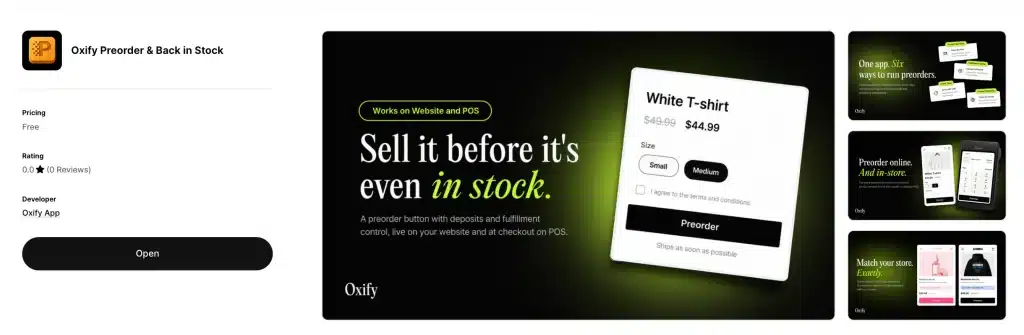
Who should skip it: choose another app if you want an established review history. The six apps in the table above have 1,305 to 3,897 reviews, while Oxify Preorder & Back in Stock launched on July 8, 2026 and has none yet. Choose another if you need SMS or push restock alerts (our listing describes email alerts), or if you want a listing that says outright it can charge nothing at checkout and everything on fulfillment (Timesact's does). More on the app is on our Shopify preorder app page.
Common preorder mistakes to avoid
Even with the right tool, these slip-ups cost sales. Skip them:
- Not labeling the button. Change "Add to Cart" to "Preorder Now" and show a badge, so buyers know what they are getting and you get fewer refund requests.
- No shipping date, or going quiet on delays. Even a rough date builds trust: "Ships before December" beats "ships when ready." If production slips, email early with a revised date and the customer's right to cancel or get a refund, as Shopify's rules above require.
- Skipping a test order. Wallets, Klarna and "Buy X get Y" discounts do not work on a preorder, so test with a regular card and set expectations at checkout.
FAQ
Does Shopify have native preorder functionality, or do I need an app?
Which Shopify apps let me take preorders and charge the card only once inventory is available?
Can I use manual payment capture instead of a preorder app?
Can customers pay later on a Shopify preorder?
What is the cheapest way to add preorders to Shopify?
Which Shopify plan supports capturing payment for preorders?
Why can't customers use Shop Pay or Apple Pay for preorders?
Can I offer limited-quantity preorders that stop at a cap?
Does Shopify POS support preorders?
Can a customer buy a preorder and an in-stock item in the same order?
Related reading: best back in stock and preorder apps for Shopify and best Shopify subscription apps (a subscription product cannot also be a preorder).