 Oxify App
How to Create Buy More Save More Offers on Shopify
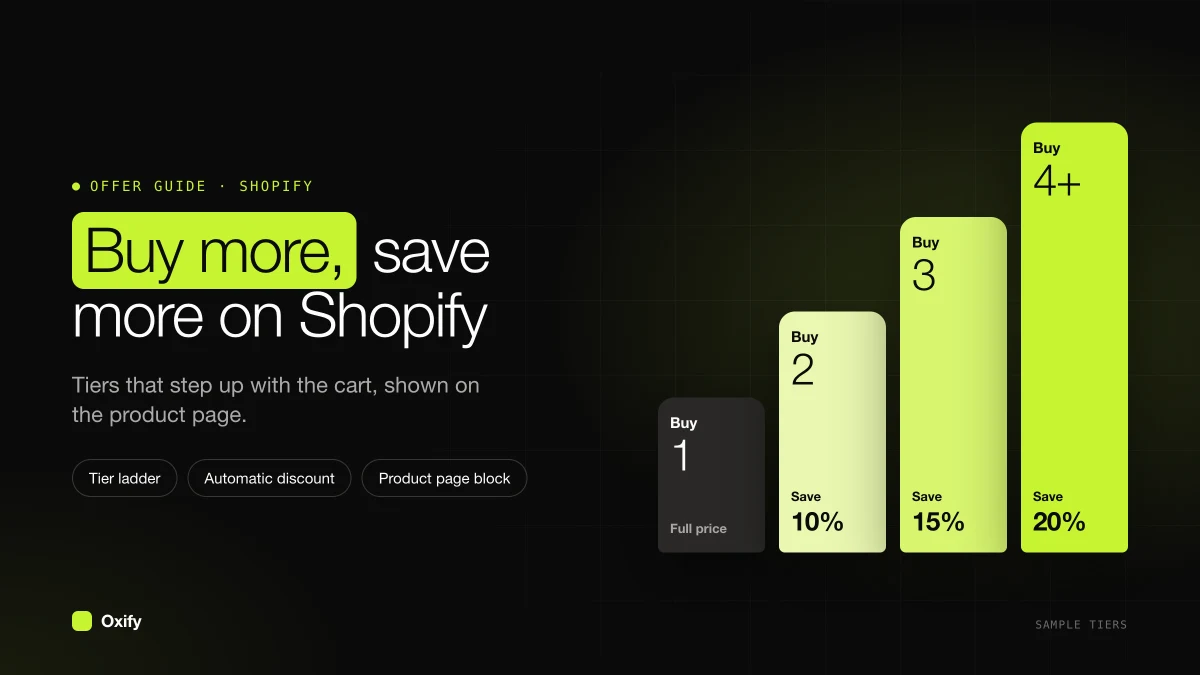
Short answer: To create a buy more save more Shopify offer, put a pack list on the product page where each bigger pack costs less per item. In Oxify Bundles & Quantity Break, start from the Quantity Breaks template. Its block title is already BUY MORE, SAVE MORE, with 1 pack at full price, 2 pack at 10% off, and 3 pack at 15% off. Shoppers tap a pack. Checkout applies Oxify Bundle Discount. The product price in your admin does not change.
You can also build the same ladder with automatic discounts and no app. Those show up in the cart, not as packs on the page. The steps for both are below.
Key facts (checked 16 November 2026)
- The template starts with three tiers: 1 pack at full price, 2 pack at 10% off, 3 pack at 15% off, and the block title BUY MORE, SAVE MORE (Choose a template).
- You can drop prices into the row text with variables such as
{{saved_percentage}}and{{new_price_per_item}}, so a later edit does not leave old numbers on the page (Text variables). - Shopify's own discounts do not draw this block. A minimum-quantity discount shows up in the cart (Shopify Help: Discount types).
- "Spend $75, save 10%" is a different offer. That one watches the cart total, not the unit count. See tiered cart rewards.
On this page
- Four offers that share this headline
- The promise you have to keep
- Create it in Oxify
- Create it with Shopify discounts
- Words that do the selling
- Which pack to highlight
- Offers people confuse with this one
- Running it during Black Friday
- Check the promise in checkout
- FAQ
Four offers that share this headline
"Buy more, save more" is the line on the page. It is not one button in Shopify. Pick what "more" means before you open the editor.
| What "more" means | Example | Where to build it in Oxify |
|---|---|---|
| More of the same product | 1 pack, 2 at 10% off, 3 at 15% off | Quantity Breaks template |
| More units, plus a gift | 3 packs at 15% off, plus a travel tin | Same template, gift on that tier (Free gifts) |
| A mix of products | Any 3 soaps, 15% off | Bundle Builder box sizes (Box sizes) |
| Free units | Buy 2, get 1 free | Buy X, Get Y Free template (Buy X, get Y free) |
Coffee, cleanser, and socks belong in the first row. A scent assortment belongs in the third. Buy 2 get 1 free is one step, not a ladder that keeps getting cheaper.
A cart-total deal, such as "spend $75, save 10%", uses the cart, not this block. That setup is in tiered cart rewards. Oxify's cart drawer has its own volume-discount tiers, separate from the product-page packs: volume discounts in the cart drawer.
The promise you have to keep
Buy more, save more means three things at once.
- The shopper can see the steps before they add to cart.
- A bigger quantity costs less per item.
- The order still makes you more money than a single unit, after product cost.
Here is a $20 candle with a $8 cost. Profit on one candle is $12.
| Pack | Deal | They pay | Per candle | Your profit |
|---|---|---|---|---|
| 1 | Full price | $20 | $20.00 | $12 |
| 2 | 10% off each | $36 | $18.00 | $20 |
| 3 | 15% off each | $51 | $17.00 | $27 |
Per candle, the price falls: $20, then $18, then $17. Your profit on the order rises: $12, then $20, then $27. That is a real buy more save more offer.
Now add the cost most guides leave out: shipping and packing. Say each order costs you $6 to pick, pack, and ship, whatever the size. One candle now leaves $6. The 3-pack leaves $21. Bigger packs spread that $6 across more units, which is often where the real profit of this offer comes from. If your shipping cost rises with every unit, use your real number per order instead.
Change the 3-pack to 40% off and the order brings in $36. Cost is $24. Profit is $12, the same as selling one candle, with three times the goods gone. The heading would be a lie about the saving being good for both of you.
The longer comparison against a sitewide sale is in quantity breaks vs regular discounts.
Create it in Oxify
- Install Oxify Bundles & Quantity Break.
- Turn on the app embed named Oxify: Product Bundle. Save the theme.
- Click Add new deal, then Create Bundle on the Quantity Breaks card.
- Leave the block title as BUY MORE, SAVE MORE, or write a plainer line such as "Pick a pack and save". The Name field is private.
- On the Offers tab, set your quantities and discount types. The picture steps are in Create your first quantity break.
- Click Save. A new deal goes live on that save unless you click Unpublish first.
Start on one product. All products is how a candle deal ends up on a gift card.
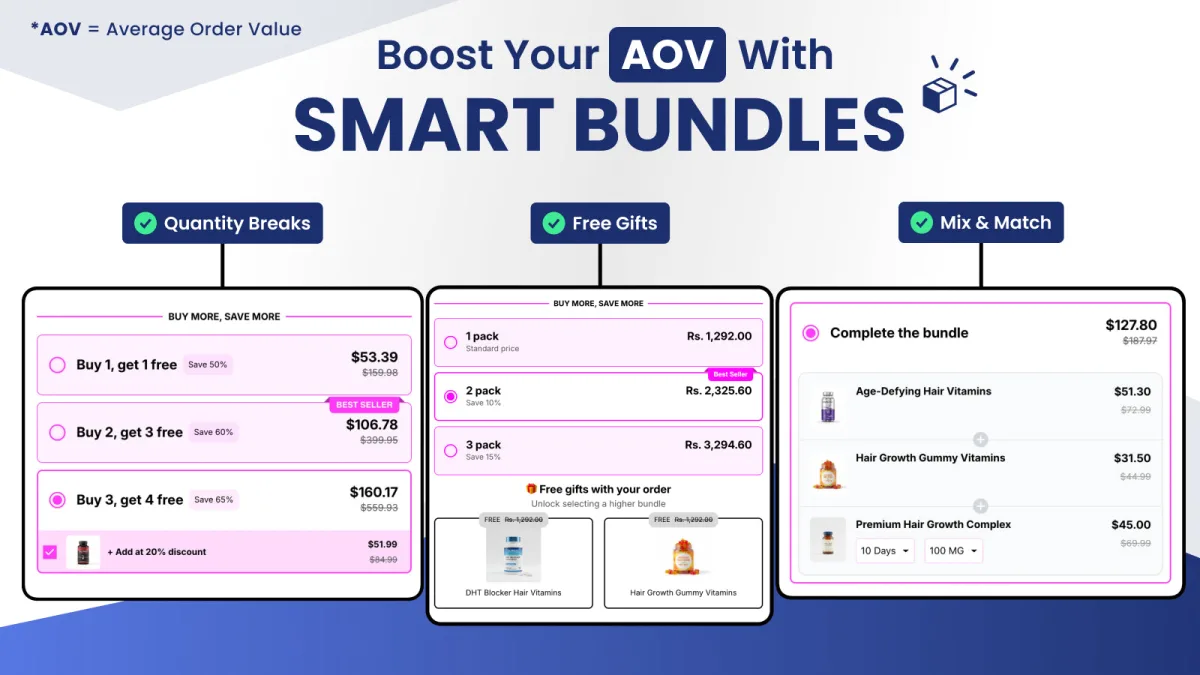
Create it with Shopify discounts
This version has no pack list. The saving appears after the quantity is in the cart.
- Go to Discounts → Create discount → Amount off products.
- Choose Automatic discount. Title it "Buy 2, save 10%". Shoppers can see that title.
- Set 10% off, apply it to the product, and set Minimum quantity of items to 2.
- Leave Product discounts unticked under Combinations, so the next tier replaces this one instead of stacking. Save.
- Make a second discount for 3 units at 15% off, on the same products.
At 3 units, both discounts qualify. Shopify applies the best one when they cannot combine (Combining discounts). Only the items the discount applies to count toward the minimum, and they count together. Full clicks, including the 25-discount cap, are in how to add quantity breaks to Shopify.
One cheap fix if you go this way: write the ladder in the product description, such as "Buy 2, save 10%. Buy 3, save 15%." Native discounts stay hidden until the cart, so without that line most shoppers never learn the deal exists. Update the text whenever you change a discount.
Words that do the selling
Shoppers skim. Give each row a job, and let the app fill the numbers.
| Field | Type this | Shopper sees, on a 20% tier |
|---|---|---|
| Block title | BUY MORE, SAVE MORE | The heading above the packs |
| Title | 2 Pack | 2 Pack |
| Subtitle | Save {{saved_percentage}} | Save 20% |
| Label | {{new_price_per_item}} each | $16.00 each, if the item was $20 |
| Badge text | Best Value, on one row only | A small flag on that row |
Hard-coding "Save 20%" breaks the day you change the discount to 15%. The variable stays honest. Click the </> icon in the text field to insert one, or type it with the double curly braces.
Badge one row. Badges only show in the horizontal layout, which the template already uses. The badge style named Most Popular always prints the words "Most Popular" and will not use your badge text. Use the Simple style when you want "Best Value" or "Most picked".
Say the quantity in the title when it helps: "2-month supply" on vitamins, "Set of 3" on candles. The discount line can stay in the subtitle.
Keep the 1-pack price honest. The US Federal Trade Commission's guide on former prices says a crossed-out price should be a real price you offered the public, on a regular basis, for a real stretch of time (16 CFR 233.1). Do not raise the single price for a week so the 3-pack looks like a bigger save. That is general information, not legal advice.
Which pack to highlight
Tick Selected by default on the pack you want the page to open on. Only one row can have that tick.
For most stores that is the middle pack. The single shows the normal price, so the save is obvious. The biggest pack makes the middle one feel reasonable. If you highlight the single, you are asking people to talk themselves into spending more. If you highlight the biggest pack and few people can use that many, the page feels pushy and they buy nothing.
Look at your orders before you pick. If 3 out of 4 orders are already a single unit, highlight the 2-pack. The count is covered in how quantity discounts raise units per order.
Offers people confuse with this one
| Offer | What the shopper does | Where to build it |
|---|---|---|
| Buy more, save more | Buys more of the same product | Quantity Breaks template |
| Buy 2, get 1 free | Hits one deal, not a ladder | Buy X, Get Y Free template. The free units are 100% off inside each complete set (Buy X, get Y free). |
| Spend $75, save 10% | Adds anything until the cart total hits a number | An order discount, or cart rewards |
| Mix a box | Picks different products to fill a size | Bundle Builder, with the other embed on. Build-a-box guide |
Running it during Black Friday
Black Friday is 27 November 2026 and Cyber Monday is 30 November. Most stores run a sale at the same time. Here is how the two meet at checkout on a store that is not on Shopify Plus.
| Other deal running | What happens to the pack price | What to do |
|---|---|---|
| Sitewide 20% off products (automatic) | Both are product discounts on the same line. Shopify keeps the best one, so a 10% 2-pack loses to the 20% sale. | Make the pack deeper than the sale, or keep the sale off those products. |
| "Spend $100, save $15" (order discount) | Can apply on top, if both discounts allow combining. | Run the profit math with both cuts. |
| Free shipping code | Still works with an Oxify pack, even with combinations turned off. | Usually safe to allow. |
| Email code, 15% off | Depends on your combination settings. | Decide before the email goes out, not after. |
Sources: Shopify Help: Combining discounts and Oxify's Discount not applying at checkout.
- Set it up before the rush. Publish the deal a few days early and place a test order, so checkout is proven before traffic spikes.
- Raise the deal, keep the shape. For the sale week, 15% and 25% instead of 10% and 15% is a simple change. Your text variables update the words for you.
- Put the end date on the page. Oxify's Timer Bar card can show a countdown above the packs. Only use a real deadline.
- Set the prices back after Cyber Monday. Native discounts have end dates. In Oxify, edit the tiers or unpublish the deal.
More Black Friday setups are in the Black Friday bundle playbook.
A code on top of this offer is a second cut. Read how Shopify stacks discounts before you let a welcome code combine with the pack price. Stacking rules are in the app under App settings.
Check the promise in checkout
- Open the product. The heading and three packs should be on the page. The theme quantity box is hidden on themes the app knows.
- Add the middle pack. The cart should contain that many units.
- The cart may show full price for a moment. Open checkout. The discount name is Oxify Bundle Discount, and the total should match the pack you tapped.
- Drop the quantity in the cart. You should fall to the smaller pack's price, or to full price if you are under every deal.
If the block is missing, the usual cause is the embed. Home should show On for Oxify: Product Bundle on the published theme. A new theme needs that switch again. See Offer not showing.
Put the heading on one product today
Install Oxify Bundles & Quantity Break and publish the Quantity Breaks template on your best repeat product. Change the percents only after the per-item price falls and the profit on the bigger pack is higher than the profit on one unit. Then place a test order.