 Oxify App
How to Create Mix and Match Bundles on Shopify
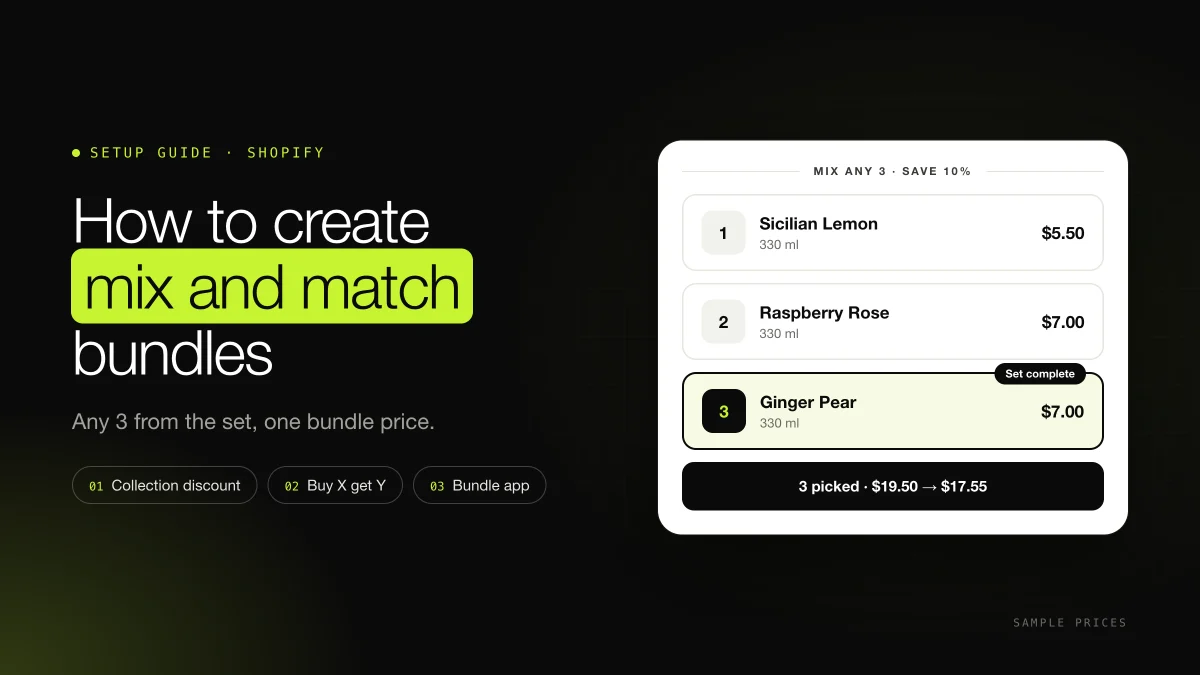
Short answer: Shopify mix and match bundles let shoppers pick any items from a set you choose and pay one bundle price, like "any 3 for 10% off." Shopify's free Bundles app can't do this. You have three ways in: an automatic discount on a collection (free), a Buy X get Y discount for "buy 3, get 1 free" (free), or a bundle app that gives shoppers a picker. Shopify Plus stores can also have a developer build one with Shopify's Bundles APIs.
This guide walks through all three, with the exact admin steps, the pricing math and a launch test. The prices in the examples are samples so you can check the arithmetic. They are not figures from a live store.
Key facts (checked 17 November 2026)
- Shopify Bundles can't do it: "The Shopify Bundles app doesn't support mix-and-match bundles." For mix-and-match, Shopify points you to third-party bundle apps, or to its Bundles APIs on Plus (Shopify Help: Eligibility and considerations for bundles).
- Native discounts can price it: an automatic Amount off products discount on a collection, with a minimum quantity of items. Only products in the selected collection count toward the minimum (Shopify Help: Amount off discounts).
- Buy X get Y never adds the free item: customers must add every item to the cart themselves (Shopify Help: Buy X get Y).
- Bundle products have rules: no shipping profile of their own, and the component with the lowest stock sets how many bundles you can sell. More in stock, shipping and subscriptions.
- Automatic discounts are capped: "You can have a maximum of 25 active automatic discounts," including app-based ones (Shopify Help: Automatic discounts).
- A picker page needs an app or code. No native setting shows shoppers a "pick 3" grid with a counter.
On this page
- What a mix and match bundle is
- Which method fits your deal
- When mix and match isn't the right deal
- Before you start: pick the pool
- Method 1: An automatic discount on a collection
- Method 2: Buy X get Y for "buy 3, get 1 free"
- Method 3: A bundle app
- How to price a mix and match bundle
- Stock, variants, shipping and subscriptions
- Discount codes and stacking
- Where to show the deal and how to measure it
- Test before you launch
- Troubleshooting
- FAQ
What Shopify mix and match bundles are
A mix and match bundle is a deal on a group of interchangeable products. You decide which products qualify and how many make a set. The shopper decides which ones go in. "Any 3 candles for $45," "mix any 6 cans, save 10%" and "pick 2 tops, get 15% off" are all mix and match.
Shopify's help center names three bundle types. It helps to know which one you're building, because each takes a different tool:
| Type | Who picks the items | Example | Shopify's free Bundles app? |
|---|---|---|---|
| Fixed | You. Shoppers can only pick a variant. | A skincare starter kit | Yes |
| Multipack | You. It's more of one product. | A 3-pack of socks | Yes |
| Mix-and-match | The shopper, from products you choose | Any 3 sauces for $25 | No |
A build-a-box is a mix and match bundle with its own page: shoppers fill a box with a counter or slots, then add the whole box at once. Our build-your-own-box tutorial covers that shape, including the packaging side. This guide is about the deal itself: how to make "any N from this set" work on Shopify, with or without a box page.
Not sure whether you need a simple mix and match deal or a full builder page? Our comparison of bundle builder vs mix and match helps you choose.
Why bother? Mix and match lifts order value without forcing anyone to take an item they don't want.
Which mix and match method should you use?
| Method | What shoppers see | Best for | The catch |
|---|---|---|---|
| 1. Collection discount | A normal collection page. The saving appears in the cart. | A quick test, items at one price | No picker, no counter, no maximum |
| 2. Buy X get Y | A normal collection page. One item turns free in the cart. | "Buy 3, get 1 free" deals | Shoppers must add the free item themselves |
| 3a. App: set on the product page | A set of rows under the product, with swap buttons | Routines and pairs, like shampoo + conditioner + mask | The page's own product is always in the set |
| 3b. App: pick-any page | A grid, box sizes and a live counter | Variety packs, cases, gift boxes | An app to install and a page to promote |
Rule of thumb: if you only need the price to work, start with method 1. If shoppers need to see the deal while they pick, use an app.
When mix and match isn't the right deal
- One hero product. If people mostly buy more of the same item, a quantity break is simpler.
- A set that only works together. A starter kit or a matched pair is a fixed bundle. Letting shoppers swap items breaks it.
- Prices far apart. A $5 item and a $50 item in one "any 3" pool make any flat price unfair. Use a percentage or split the pool.
- Thin stock. If several items in the pool are often sold out, the deal feels broken. Fix supply first.
Before you start: pick the pool
Every method needs the same thing first: a clear list of products that qualify. Get this right and the rest is easy.
- Make one collection just for the deal. Call it something like "Mix & match picks." Use a manual collection, so a new product doesn't slip in by tag and change your margins.
- Keep prices close if you plan a flat price. "Any 6 for $36" works when items cost about the same. If one costs $5.50 and another $8.00, use a percentage instead. The pricing section shows why.
- Keep sizes and weights close. Shipping comes from the items, so one heavy pick can change your costs.
- Use products you can restock. A sold-out favorite makes the whole offer feel thin.
- Turn on inventory tracking for every product in the pool.
- Decide on variants now. Should every scent or size count? With a collection discount, every variant of a qualifying product counts.
- Decide whether repeats count. Can a shopper take three of the same flavor? Oxify's builder counts every item, so one product added three times fills three places, and its product-page set accepts repeats. Shopify's help page only says the native minimum is "a minimum number of products," so test three of one item before you promise it.
Ten to twenty products is a comfortable pool for most stores. That's a judgment call, not a Shopify rule. Fewer than six, and a fixed bundle may serve you better. Many dozens, and shoppers scroll more than they pick.
Method 1: An automatic discount on a collection (free, every plan)
This is the fastest way to price a mix and match deal. Shoppers add items from your collection. Once the cart holds enough of them, Shopify takes the saving off. No app, no code.
Step by step: "Mix any 3, save 10%"
- In your admin, go to Products → Collections and create your "Mix & match picks" collection.
- Go to Discounts and click Create discount. Choose Amount off products.
- Under Method, pick Automatic discount. Give it a title shoppers will read in the cart, like "Mix any 3, save 10%."
- Under Value, choose Percentage and enter 10.
- Under Applies to, choose Specific collections and add your collection.
- Under Minimum purchase requirements, choose Minimum quantity of items and enter 3.
- Check Combinations. Decide now whether a product code or a shipping discount can stack with this deal.
- Set the start date and click Save.
That's it. Shopify's help page says that when a discount applies to a specific collection, only those items count toward the minimum quantity. So two collection items plus an unrelated T-shirt don't trigger the deal. Three collection items do, in any mix.
The flat-price version: "Any 6 for $36"
Shopify has no "set price" for a group of items, but you can get one when every item costs the same. If each can is $7, six cans are $42, and a Fixed amount of $6 off with a minimum of 6 items gives "any 6 for $36."
One setting matters here: tick Only apply discount once per order. Shopify's help page says that otherwise the discount applies to all eligible products in the order, so $6 would come off every can, not once off the set.
If your prices differ, a flat price drifts. The cheap picks get a big saving in percentage terms and the pricey ones a small one. A percentage is more honest for mixed prices.
A saving ladder: 3 save 10%, 6 save 15%
Make one automatic discount per rung, each with a higher minimum quantity. Outside Shopify Plus, when several product discounts could apply to the same item, Shopify gives the customer the best one. That is what makes a ladder work. Our guide to tiered pricing on Shopify walks through ladders in more detail.
What this method can't do
- No picker. Shoppers add items one by one from a normal collection or product page.
- No counter. Nothing says "add 1 more to save." Put the deal in the collection description, a banner or the product titles yourself.
- No maximum. A percentage discount keeps applying past 3 items. With a fixed amount and "once per order," 12 items get the same $6 off as 6.
- The saving shows late. Shoppers may only see it in the cart or at checkout.
- Every variant counts. You can't say "only the 330 ml size" unless the sizes are separate products.
- Ladders use up your quota. Each rung is its own automatic discount, and Shopify allows a maximum of 25 active ones, app-based discounts included.
For a small catalog, a quick test or a store where items cost the same, this is enough. You can start here and add an app once you know the deal sells.
Method 2: Buy X get Y for "buy 3, get 1 free"
When the deal is "buy some, get one free," use Shopify's Buy X get Y discount. Point both sides at the same collection and shoppers can mix freely.
- Go to Discounts → Create discount → Buy X get Y.
- Pick Automatic discount and add a title, like "Mix any 4, 1 is free."
- Under Customer buys, choose Minimum quantity of items, enter 3, and pick Specific collections with your collection.
- Under Customer gets, enter a quantity of 1 from the same collection, and set the discounted value to Free.
- Optional: tick Set a maximum number of uses per order if you want one free item per order, not one per set of four.
- Save, then test with 3 items and with 4.
Two things trip people up:
- The free item is never added for them. Shopify's help page says customers must add all items, including the free one, to the cart manually. So the shopper needs four items in the cart for "buy 3, get 1." Say so plainly: "Add 4, pay for 3."
- Know which item ends up free. When items have different prices, the free item's value changes the real discount. Add your cheapest and priciest items in a test cart and check which one Shopify marks free before you write the banner.
For apps that run BOGO offers on the product page, see our roundup of BOGO apps for Shopify.
Method 3: A bundle app
Native discounts price the deal. An app also sells it: shoppers see the set, the saving and how many more items they need, while they pick. Apps tend to build mix and match in one of two shapes.
The examples below use Oxify Bundles & Quantity Break, because its docs spell out how each setting behaves. Oxify makes this app, so weigh the recommendation with that in mind. On 17 November 2026 its App Store listing showed a Free plan, a 4.9 rating from 13 reviews and the Built for Shopify badge. In your admin it shows up as Oxify - Product Bundles.
Shape A: a set on the product page, with swaps
This shape sells "the product you're looking at, plus these," with one discount on the set. It suits routines and pairs: a shampoo, a conditioner and a mask, or a lip liner and a gloss. Let shoppers swap any row for another product you approve, and it becomes mix and match.
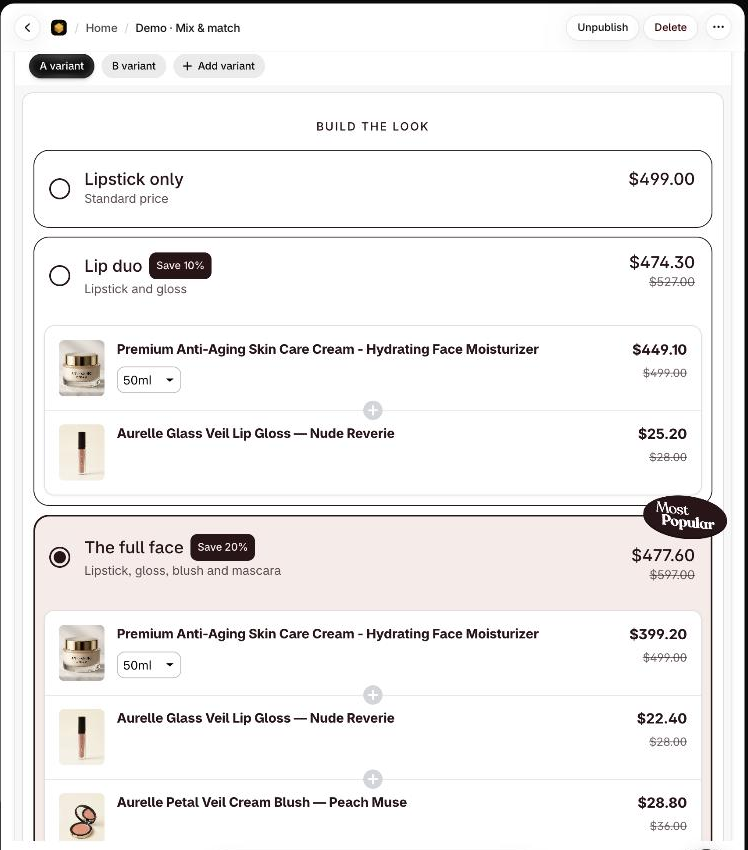
Here is the recipe from Oxify's Mix & Match docs for "pick any 3 of 5 flavors, save 30%":
- On the app's Home page, click Add new deal. On Choose a Bundle Template, click Create Bundle on the Mix & Match card. (To add a set next to existing quantity breaks, open that bundle and use Offers → Add Offer → Mix & Match instead.)
- On the Bundle Settings tab, set Visibility to Specific selected products and pick the five flavors.
- On the Offers tab, open the Mix & Match offer. Title it "Pick any 3, save 30%." Set Discount Type to Discounted % and enter 30.
- Click Add product twice. In Product #2 and Product #3, select any flavor, tick Customers can change this product, click Select products and tick all five.
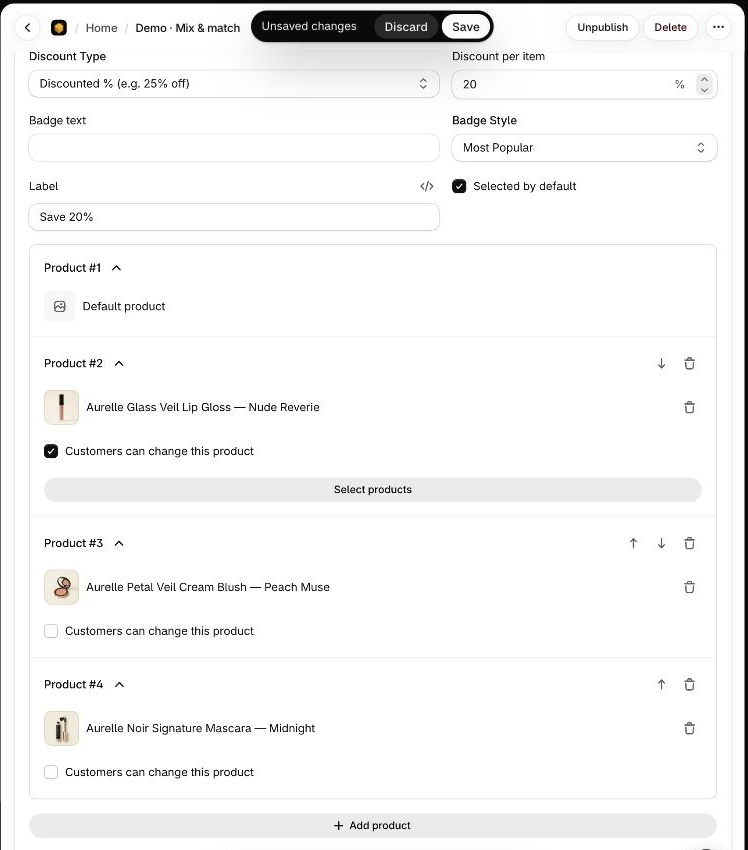
Tick "Customers can change this product" to let shoppers swap a row. Screenshot from Oxify's documentation. - Click Save. Check that the button at the top right says Unpublish, which means the deal is set to go live.
- Open a flavor's product page, add the set to the cart and go through checkout. The total should be 30% lower.
A shopper on flavor A's page gets A in the first row. That row can't change, because Product #1 is always the page's own product. The other two rows can switch to any of the five, and checkout accepts any three, repeats included.
Read the discount types carefully. In this offer they work per product, because each row is one unit:
| Discount type | What each product gets | Watch out for |
|---|---|---|
| Discounted % | That percentage off | Nothing. The safest choice for mixed prices. |
| Amount Off | That amount off each product | $5 off a set of three takes $15 off. Keep it below your cheapest product's price. |
| Fixed Price | Each product's price drops to that amount, if it costs more | $20 on a set of three caps each item at $20. The set can cost up to $60, not $20. |
Two more rules from the docs: checkout only discounts the set when every product in it is in the cart, and the offer doesn't check whether your products are active and in stock. That part is on you.
Shape B: a pick-any page with box sizes
This is the classic mix and match page: a product grid, category tabs, box sizes with their savings, and a sidebar that counts the picks. In Oxify it's the Bundle Builder, a separate menu item in the same app.
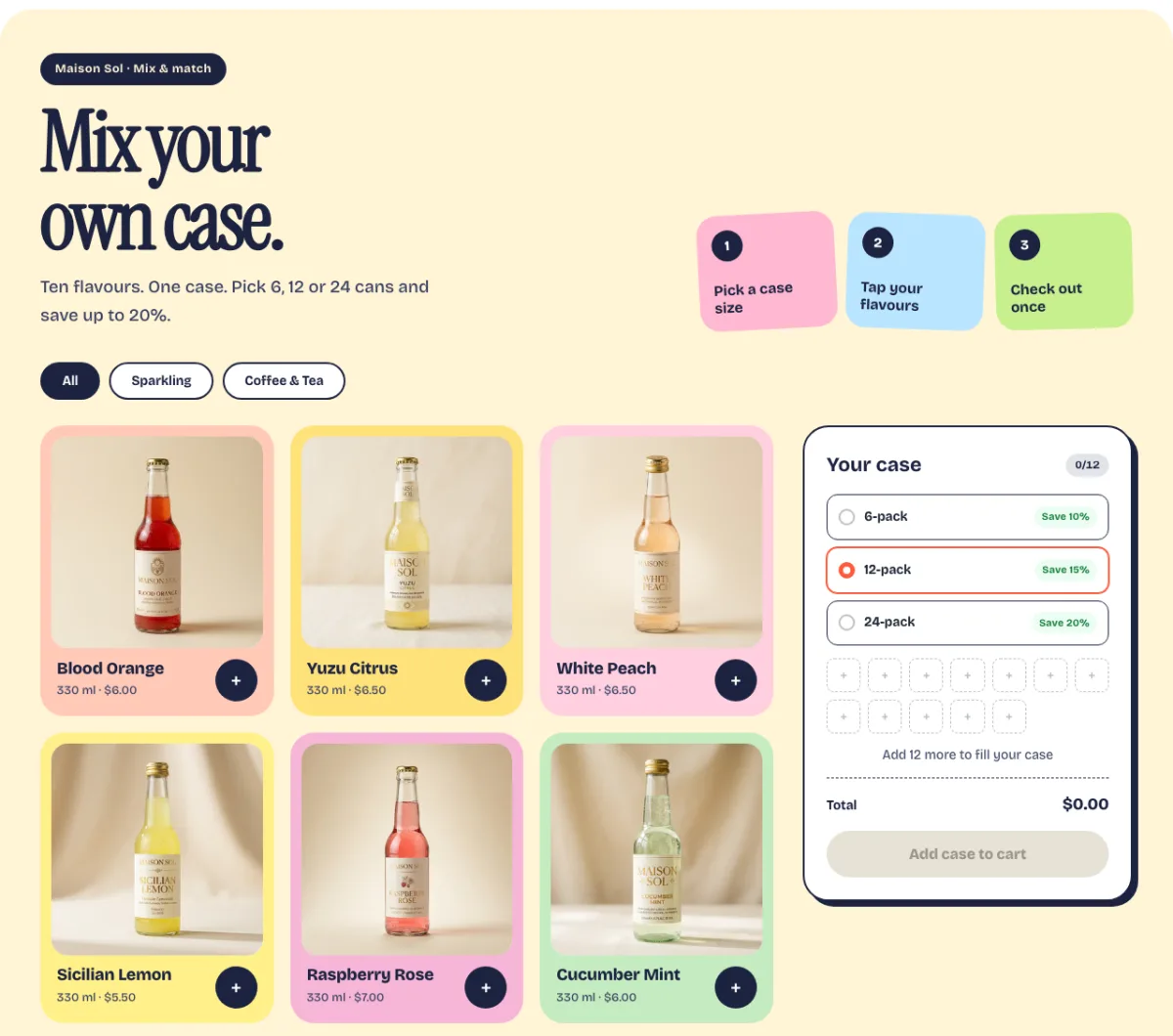
The short version of the setup:
- In the theme editor, go to App embeds and switch on Oxify: Bundle Builder. Without it, nothing renders.
- In the app, click Bundle Builder → Create Bundle Builder. Set the Bundle Name shoppers see in the cart, like "Mix Your Own Case."
- On the Products tab, under Quantity as an option, add your box sizes: 6-pack at 10% off, 12-pack at 15% off, 24-pack at 20% off.
- Click Add Category for each group (Sparkling, Coffee & Tea) and use + Add Products to fill it. You can tick single variants in the picker.
- Click Save. A new builder is set to publish, and with the default New page setting the app creates an Online Store page for it. Use Add to menu so shoppers can find it.
Our full bundle builder tutorial covers every setting, from selection rules to the six sidebar layouts.
How the box price behaves, per Oxify's discount docs:
- % Off takes the percentage off the items' current total. A product already on sale counts at its sale price.
- Fixed Price is the price of the whole box, not each item. It only ever lowers the total: if the picks cost less than your fixed price, the shopper pays the normal price.
- Add to Cart waits for a full box. When the box is full and the shopper adds one more, the builder moves up to the next size.
- One cart line by default. The box arrives as a single line with your bundle name and the discounted price. Shopify expands it back into the real products on the order.
Other apps
Plenty of apps do one shape or both. Five alternatives, with each App Store listing's plans on 17 November 2026:
| Mix and match app | Rating (reviews) | Pricing model | Entry price |
|---|---|---|---|
| Easy Bundles: Bundle Builder | 4.9 (1,557) | By bundle sales | Free up to $500 a month in bundle sales (not on Plus or Advanced), then $29 |
| BundleSuite Bundle Builder | 5.0 (558) | By bundle sales | Free until you go live, then $12 up to $1,000 in bundle sales |
| MBC Mix and Match Bundles App | 4.9 (392) | By store orders | Free up to 10 store orders, then $15.99 up to 250 |
| Mix and Match Bundle Builder (Mageworx) | 4.9 (135) | Flat | $14.99 (free on development stores only) |
| Bundly • Mix & Match Bundles | 4.9 (67) | Flat | $29, unlimited orders |
All five showed the Built for Shopify badge. For full reviews, see our roundup of the best mix and match bundle apps or the wider list of bundle builder apps. Before you install anything, ask three questions: does the plan you'll pay for include mix and match, does it merge the set into one cart line or discount separate lines, and how does it handle subscriptions?
How to price a mix and match bundle
The deal shape matters as much as the discount. Here is the same 6-can case priced three ways. The flavors and prices come from Oxify's demo store, where cans run $5.50 to $8.00. Treat it as a sample.
- Cheapest case: 6 × Sicilian Lemon at $5.50 = $33.00
- Mixed case: Blood Orange $6.00, Yuzu Citrus $6.50, Sicilian Lemon $5.50, Raspberry Rose $7.00, Ginger Pear $7.00, Matcha Oat Latte $8.00 = $40.00
- Priciest case: 6 × Matcha Oat Latte at $8.00 = $48.00
| Case | Normal price | 10% off | "Any 6 for $36" |
|---|---|---|---|
| Cheapest | $33.00 | $29.70 (saves $3.30) | $33.00 (saves $0) |
| Mixed | $40.00 | $36.00 (saves $4.00) | $36.00 (saves $4.00) |
| Priciest | $48.00 | $43.20 (saves $4.80) | $36.00 (saves $12.00) |
The fixed-price column uses Oxify Bundle Builder's rule that a fixed price never raises the total, so the cheapest case pays normal price. With a native fixed amount, the math works differently, so run your own numbers.
What the table shows:
- A percentage scales with the picks. Every shopper saves 10%. Your margin per can stays the same share whatever they choose.
- A flat price rewards the priciest picks. The Matcha fan gets 25% off. The lemon fan gets nothing and may wonder why the deal exists. Shoppers who do the math will fill the box with your most expensive items.
- A flat price is easier to read. "Any 6 for $36" fits on a banner. That's its real advantage, so use it when prices are close.
What about "one free can"? With "buy 5, get 1 free" on the mixed case, the saving depends on which can is free: $5.50 if it's the lemon, $8.00 if it's the matcha. That's 14% to 20% off $40, more than the 10% deal. Free items look generous, so check the margin on your priciest item before you promise one.
A few pricing rules that hold up:
- Make the set bigger than your usual basket. If most orders already hold 3 items, "any 3" gives away a discount for nothing. Look at your last 100 orders first.
- Keep a ladder short. Two or three sizes. The demo case uses 6, 12 and 24 at 10%, 15% and 20%. Make the biggest size clearly the best value per item.
- Price for profit, not just order value. Our bundle pricing guide walks through margin floors, and the free bundle calculator runs your own costs.
Want the box size to be a minimum instead of a hard limit? Oxify's builder has a setting for that.
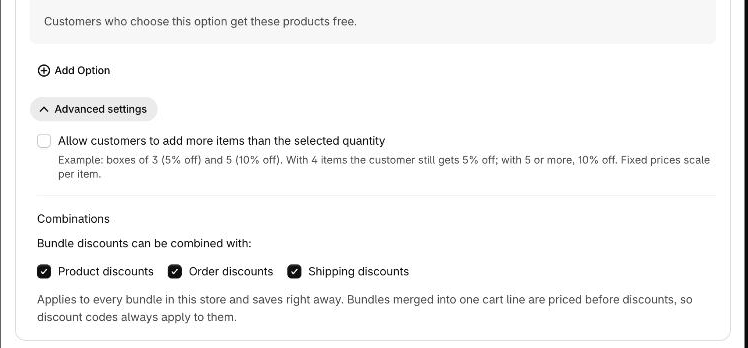
With Allow customers to add more items than the selected quantity ticked, a shopper with 7 items in a 6-and-12 ladder keeps the 6-pack saving and can keep adding. A fixed price then grows at the box's per-item rate: per Oxify's docs, a box of 5 for $50 becomes $60 for 6 items and $70 for 7. It suits "the more you add, the more you save" pages. It doesn't suit a physical box with a fixed number of slots.
Stock, variants, shipping and subscriptions
How your method builds the deal changes how the rest of Shopify treats it. There are two families.
Discounts on normal cart lines (methods 1 and 2, and apps that discount separate lines). Each item stays its own line. Stock counts down on each product as usual. Shipping, returns and subscriptions work as they do for any product.
Merged bundle lines (apps that use Shopify's bundle features to show the set as one line). Shopify's bundle rules apply:
- Stock: the component with the lowest stock sets how many bundles can be sold. Untracked items and "continue selling when out of stock" items are left out of that count.
- Shipping: a bundle has no shipping profile of its own. Rates come from the items inside.
- Purchase options: bundles aren't compatible with subscriptions, pre-orders, try-before-you-buy or the Shopify Subscriptions app.
- Checkout: your store needs the upgraded checkout. Stores with checkout.liquid customizations can't sell bundles.
- Returns and exchanges: a bundle can't be marked final sale and can't be used in exchanges.
This is why Oxify's builder only shows its Subscribe & Save checkbox when the bundle uses individual lines: Shopify can't merge cart lines that carry a subscription plan.
On variants: with a collection discount, every variant of a qualifying product counts. Oxify's builder lets you tick single variants in the product picker, and its product-page set lets shoppers choose variants in each row. If a product is partly sold out, the builder keeps it on the page: shoppers can still pick its other variants, and picking a sold-out one shows your out-of-stock label and switches off the add button.
Do mix and match bundles work with discount codes?
Decide whether your mix and match deal stacks with codes before you send a single email. Shopify only combines two discounts when each one allows the other's type. Outside Plus, a single cart line gets at most one product discount, and the best one wins.
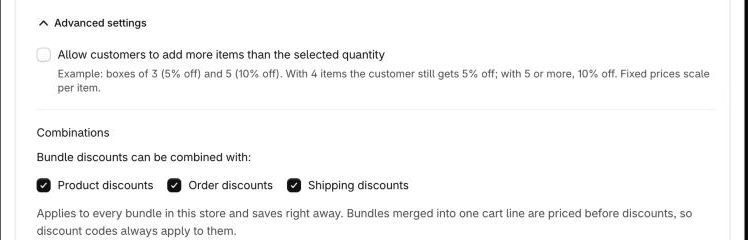
- Native discounts: set it in each discount's Combinations section.
- Oxify: the Combinations boxes for product, order and shipping discounts are all ticked by default. They are store-wide, so they cover every bundle and quantity break in the store. Untick a type and checkout refuses a code of that type while a bundle discount applies.
- One wrinkle: Oxify's merged bundle line is priced before discounts, so a discount code still applies to it whatever you tick. If a sitewide 20% code would sink the margin on a 20% box, plan the code's eligibility instead.
Where to show the deal and how to measure it
A deal nobody sees doesn't sell. Pick two or three of these spots:
- Product pages of every item in the pool. A line like "Mix any 3, save 10%" near the price, or the app's set block.
- The collection page. A banner at the top with the deal and how many items it takes.
- Your main menu. A "Mix your own" link to the builder page, if you use one.
- The cart. A nudge such as "Add 1 more to save 10%."
Then measure for two to four weeks before and after, changing one thing at a time:
- Take rate: orders with the deal ÷ all orders.
- Items per order and average order value. Both should rise.
- Revenue per visitor: total sales ÷ visitors. The fairest single judge.
- Profit per order, not just sales. A deal that lifts revenue but gives away margin isn't a win.
Oxify's builder shows Visitors, Orders, Revenue and Conversion rate for each builder, all time, and its Analytics page adds date ranges. Our guide to measuring upsell performance covers the method.
Test before you launch
Do this on a phone, then on a laptop. Most shoppers will see it on a small screen.
- Add one item fewer than the set needs. Check that no saving shows.
- Add the last item. Check the saving in the cart and at checkout.
- Mix your cheapest and priciest items. Check the total against your pricing table.
- Add an item from outside the pool. Check that it doesn't count toward the set.
- Add three of the same item. Check whether repeats count the way you promised.
- Try your most common discount code. Check that it stacks, or doesn't, the way you planned.
- Change a variant. Check the price and the count.
- Remove an item in the cart. Check that the saving drops when the set breaks.
- Go through checkout and check the shipping rate for your main zones.
- Place one test order and look at it in your admin. Can your packers tell which items belong together?
Troubleshooting
| What you see | Likely cause | Fix |
|---|---|---|
| No saving with enough items | An item isn't in the collection, or the minimum is off | Check the collection and the minimum quantity |
| A fixed amount comes off every item | "Only apply discount once per order" is unticked | Tick it and test again |
| "Buy 3, get 1" gives nothing free | Only 3 items in the cart | The shopper must add the 4th. Say "add 4, pay for 3." |
| The app's set doesn't show | The app embed is off, often after a theme change | Switch the embed on in the theme editor |
| The set is discounted on the page but not at checkout | Not every product of the set is in the cart, or settings weren't saved | Save the published offer, then retest with the full set |
| A code and the bundle both apply | Combinations allow it | Change the combinations or the code's eligibility |
| The flat-price box costs normal price | The picks cost less than the fixed price | Expected in Oxify's builder. Lower the fixed price or use a percentage. |
If an app clashes with your theme, see our guide to bundle app and theme compatibility.
Mistakes to skip
- A flat price over mixed prices. It quietly hands the biggest discount to your priciest items.
- A hidden deal. With method 1 or 2, nothing on the page tells shoppers the deal exists unless you write it there.
- Launching in a sale without testing. Run the checklist first. Our buy more, save more guide covers how to word the offer.
- Forgetting the warehouse. A set of six separate lines with nothing linking them is easy to pack wrong.
Ready to let shoppers design the whole set themselves? Our guide on letting customers build their own product bundles covers the choices, rules and page design.
Frequently asked questions
Can you do mix and match bundles on Shopify?
How do I create a mix and match bundle on Shopify without an app?
What is the difference between mix and match and build-a-box?
How should I price a mix and match bundle?
Can I offer "buy any 3, get 1 free" on Shopify?
Do mix and match bundles work with subscriptions?
How does inventory work with mix and match bundles?
Do I need Shopify Plus for mix and match bundles?
What is the best app for mix and match bundles?
Show the deal while shoppers pick
A collection discount prices mix and match. It doesn't sell it. Oxify Bundles & Quantity Break adds both shapes: a set on the product page with swap buttons, and a pick-any Bundle Builder page with box sizes, category tabs and a live counter. The box arrives in the cart as one line, and the saving is applied at checkout with no code. See the product bundles feature page for examples.