 Oxify App
How to Let Customers Build Their Own Product Bundles
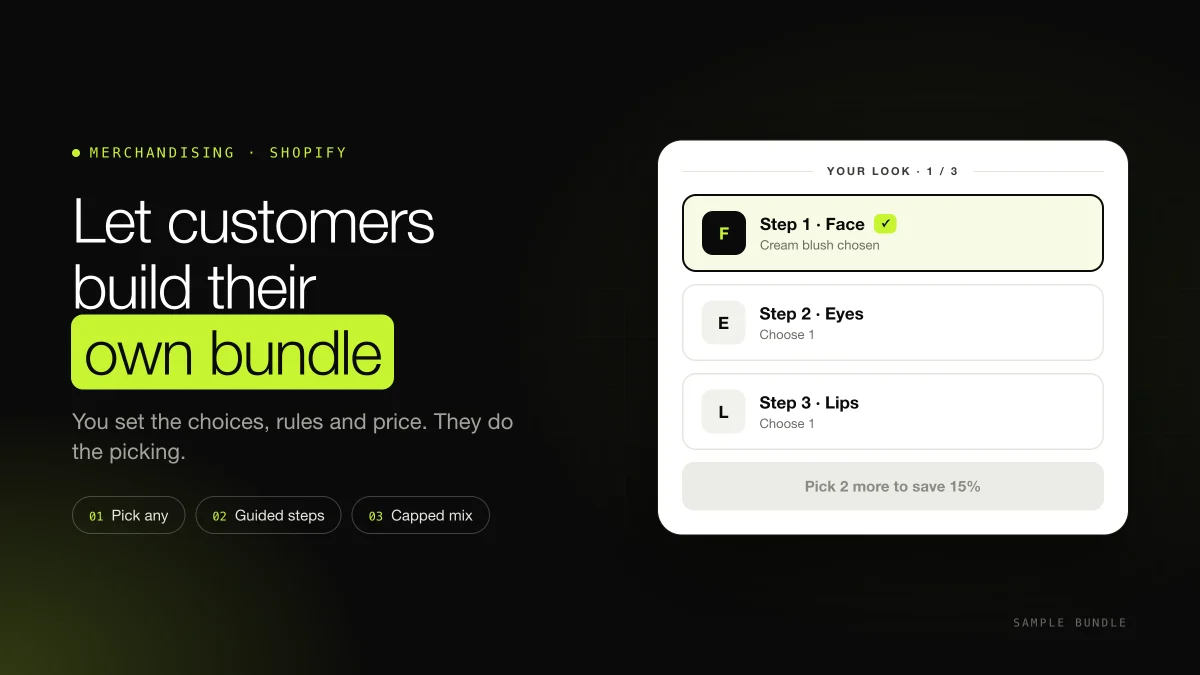
Short answer: To offer a build your own product bundle on Shopify, where customers choose the items, you need a bundle-builder app (or Shopify Plus and a developer), because Shopify's free Bundles app only makes fixed bundles and multipacks. Then make five decisions: which format (pick any, guided steps or a capped mix), how many products to offer, which rules to set, how to price the box, and where shoppers will find it. Get those right and the app setup is the easy part.
This guide covers those decisions, whatever you call it: a Shopify build your own bundle, BYOB or a build-a-box. For the click-by-click setup, see our tutorial on how to create a bundle builder on Shopify. Prices in the examples are samples so you can check the arithmetic.
Key facts (checked 17 November 2026)
- Shopify calls this a mix-and-match bundle: the customer composes it from interchangeable products.
- The box is one item to the shopper but several products to you. On the order, the box's products appear as separate lines, so stock counts down on each item.
- There are three useful formats: pick any, guided steps and a capped mix.
- The famous "too much choice" jam study is real, but a review of 50 experiments found the average effect was close to zero. Structure matters more than a magic number.
On this page
- What a build your own product bundle is
- When it beats a fixed bundle (and when it doesn't)
- The three formats, with examples
- How much choice to give
- Make the box easy to finish
- Set the rules
- Price the box
- What happens in the cart, on the order and in stock
- Subscriptions
- Where to put the builder
- Set it up in 5 steps
- Measure it
- Mistakes to avoid
- FAQ
What a build your own product bundle is
A build-your-own product bundle is a set the shopper puts together. You decide the pool of products, how many items fit and what the set costs. The shopper picks what goes in. You'll also see it called BYOB, build-a-box or mix and match.
Shopify's help center names three bundle types. A fixed bundle is a set list of products. A multipack is more than one of the same product. A mix-and-match bundle is "made of interchangeable products," and "your customer composes the bundle." That last one is the build-your-own bundle.
The same page says the free Shopify Bundles app makes fixed bundles and multipacks, and "doesn't support mix-and-match bundles." For those, it points you to third-party apps in the App Store, or to its Bundles APIs if you're on Shopify Plus (Shopify Help Center, eligibility and considerations for product bundles).
No app? The closest you can get is an automatic Amount off products discount on a collection, with a Minimum quantity of items, such as "any 6 from Snacks, save 10%." It prices the box, but there is no picker page, no counter and no maximum. Our guides to creating mix and match bundles and building your own box on Shopify walk through the settings.
When it beats a fixed bundle (and when it doesn't)
Letting customers choose adds a step and asks the shopper to do some work. It pays off when that work feels like a benefit, not a chore.
| Offer | Works best when | Weak when |
|---|---|---|
| Fixed bundle | One set suits most buyers, like a starter kit | Tastes differ, so buyers swap or skip it |
| Quantity break | Shoppers want more of one product | They want variety across products |
| Frequently bought together | There's one obvious add-on | You want a bigger basket of many items |
| Build your own bundle | Many similar items, and people have favorites | Few products, or products that don't belong together |
Three signs a build-your-own bundle fits your store:
- You sell a range of similar items. Flavors, scents, shades, bars, cans or samples.
- People already buy two or three of them. Look at your last 100 orders. If several mix items from the same range, a box gives that habit a home.
- Choice is part of the fun. Gift boxes and "make your own set" offers sell the picking as much as the products.
If your range is small, or most orders hold one item that people buy in bulk, start with a quantity break instead. Our guide to frequently bought together vs bundles compares the other options.
The three formats, with examples
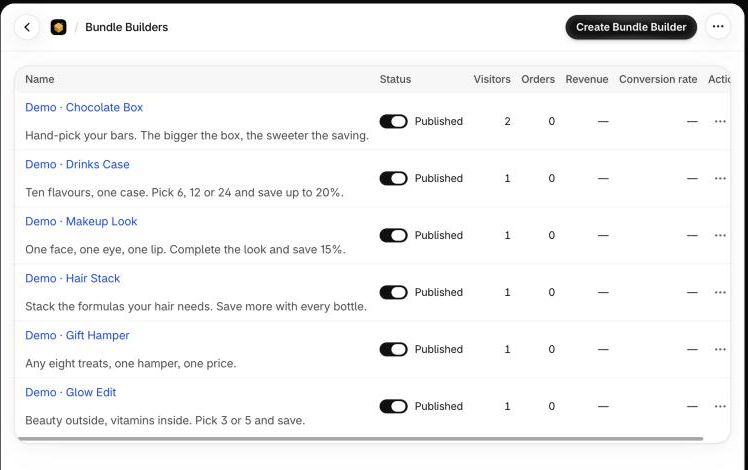
Every build-your-own bundle takes one of three shapes. We'll use the six sample builders in Oxify's demo store as examples; they are not real merchants.
| Demo builder | Format | The offer |
|---|---|---|
| Chocolate Box | Pick any, with a ladder | 4, 6 or 9 bars, save 10%, 15% or 20%, plus a free truffle box at 9 |
| Drinks Case | Pick any, with a ladder | Ten flavors, pick 6, 12 or 24 cans, save up to 20% |
| Gift Hamper | Pick any, one price | Any eight treats, one hamper, one price |
| Glow Edit | Pick any, two sizes | Beauty outside, vitamins inside, pick 3 or 5 and save |
| Makeup Look | Guided steps | One face, one eye, one lip, save 15% |
| Hair Stack | Pick any | "Stack the formulas your hair needs. Save more with every bottle." |
Format 1: Pick any
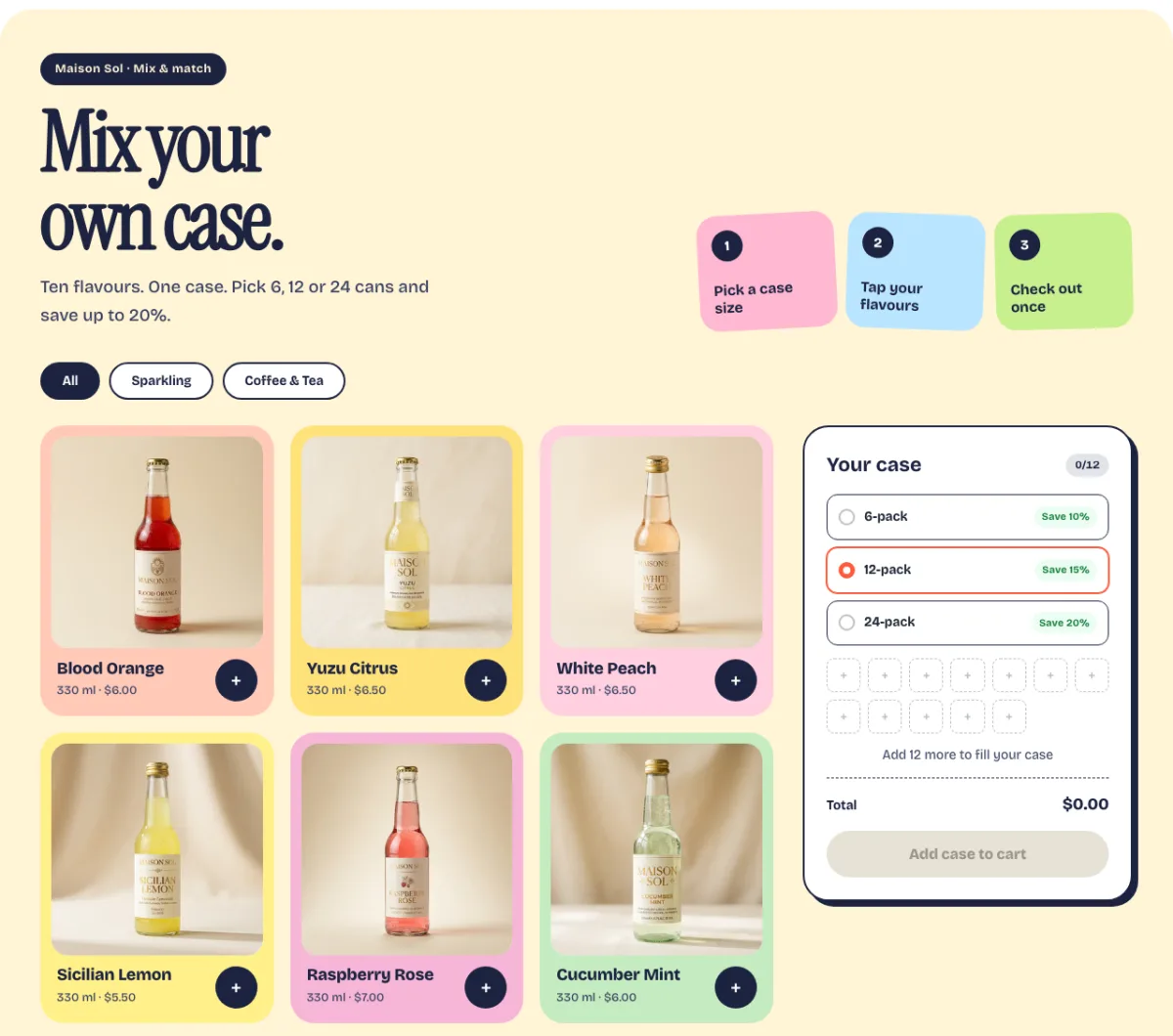
One pool of products, one or more box sizes. The shopper fills the box in any mix they like. This is the classic build-a-box.
- Good for: flavors, scents, snacks, drinks, sample sets.
- Price it with: a short ladder (6, 12, 24 at 10%, 15%, 20%), or one fixed price if items cost about the same.
- Watch out for: a long, flat list. Split it into tabs, like "Sparkling" and "Coffee & Tea."
Our guide to building your own box on Shopify goes deeper on box pages, packaging and gift boxes.
Format 2: Guided steps
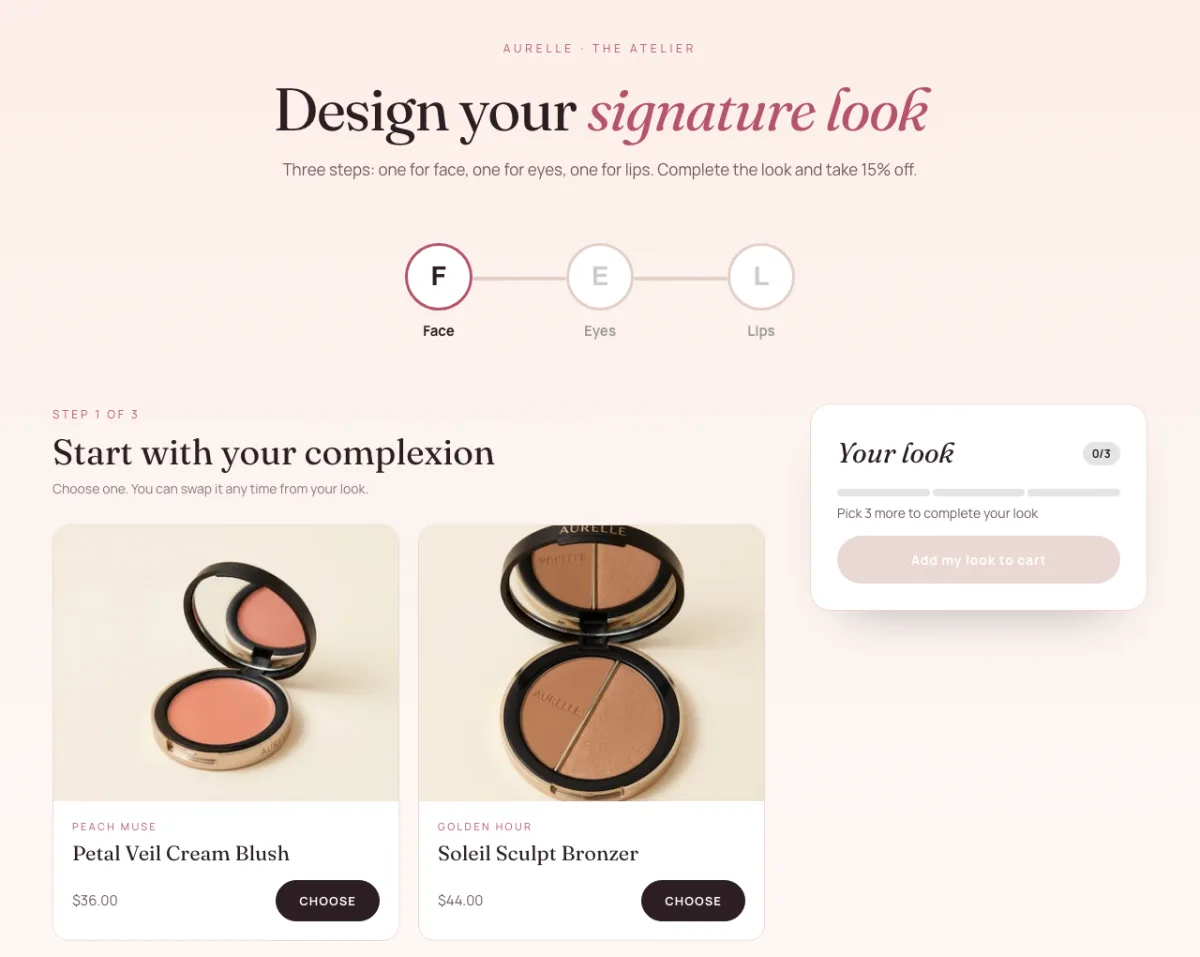
The shopper picks from one category, then the next. Each step takes a set number of items. The Makeup Look demo has three steps, Face, Eyes and Lips, with one pick each. When the shopper picks a face product, the builder moves them on to Eyes.
- Good for: routines, outfits, kits, meal sets, "one of each" gift sets.
- Price it with: one percentage for the full set, like "complete the look and save 15%."
- Watch out for: too many steps. In our view, three or four is easy to follow on a phone.
Format 3: Capped mix
Like pick any, but with limits per category. "Up to 3 candles and 2 soaps." Shoppers still choose freely inside each limit.
- Good for: protecting margin or stock. Cap the expensive category, or the item you can't restock fast.
- Price it with: a ladder or a percentage.
- Watch out for: caps that add up to less than the box. If every category is capped at 2 and you have 2 categories, a box of 6 can never be filled.
How much choice should you give customers?
Too few products and the box feels thin. Too many and people scroll, stall and leave.
What the research actually says
You've probably heard of the jam study. In 2000, Sheena Iyengar and Mark Lepper set up a tasting table in a grocery store. Some days it showed 24 jams. Other days it showed 6. The big table drew more people in. But about 3% of the people who stopped at the 24-jam table bought a jar, against about 30% at the 6-jam table (Iyengar & Lepper, Journal of Personality and Social Psychology, 2000).
That study gets quoted as a rule. It isn't one. In 2010, Benjamin Scheibehenne, Rainer Greifeneder and Peter Todd pooled 63 conditions from 50 experiments with 5,036 people. The average "too much choice" effect was close to zero. In some studies more choice hurt, in others it helped, and the authors couldn't find a set of conditions that reliably causes overload. More choice tended to help when people already knew what they liked (Scheibehenne, Greifeneder & Todd, Journal of Consumer Research, 2010).
Neither study was about Shopify bundles. But together they point to a useful idea: the number of products matters less than how easy they are to choose between.
Practical rules for your builder
- Group long lists into tabs. Oxify's docs give a good example: "Citrus candles" and "Floral candles" beat one long candle list.
- Name tabs the way customers think. "Candles, Soaps, Bath bombs," not "SKU group A."
- Put best sellers first. Oxify's docs suggest dragging them to the top of each category.
- Offer only the variants you want. If a product comes in five colors and two sell, offer those two.
- Make the pool bigger than the box, but not huge. A box of 6 drawn from 10 to 20 products gives real choice. Our rule of thumb, not a Shopify rule.
- Help people who know what they want. Clear names, flavors and photos let them pick fast.
Make the box easy to finish
A half-built box is worth nothing. Two more research findings explain why the finishing line deserves design time.
The IKEA effect. Michael Norton, Daniel Mochon and Dan Ariely found that people value things more when they build them. In their studies, people valued their own IKEA boxes, origami and Lego sets more than identical ones they hadn't built. But the effect faded when people didn't finish, or when their work was taken apart (Norton, Mochon & Ariely, Journal of Consumer Psychology, 2012). Building your own box may make it feel more like "mine," but only if the shopper gets to the end.
The endowed progress effect. Joseph Nunes and Xavier Drèze gave car-wash customers loyalty cards. One group got an 8-stamp card. The other got a 10-stamp card with 2 stamps already filled in. Both needed 8 more washes. About 34% of the head-start group finished, against 19% of the others (Nunes & Drèze, Journal of Consumer Research, 2006). Seeing progress pushes people to finish.
Again, these are not bundle studies. But they line up with what good builders do:
- Show the slots. Empty slots that fill one by one make "3 more to go" obvious.
- Say what's left. "Add 2 more to fill your box" beats a silent counter.
- Preselect a size. In Oxify, Option 1 is selected when the page loads, so make it the size you want most people to start on.
- Move people along. In a guided builder, move shoppers to the next step once they've picked enough.
- Keep the button visible. On long pages, a floating summary keeps the total and cart button in view.
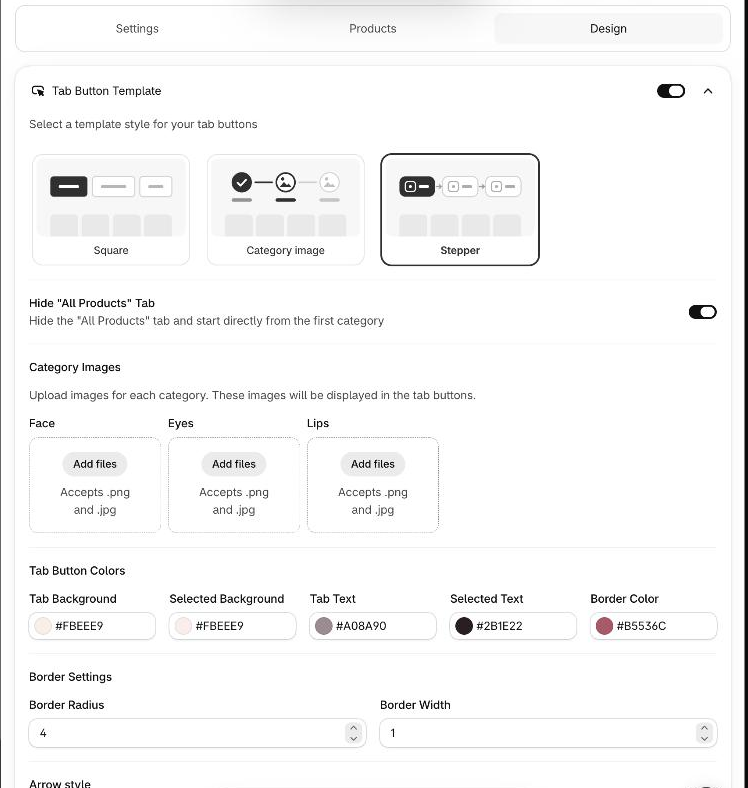
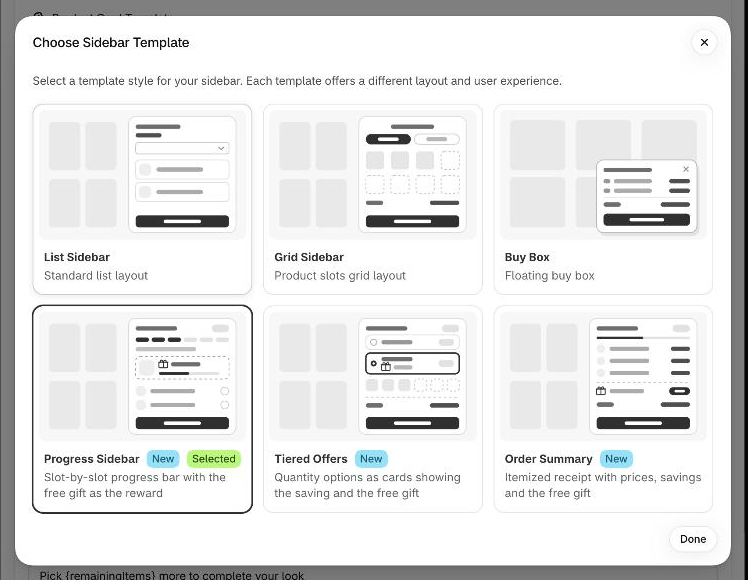
In Oxify, these map to real settings. The Grid Sidebar shows empty slots with a +. The Progress Sidebar shows a slot-by-slot bar with a free gift as the reward. Buy Box is a floating box for long product lists. And Auto-advance to next step moves the shopper to the next category once a rule is met. The full list is in our bundle builder tutorial.
Set the rules
Rules decide what a "complete" bundle is. Keep them simple enough to explain in one line on the page.
Box sizes
Most builders let you offer more than one size. Oxify's docs suggest a ladder like this one, and say three sizes is plenty:
| Box | Items | Discount |
|---|---|---|
| Box of 4 | 4 | None |
| Box of 6 | 6 | 10% off |
| Box of 10 | 10 | 15% off |
Put the size you want people to start on first, and make the largest box the best value per item. Set the first paid rung just above what your orders hold today; our guide on how many tiers to use shows the spacing.
Limits per category
In Oxify, these are Step rules, one per category. "Is less than or equal to" and "is equal to" both work as caps ("up to 3 candles"). "Is greater than or equal to" blocks nothing; it's the target auto-advance waits for.
One thing to know before you rely on them: rules limit, they don't require. Oxify's docs say a shopper can check out with fewer items from a category than the rule mentions, as long as the box is full. So use caps to control the split, and the box size to set the total. And check that your caps leave room to fill the box.
Repeats and variants
Can a shopper put the same item in twice? In Oxify, yes. The same product added three times fills three places in the box, and step rules count each unit. If you want variety, cap that category. For variants, you can offer only some of them, say two colors out of five. If you tick the whole product instead, variants you add in Shopify later show up on their own.
Going past the box size
By default, a box is a hard limit. A box of 6 holds six items. Oxify has an option, Allow customers to add more items than the selected quantity, that turns each box size into a minimum. Shoppers keep adding and get the discount of the biggest box they've reached. Use it when "the more you add, the more you save" fits better than a fixed box.
Sold-out items
A sold-out favorite can make a box feel broken. You have two choices:
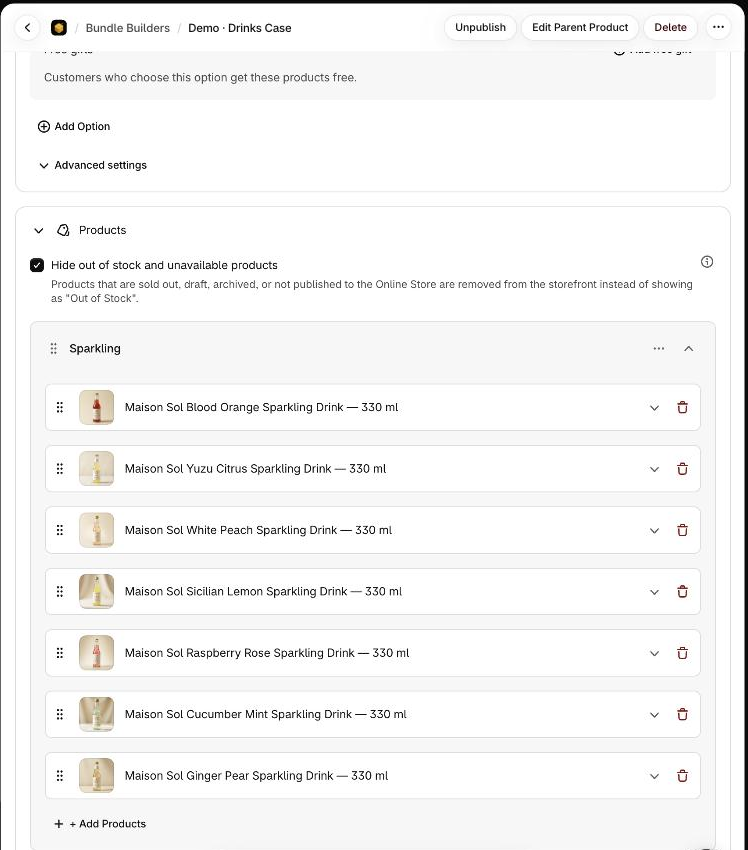
- Hide it. Oxify's Hide out of stock and unavailable products removes sold-out, draft, archived and unpublished products. It checks live each time the builder loads, so restocked items come back on their own. Best for big catalogs, where a gap goes unnoticed.
- Show it as sold out. The card stays with an Out of Stock label. Best for small, curated sets, where a missing product looks like a mistake.
If you use step rules, keep enough stock in each category. When every product in a category is hidden, its tab disappears, and so does that step.
How should you price a build-your-own bundle?
Most builders give you two choices: a percentage off, or one fixed price for the box. They behave very differently when your products cost different amounts.
Here is a sample case. Take the Drinks Case demo, with cans from $5.50 to $8.00 (demo prices). Compare "6 cans, 10% off" with "any 6 for $36":
| Shopper picks | Normal total | 10% off | Fixed $36 |
|---|---|---|---|
| 6 of the cheapest ($5.50) | $33.00 | $29.70 | $33.00 |
| A mix of six | $40.50 | $36.45 | $36.00 |
| 6 of the priciest ($8.00) | $48.00 | $43.20 | $36.00 |
The mix is 2 Blood Orange ($6.00), 2 Yuzu Citrus ($6.50), 1 Velvet Cold Brew ($7.50) and 1 Matcha Oat Latte ($8.00).
Three things to notice:
- A percentage is the same deal for everyone. Every shopper saves 10%, whatever they pick.
- A fixed price gives the most to people who pick the priciest items. Six Matcha cans save 25%. Six lemon cans save nothing.
- A fixed price never raises the bill. Oxify's docs say a Fixed Price only lowers the total. If the picks cost less than your fixed price, the shopper pays the normal price.
So use a fixed price when items cost about the same, and a percentage when they don't. If you want a fixed price with mixed prices, cap the expensive category with a step rule. Run your own numbers in our free bundle calculator, and see our bundle pricing guide for how deep to go.
Use a free gift instead of a deeper discount
The Chocolate Box demo gives a free truffle box with the 9-bar box. In Oxify, each box size can carry its own free gift. A few details matter for your pricing:
- Gifts are not cumulative. The big box's gift replaces the small box's gift.
- A gift doesn't take up a slot in the box.
- The sidebar shows the gift locked until the box is full, which gives shoppers a reason to finish.
- A sold-out or unpublished gift is skipped, so the page never promises what the cart would refuse.
A gift costs you its cost price, while the shopper sees its full shelf price. That gap is why many stores reward the biggest box with a gift rather than a deeper discount. Our guide to free gifts with purchase on Shopify covers the setup and the margin math.
Two more pricing settings
- Discount codes. Decide whether a code can stack on top of the box saving. In Oxify, this is the Combinations setting, and it's store-wide.
- Markets. Selling abroad? Oxify can set a different box discount per Shopify market.
What happens in the cart, on the order and in stock
The shopper sees one box; your stock and your packer see several products. In Oxify, it depends on one setting, Show products as individual lines in the cart, under Settings → Advanced settings:
| Stage | Off (default): one bundle line | On: one line per product |
|---|---|---|
| Cart and checkout | One line with your bundle name, image and box price | Each product on its own line, with the saving as an automatic discount |
| Order in your admin | The box's products, shown under the bundle | Each product as an ordinary line |
| Stock | Counts down on each product | Counts down on each product |
| Subscriptions | Not available | Required (see below) |
Why the order shows separate products. With the default single line, Oxify groups the box into one line at checkout using Shopify's Cart Transform. When the order is created, Shopify expands that line back into the real products, because those are what you pick, pack and take out of stock. Oxify's docs call this documented platform behavior, not a bug.
What your packer or 3PL sees. Each product as its own line, which can hide which items belong to one box. Turn on Add the bundle SKU to each product in the order in the same Advanced settings. Every item from the box then carries a visible property, such as Bundle SKU: OXB-45821733, on the order, packing slips and pick lists. Oxify's docs also give Liquid snippets that group a box under one heading on packing slips, order emails and Order Printer. If a 3PL ships for you, send them a test order first and check the property comes through.
Shopify's own rules for bundles (its eligibility page, checked 17 November 2026):
- Your store must sell through the Online Store channel or a custom storefront, and use the upgraded checkout. Stores with checkout.liquid customizations can't sell bundles.
- A bundle has no shipping profile of its own. Rates come from each product inside, so test a full box at checkout.
- You can't mark a bundle as final sale. Each product follows its own return rules.
Can customers subscribe to a bundle they build?
"Build your box, get it every month" is a strong offer. It's also where many setups break.
Shopify's help center says bundles "aren't compatible with purchase options, which includes subscriptions, pre-orders, and try-before-you-buy," and aren't compatible with the Shopify Subscriptions app. That rule is about bundle products, the kind that show as one merged line.
Oxify works around this by keeping each product on its own cart line. Its Subscribe & Save checkbox only works when Show products as individual lines in the cart is on, because Shopify can't merge lines that carry a subscription plan. Two more conditions apply:
- Oxify doesn't create subscription plans. They come from the subscription app you already use.
- Every product and variant in the builder must be on the delivery plan. If one isn't, the checkbox stays hidden.
Whichever app you use, ask how it handles subscriptions and test a real order. Our subscription apps guide lists apps that create the plans.
Where to put the builder
A great builder nobody finds sells nothing. You have three placements:
- A page of its own. Many apps create one. Oxify's default creates a plain Online Store page when you publish. But the page isn't listed in your catalog, so shoppers only reach it through a link. Oxify adds an Add to menu button for exactly this.
- A section on another page. Drop the builder into your home page, a collection or a landing page with a theme app block.
- Any HTML spot. An embed code works in page builders and custom sections.
Then send traffic to it:
- Main menu: "Build your box" or "Make your own set."
- Product pages of the items inside it, with a banner or link.
- Home page: a banner near the top in gift season.
- Email and ads: link straight to the builder page, not the home page.
Pick two or three of these, not all of them at once, so you can tell which one works.
Set it up in 5 steps
Once the decisions are made, the build is quick. Here is the short version using Oxify Bundles & Quantity Break. Inside your admin the app shows as Oxify - Product Bundles, and the builder is its Bundle Builder menu item.
- Install the app and turn on the app embed. In the theme editor, open App embeds and switch on Oxify: Bundle Builder. Without it, nothing renders.
- Create a builder and name it. The Bundle Name is what shows in the cart and at checkout.
- Add box sizes and categories. On the Products tab, set each size's quantity and discount, then add categories and pick products.
- Add rules and pick a look. Turn on Step rules if you need caps or guided steps. On the Design tab, choose a sidebar template.
- Publish, link and test. Save to publish, add the page to your menu, then place a test order on your phone.
Every setting is explained, with screenshots, in our full guide on how to create a bundle builder on Shopify. One merchant's note: on Oxify's App Store reviews page, the US store Snuggle and Hush wrote on 25 August 2026 that they designed their bundle builder quickly with support from the Oxify team. That's a single review, not a measured result.
Other builder apps worth a look, from their App Store listings on 17 November 2026:
| Builder app | Free plan and entry price | Worth a look if |
|---|---|---|
| Easy Bundles: Bundle Builder | Free up to $500 a month in bundle sales; the single and multi-step builder starts at $29 | You want the biggest review base (4.9 from 1,557) |
| BundleSuite Bundle Builder | Free until you go live; $12 for up to $1,000 a month in bundle sales | You want a low-cost paid start (5.0 from 558) |
| Easify Product Bundle Builder | Free until box revenue hits $500 a month | You need gift messages or other custom fields (5.0 from 318) |
| Simple Bundles & Kits | Free for 3 bundles and 50 monthly orders | Inventory sync and fulfilment matter most (4.9 from 842) |
We compare 19 apps, with the plan each one needs for its builder, in our list of the best Shopify bundle builder apps.
Measure it
Give a new builder two to four weeks before you judge it. Change one thing at a time.
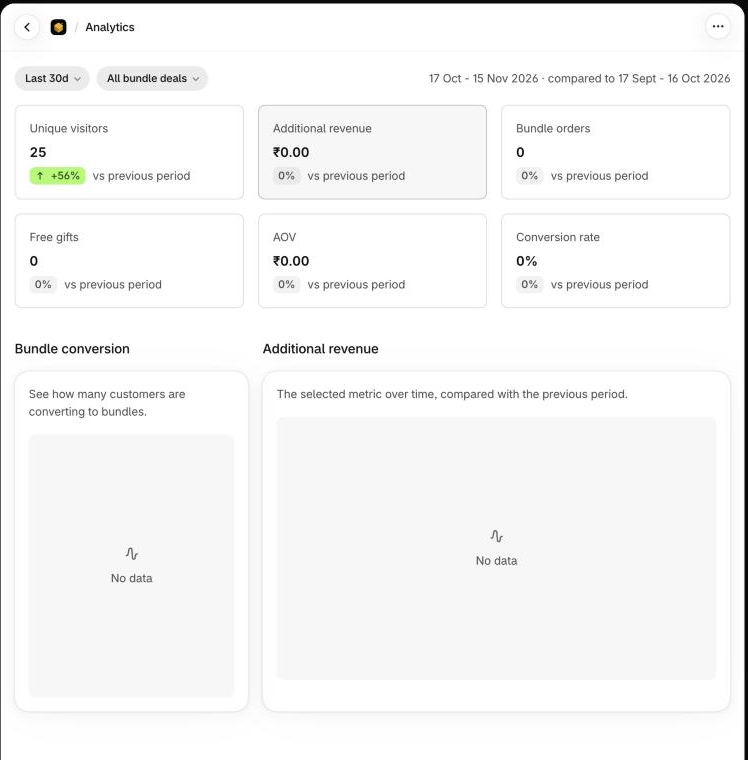
Oxify shows four figures for each builder on the Bundle Builders list:
- Visitors: visits that loaded a page showing the builder. A visit ends after 30 minutes without activity.
- Orders: orders that included a bundle from the builder.
- Revenue: sales of the products in those bundles. Refunds and cancellations aren't subtracted.
- Conversion rate: orders divided by visitors.
The list covers all time. For date ranges and average order value, use the Analytics page.
What to act on:
- Low conversion rate: look at the builder itself. Box sizes, discount, product pool or layout.
- Good conversion, few visitors: it's a traffic problem. Add a menu link or banner.
- Average order value: tells you if the box sizes are pitched right.
- Revenue per visitor for the whole store: total sales ÷ sessions, before and after launch. This is the final judge, because a builder can steal sales from other pages.
Our guide to measuring upsell performance shows how to set up a fair before-and-after test.
Mistakes to avoid
- A box smaller than a normal order. If most orders hold 4 items, a box of 3 gives away discount for nothing.
- A fixed price over mixed prices. Shoppers who pick the priciest items get the biggest deal.
- A builder with no link. An auto-created page isn't in your catalog. Add it to the menu.
- Testing only on a laptop. Check the builder on a phone, where space is tight and the cart button is easy to lose.
Our pick for build-your-own bundles
I co-founded Oxify, so weigh this with that in mind. Oxify Bundles & Quantity Break covers all three formats in one builder: box sizes with a percentage, a fixed price or a free gift, step rules with auto-advance, six sidebar templates, a page created for you, and per-builder analytics. On 17 November 2026 its listing showed a Free plan, 4.9 stars from 13 reviews and the Built for Shopify badge. See the product bundles page for more, or how to create mix and match bundles if you want a simpler "any 3 for one price" deal.