 Oxify App
How to Add Product Categories to a Shopify Bundle Builder
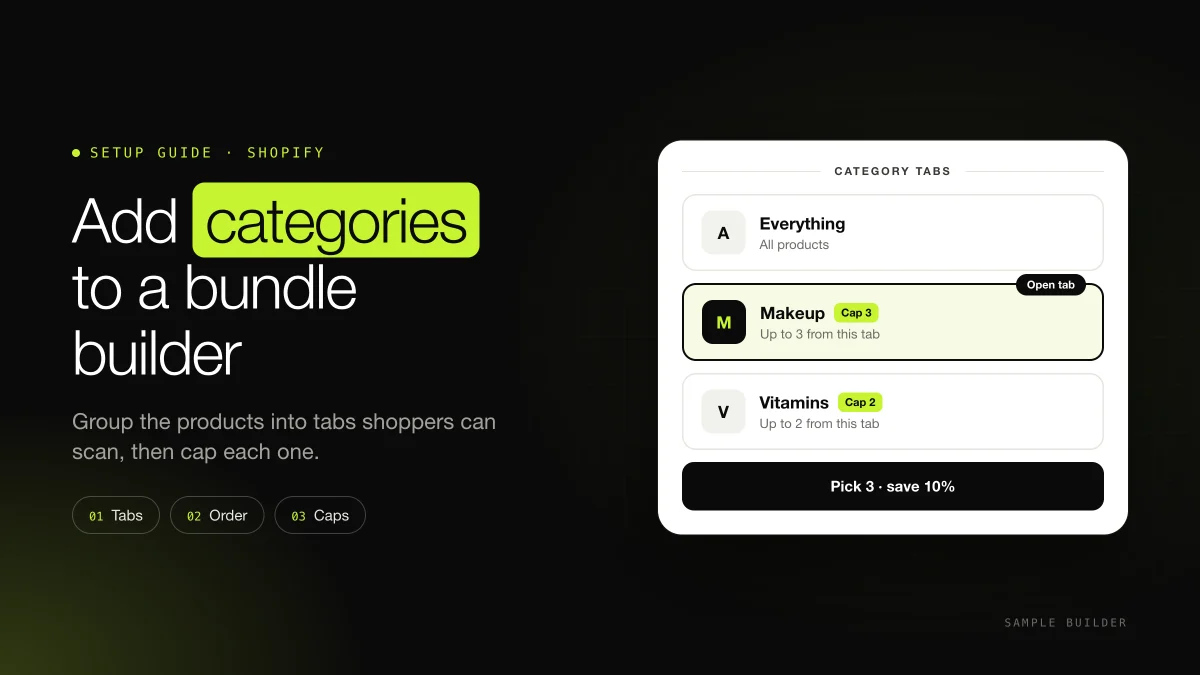
Short answer: Shopify bundle builder categories are the tabs that split a builder's products into groups, like Candles, Soaps and Bath bombs, so shoppers can scan the pool and you can cap each group. Shopify's own Bundles app doesn't make builders, so categories come from your builder app. I'd use Oxify Bundles Quantity Breaks: open the builder's Products tab, click Add Category, type a name, click + Add Products, tick products or single variants, and Save. Start with 3 to 6 categories named the way customers think, put each product in only one, and cap the pricey groups with Step rules.
Oxify Bundles Quantity Breaks adds categories to a bundle builder as tabs, with one step rule to cap each category, three tab designs and live sold-out hiding, on a Free plan with 5.0 from 14 reviews and the Built for Shopify badge (App Store listing, 18 November 2026). This guide uses its real screen names, and the planning advice works in any builder app. Looking for the types of bundles (fixed, multipack, mix and match, builder) instead? Read bundle builder vs mix and match. Want shoppers to move through the categories one at a time? That's a multi-step bundle builder.
Key facts (checked 18 November 2026)
- Shopify can't do it alone. Shopify's free Bundles app makes fixed bundles and multipacks; the Shopify Help Center says it "doesn't support mix-and-match bundles." A builder with categories needs an App Store app.
- Categories are tabs you fill by hand. In Oxify Bundles Quantity Breaks, each category is a tab. Products go in through Shopify's product picker, down to single variants, and later edits sync on their own.
- Caps are per category. Step rules give each category one rule, such as "is less than or equal to 3." Rules limit; they don't require.
- Three tab designs. Square (the default), Category image and Stepper. An All tab comes first unless you hide it.
- Sold-out tabs vanish. With Hide out of stock and unavailable products on, a category whose products are all hidden loses its tab.
On this page
- What do Shopify bundle builder categories do?
- Do you need categories at all?
- How to choose and name your categories
- How many categories, and how many products in each?
- How to add product categories in Oxify, step by step
- How to order tabs and products
- Can one product sit in two categories?
- How to cap items per category
- Should you keep the All tab?
- Which bundle builder tab design fits your categories?
- Two category setups from Oxify's demo store
- What happens when a category sells out?
- How to keep categories up to date
- How other builder apps handle categories
- FAQ
What do Shopify bundle builder categories do?
A bundle builder is a page where shoppers fill a box from a pool of products you choose. Categories split that pool into groups, each shown as a tab above the grid. They do three jobs:
- They help shoppers scan. Eight chocolate bars and eight drinks in one grid is a long scroll. Two tabs are a quick choice.
- They set the route. Tabs read left to right, so their order is the order shoppers meet your products.
- They let you cap the mix. Once products sit in groups, you can limit each group, like up to 3 candles.
Builder categories aren't your Shopify collections, and they aren't the Category field on a product in your Shopify admin. They live inside the builder. In Oxify, deleting a category doesn't touch your products. It only takes them out of that builder.
Do you need categories at all?
Not always. One list works when every product is the same kind of thing and fits in a scroll or two. Oxify's demo "Build your hair stack" page is one list of hair formulas with no tabs: pick 2, 3 or 4 bottles and save 10% to 20%. With a single category, Oxify's docs say you can switch the tab row off.
Add categories when the pool mixes product types (chocolate and drinks, makeup and vitamins), when you want to cap one group, when prices differ a lot between groups, or when the list runs past a couple of screens on a phone. For box shapes in general, see the four ways to build your own box on Shopify.
How should you choose and name your categories?
To organize products in a bundle builder, split the pool the way a shopper thinks while filling the box. Five common ways:
| Split by | Example tabs | Good for | Watch out for |
|---|---|---|---|
| Product type | Candles, Soaps, Bath bombs | Most gift boxes and variety packs | One type with 20 products in it |
| Routine step or use | Cleanse, Treat, Moisturize | Skincare, haircare, kits with a clear order | Order matters, so it's really a guided flow |
| Flavor, scent or shade family | Citrus, Floral, Woody | A big range of one product type | Families only you can tell apart |
| Theme or occasion | Something sweet, Something sparkling | Gift hampers | Cute names that hide what's inside |
| Size or price band | Minis, Full size | Mixed-price pools you want to cap | Labels like "Budget" that cheapen the box |
If you split by routine step, read the multi-step guide too, since step order matters there. Then name each category so a shopper knows what's inside before tapping it:
- Use customer words. Candles, Soaps, Bath bombs, not "SKU group A," as Oxify's docs put it.
- Keep names short. Tabs sit side by side on a phone. One or two words each.
- Explain theme names. "Something sweet" works on Oxify's demo hamper because the intro already says chocolate and sparkling drinks.
- Number them if order matters, like the demo hamper's "01 Something sweet" and "02 Something sparkling."
Need a starting list? Example categories by store type:
- Skincare: Cleanse, Treat, Moisturize
- Snacks: Sweet, Salty, Drinks
- Coffee: Beans, Pods, Brew gear
- Jewelry: Earrings, Necklaces, Bracelets
- Apparel: Tops, Bottoms, Socks
- Pets: Treats, Chews, Toys
How many categories, and how many products in each?
My starting point is 3 to 6 categories. Two is fine for a simple pairing, like sweet and sparkling. Past six, the tab row gets crowded on a phone. Inside each category, aim for a real choice that survives a sell-out:
- Give capped categories spare products. If shoppers can take up to 3 candles, offer 6 or more.
- Split long categories. Oxify's docs say "Citrus candles" and "Floral candles" beat one long candle list.
- Count rows on a phone. Oxify shows 1 or 2 cards per row on mobile, so 12 products is six rows of scrolling.
For scale, Oxify's demo hamper has 2 categories of 8 products; the Glow Edit has 6 makeup products and 4 vitamins. For how much choice to give overall, see our guide to designing a build-your-own bundle.
How to add product categories in Oxify, step by step
Oxify Bundles Quantity Breaks builds a box from categories you define: each category becomes a tab and holds the products a shopper can pick. No builder yet? Start with our full bundle builder setup guide. Oxify's docs, where the app still goes by Oxify Quantity Breaks & BYOB, show the same screens on the add product categories page.
- In the app, go to Bundle Builder and open your builder.
- Click the Products tab.
- In the Products card, click Add Category, below your existing categories.
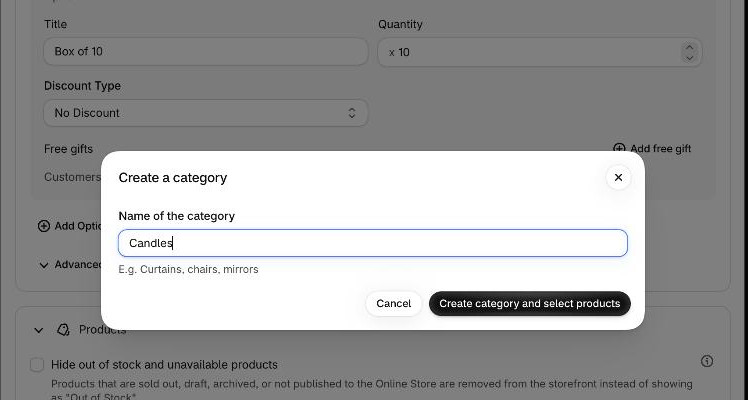
- In the Create a category dialog, type a name in Name of the category. The button stays greyed out until you type something.
- Click Create category and select products. The new category appears at the bottom of the list, empty, with the note "No products added yet."
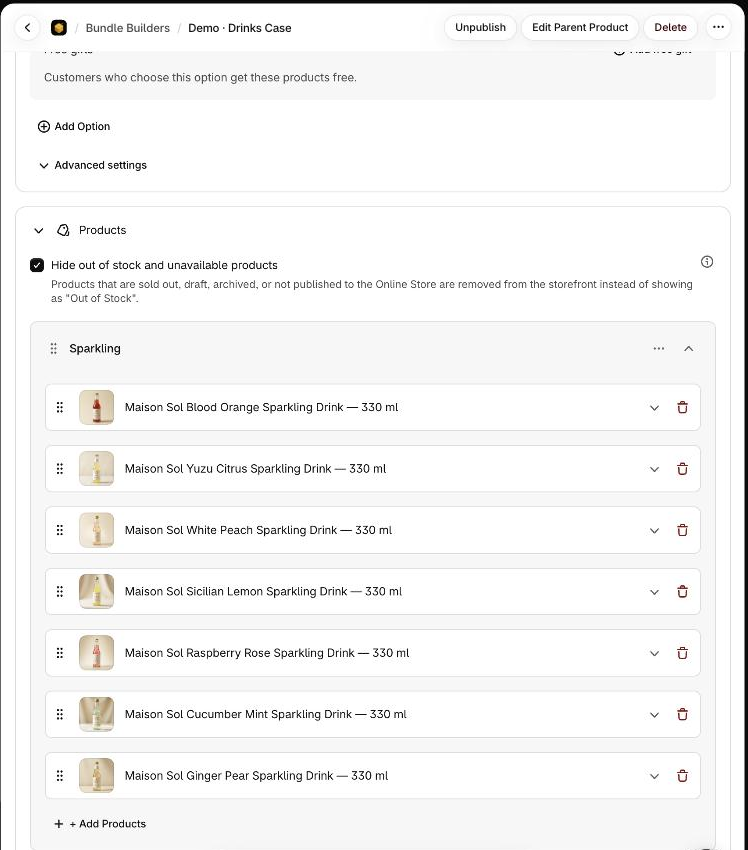
- Click + Add Products inside it. Shopify's product picker opens. Search, tick your products, then click Select.
- Click Save.
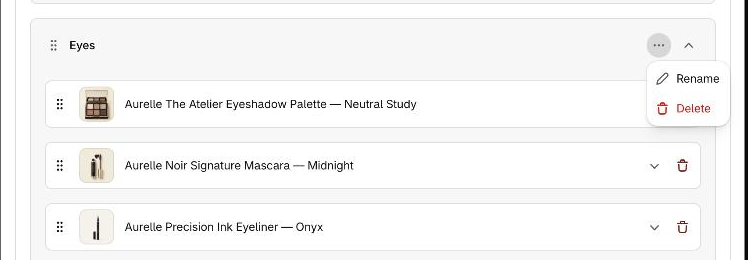
Each product then shows as a row with a drag handle, a picture and its title. Four details save time later:
- Offer only some variants. In the picker, expand a product and tick single variants, say two colors out of five. Shoppers only see those. Tick the whole product instead and variants you add in Shopify later show up on their own.
- Add more later. Click + Add Products again. The picker opens with the category's products already ticked.
- Unticking doesn't remove. Use the red trash icon on a product's row.
- Rename or delete from the ⋯ menu on a category's header. Delete removes the category and its products from this builder only.
How should you order tabs and products?
In Oxify, drag a category by its dotted handle to change the tab order. Drag a product by its handle to move it in the grid, within its own category. The order matters more than it looks:
- It's also the All tab order. The All tab lists products category by category, in your category order.
- Best sellers first. Oxify's docs suggest it inside each category.
- Lead with what defines the box. I'd put the hero category first and small add-ons last. For a guided box, the order is the route, so plan it with the step order rules.
Can one product sit in two categories?
You can add it to two. But if you use selection rules, keep each product in one category. Oxify's docs explain why: "A product that sits in two categories is limited by the first category that contains it." A cap on the second category won't count it the way you expect.
Without rules, a double listing does less harm, but the product shows twice on the All tab, once under each category. Say you sell a lip-and-cheek tint. Put it under Lips, where shoppers will look first, and mention the cheek use in its title or description.
How do you cap how many items come from each category?
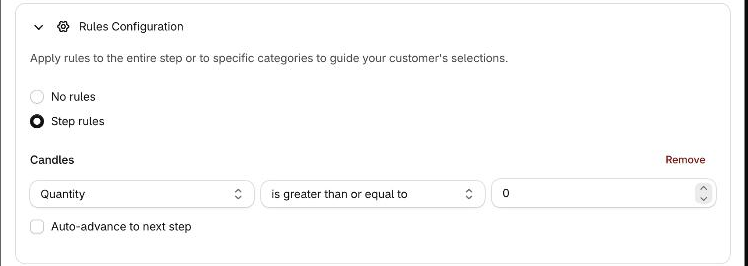
Step rules set category limits: how many items a shopper can take from each category. In Oxify, they live in the Rules Configuration card, the last card on the Products tab (full reference: Oxify's selection rules page).
- Choose Step rules instead of No rules. (It stays greyed out until the builder has a category.) This creates a rule on your first category.
- Set the three controls: Metric (Quantity is the only option), Condition, and Value. A new rule starts at Quantity, is greater than or equal to, 0.
- Click Add Rule for the next category. Rules are handed out in category order.
- Click Save.
| Condition | What it does on the page | Use it for |
|---|---|---|
| is less than or equal to | Caps the category. Its add buttons switch off at the cap. | "Up to 3 candles" |
| is equal to | Also a cap: up to this many and no more | "One from each category" |
| is greater than or equal to | Blocks nothing. It's the target auto-advance waits for. | Guided flows only |
When a shopper hits a cap, the add button switches off and a short message appears, such as "You can select up to 3 item(s) from Candles." These messages are fixed English text.
The key point: rules limit, they don't require. A shopper can check out with fewer items from a category than your rule says, as long as the box is full. Caps control the split; the box size sets the total.
Check the caps math
Add up your caps and compare the total with your biggest box. If every category is capped and the caps add up to less, nobody can finish the box. Example setups:
| Box size | Category caps | Can shoppers fill it? |
|---|---|---|
| Box of 6 | Candles up to 3, Soaps up to 3 | Yes, but only as 3 + 3 |
| Box of 6 | Candles up to 2, Soaps up to 2 | No. The caps add up to 4. |
| Box of 6 | Candles up to 3, Soaps with no rule | Yes, in any mix with 3 candles or fewer |
| Boxes of 6 and 10 | Candles up to 3, Soaps up to 3 | The 6 only. The 10 can never be filled. |
Notice the first row: a cap on one category is also a floor on the others. In a box of 8 with two categories each capped at 6, every box holds at least 2 of each. That's how you guarantee a mix without a "minimum" setting. Caps protect margin too: cap your priciest category and let a cheaper one fill the rest (see our bundle pricing strategy guide).
The "one from each category" box
Shopify Community threads ask for this: one item from each group, for one set price, so nobody fills the box with only the priciest items. Give each category a rule of Quantity, is equal to, 1, and set one box size equal to the number of categories. Say Soap, Face cream and Deodorant, a box of 3, and a Fixed Price of $25. The caps add up to the box size, so one from each is the only way to fill it.
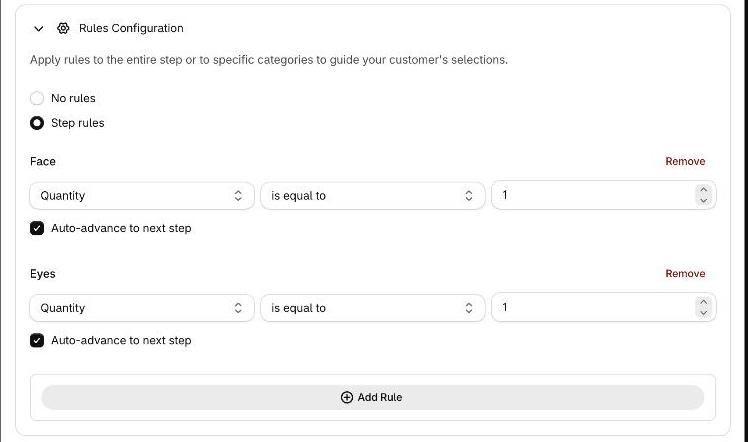
One catch: Fixed Price only ever lowers the total. If the three picks cost less than $25, the shopper pays their normal price. See fixed price bundles on Shopify for that math, or test a price in the bundle calculator. Add auto-advance and the same setup becomes a multi-step bundle builder.
Should you keep the All tab?
In Oxify, the tab row starts with an All tab. It shows every product, category by category, under the heading All Products. It's on by default.
- Keep it for pick-any boxes, like gift hampers and variety packs, so shoppers can see everything at once.
- Hide it for guided boxes: Design, Tab Button Template, Hide "All Products" Tab. Shoppers then start on your first category.
- Don't also switch the tab row off. With both, Oxify's docs warn, shoppers only ever see your first category.
A third option, with code: Oxify's custom template recipes include one that shows every category on one page under its own heading, instead of tabs.
Which bundle builder tab design fits your categories?
Style the tabs in Design, under Tab Button Template, by clicking one of three tiles.
| Tab template | What shoppers see | Best for |
|---|---|---|
| Square (default) | Plain labelled buttons in a row | Any builder |
| Category image | Circles joined by a line, each with the category's image or first letter. Passed steps show a tick. | Visual categories: scents, flavors, colors |
| Stepper | Boxes with a small icon and the category name, joined by arrows | Guided builders with selection rules |
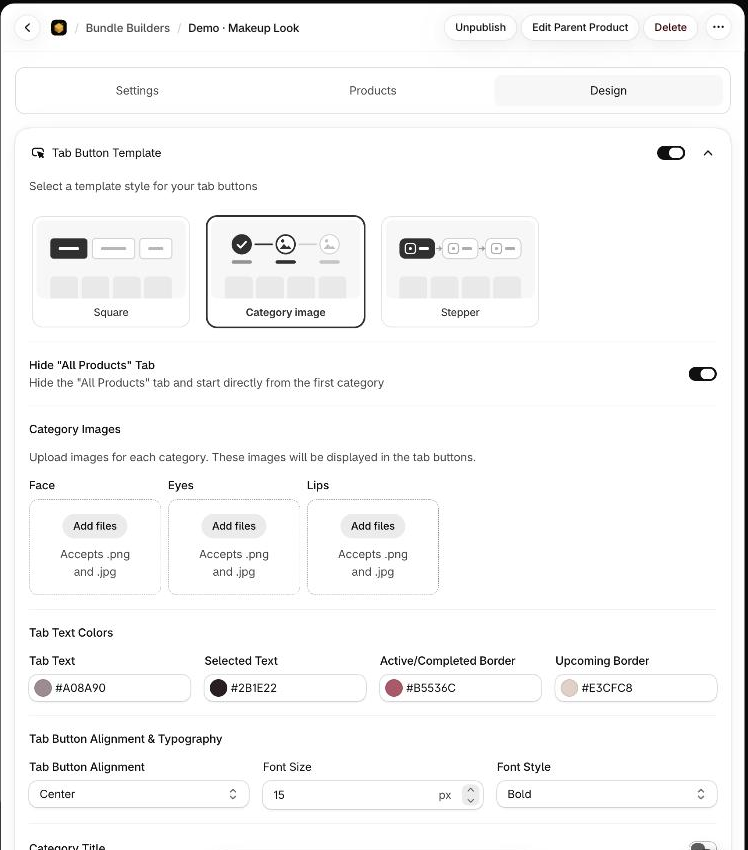
With Category image or Stepper, each category gets an upload box for a .png or .jpg. Below the tabs, a Category Title heading shows the name of the tab the shopper is on. It's on by default, and you can switch it off. Oxify's docs also suggest matching Border Radius to your theme's buttons so the tabs look native (more on bundle apps and theme compatibility). The category tabs docs list every color and font field.
Two category setups from Oxify's demo store
These are Oxify's own demo pages, not a merchant's store.
The Glow Edit: categories by product type
The Glow Edit has three tabs: Everything, Makeup and Vitamins. On the Everything tab, six cards are labelled Makeup ($26 to $42) and four are labelled Vitamins ($34.99 to $42.99). The box sizes are Pick 3 for 10% off, and Pick 5 for 20% off plus a free brow pencil.
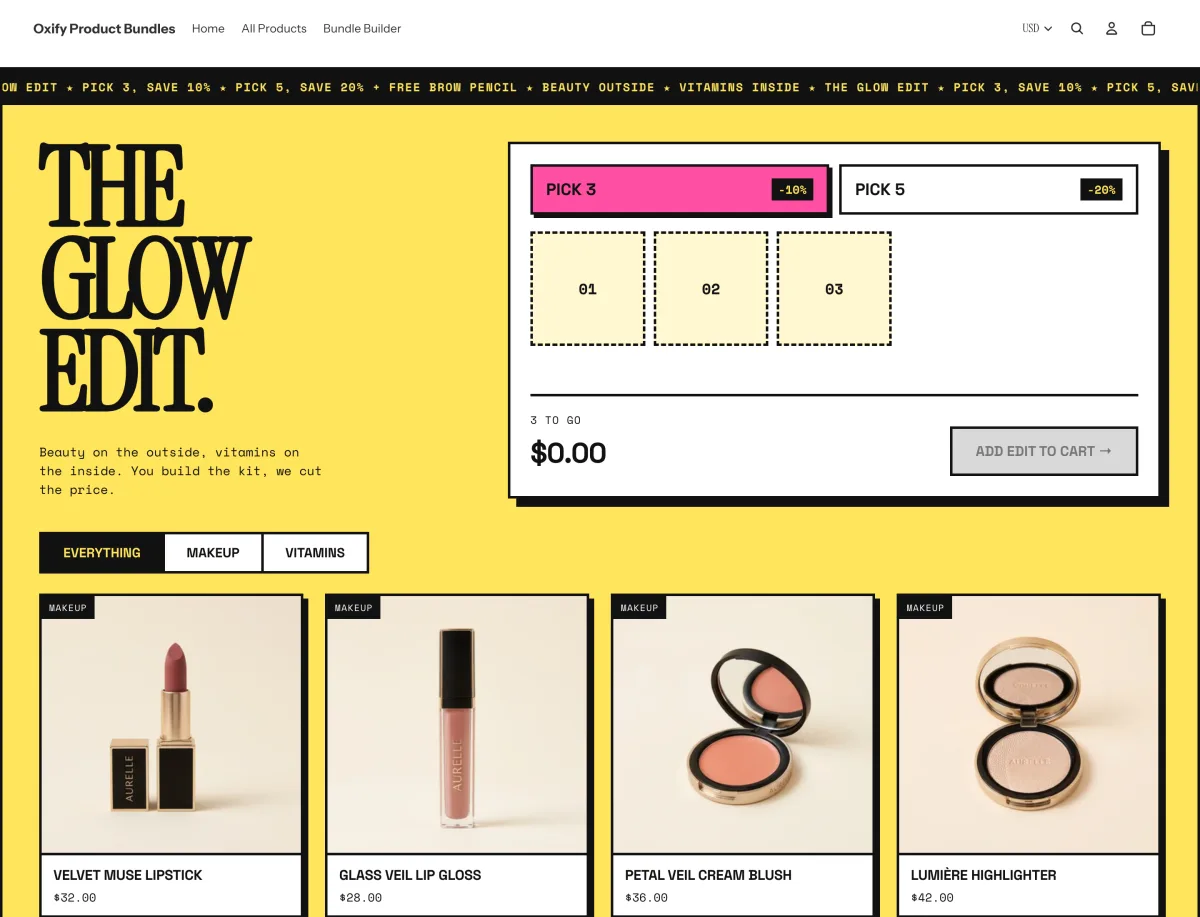
Why it works: shoppers look for makeup and vitamins separately, the card labels keep the mixed Everything grid clear, and a percentage discount handles the price spread.
The Sip & Savour Gift Hamper: categories by theme
Any 8 treats for $59.00, from two categories shown as numbered headings: "01 Something sweet" (eight chocolate bars, $9 to $15) and "02 Something sparkling" (eight drinks, $5.50 to $7.00).
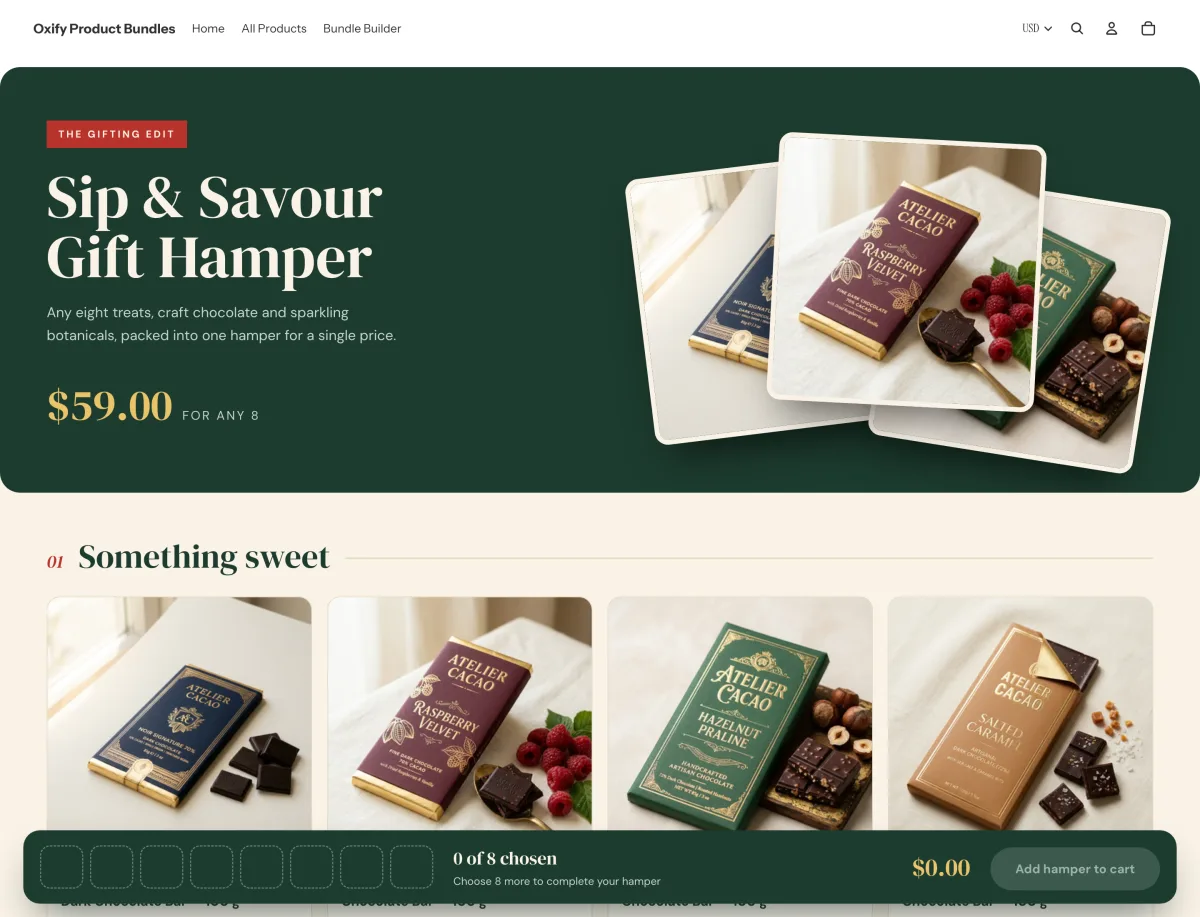
Here's where caps come in. With no rules, a shopper could fill it with eight chocolates ($95.00 of bars for $59.00) or eight drinks ($51.00, paid in full, because a fixed price never raises the total). To make every hamper hold both, you could cap each category at 6, which forces at least 2 of each. More in how to create a build your own gift box on Shopify.
What happens when a category sells out?
By default, a sold-out product stays in an Oxify builder with an Out of Stock label. Tick Hide out of stock and unavailable products, the first checkbox in the Products card, and it's removed instead. Per Oxify's hide out-of-stock docs, that covers sold-out, draft, archived and unpublished products, checked live each time the builder loads, and restocked products come back on their own.
If every product in a category is hidden, that category's tab disappears. A shopper on that tab is moved to the first tab left, the category's rule stops mattering, and auto-advance skips it.
That can break a capped box. In the "one from each" box above, if Deodorant has only two products and both sell out, its tab goes. The remaining caps add up to 2, the box needs 3, and nobody can finish it. Keep spare stocked products in every capped category.
Oxify's docs suggest hiding for big catalogs, where a gap goes unnoticed, and the label for small curated sets, where a missing product looks broken. The in-app preview shows everything, so check the live page.
How do you keep categories up to date?
Most upkeep happens on its own. Edit a product's title, image, handle or prices in Shopify and the builder picks it up. On the storefront, prices and stock are read fresh each time the page loads.
Two things don't happen on their own:
- New products don't join a category. Oxify's docs describe picking products, not linking a collection. Add each launch with + Add Products.
- New variants only join if you ticked the whole product.
I'd add one line to your launch checklist: "Which builder category does this go in?" And after any big catalog change, open the live builder on your phone, open every tab, hit each cap and fill your biggest box. The same upkeep applies when the box is a kit; see our guide to custom product kits on Shopify.
How do other bundle builder apps handle categories?
Shopify bundle builder categories work differently in each app. Some let a step pull from a whole Shopify collection. Others, like Oxify, have you pick the products. This table comes from each app's listing and help docs on 18 November 2026; I haven't tested the other apps. Prices are approximate USD, converted from the INR prices the listings showed.
| Builder app | How products get into a group | Limits per group | Listing, 18 Nov 2026 |
|---|---|---|---|
| Oxify Bundles Quantity Breaks | Categories you fill from Shopify's product picker, down to single variants | One step rule per category that caps it; no per-category minimum | Free plan, 5.0 (14 reviews), Built for Shopify |
| Kefi Product Bundle Builder | Steps that can split into substeps (tabs, stacked or accordion); its docs list "+ Add products" and "+ Add collections" | Step rules counted by products or amount, with a custom error message | Free on development stores, Basic about $9.99/month; 5.0 (154 reviews), Built for Shopify |
| BundleSuite Bundle Builder | A "source collection or products," per its help docs | Selection limits such as 3 to 5 items; an option to limit each product to one unit | Free until you go live, Starter about $12/month; 5.0 (557 reviews), Built for Shopify |
| Easy Bundles: Bundle Builder | "Search, filtering & categorization" is listed on its Essential plan, about $29/month | Its vendor guide says to set a minimum and maximum per category and per step | Free plan up to $500 in bundle sales a month; 4.9 (1,563 reviews), Built for Shopify |
When to pick something else: if you want a group to fill itself from a Shopify collection, look at Kefi or BundleSuite, whose docs describe collection-based steps. If you need a hard minimum per step or category, Kefi's help docs and Easy Bundles' own setup guide describe one. If your pool is big enough to need a search box, Kefi's docs describe a search bar and sort menu, and Easy Bundles lists search and filtering on its Essential plan. Oxify's docs describe neither, so its tabs are the navigation. If you want categories, per-category caps, three tab designs and live sold-out hiding on a free plan, I'd start with Oxify. Our best Shopify bundle builder apps list compares 19 builders.
Frequently asked questions
Can I add a whole Shopify collection as a bundle builder category?
Can I make shoppers take at least one item from a category?
Do categories change the bundle discount?
Will the category name show on the order or packing slip?
What is the difference between categories and steps?
What shows on a category tab if I don't upload an image?
What is the best Shopify bundle builder app for categories?
Set up your categories in Oxify
Oxify Bundles Quantity Breaks gives you categories as tabs, a step rule per category, three tab designs and live sold-out hiding, on a Free plan (App Store listing, 18 November 2026). See everything the builder does on our Shopify product bundles page, or install Oxify Bundles Quantity Breaks from the Shopify App Store and add your first category in a few minutes.