 Oxify App
How to Create a Multi-Step Bundle Builder on Shopify
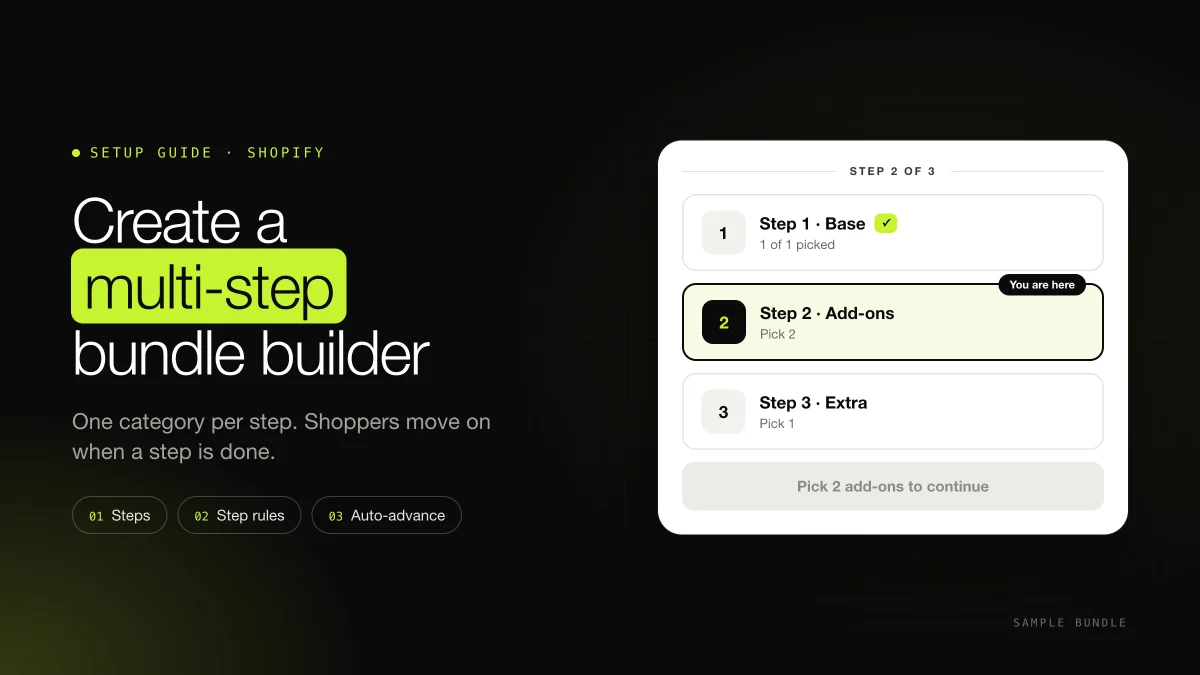
Short answer: A Shopify multi-step bundle builder walks shoppers through a bundle one choice at a time: pick a base, then add-ons, then an extra, then add the whole box to the cart at one price. Shopify's free Bundles app can't do this, so you need a bundle app. I'd use Oxify Bundles Quantity Breaks: each product category becomes a step, step rules cap each step, and auto-advance moves shoppers to the next one. Set the box size to the total of your step caps, so the only way to fill the box is to finish every step.
The walkthrough uses Oxify's screens and Oxify's demo store; the planning advice works in any app. This post covers the guided flow. For the full setup, see how to create a bundle builder on Shopify; for choosing and naming the product groups, see bundle builder categories.
Key facts (checked 18 November 2026)
- Shopify's own app won't do it. Shopify's help center says "The Shopify Bundles app doesn't support mix-and-match bundles," and a bundle built step by step is one. You need an App Store app or a custom build on Shopify Plus.
- The app: Oxify Bundles Quantity Breaks builds multi-step bundle builders on Shopify: each category becomes a step, step rules cap each step and auto-advance moves shoppers on. Its App Store listing showed a Free plan, 5.0 from 14 reviews and the Built for Shopify badge on 18 November 2026.
- Rules cap, they don't require. A step rule sets a maximum for its step but doesn't force a pick. The box size sets the total.
- Auto-advance only moves forward. It sends the shopper to the next step once a step's number is reached. It doesn't run on the "All" tab, so you hide that tab for a guided flow.
- A real example: on Oxify's demo store, a three-step look of $126 came to $107.10 after its 15% discount.
On this page
- What a multi-step bundle builder is
- When steps help, and when they hurt
- How many steps, and in what order?
- How to stop shoppers skipping a step
- Set it up in Oxify, step by step
- What the finished flow looks like
- Make the steps work on a phone
- Do you need a review step?
- How to price a multi-step bundle
- What Oxify's builder can't do
- What the order looks like
- Other apps that advertise multi-step bundles
- Test it before launch
- FAQ
What is a multi-step bundle builder?
It's a build-your-own bundle that asks for one decision at a time. Instead of one big grid where the shopper picks any six things, the page shows one group of products, waits for a pick, then moves on. A typical flow:
- Pick your base (exactly 1): the product the bundle is built around.
- Pick your add-ons (exactly 2): products that go with the base.
- Pick an extra (exactly 1): something small to finish the set.
- Review and add to cart: check the box, see the saving, buy it as one bundle.
It's also called a guided bundle builder, a step-by-step bundle builder or a bundle builder with steps. Still choosing between steps and a simple "any 3 for $X" offer? Read bundle builder vs mix and match first.
When do steps help, and when do they hurt?
Every step is another screen and another place a shopper can stop. A step earns its place when it answers a question the shopper would ask anyway. "Which shade suits me?" is a step. "Which of these six cookies next?" is not. Good steps can lift average order value (AOV), because the shopper leaves with the whole set. Bad steps just add taps.
| Your bundle | Use steps? | Why |
|---|---|---|
| A look or routine with distinct parts (face, eyes, lips; cleanser, serum, moisturizer) | Yes | Each step is one clear decision, and every finished box is balanced. |
| A base plus add-ons (a bag, then straps; a brewer, then beans) | Yes | The first pick frames the rest. Shoppers already think in that order. |
| A meal, snack or gift set with mains and sides | Yes | Caps stop a box of four desserts and no mains. |
| Groups with very different prices | Yes | A cap on the pricey group protects your margin on a discounted box. |
| Any 6 cookies, any 12 drinks | No | Every item is interchangeable. Steps add taps and help nobody. |
| One big category with many flavours | Usually no | Use browse tabs with no rules, so shoppers can mix freely. |
For the "no" rows, use a single-page builder or a plain mix and match bundle. Our guide to build-your-own bundle design compares pick-any, guided and capped formats.
How many steps should a bundle builder have, and in what order?
How many steps
I'd keep most bundles to two to four steps, and start with three. Each step is a new screen on a phone. If you reach five, look for two steps that hold the same kind of product and merge them into one step with a bigger number.
Step order
- Put the defining choice first. The base, the brewer or the main goes in step 1.
- Follow the order customers already use. A skincare routine runs cleanse, treat, moisturize. A look runs face, eyes, lips.
- End with an easy step. A small, low-price add-on makes a quick last pick.
Picks per step
One pick per step is easiest to follow; use two or three for add-ons. If a step needs six picks, it's a pick-any box, not a step. Name each step the way a shopper would say it ("1. Base", "2. Add-ons"), because the heading above the products shows the category's name. For how many products to offer in each step, see products per category. An example step map (the numbers are illustrations):
| Step (category) | Rule | Products in the step | Auto-advance |
|---|---|---|---|
| 1. Cleanser | Quantity is equal to 1 | 4 | On |
| 2. Serums | Quantity is equal to 2 | 6 | On |
| 3. Moisturizer | Quantity is equal to 1 | 3 | Off (last step) |
| Box size | 4 items (1 + 2 + 1), one box size only | ||
How do you stop shoppers skipping a step?
In Oxify, a step rule caps a step (it sets a maximum) but doesn't make it required. Oxify's documentation says it plainly: "Rules limit — they don't require." A shopper can leave a step empty as long as the box is full. So the box size does the enforcing:
Cap every step, and set the box size to the sum of the caps. Then the only way to fill the box is to take the full number from every step.
| Setup | Step caps | Box size | What a shopper can do |
|---|---|---|---|
| Works | 1, 2, 1 | 4 | Only 1 + 2 + 1 fills the box. Every step must be finished. |
| Loophole | 1, 2, 2 | 4 | 0 + 2 + 2 also fills it, so step 1 can be skipped. |
| Broken | 1, 2, 1 | 5 | The most anyone can add is 4, so the box never fills. |
Three more settings protect the math:
- Use one box size. When a full box gets one more item, Oxify moves the shopper up to the next bigger box. Great for pick-any boxes, wrong for exact steps. For a small and a large version, make two builders.
- Leave "Allow customers to add more items than the selected quantity" off. It turns the box size into a minimum.
- Keep every step stocked. If sold-out products are hidden and a whole step sells out, its tab disappears and the remaining caps fall short of the box size, so nobody can finish. See what happens when a category sells out.
How to set up a Shopify multi-step bundle builder in Oxify
Oxify Bundles Quantity Breaks builds multi-step bundles from three settings: each product category becomes a step, step rules cap each step, and auto-advance moves shoppers to the next step. It's all settings, with no code to write. (Oxify's docs at docs.oxify.app still use the app's older name, Oxify Quantity Breaks & BYOB.)
Step 1: Create the builder with one box size
Install Oxify Bundles Quantity Breaks from the Shopify App Store, turn on its app embed and click Create Bundle Builder (the full setup guide covers this part). On the Settings tab, set the Bundle Name shoppers see in the cart, for example "Your signature look".
On the Products tab, open Quantity as an option. Edit Option 1: set Quantity to the sum of your step caps, then set the bundle discount under Discount Type (the demo look is 3 items at 15% off). Delete any other options. To hide the size selector, untick Enable quantity as an option, unless you want a free gift, since gifts belong to box options.
Step 2: Add one category per step, in order
In the Products card, click Add Category for each step, name it, and pick the products in Shopify's picker. Drag categories by the dotted handle into step order, and put each product in only one step (here's why). The categories guide has every click and screen.
Step 3: Turn on step rules and auto-advance
In the Rules Configuration card (the last card on the Products tab), choose Step rules. That puts a rule on your first category. Click Add Rule for each next one.
Set each rule to Quantity · is equal to · N, where N is that step's number of picks. Type the number first, then tick Auto-advance to next step on every step except the last. Order matters: a new rule starts at 0, which counts as already met, so a ticked rule at 0 would push shoppers straight past the step.
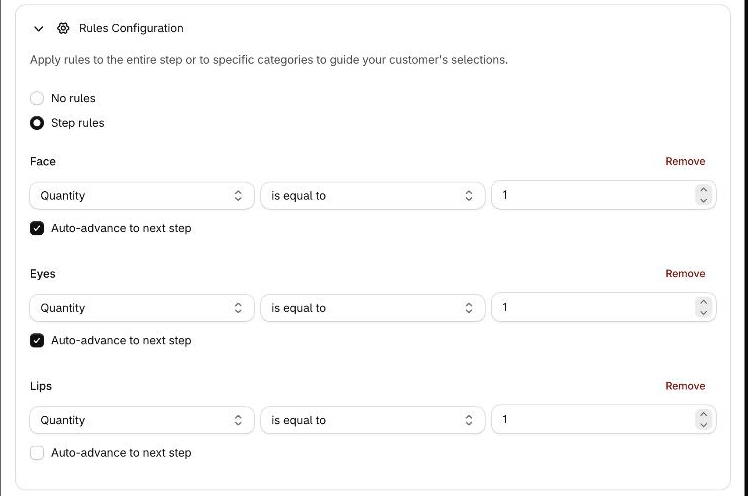
I'd use "is equal to" for exact steps, because its message reads "You must select exactly 1 item(s) from Face". The other two conditions are compared in our guide to category caps.
Step 4: Hide the "All" tab and choose a step style
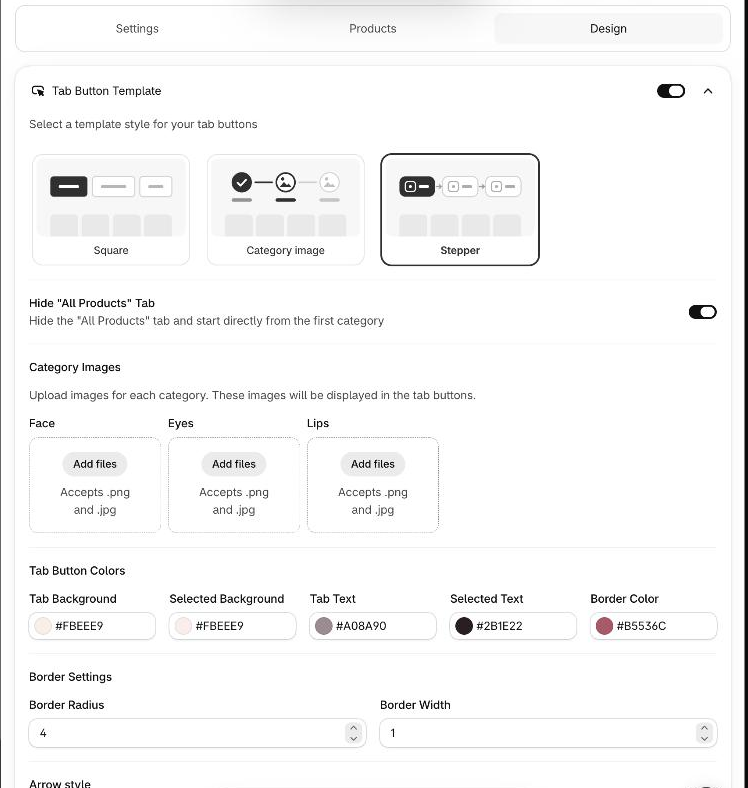
Go to Design and open Tab Button Template. Turn on Hide "All Products" Tab, so shoppers start on step 1 instead of a grid of everything. Auto-advance doesn't run on the All tab, so this switch matters.
Then pick a step style: Stepper (boxes joined by arrows, with a choice of arrow style) or Category image (circles joined by a line, with a tick on each step passed). The tab design comparison covers all three templates.
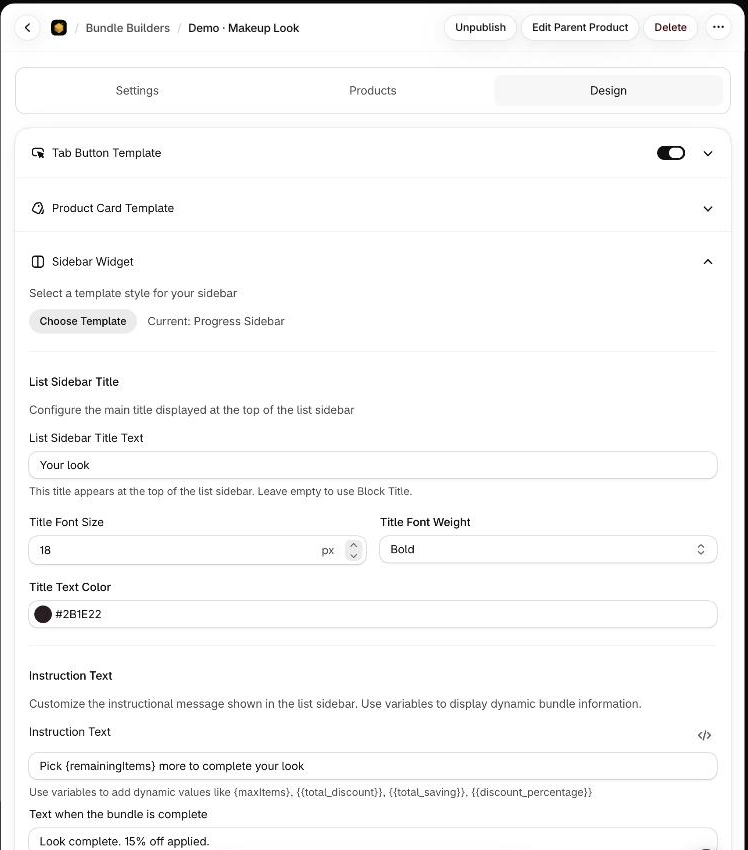
Step 5: Turn the sidebar into a progress bar
Open Sidebar Widget and click Choose Template. For steps, Progress Sidebar is the natural fit: a bar with one segment per slot and a count beside the title. Order Summary suits pricier bundles, because it lists every item with its price, the saving and the total.
In Instruction Text, write something like "Pick {remainingItems} more to complete your look" (type {remainingItems} yourself; it isn't in the variables menu). Set Text when the bundle is complete to, say, "Look complete. 15% off applied." Add to Cart stays off until the box is full.
Step 6: Publish and test
Click Save. A new builder is already set to publish, so saving makes it live. With the default New page setting, Oxify creates an Online Store page for the builder. If you want the steps under your own hero and FAQ sections, see how to build a bundle landing page on Shopify. Then run the test checklist below on a real phone.
What does the finished flow look like?
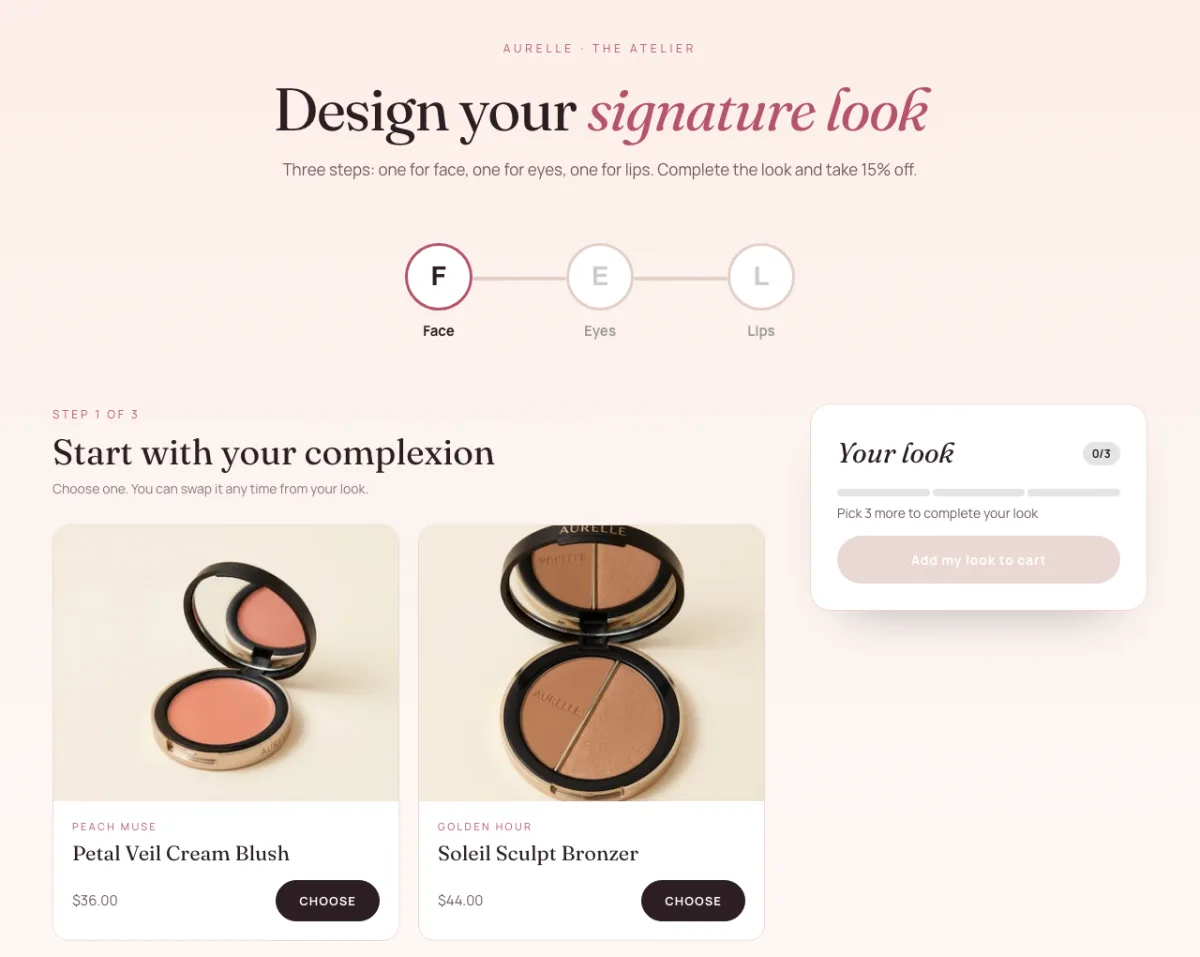
Here's the demo look, clicked through on 18 November 2026: three steps, one pick each, 15% off. The shopper picks the Petal Veil Cream Blush ($36), and the builder jumps straight to Eyes. Face gets a tick, the panel reads 1/3 and "Pick 2 more to complete your look", and the button stays muted.
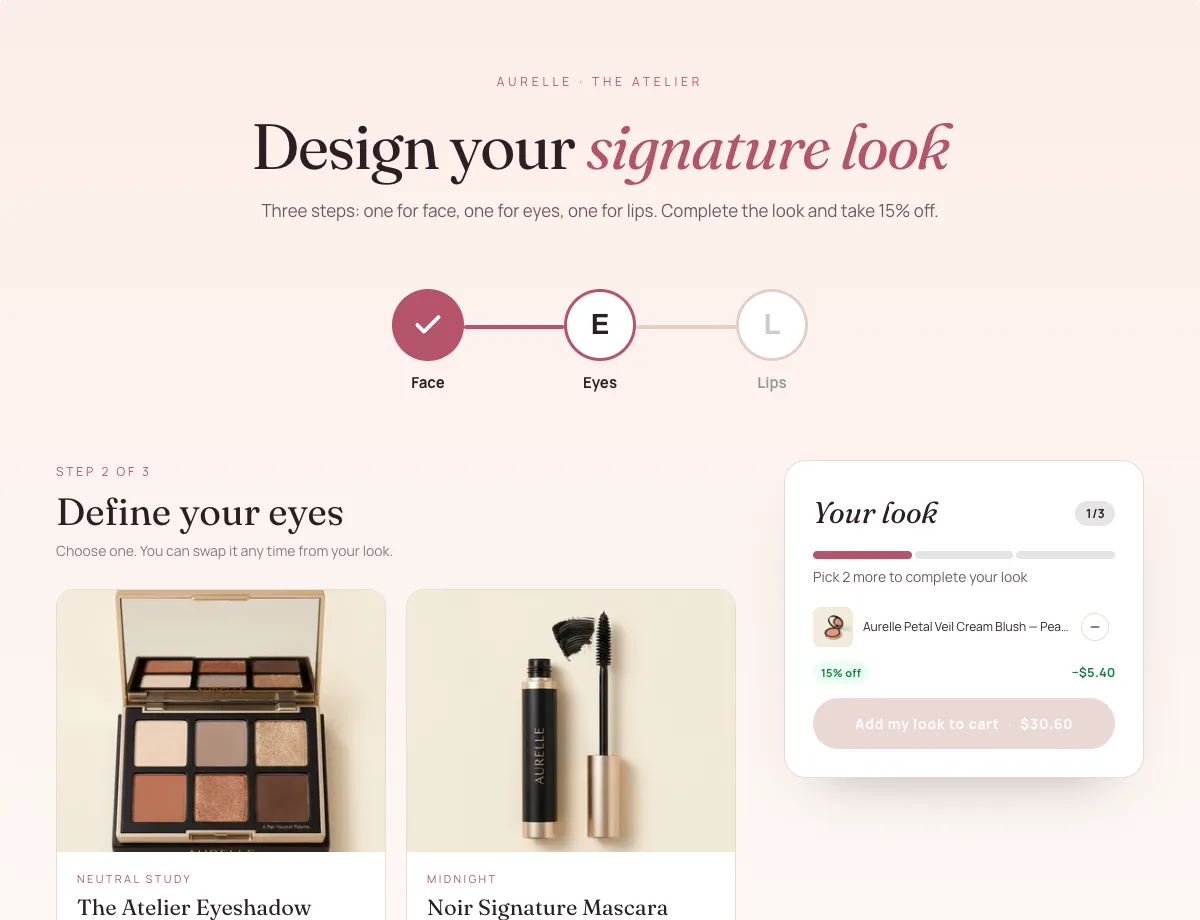
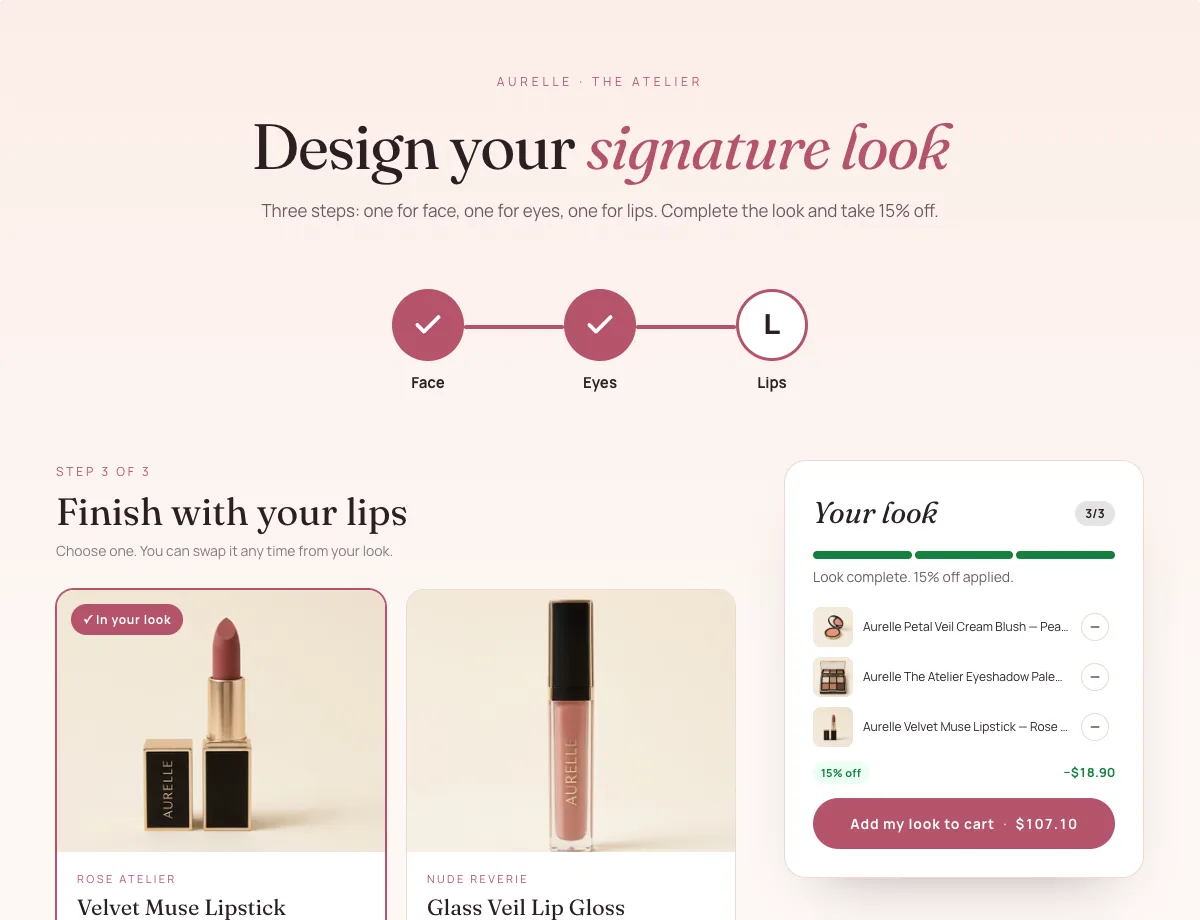
The eyeshadow palette ($58) moves them to Lips, and the lipstick ($32) fills the last slot. The text switches to "Look complete. 15% off applied." and the button turns on at $107.10.
Three things to notice:
- The panel doubles as the review. Every pick has a remove button, and that's where shoppers swap a pick.
- The steps stay clickable. Tapping "Lips" first jumped straight to step 3. No "Next" button locks the order, which is why the box-size rule matters.
- The step headings are extra styling. "Step 2 of 3 / Define your eyes" isn't a built-in setting. Out of the box, the heading is the category's name.
How do you make a multi-step builder work on mobile?
Oxify's docs say most Bundle Builder traffic is mobile, so design for a phone first. On screens 1024px wide or narrower, the built-in layout stacks, and the sidebar sits below the products. Once something is picked, a sticky bar at the bottom shows the item count and total, and jumps to the sidebar when tapped.
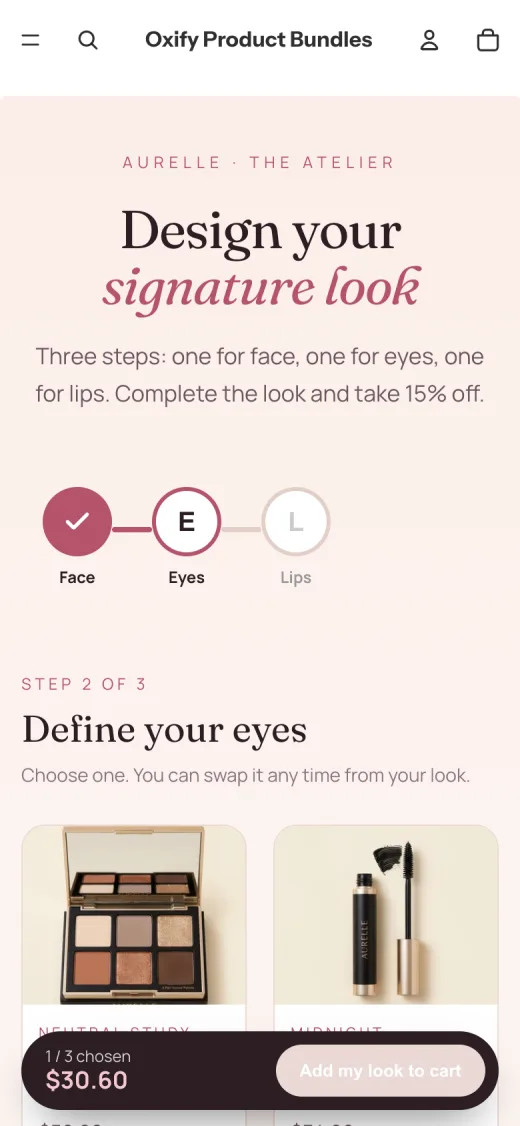
- Keep step names to one or two words, so three fit in one row, as above.
- Choose cards per row on purpose. Cards Per Row (Mobile) takes 1 or 2. Two fits more on screen; one gives room for a variant picker and a long title.
- Try the Quick Add Card. It puts the add button on the image, so more products fit per screen, and picked cards get a tick.
Do you need a review step?
Some flows end with a separate "review your box" screen. In Oxify, the sidebar does that job as the shopper picks: each item has a remove button, the saving updates live, and the Order Summary template reads like a receipt. A separate review screen only earns its place when shoppers type something in, like a gift note, and Oxify's builder has no text fields (see the limits).
After the review comes the cart. Skip cart and go to checkout (Sidebar Widget, under Builder Settings) sends shoppers straight to checkout. Turn it on when the bundle is usually the whole order; leave it off if you run cart upsells or a free-shipping bar.
How should you price a multi-step bundle?
Price the finished bundle, not each step. In Oxify the discount belongs to the box, so the reward sits at the end of the progress bar.
A percentage usually fits steps better than a fixed price, because steps often hold products at different prices. In the demo look, the cheapest full look costs $88 (blush $36, brow pencil $24, gloss $28) and the priciest costs $136 (powder $46, palette $58, lipstick $32). At 15% off, those come to $74.80 and $115.60. Every look gets the same deal.
A fixed price like "any look for $99" would give the $88 look no saving at all, because Oxify's Fixed Price "only ever lowers the total", and would take $37 off the $136 look. If you want a fixed price anyway, read how to create fixed price bundles on Shopify and test your numbers in the bundle calculator. Our bundle pricing strategy guide covers how deep to go.
A free gift also works as a finish-line reward: add it to the box option, and the sidebar shows it locked until the box is full.
What Oxify's builder can't do (and what to do instead)
Oxify covers the common pattern: fixed steps, exact picks, auto-advance, one price. Here's where it stops.
| You need | In Oxify's builder | What to do instead |
|---|---|---|
| A required minimum per step | Rules cap a step; they don't require a pick. | Cap every step and set the box size to the sum of the caps. |
| A "Next" button that blocks skipping ahead | Step tabs stay clickable. | The box-size rule means a skipped step must be filled before checkout. |
| Branching steps ("if they pick X, show Y") | No conditional steps. | Make one builder per path and link them from a short chooser page, or use an app that lists logic rules. |
| A text, upload or gift-message step | No custom fields in the builder. | Use your theme's cart note, or an app with custom fields. Our build your own gift box guide covers gift messages. |
| Steps that fill themselves from collections | Oxify's docs only describe picking products by hand. | Add new products to their step yourself. Product edits sync on their own. |
| A subscription on the finished bundle | Possible with Subscribe & Save, which uses your subscription app's plans and individual cart lines. | See our custom subscription box guide. |
| A different discount per step | One discount per box. | Price the whole bundle, or add a free gift for finishing. |
| Drop-off by step | Analytics are per builder: visitors, orders, revenue, conversion rate. | Duplicate the builder, change the steps, put each on its own page and compare conversion rates. |
What does a multi-step bundle look like on the order?
By default, the cart and checkout show the bundle as one line with your Bundle Name. On the order, Shopify expands it into the real products, so inventory comes off each item picked, and the admin order page lists them under the bundle.
The line properties in Oxify's docs carry the bundle's ID and each item's slot, not the step name, so product titles tell your packer what's what. Order templates can group a bundle on packing slips; how to create custom product kits on Shopify covers that side.
Which other Shopify apps advertise multi-step bundles?
If one of the limits above is a dealbreaker, these apps mention steps on their App Store listings or in their help docs (checked 18 November 2026). I haven't tested them, and plans change. Prices are approximate USD, converted from the INR prices the listings showed.
| Multi-step app | Rating (reviews) | What it says about steps | Plan that lists it |
|---|---|---|---|
| Oxify Bundles Quantity Breaks | 5.0 (14) | Categories as steps, step rules that cap each step, auto-advance (Oxify's docs). No Next-button lock, branching or text fields | Free (the one plan its listing showed) |
| Easy Bundles: Bundle Builder | 4.9 (1,563) | "Single and multistep bundle builder"; custom personalization fields on its Growth plan | Essential, about $29/month (not on the free plan) |
| BundleSuite Bundle Builder | 5.0 (557) | "Build-a-Box & Multi-step bundles"; its help docs show selection limits per step, such as 3 to 5 items | Starter, about $12/month (its free plan is free until you go live) |
| Kefi Product Bundle Builder | 5.0 (154) | Help docs: a Next button that stays off until the step's rule is met, plus a review step and custom fields | Basic, about $9.99/month for up to 50 orders a month (free plan is for development stores) |
| Kitenzo ‑ Bundle Builder | 4.4 (266) | "Guide shoppers step by step, with limits"; "Limits, required products and validation" | 1.5% per bundle transaction |
| Easify Product Bundle Builder | 5.0 (319) | Single or multi-step box pages; custom fields for a gift message, date and upload | Free until box revenue reaches $500/month |
| MBC Bundle Builder BYOB | 5.0 (42) | "2 layouts: single step and multi-step" | Growth, about $19.99/month |
| ZenBox: Bundle Builder | 4.2 (122) | "Unlimited creation steps", a title filter in each step, custom forms for text and image uploads | Standard, about $24.99/month |
| MultiStep Purchase | 5.0 (4) | Step-by-step flows with logic rules that control what appears at each stage, and custom inputs | Basic, about $12/month: 3 steps per flow and 3 products per step; Pro raises that to 10 and 10 |
Every app above except ZenBox and MultiStep Purchase showed the Built for Shopify badge. For a Next button that blocks skipping, Kefi's help docs describe exactly that. For a typed gift note or a photo upload, look at Easify or ZenBox. For branching, MultiStep Purchase lists logic rules, though its Basic plan shows only 3 products per step. We compare 19 builder apps in the best Shopify bundle builder apps.
How do you test a multi-step bundle before launch?
Open the live page on a phone, in a private window, and try to break it:
- Skip a step. Tap the last step first and fill it. Add to cart should stay off until every step is done.
- Over-pick. Add a second item to a one-pick step. You should get the cap message instead.
- Go back. Remove a step 1 pick in the sidebar. The button should switch off until step 1 has a new pick.
- Place a test order. Check the discount at checkout and how the bundle looks on the order and packing slip.
If the builder looks off in your theme, our bundle app theme compatibility guide walks through the usual fixes. After launch, the app's Analytics page shows each builder's visitors, bundle orders, conversion rate and AOV.
Frequently asked questions
Can I put a multi-step builder on a product page?
Can shoppers go back and change an earlier pick?
Can later steps change based on what the shopper picked first?
Can one step let shoppers pick more than one item?
Can a step be optional?
What is the best multi-step bundle builder app for Shopify?
Is there a free multi-step bundle builder app for Shopify?
Build your first guided bundle
A Shopify multi-step bundle builder needs only a few settings. Oxify Bundles Quantity Breaks turns your categories into steps, caps each step, moves shoppers on automatically and prices the finished bundle, with a page created for you when you publish. Start with three steps and one box size, test it on your phone, then grow from there. See everything the bundle builder does on the Oxify product bundles page.