 Oxify
OxifyShopify Thank You Page: How to Edit It + 20 Ideas (2026)
Short answer: The Shopify thank you page is the order confirmation screen a customer sees once, right after payment. Edit it under Settings → Checkout → Edit: choose Thank you in the editor's page selector, then change branding or add app blocks. It works on every plan with no code. The old Additional scripts box is view-only.
The August 26, 2026 non-Plus upgrade deadline has passed, so tracking and widgets that depended on scripts need rebuilding as web pixels and app blocks. Below: how to find and preview the page, why you cannot redirect it, and 20 ideas grouped by goal.
Key Facts (Verified October 11, 2026)
- Every plan can edit it. Branding applies to "the checkout, thank you, and order status pages" on Basic or higher, and so do apps for those two pages. Only apps that change the information, shipping and payment steps are Plus-only. (Shopify Help Center)
- Additional scripts are finished. View-only since August 28, 2025, and "August 26, 2026 was the deadline for stores on a non-Plus Shopify subscription plan to upgrade" their Thank you and Order status pages. Replacement: "blocks and web pixels." (Shopify Help Center, shopify.dev)
- The thank you page shows once. A customer who returns is "shown the Order status page instead," and on the thank you page the order is not yet created. (shopify.dev)
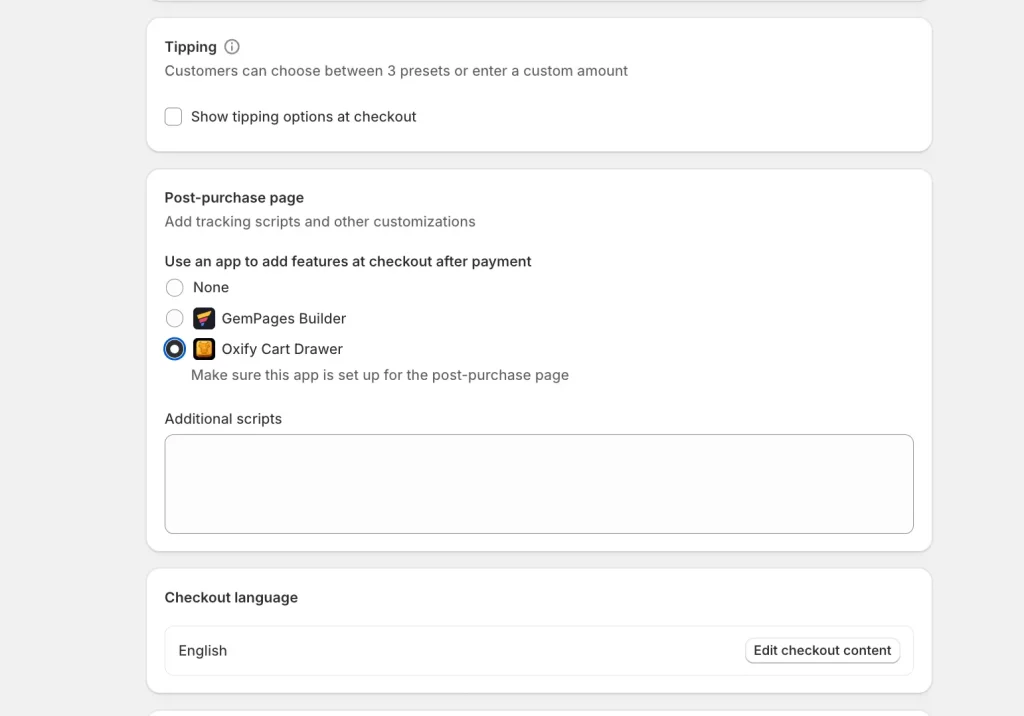
- One-click upsells live on a separate page. The post-purchase page appears after payment "but before they're presented with their order confirmation page," and only one checkout app can use it at a time. (Shopify Help Center)
- You cannot redirect it. Shopify staff: "you cannot auto-redirect customers off the thank-you page to an external site." (Shopify developer community)
Thank you page vs order status page vs order confirmation email
Most "how do I customize the Shopify thank you page" questions are really about one of three different things, and Shopify edits each one in a different place. Work out which one you mean before you open any settings.
| Page | What it is | When the customer sees it | Where you edit it |
|---|---|---|---|
| Thank you page | The confirmation screen with order number, items, totals and delivery details. Shopify also calls it the order confirmation page. | Once, immediately after payment (after the post-purchase page if you run one). | Settings → Checkout → Edit → page selector → Thank you |
| Order status page | The same order details plus fulfillment status, tracking numbers and, for supported carriers, a live map. | Every later visit from the confirmation email, SMS, Shop app or account, for days while the parcel is in transit. | Same editor → page selector → Order status |
| Post-purchase page | A one-click offer page run by one checkout app. Accepted items join the order just paid for. | After payment, before the thank you page. Not on every order (see idea 1). | Settings → Checkout → Post-purchase page → select the app |
| Order confirmation email | The "Order #1001 confirmed" email. Its button opens the order status page. | In the inbox within minutes. | Settings → Notifications → Customer notifications → Order confirmation |
The thank you page and the order status page are the same URL. Shopify's developer docs: "If a customer attempts to return to the Thank you page or check their order status later on, then they're shown the Order status page instead" (shopify.dev). That is why the checkout editor lists them as two pages: what you place on Thank you is seen once, what you place on Order status is seen on every revisit.
The practical rule: one-time asks (a next-order discount, a survey, a referral prompt) go on the thank you page. Anything the customer needs repeatedly (tracking, delivery estimate, support contact, care instructions) goes on the order status page. We cover the second page in our Shopify order status page guide, and the one-click offer page in post-purchase page vs thank you page.
How to edit the Shopify thank you page in 2026
One supported method, the same on Basic, Grow, Advanced and Plus: the checkout and accounts editor.
- In Shopify admin go to Settings → Checkout.
- In the Configurations section, click Edit on the configuration you want to change (Shopify's help center wording; the Shopify mobile app and older guides say Customize). You can edit a draft configuration as well as the live one. The checkout and accounts editor opens.
- Open the page selector in the top bar and choose Thank you. The other options are Checkout, Order status, Orders, Profile and Sign-in (Shopify Help Center).
- Use the three sidebars: Sections (reorder, remove, add app blocks), Settings (logo, colors, typography, backgrounds) and Apps (installed apps with checkout UI extensions).
- To add an app block, open the Sections sidebar, click Add block in the section where you want it, pick the app's block and configure it in the right-hand panel (Shopify Help Center).
- Check the mobile preview with the phone icon, then Save. The editor is a simulation, so to see the real page follow the test-order steps below.
If you still see an Upgrade notice on the configuration, click Review, rebuild what you need with blocks, then click Upgrade (Shopify Help Center). That notice means the store is still on the deprecated pages, and upgrading replaces them together with every customization on them, so rebuild first. Shopify also upgrades a store's thank you and order status pages automatically, and permanently, if you pause the store.
What you can change without an app
Shopify's branding settings apply to the checkout, thank you and order status pages together: logo (width and alignment), header colors, main content background, form field colors, order summary background color or image, heading and body fonts, and button and accent colors (Shopify Help Center). You can also rearrange or remove existing sections. That makes the page look like your brand; it does not sell or collect anything.
What needs an app
Anything interactive is an app block built on Shopify's checkout UI extensions. The free option is Shopify's own Checkout Blocks app. Shopify's help center says merchants on Basic or higher get its static content and dynamic content blocks, placeable only on the thank you and order status pages, and that every other Checkout Blocks feature is Plus-only (Help Center). Shopify's own examples for these two pages are survey requests, product review prompts, upsell offers, social sharing and download links for digital goods (shopify.dev). One constraint: on the thank you page the order is not created yet, so an extension there can read the order ID but cannot modify the order. Offers that add items run on the post-purchase page or, through order editing, on the order status page.
What happened to Additional scripts and checkout.liquid
Older guides still say "Settings → Checkout → Additional scripts, paste your HTML". That field is now read-only. Here is the timeline with Shopify's own dates.
| Date | What changed | Who it affected |
|---|---|---|
| November 7, 2023 | Checkout-editor customization of the two pages launched; script tags, additional scripts and checkout.liquid on them deprecated. | Plus |
| August 13, 2024 | checkout.liquid removed from the information, shipping and payment pages. | Plus |
| February 1, 2025 | Apps can no longer create script tags scoped to the order status page. | All stores |
| August 28, 2025 | Additional scripts section becomes view-only for every store; checkout.liquid, script-tag apps and additional scripts removed from the two pages on Plus. | Plus (view-only applies to all) |
| August 26, 2026 | Upgrade deadline for non-Plus stores; script tags stop running on the order status page for all other stores. | Basic, Grow, Advanced |
Sources: Shopify changelog, Help Center, shopify.dev (the script-tag dates were re-read there on October 11, 2026).
What replaced them
- Tracking (Google, Meta, TikTok, affiliate networks): web pixels. Use the sales-channel app's pixel where one exists, or paste your own under Settings → Customer events (Add pixel) and subscribe to the
checkout_completedevent (Shopify Help Center). Remove the old code from theme.liquid and Additional scripts first so events are not counted twice. Shopify triggerscheckout_completedonce per checkout, normally on the thank you page; when a post-purchase upsell runs it fires on the first offer page instead and is not triggered again on the thank you page (shopify.dev). Shopify's post-purchase docs add that pixel-based analytics report only the purchase event and value of the initial purchase. Shopify notes web pixels "work on any store, but can't render UI". - Visible content: checkout UI extensions, added as app blocks in the editor. This is now the only way to put a survey, an offer, a video or a message on the page.
- Offers that change the order: post-purchase extensions, selected under Settings → Checkout → Post-purchase page, or order-editing blocks on the order status page.
How to find your Shopify thank you page (and its URL)
There is no fixed thank you page URL to bookmark. Shopify generates a unique URL for each order on your store's domain (it contains /orders/ followed by a long token), and there is no setting to rename it. Three ways to see the page:
- Open a real order's page. Orders → click any order → More actions → View order status page. Shopify: "You're redirected to the same order status page that your customer can view" (Help Center). This is the revisit version, so blocks you placed on Thank you will not show here; blocks on Order status will.
- Place a test order to see the thank you page itself. Go to Settings → Payments, deactivate your live card provider (for Shopify Payments: Manage → Manage payment methods → Switch to a third-party provider), click See all other providers, choose Test payment gateway, activate it and save. Check out with the dummy card details on Shopify's test-order page and you land on the real thank you page with blocks and pixels live. The test order total must be above the equivalent of $1 USD. Customers cannot place live orders while you are in test mode, and the gateway does not support subscription products or POS, so do it off-peak and switch back straight after (Help Center).
- Use the editor preview. Fastest for layout, but it is a simulation: no order, no app data, no pixels firing.
A no-downtime alternative is a real order you cancel and refund immediately (Shopify warns processing fees may apply), or Shopify Payments' own test mode.
Can you redirect the Shopify thank you page?
No, not natively and not with an app. The old trick, a window.location line in Additional scripts, died with that field. When a developer asked on Shopify's forum, staff answered: "A custom app cannot inject scripts into the thank-you / order status page, and you cannot auto-redirect customers off the thank-you page to an external site" (community.shopify.dev). Extensions run in a sandbox with no access to the page.
What works instead:
- Bring the destination onto the page. A form, video, download or booking widget can be shown inside an app block on the page itself.
- A button the customer clicks. Extensions can render a link, so "Start your course" or "Book your fitting" is one tap away. The customer chooses; you cannot force it.
- The order confirmation email. You control every link in it under Settings → Notifications → Customer notifications.
20 Shopify thank you page ideas, grouped by goal
Each idea says which page it belongs on and whether Shopify does it natively or you need an app block. Pick two or three; a page with eight competing asks converts none of them.
Earn more on the next click (ideas 1 to 5)
1. Run a one-click post-purchase upsell before the thank you page. The customer has paid, a single offer appears, and one tap adds it to the order with no card re-entry. Know its limits. Shopify's developer docs (re-read October 11, 2026) say the post-purchase page is not shown when the order was paid with a wallet or installment service (Apple Pay, Google Pay, Amazon Pay, Klarna, Affirm, Afterpay), with a gift card or any method other than a credit card, on local delivery orders, on orders with duties and multiple currencies, on orders under $0.50, or outside the Online Store sales channel. A customer can accept at most three offers per checkout (shopify.dev). One side effect for operations: Shopify holds fulfillment on orders in the post-purchase flow until the customer reaches the Order status page, or one hour after checkout if they never finish. App only. See how one-click post-purchase upsells work and the best post-purchase upsell apps.
2. Add a thank you page upsell widget as the fallback. An app block on the Thank you and Order status pages catches every order the post-purchase page skips, including Apple Pay, Google Pay, PayPal and pay-later orders (Shop Pay card payments do get the post-purchase page). Because the order is not yet created on the thank you page, the widget adds items by order editing or a fast add-to-cart, so expect lower acceptance than idea 1. In Oxify Cart Drawer & Upsells this is the "Thank you page upsell" block: build the offer in the app, then add the block from the Apps sidebar on both pages. Setup: how to add a thank you page upsell; copy: writing post-purchase offers.
3. Give a next-order discount with a deadline. A unique code that expires in 14 days is trackable and creates a reason to return; a generic "10% off" leaks onto coupon sites. Natively, put it in the order confirmation email template. On the page itself it needs an app block.
4. Offer a subscription upgrade on consumables. Coffee, supplements, skincare and pet food get bought again anyway, so offer "make this monthly and save 10%" right after purchase. Post-purchase extensions support subscription offers, but only on orders with a shipping address (not local pickup or digital-only orders). App only. See subscription upgrades in the cart and post-purchase flow.
5. Sell a small add-on: shipping protection, warranty or gift wrap. Low-ticket, high-margin, and easy to say yes to when the main decision is already made. Runs on the post-purchase page or through order editing on the order status page. App only. Details in warranty upsells for Shopify.
Reduce support tickets (ideas 6 to 9)
6. Show live tracking on the order status page. Native. Add the tracking number when you fulfill and Shopify shows the status; for supported carriers it also draws the parcel's location on a map. Customers reach it from the confirmation email, SMS, the Shop app or their account (Help Center). This one idea removes most "where is my order" emails.
7. Print a what-happens-next timeline. Three lines: "Packed within 24 hours. Shipped by [carrier], 2 to 4 days. Tracking email on the way." Put it on the order status page, which customers revisit. App text block.
8. Answer the three questions people email about. Can I change my address? Can I add an item? How do returns work? Put the answers, with the cutoff time for address changes, in a short FAQ block on the order status page. App block.
9. Show one contact channel and its hours. A visible "Reply to your confirmation email or chat 9 to 6 GMT" beats a customer hunting for a contact page and opening a chargeback instead. App block, or a line in the confirmation email natively.
Grow the relationship (ideas 10 to 16)
10. Referral offer. "Give a friend $10, get $10" lands best at peak satisfaction, and the thank you page is the peak. Show a personal link with one-tap share buttons. App block from a referral or loyalty app.
11. Set the review request up, but do not make it yet. They have not received the product. Say "we'll check in once it arrives" on the thank you page, then put the actual review prompt on the order status page once the status reads Delivered, or email it 7 to 14 days after delivery. Shopify's own docs list product reviews as an order status page use case, "when they revisit their purchase" (shopify.dev).
12. Social follow and a UGC hashtag. One line, one hashtag, one follow button. Ask for the unboxing photo, not a generic follow. App block.
13. One-question survey. "How did you hear about us?" with five radio buttons gets far more answers than a form, and the answers correct your ad attribution. Thank you page only. App block.
14. Account creation. Shopify's newer customer accounts sign in with an emailed one-time code, so "save your details for next time" is one tap, not a password form. Native: the order status page already asks customers to sign in to see full details; reinforce it in the confirmation email.
15. Loyalty enrollment with the points already earned. "This order earned 240 points. 260 more unlocks free shipping." Concrete numbers work; "join our rewards program" does not. App block from your loyalty app.
16. App download. Shopify promotes Shop app delivery tracking on the order status page for stores with the Shop channel. If you have your own app, add a download block with the one reason to install (early access, in-app reorder).
Content that helps (ideas 17 to 20)
17. A getting-started guide. For anything with a setup step (skincare routine, supplement dosing, a device), a three-step "how to use it" on the order status page cuts returns from confusion. App text or video block.
18. An unboxing or "what to expect" video. Twenty seconds from the founder, showing the box and the product, pre-empts "is this what I ordered?" tickets. App video block.
19. Complete-the-set cross-sell content. Show the rest of the collection as a bundle with the saving stated in currency, not percent. Present it as content ("customers who bought the cleanser use it with…") rather than a hard sell. App block; see the best Shopify bundle apps for the bundle side.
20. Download links and care instructions. Digital goods, warranty PDFs, size guides for gifts, washing instructions. App block.
Where to start: ideas 1, 2 and 6, in that order. The post-purchase upsell earns first, the thank you page widget catches the wallet orders it misses, and tracking on the order status page stops the support tickets that eat that margin.
Which app to use for the thank you page
Ratings and prices checked on the Shopify App Store on October 11, 2026, except where a row says otherwise. All run on checkout UI extensions.
| App | Rating (reviews) | Pricing | Best for |
|---|---|---|---|
| Oxify Cart Drawer & Upsells (ours) | 4.9 (40) | From $9.99/mo by order volume, every feature on every plan, 14-day free trial | Stores that want cart, post-purchase and thank you page upsells from one app |
| ReConvert (listed as ReConvert post purchase upsell, by Upsell.com) | 4.8 (3,108) | Free up to 50 orders or $50 upsell revenue, then from $9.99/mo; 14-day free trial on paid plans | A dedicated thank you page upsell with a drag-and-drop editor, alongside cart, checkout and product page upsells |
| AfterSell Post Purchase Upsell | 4.9 (1,051) on September 23, 2026 | From $34.99/mo, 30-day free trial (free plan is for dev stores only), per the September 23, 2026 listing | Post-purchase funnels with A/B testing, plus thank you page offers. On October 11, 2026 the AfterSell listing showed "not currently available"; check the listing before installing. |
| Shopify Checkout Blocks | 4.1 (220) | Free, made by Shopify | Static and dynamic content blocks on the thank you and order status pages on Basic or higher, no upsells |
If the thank you page is the only thing you want to change, ReConvert and AfterSell are the dedicated specialists (check AfterSell's listing first, see its row); see ReConvert alternatives and AfterSell alternatives for how they compare. The longer list is in the best Shopify thank you page apps.
Try Oxify on your thank you page. Oxify Cart Drawer & Upsells adds a one-click post-purchase offer, a thank you and order status page upsell block, and cart-drawer upsells, from one dashboard with no code. Rated 4.9 on the Shopify App Store, Built for Shopify. See the thank you page upsell feature or install it from the App Store with a 14-day free trial.