 Oxify
How to Upsell on Shopify: Step-by-Step (With and Without an App)
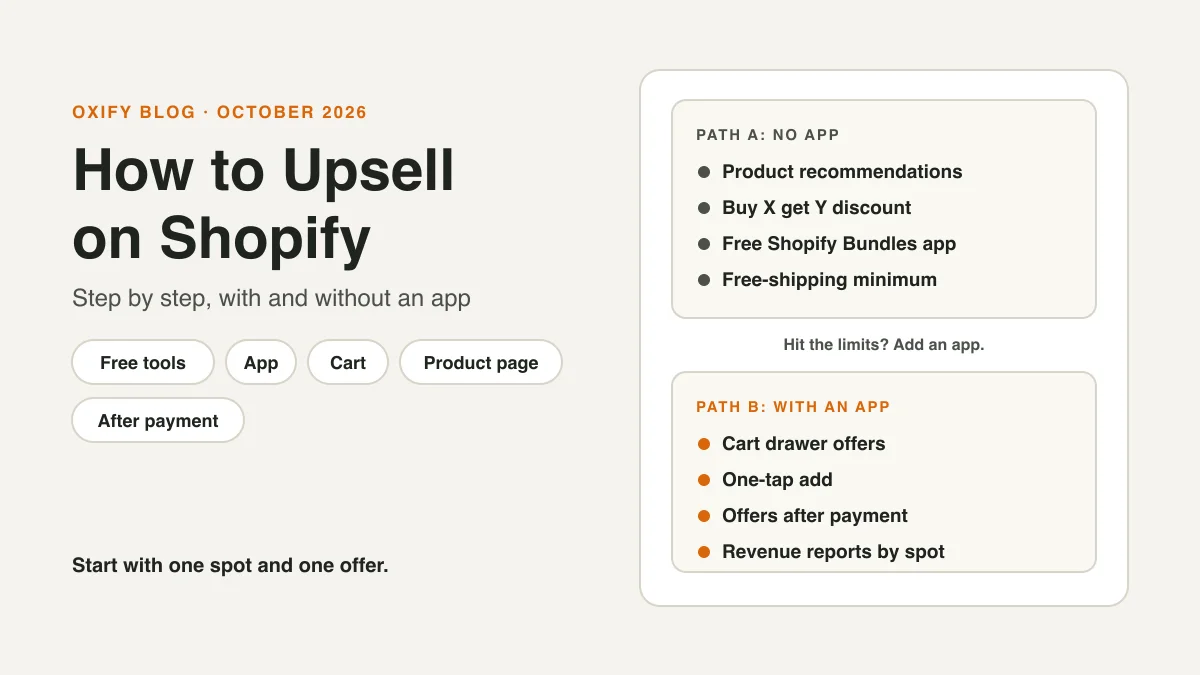
You can upsell on Shopify two ways: with Shopify's own free tools, or with an app. The free tools cover product pages. An app adds offers in the cart and right after payment. Offers inside the checkout steps need Shopify Plus.
Most stores should start free, then add an app when they hit the limits. This guide gives the steps for both, plus a fix-it table for when an offer doesn't show.
An upsell is an offer for a better version or an extra item, made to someone who is already buying. Not sure how that differs from a cross-sell? Read upselling vs cross-selling.
Jump to: before you start · pick a spot · pick an offer · 8 free ways · app steps · real stores · fix-it table · measure it · FAQ
Quick Answer (For Skim Readers)
- No app: use Shopify's product recommendations, a Buy X get Y discount, the free Shopify Bundles app, pack deals and a free-shipping minimum.
- Cart or after-payment offers: you need an app. Without one, the cart only gets a basic add-on section, and the moment after payment gets nothing.
- Shopify Plus: only needed for offers inside the checkout steps. Product page, cart and after-payment offers work without it.
- Where to start: one spot, one offer. A small add-on in the cart is a good first try. With no app, start with a product-page pair.
- How many offers: two or three at most. In Growth Suite's data, shoppers said yes to only 1% of the 4th offer they saw.
- How to check it worked: compare revenue per visitor and average order value, before and after.
What I'd do first. I'm Aditya, co-founder of Oxify.
If I were adding upsells to a store today, I'd go in this order: a free-shipping bar and one small add-on in the cart, then a pair on my best-selling product pages, then one post-purchase offer once I had a few hundred orders a month.
That order follows our own numbers: in the four Oxify stores I show below, the cart drawer earned the most at three of them.
Before You Start (10 Minutes)
Do these four things first. They save you from guessing later.
- Write down your starting numbers. From your Shopify analytics, note average order value and conversion rate. You'll compare them in two to four weeks.
- Know your margin. Decide the biggest discount you can afford on an add-on. A 20% offer on a thin-margin item can lose money.
- Check your theme. Some Shopify blocks only work in compatible themes. If a block is missing in the theme editor, check this first.
- Pick one spot. Offers in three places at once make it impossible to see which one worked.
Step 1: Pick Your Spot
Where you place the offer decides what you can build. Here is what each spot needs.
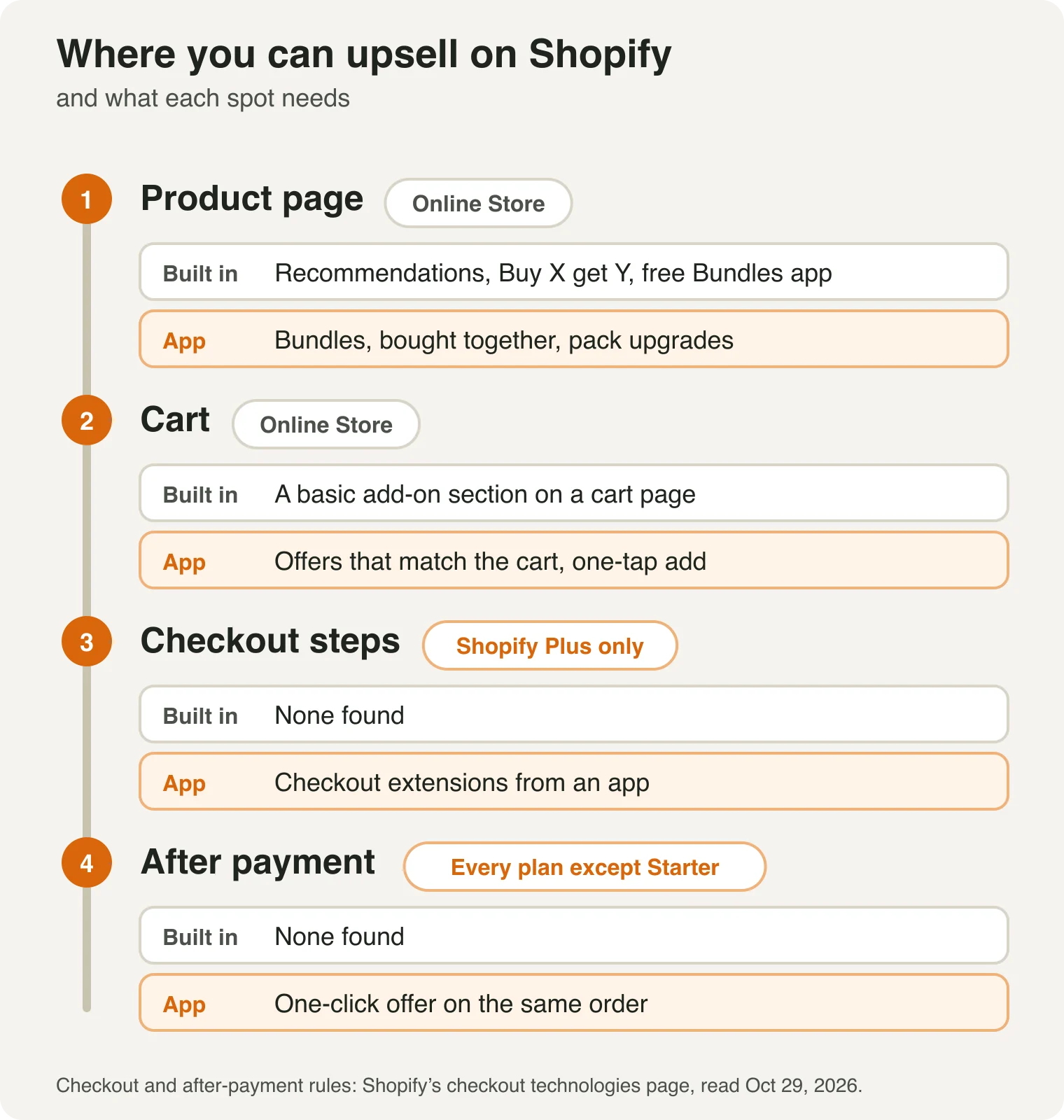
- Product page and cart: part of your online store. No Plus needed.
- Checkout steps: offers between "cart" and "pay" need Shopify Plus.
- After payment: works on every plan except Starter. It is a one-click offer on the same order.
- Thank-you page: a fifth spot, also on every plan except Starter, with an app. An offer here can't add to the paid order in one tap the way a post-purchase offer can.
Want the numbers on each spot? See pre-purchase vs in-cart vs post-purchase upsells.
Step 2: Pick Your Offer
These offers cover almost every store:
- A premium version: the $85 helmet next to the $60 one. Best on the product page.
- A pack upgrade: "buy 3, save 10%." Best on the product page.
- A pair: shampoo, then conditioner. Best on the product page or in the cart.
- A small add-on: gift wrap, a refill, a travel size, or product protection. Best in the cart.
- A subscription upgrade: "subscribe and save 10%" on something people reorder. Best in the cart or on the product page.
- A free-shipping nudge: "add $6 for free shipping." Best in the cart. At Replenhair, where many products cost £14.99, we used a free-delivery bar for exactly this.
- A matching item after payment: one tap, same order. Best on the post-purchase page.
Three rules keep offers easy to accept:
- Match the order. Ask what a good shop assistant would hand over at the counter.
- Keep it small. My rule of thumb: in the cart, 10% to 25% of the cart total. After payment, about 25% of the order or less. These come from practice, not Shopify rules.
- Never offer what's already in the cart. Hide an offer once the shopper has added that item.
Path A: Upsell Without an App (8 Free Ways)
These use Shopify's own tools. Two of them, Search & Discovery and Bundles, are apps, but Shopify makes them and they cost nothing. We include them for that reason.
1. Add "complementary products" to your best sellers
Complementary products are items that go well with the one on the page.
- In your Shopify admin, open Apps, then Search & Discovery.
- Click Product recommendations, then Add recommendations.
- Pick a product. Add up to 10 complementary products. Click Save.
- In the theme editor, add the Complementary products block to your product page.
Two catches, from Shopify's help page: the block only works in compatible themes, and products must be in stock and active, or Shopify hides them.
2. Make a "Buy X, get Y" discount
- In your admin, go to Discounts and click Create discount.
- Choose Buy X get Y. Under Method, pick Automatic discount, so shoppers don't need a code.
- Pick the item they buy and the item they get. Set the second one free, or a percent or amount off.
Set the second item free and you have a gift with purchase.
The catch: Shopify says customers must add both items to their cart themselves. It never adds the "get" item for them. So say it on the product page: "Add the conditioner and get 20% off."
3. Sell a bundle with the free Shopify Bundles app
- Install Shopify Bundles from the App Store.
- Create a fixed bundle or a multipack from your admin.
- Give it a clear name and a small saving.
It is free and made by Shopify. When we looked in October 2026 it had 2.8 stars from 571 ratings, so read the reviews and try one bundle first.
4. Sell packs: "Buy 3, save 10%"
Pick one of two free ways.
Way A: a pack variant.
- Open the product in your admin.
- Add an option called Pack with values like "Single", "3-pack" and "6-pack".
- Price the bigger packs so each unit costs a little less.
- Label the best deal "3-pack (best value)".
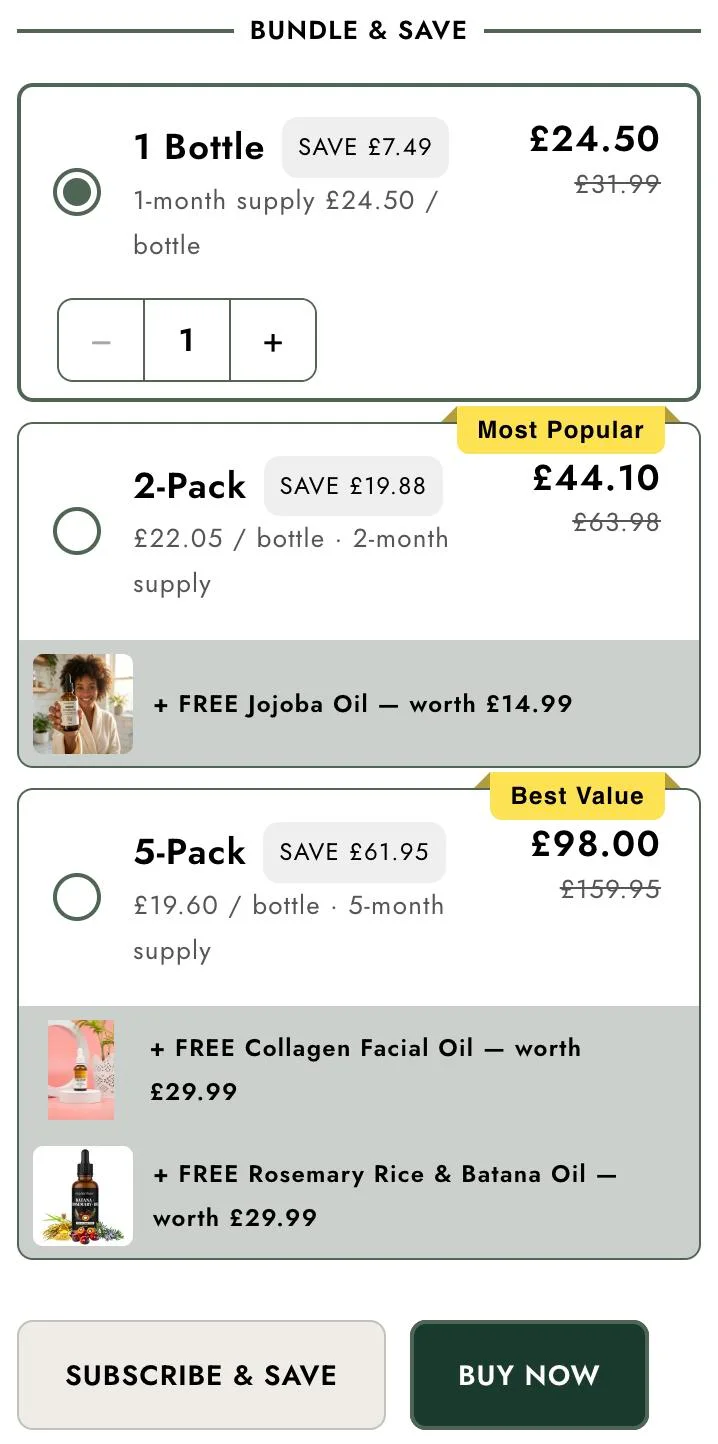
Way B: an automatic discount.
- Go to Discounts, then Create discount.
- Choose Amount off products. Under Method, pick Automatic discount.
- Pick the product and enter a percentage, like 10%.
- Under Minimum requirements, choose Minimum quantity of items and enter 3.
The steps come from Shopify's amount off discounts page. Two catches:
- One discount is one deal. For tiers like "5% off 2, 10% off 3", Shopify's help center points to discount apps (or Checkout Blocks on Plus).
- Tell shoppers about it. Put "Buy 3, save 10%" near the Add to Cart button, or they may never see it.
5. Set a free-shipping minimum
- Go to Settings, then Shipping and delivery.
- Add a free shipping rate that starts at a minimum order price. Your screen may look different if your store uses shipping options by market.
- Put the number in your announcement bar: "Free shipping over $50."
The limit: a typed banner can't count down as the cart fills up. An app can. Here is one on a real store:
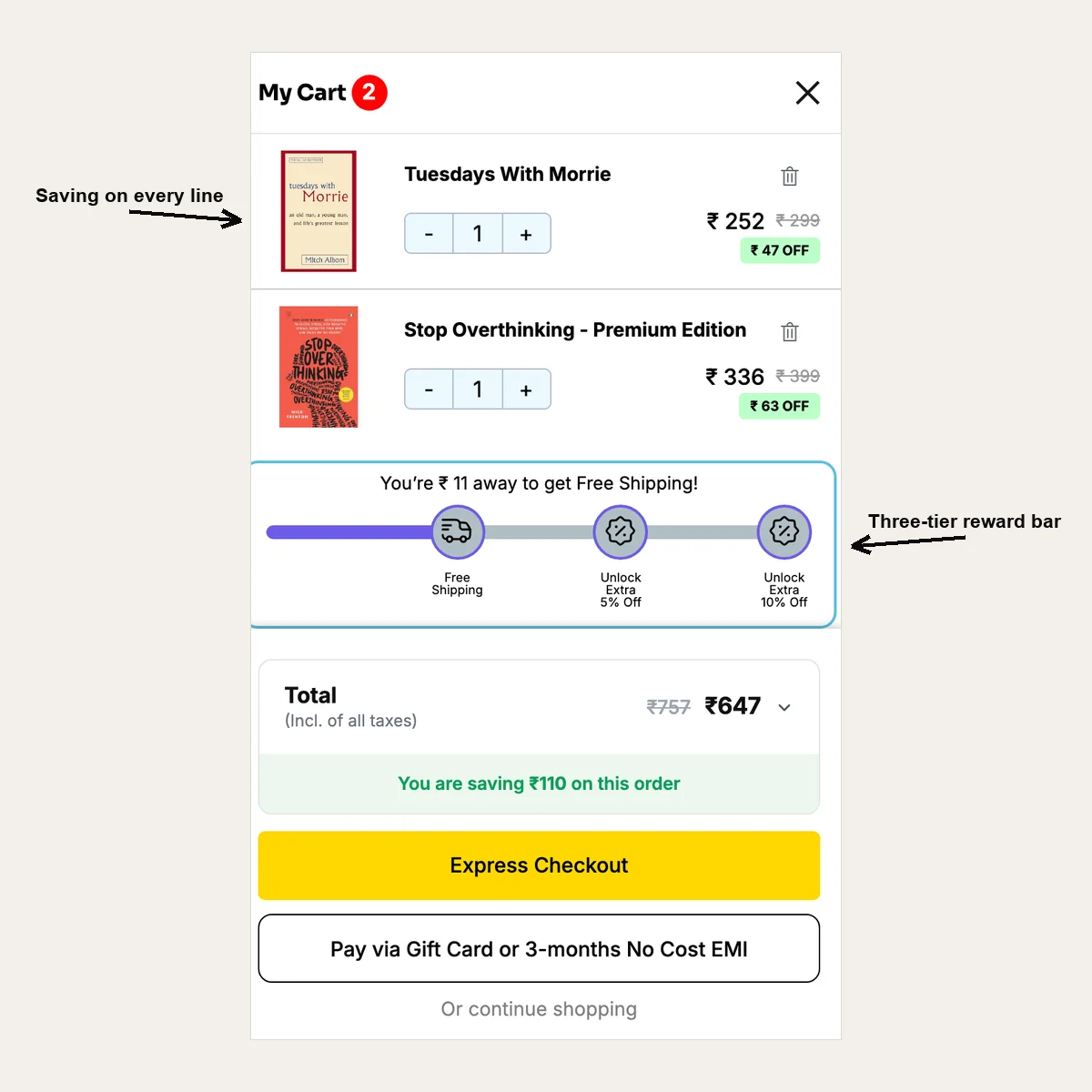
We built that drawer for Crossword Bookstores in India. We put the bar right above the total, where the shopper is already looking at the number we're asking them to raise. Crossword reports a 20% rise in additional revenue against its pre-Oxify baseline. That's their number, not a test we ran. More in the Crossword case study.
6. Link to partner products in your text
- Open each best seller.
- Add one line to the description: "Pairs well with our Rice Water Conditioner."
- Link the product name.
It costs nothing and takes a minute per product.
7. Add small extras to your cart page
- If your theme uses a cart page (not a slide-out drawer), open the theme editor and switch to the Cart template.
- Try adding a section such as Featured collection.
- Fill the collection with small add-ons.
The limit: everyone sees the same add-ons, whatever is in their cart. Many drawer-style carts don't allow extra sections at all.
8. Offer a paid fast-shipping rate
- Go to Settings, then Shipping and delivery.
- Add a second rate next to your standard one, such as "Express, 2 days, $9."
- Only add it if you can truly ship faster.
Shoppers in a hurry upgrade at checkout. The money is shipping revenue, so it likely won't show up in an upsell report.
What you can't do without an app
- Show cart offers that change with what is in the cart.
- Add an item in one tap from the cart.
- Show an offer after payment.
- Add offers inside the checkout steps. That needs Shopify Plus.
- See revenue by offer.
We found no built-in cart or post-purchase offer builder in Shopify's help pages (checked October 2026). If that changes, we'll update this page.
Skip these old tricks. Many tutorials still tell you to paste code into the checkout.liquid file or the "Additional scripts" box to add checkout upsells.
Shopify's developer docs say checkout.liquid no longer works for the checkout steps, and both it and Additional scripts were switched off for the thank-you and order status pages on August 28, 2025. Our post on the post-purchase page vs thank-you page explains what replaced them.
Path B: Upsell With an App (5 Steps)
1. Pick the spot first, not the app
Use the map in Step 1. An app that is great after payment may do nothing in the cart.
2. Shortlist apps that cover that spot
Compare these five things:
- Which spots it covers.
- Reviews, and the Built for Shopify badge.
- Price at your order count, not the headline price.
- A free plan or trial.
- Revenue reports by spot.
Our lists can help: best Shopify upsell apps, cart drawer apps and post-purchase apps. We make Oxify, which is on those lists, so read them with that in mind.
3. Install it and turn on one offer
Most apps ask for the same four things:
- Trigger: which product or collection starts the offer.
- Offer: which product to suggest.
- Discount: none, or a small one.
- Message: a short line with the benefit and the price.
Here is what that looks like in Oxify's cart editor. You choose how offers are picked, edit the text, then click Enable. Other apps use different screens, but the choices are alike.

Then flip the switches outside the app. These are the steps people miss most, and Shopify controls them, not the app:
- Cart and product page offers: in the theme editor, open App embeds and turn the app on. If you switch themes later, Shopify says app embeds aren't active in the new theme by default, so turn them on again.
- After-payment offers: go to Settings, then Checkout. In the Post-purchase page section, pick your app. Only one app can run there, and the section appears only after you set up the app.
- Checkout offers (Plus only): in Settings, then Checkout, open the checkout editor and add the app's block where you want it.
The post-purchase and checkout steps come from Shopify's checkout apps help page.
For a full walk-through in a cart drawer, see how to add a cart drawer upsell in 7 steps. For the moment after payment, read what is a post-purchase upsell, then the one-click post-purchase setup guide.
4. Test it like a shopper
- Open your store on your phone, in a private window.
- Add your best seller. Is the offer there? Can you add it in one tap?
- Run only one cart app. Two apps in one cart can make offers vanish or flicker.
- Make sure the offered item is in stock.
5. Run it for two to four weeks, then change one thing
Change the offer, the price or the spot, but only one at a time. Otherwise you won't know what moved the numbers.
Which Path Fits You?
| You want... | Use |
|---|---|
| Free, and ready this afternoon | Path A, on your product pages |
| Offers in the cart | An app |
| Extra revenue after payment | An app with post-purchase offers |
| To see which offer earns what | An app with reports |
| Full control, and you have a developer | Custom code with Shopify's Cart API |
Custom code gives you control and no monthly fee. But you also own the testing and the upkeep, and a small theme change can break it.
What Real Stores Set Up, and What It Earned
These stores use Oxify. The figures are what our dashboard credits to each spot. They are not tests, and a £0 spot can simply mean it wasn't switched on.
| Store and setup | Where the money came from |
|---|---|
| Replenhair (UK hair care): cart drawer with the matching product, add-ons at 10% off and a free-delivery bar; bought-together blocks on product pages; one post-purchase offer | Cart drawer £8,742 (57%) Product page £4,136 (27%) Post-purchase £2,573 (17%) Since install, read 31 July 2026 |
| Crossword Bookstores (India): custom cart drawer with a three-tier reward bar and the saving shown on every line | Cart drawer ₹340,639 (100%) Since install, read 31 July 2026 |
| A Swedish store: cart drawer offers and a one-click post-purchase offer | Cart drawer 6,842 SEK (62%) Post-purchase 4,210 SEK (38%) Last 30 days |
| A UK store: product page offers only | Product page £1,200.34 (100%) Last 30 days |
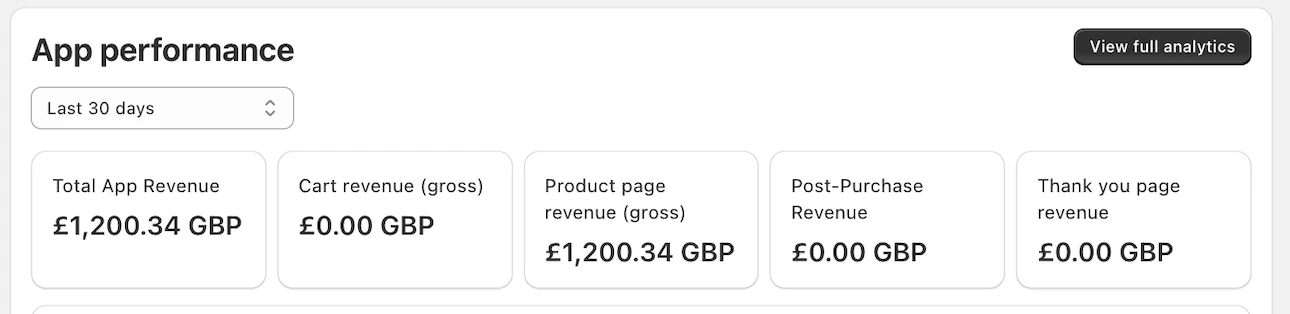
What I take from this: three of these four stores made most of their money in the cart drawer, and the fourth made all of it on the product page.
The spot you switch on and tune is the one that earns. So start with one, then add the next. More detail in the Replenhair and Crossword case studies.
Want the rest of the product page in shape too? Use our Shopify product page optimization checklist.
My Offer Isn't Showing: Quick Fixes
| What you see | Likely cause | Fix |
|---|---|---|
| The block of paired products is empty | A product is out of stock or not active, or the theme isn't compatible | Check each product's status and stock. Try a compatible theme. |
| A Buy X get Y deal didn't add the free item | Shopify doesn't add it for the shopper | Tell shoppers to add both items. Say so on the product page. |
| A cart offer never shows | The app embed is off (common after a theme change), a second cart app, or the item is out of stock | Turn on the app embed. Run one cart app. Check stock. Then use our five-minute check. |
| No offer after payment, on any order | The app isn't picked in the Post-purchase page setting | Settings, then Checkout, then pick the app. |
| No offer after payment on some orders | Shopify skips orders paid any way other than a credit card (wallets, pay-later plans, gift cards), local delivery, orders with duties and several currencies, orders under $0.50 and orders outside the Online Store | Expected. Check your payment mix before judging the offer. |
| Checkout offer missing (Plus) | The block isn't added in the checkout editor | Add the app's block, then save. |
| Offers show, but nobody adds them | The item doesn't match, or the price gap is big | Offer a partner item at 10% to 25% of the cart. |
The post-purchase limits come from Shopify's product offers docs, which also say the feature is still in beta.
How to Tell If It's Working
Watch three numbers, before and after:
- Take rate: offers added ÷ offers shown. Growth Suite, which makes a rival app, averaged its own stores from January to June 2026: 12% in the cart drawer, 7% on product pages and 6% after payment. Stores ranged from under 2% to over 20%. Apps count "shown" in different ways, so a lower number in your app isn't always worse.
- Average order value: total sales ÷ number of orders.
- Revenue per visitor: total sales ÷ visitors. This is the judge. If it goes up, keep the offer.
Also watch your checkout rate. If it drops after you add an offer, the offer may be in the way. Our guide to measuring upsell performance shows how.
No app reports? Check your Discounts page to see how often each discount was used. Then compare average order value before and after.
5 Mistakes to Skip
- Too many offers. Two or three per visit is plenty. Shopify's own guidance for post-purchase pages caps it at three in a row.
- Big price jumps. A $60 offer on a $25 cart feels like a second purchase.
- Random products. Dog food shoppers don't want a cat toy.
- Several upsell apps at once. They can't see each other's offers.
- Skipping the phone check. Many shoppers use phones, and a tiny offer on a small screen can hide below the fold.
Worried that offers hurt sales? Read do upsells hurt conversion rate? for a simple break-even test. For more spots and ideas, see how to increase average order value on Shopify.
Related Guides
- How to add an upsell at checkout, with or without Plus
- Best Shopify checkout and post-purchase upsell apps
- 11 cross-sell and product recommendation apps compared
Frequently Asked Questions
How do I upsell on Shopify without an app?
Does Shopify have a built-in upsell feature?
Do I need Shopify Plus to upsell?
What is the best way to upsell on Shopify?
Can I add upsells to Shopify checkout?
How long should I run an offer before judging it?
How do I know if my upsell is working?
About This Guide
- Who: published by Oxify, which makes Shopify upsell apps. We say so wherever our own data or product appears.
- How we checked it: admin steps and plan rules come from Shopify's help center and developer docs, read on October 29, 2026. Offer rates come from Growth Suite's 2026 data. Store results come from Oxify dashboards. We did not screen-record every step, and Shopify changes its admin often. If a button has moved, tell us.
- Why we wrote it: to show where the free tools stop and an app starts, so you can choose with the facts in front of you.
Ready to Add the Cart and Post-Purchase Spots?
When you outgrow the free tools, try Oxify Cart Drawer & Upsells. It adds offers in the cart drawer, on the product page and after payment, all in one app with one dashboard.
Start a 14-day free trial on the Shopify App Store and turn on your first offer.
My promise: put Oxify Cart Drawer live with at least one offer for 30 days. If your average order value hasn't gone up, email us and we'll refund 100% of what you paid. See pricing.